DOORS Bridge Installation
 |
Codebeamer DOORS Bridge is a standalone web application running on Microsoft Windows. To use this feature, you need a Premium or an Advanced FlexLM license. A legacy license requires the DOORS Bridge license option. Contact PTC Support with questions or technical issues.
|
Prerequisites
Before installing Codebeamer DOORS Bridge, cover the following:
1. Windows 8.1 64-bit or later—IBM® Rational® DOORS® supports Windows 8.1 or later versions, with 64-bit architecture.
2. Java JRE or JDK version 21—Download and install a 64-bit Java SE Runtime Environment (JRE) or a full Java Development Kit (JDK) version 21.
◦ JRE—Set the location of the installed JRE (for example, C:\Program Files\Java\jre<jre_version>) in the environment variable called JRE_HOME.
◦ JDK—Set the location of the installed full JDK (for example, C:\Program Files\Java\jdk<jdk_version>) in the environment variable called JAVA_HOME.
3. IBM® Rational® DOORS® client versions from 9.6 up to 9.7—Install an IBM® Rational® DOORS® client version from 9.6 up to 9.7. We recommend DOORS 9.7.2.1. Note the following:
◦ DOORS Bridge does not support DOORS versions older than 9.6 due to missing DXL functions.
◦ Ensure that only the IBM® Rational® DOORS® client is installed on the same server where you plan to install DOORS Bridge.
◦ The IBM® Rational® DOORS® Database Server and the IBM® Rational® License Key Server can be located anywhere on the network.
4. Application for OLE objects—If OLE objects are embedded in rich text attributes of the objects to export via DOORS Bridge, all applications (such as Adobe Acrobat for PDF, Microsoft Office for MS Word and Excel, and so on) associated with exportable OLE objects must also be installed on the same server where you plan to install DOORS Bridge.
If there is no associated application installed for a specific OLE object, the IBM® Rational® DOORS® client does not export the unregistered OLE object, or it only exports a preview picture (in some cases, the OLE preview picture may be totally blank).
5. Minimum hardware requirements for a large number of objects—If you plan to export a large number of DOORS® modules with tens of thousands of objects and hundreds or thousands of embedded OLE objects, the server where DOORS Bridge and the DOORS® client are installed should have at least:
◦ 8 cores.
◦ 8 GB of available memory.
◦ 256 GB of free disk space on the volumes where BRIDGE.tempDir and DOORS.localdata are present. For more information, see the next section, Downloading
and Installing DOORS Bridge.
Downloading and Installing DOORS Bridge
To install DOORS Bridge, follow these steps:
1. Download the latest version of DOORS Bridge from the PTC Software Download page.
2. Unpack the downloaded ZIP archive to a preferred location. For example, C:\DOORS Bridge
|
|
When unpacking and installing to C:\Program Files, make sure to grant write permissions for the DOORS Bridge folder recursively.
|
3. Edit the file ~\DOORS Bridge\application.properties, and set the values according to the following reference table:
|
Property
|
Required
|
Description
|
Default Value
|
Example
|
|---|---|---|---|---|
|
server.port
|
Yes
|
The server port of the application.
|
8080
|
server.port: 8080
|
|
server.servlet.context-path
|
No
|
The context path of the DOORS Bridge web service.
|
/db
|
server.servlet.context-path: /db
|
|
BRIDGE.home
|
Yes
|
The absolute path of the DOORS Bridge installation.
|
BRIDGE.home: C:\\DOORS Bridge
|
|
|
BRIDGE.tempDir
|
Yes
|
The directory where DOORS Bridge must store its temporary data, such as unwrapped content and preview images for OLE Objects.
The directory must exist and be writable. You can specify the absolute path to an alternative temporary directory that must already exist and be writable.
|
java.io.tmpdir
(If not set, DOORS Bridge stores its temporary data in the directory defined by the java.io.tmpdir system environment variable).
|
BRIDGE.tempDir: C:\\DOORS Bridge\\temp
|
|
BRIDGE.tempDirTimeout
|
No
|
The timeout for a non-accessed temporary directory before the system deletes it.
You must not set this to less than 5min or more than 24h. The higher this timeout, the more temporary disk space the DOORS Bridge may require.
|
30min
|
BRIDGE.tempDirTimeout: 30min
|
|
DOORS.exe
|
Yes
|
The absolute path to the DOORS client executable.
|
DOORS.exe: C:\\Program Files\\ibm\\Rational\\DOORS\\9.7\\bin\\doors.exe
|
|
|
DOORS.poolSize
|
Yes
|
The maximum number of DOORS clients that can be started in parallel.
This number should not be less than 4 and not more than half of the number of the available system processor cores. You also require sufficient DOORS licenses, RAM, and disk space for this number of DOORS clients.
|
4
|
DOORS.poolSize: 4
|
|
DOORS.port
|
Yes
|
The standard DOORS DXL server port.
You must change this only if the ports [5093 to 5096] are already in use on your system.
|
5093
|
DOORS.port: 5095
|
|
DOORS.database
|
No
|
The information to connect to the DOORS database, in this format: <Port>@<Hostname/IP-Address>
You must set this property only if DOORS Bridge uses a DOORS database connection other than the default DOORS client connection.
|
DOORS.database: [email protected]
|
|
|
DOORS.username
DOORS.password
|
No
|
The credentials for the DOORS Bridge user.
You must set these properties only if your regular DOORS users do not have Edit DXL (in batch mode) permission. For these cases only, the DOORS Administrator must create a special DOORS user with Edit DXL (in batch mode) permission, to be used exclusively by the DOORS Bridge.
|
||
|
DOORS.localdata
|
No
|
The path to LOCALDATA.
You must only specify the absolute path to a different directory if the DOORS client reports problems with LOCALDATA. For more information, see: https://www.ibm.com/support/pages/how-troubleshoot-start-issues-rational-doors#3.
|
<BRIDGE.home>/temp
|
|
|
DOORS.timeout
|
No
|
The maximum timeout limit for the DXL requests to the DOORS.exe process.
If you encounter a timeout when loading large DOORS modules/baselines, you may require increasing this value. In other cases, you must not set this value to less than 2h.
If possible, consider also upgrading to DOORS to 9.7.2.1 or a later version. For more information, see https://www.ibm.com/support/pages/node/6336389#ABOUT
|
2h
|
DOORS.timeout: 4h
|
|
DOORS.timelimit
|
No
|
The maximum time limit for the DXL commands to the DOORS.exe process.
You must not set this to a value less than its default value. If you encounter a timeout when executing DXL commands, you may require increasing this value. The higher the timeout value, the longer it takes to detect a hanging DOORS.exe process.
|
2min
|
DOORS.timelimit: 5min
|
|
DOORS.preformattedAttributes
|
No
|
The comma-separated list with the names of DOORS object Rich TEXT attributes that must be handled as preformatted plain text instead of being converted into Codebeamer Wiki markup.
You must not add extra white spaces around commas. Leading and trailing white spaces are handled as part of the attribute name.
Commas within an attribute name must be substituted with the following special pipe placeholder: |
This is intended for custom DOORS Object attributes. You can also specify the default Object Text; however, this is not recommended.
|
DOORS.preformattedAttributes: Input Parameters,Reviewed_Input Parameters,Test Condition,Reviewed_Test Condition
|
 |
When specifying file paths in the DOORS.properties file, replace the single backslash (\) with a double backslash (\\).
For example:
• Correct: C:\\DOORS Bridge\\temp
• Incorrect: C:\DOORS Bridge\temp
|
4. As an administrator, configure the Windows firewall to allow access to the Java executable path that is set in your JAVA_HOME environment variable. For example, <java-install-path>\bin\java.exe.
5. As an administrator, install DOORS Bridge as a Windows Service by running the following in a command prompt window:
~\DOORS Bridge\bin\service.bat install
|
|
By default, the service name is DoorsBridgeSrv (displayed as codeBeamer DOORS Bridge Srv). You can specify a different service name as an optional second parameter. For example:
~\DOORS Bridge\bin\service.bat install "Special DOORS Bridge" |
6. As an administrator, review the configuration of the installed Windows service. For example, set it to start automatically or only manually, and start the service if not running already.
7. Verify the web access to DOORS Bridge from a different machine by opening the following URL in a web browser: http://<host>:<port>/<context-path>, where:
◦ <host> is the hostname or IP-address of the server where DOORS Bridge is installed.
◦ <port> is the port number assigned to the DOORS Bridge server (default: 8080).
◦ <context-path> is web service context of the application (default: db).
Changing the DOORS Bridge Service Settings
To change the settings of the DOORS Bridge service, such as Java memory, follow these steps:
1. As an administrator, run the following command:
~\DOORS Bridge\serviceprunmgr.exe //ES//DoorsBridgeSrv
|
|
If you installed DOORS Bridge with a special service name, replace DoorsBridgeSrv with your service name.
|
2. If necessary, you can do the following:
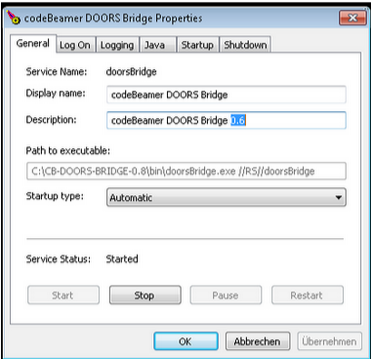
1. On the General tab, you can configure the Startup type and manually set the Start and Stop of the DOORS Bridge service:
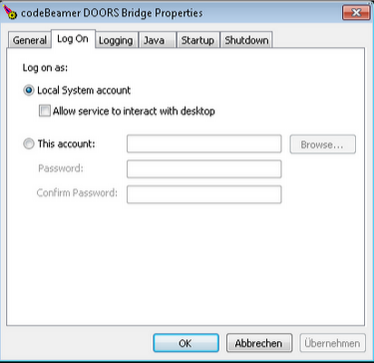
2. On the Log On tab, you can configure a special user (other than the default system user) for running the DOORS Bridge service:
3. On the Java tab, you can increase the maximum memory pool. The default value is 1024 MB.
Starting and Stopping DOORS Bridge Manually
If you need to run the DOORS Bridge instance manually as a foreground process, do the following:
1. Ensure the background service is stopped.
2. Start DOORS Bridge:
1. Run the following in a command prompt window:
~\DOORS Bridge\startup.bat
3. Stop DOORS Bridge:
1. Press Ctrl+C in the active command prompt window.
2. Type Y for Yes.
Troubleshooting
The following table contains DOORS Bridge common issues and troubleshooting steps:
|
Issue
|
Description
|
Troubleshooting Steps
|
||||
|---|---|---|---|---|---|---|
|
Exported OLE Objects Missing or Incomplete.
|
When using DOORS Bridge to export OLE objects embedded in rich text attributes, these objects are not exported or exported only as preview or blank pictures.
|
• Ensure that the appropriate application, such as Microsoft Office for MS Word and Excel, is installed on the machine where DOORS Bridge is running. For more information, see https://www.ibm.com/support/knowledgecenter/en/SSYQBZ_9.6.0/com.ibm.doors.requirements.doc/topics/c_unregisteredoleobjects.html
• Ensure that the OLE objects are embedded and not linked. For more information, see https://www.ibm.com/support/knowledgecenter/en/SSYQBZ_9.6.0/com.ibm.doors.requirements.doc/topics/t_editoleproperties.html
|
||||
|
DOORS Bridge not Returning the Requested Object Attributes.
|
DOORS Bridge does not return the requested object attributes.
|
• Ensure that the DOORS attribute names do not contain leading or trailing white spaces or commas.
• Upgrade DOORS Bridge to 1.6.66 or newer. This version resolves the problem with leading or trailing white spaces and commas in attribute names.
|
||||
|
Import of Large DOORS Module Slow or Faulty.
|
Importing large DOORS Modules is slow or it fails.
|
Consider upgrading to IBM® Rational® DOORS® 9.7 or later version. As a reference, the IBM® DOORS® 9.7.2.1 release notes state the following:
• The following performance issues about opening modules are fixed:
◦ Long time was required to open modules.
◦ At times, larger modules failed to open and the process used ...
|
||||
|
Temporary Files not Removed.
|
The temporary files of DOORS Bridge are not removed after a shutdown and restart cycle of the server or of the DOORS Bridge.
|
Ensure that you are using DOORS Bridge 1.6.65 or later. If you are using DOORS Bridge 1.6.64 or older, consider the following:
• Temporary folders and files are created and written by the DOORS client via the tempFileName() DXL command, started by the specific DOORS Bridge DXL scripts. DXL reference manual about tempFileName(). This returns a string, which is a valid file name on the current platform and is not the name of an existing file. This file can be used for temporary storage by DXL programs.
◦ On UNIX platforms, it returns a file name like /tmp/DOORSaaouef.
◦ On Windows platforms, it returns a file name like C:\TEMP\DP2.
◦ For more information, see also https://www.ibm.com/support/pages/where-find-rational-doors-temporary-directory-microsoft-windows
• We do not recommend deleting temporary folders and files for the following reasons:
◦ DOORS Bridge deletes them after processing.
◦ At the same time, DOORS Bridge is only aware of new temporary folders and files to process (and delete) in the response from the DOORS client. If the DOORS client does not respond in time or stops without sending a response, the system is not aware of any created temporary folders and files. As a result, they are not deleted.
• Since DOORS Bridge 1.6.65, DOORS Bridge creates the temporary folders, so that they can be properly removed, even if the DOORS client hangs up or stops.
|
||||
|
DOORS® RichText not properly converted into Codebeamer Wiki markup.
|
DOORS® RichText not properly converted into Codebeamer Wiki markup.
|
PTC Support Team typically requests a text example in the form of an RTF file. Follow these steps to export an object text as an RTF file from DOORS® via DXL:
1. Manually open the module that you want to export in the DOORS client on the DOORS Bridge machine.
2. Select the object with the text to export.
3. From the Tools menu, select Edit DXL > Load.
4. Select the exportObjectTextAsRTF.dxl script and run it.
◦ The script exports the text of the selected object to a file called O-<Object Number>.rtf in C:\Windows\Temp.
5. Share the exported file with the PTC Support Team.
|
||||
|
DOORS® Links (=Link Modules) are not listed for a (formal) module.
|
DOORS® Links (=Link Modules) are not listed for a (formal) module.
|
1. Open the module in DOORS.
2. Click > .
3. Select the Linksets tab:
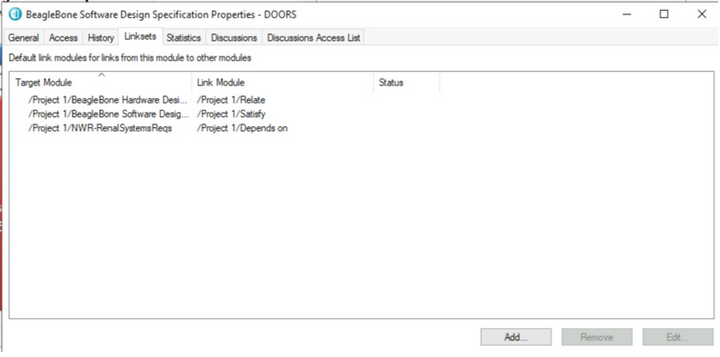 4. Make sure that all required Link Modules are listed.
5. If necessary, add any missing Link Modules.
6. To check which link modules you can access from DOORS Bridge using Tools>Edit DXL in the module's menu bar, use the following DXL script:
Module module = current Module 7. Codebeamer DOORS Bridge writes log files to the ~\DOORS Bridge\logs directory. The following files are suitable for troubleshooting:
◦ commons-daemon[.<date>].log
Files of the DOORS Bridge Windows Service. One file per calendar day.
◦ doorsbridge-stderr.<date>.log
Files printed in the error console output. One file per calendar day.
◦ doorsBridge.log[.<date>]
Application log files of DOORS Bridge. The log file for the current day does not contain the date suffix.
◦ doors_<port>.log
Log files of the running DOORS Client processes.
|

Upgrading DOORS Bridge
To upgrade your DOORS Bridge installation to a newer DOORS Bridge release, follow these steps:
1. Download and unpack the new DOORS Bridge distribution to a new folder. You can place this folder in the same directory as your current installation folder.
|
|
Never unpack a new distribution over an existing installation folder, as this can result in an inconsistent set of libraries.
|
2. Transfer the settings from your current ~\DOORS Bridge\application.properties file to the same file in the new installation.
|
|
You must manually merge the settings from the application.properties files. Do not simply replace the new application.properties file with your current/old application.properties, as the new files may contain additional settings.
|
3. Uninstall the old DOORS Bridge service. For more information, see Uninstalling
DOORS Bridge.
4. Complete the installation of the new DOORS Bridge service. For more information, refer to Downloading
and Installing DOORS Bridge.
Uninstalling DOORS Bridge
To uninstall DOORS Bridge, do the following:
1. Stop the DOORS Bridge service in the Windows service manager.
2. As an administrator, remove the DOORS Bridge service by running the following in a command prompt window:
~/DOORS Bridge/service.bat uninstall DoorsBridgeSrv
|
|
If you installed DOORS Bridge with a special service name, replace DoorsBridgeSrv with your service name. For example:
~\DOORS Bridge\service.bat uninstall "Special Doors Bridge" |
3. Delete the installation directory. This is typically C:\DOORS Bridge.
Web Services
For the DOORS Bridge web services, refer to Codebeamer DOORS
Bridge REST API.