Actions
Workflow Actions are procedures, that should be called upon specific events to perform specific tasks.
Actions serve as an indicator to show that the task has been successfully completed. For example, if you set the action as to update the Resolution field to fixed for the state transition from Resolved to Complete, then whenever item status change from Resolved to Complete, the resolution field updates to fixed.
Codebeamer X provides the following default workflow actions:
• Update item properties
• Trigger state transition
• Update referring items
• Create new Upstream/Downstream referring items
• Create a new sequential ID/number
• Execute a custom script
• New Baseline
• New Project Baseline
• New Tracker Baseline
• Remove item attachments of the item
• Send a custom email to specific recipients
• Start a new review
• Validate the user signature (password)
Update item properties
When updating item properties for a workflow action, following needs to be set:
• Guard: Allows transitions only if the tracker item matches to the specific criteria.
• Fields to update: Allows you to select the fields that needs to updated.
You can set multiple fields.

Once the all items are set, click Ok to save the changes or Cancel to discard the changes.
Trigger state transition
When updating trigger state transition for a workflow action, following needs to be set:
• Guard: Allows transitions only if the tracker item matches to the specific criteria.
• Fields to update: Allows you to update the status field properties.
Status field is mandatory. Apart from that you can set multiple fields.

Once the all items are set, click Ok to save the changes or Cancel to discard the changes.
Update referring items
When updating referring items for a workflow action, following needs to be set:
• Guard: Allows transitions only if the tracker item matches to the specific criteria.
• Fields to update: Allows you to select the field you want to update.
• Execute as: Allows to you add member or group name.
• Comment: Allows you to add comment.

Once the all items are set, click Ok to save the changes or Cancel to discard the changes.
Create new Upstream/Downstream referring items
When creating new upstream or downstream items for a workflow action, following needs to be set:
• Guard: Allows transitions only if the tracker item matches to the specific criteria.
• Association: Allows you to define relation between current item with new referring item.
• Field values: Allows to you add fields like name, summary etc.
• Propagate suspects: Allows you to mark this association as ‘Suspected’ whenever the target association is modified.
• Execute as: Allows to you add member or group name.
• Comment: Allows you to add comment.

Once the all items are set, click OK to save the changes or Cancel to discard the changes.
Create a new sequential id/number
This action can be used to store a tracker-specific number in a custom field of the tracker item that is the source of the triggering event.
When creating a new sequential id, following needs to be set:
• Guard: Allows transitions only if the tracker item matches to the specific criteria.
• Fields: Allows you to select the field you want to update.
• Prefix: Allows to you add optional prefix to the sequence number.
• Comment: Allows you to add comment.

Once the all items are set, click OK to save the changes or Cancel to discard the changes.
Execute a custom script
When executing a new custom script, following needs to be set:
• Guard: Allows transitions only if the tracker item matches to the specific criteria.
• Script type: Allows you to select the script type. Codebeamer X allows following two types of scripts:
◦ Groovy
◦ JavaScript
• Script Path: Allows you to select the location of the script to execute.
• Veto on exception: Allows you to decide whether a script execution error should abort the triggering event (true), or be logged (false).
• Comment: Allows you to add comment.

Once the all items are set, click OK to save the changes or Cancel to discard the changes.
Export a tracker item
To export a tracker item, following needs to be set:
• Guard: Allows transitions only if the tracker item matches to the specific criteria.
• File name prefix: Allows you to add file name prefix.
• Word export: Allows you exports data into a Word document. Word export contains follwing options:
◦ Simple Word Export: Exports data into a Word document with editable content.
◦ Export with: Allows you to Generate absolute links and Export to PDF
◦ Paragraph numbering: Allows you select paragraph numbering by using following options:
▪ Keep original paragraph numbers
▪ Always start paragraph numbers with 1
▪ Remove paragraph numbers
◦ Round-trip Word Export: Exports data into a Word document, allows you to make changes in the exported document and import those changes back to Codebeamer X.
◦ Configuration item: Select a tracker item here whose fields will be used as replacements for placeholders in the template.
◦ Template: Select a template using Select from library or Select from file.
• Excel export: Allows you exports data into a Excel document. Excel export contains following options:
◦ Simple Excel Export: Exports data into a Excel document using customizable templates. You can select the following option if required:
▪ Export description
▪ Multi-values go to multiple rows
▪ Export Dates in your Time-zone.
◦ Round-trip Excel Export: Exports data into a Excel document, allows you to make changes in the exported document and import those changes back to Codebeamer X.
◦ Template: Select a template using Select from library.

New Baseline
When creating a new baseline, following needs to be set:
• Guard: Allows transitions only if the tracker item matches to the specific criteria.
• Scope: Select either Project or Tracker.
• Name: Allows you to add name to the baseline.
• Description: Allows you to add description to the baseline.
• Comment: Allows you to add comment.

Once the all items are set, click OK to save the changes or Cancel to discard the changes.
New Project Baseline
When creating a new baseline, following needs to be set:
• Guard: Allows transitions only if the tracker item matches to the specific criteria.
• Project: Allows you to add project details.
• Name: Allows you to add name to the project baseline.
• Description: Allows you to add description to the project baseline.
• Comment: Allows you to add comment.

Once the all items are set, click Ok to save the changes or Cancel to discard the changes.
New Tracker Baseline
When creating a new baseline, following needs to be set:
• Guard: Allows transitions only if the tracker item matches to the specific criteria.
• Project: Allows you to add tracker details.
• Name: Allows you to add name to the tracker baseline.
• Description: Allows you to add description to the tracker baseline.
• Comment: Allows you to add comment.

Once the all items are set, click Ok to save the changes or Cancel to discard the changes.
Remove attachments of the item
To remove attachments of the item, following needs to be set:
• Guard: Allows transitions only if the tracker item matches to the specific criteria.

Once the all items are set, click Ok to save the changes or Cancel to discard the changes.
Send a custom email to specific recipients
To send a custom email to specific recipients, following needs to be set:
• Guard: Allows transitions only if the tracker item matches to the specific criteria.
• Recipients: Allows you to add name of the users whom you wish to send email.
• Subject: Allows you to add subject of the email.
• Content: Allows you to add the content of the email.
• Comment: Allows you to add comment.

Once the all items are set, click OK to save the changes or Cancel to discard the changes.
Start a new review
To start a new review, following needs to be set:
• Guard: Allows transitions only if the tracker item matches to the specific criteria.
• Reviewers: Allows you to add reviewers details.
• Review: Allows you to add following details:
◦ Signature: Allows you to decide signature required or not.
◦ Approved: Allows you to determine number of votes required to accept the review.
◦ Rejected: Allows you to determine number of votes required to reject the review.
◦ Target Status: Allows you to move the item to the targets status, after the review is approved or rejected.
• Comment: Allows you to add comment.

Once the all items are set, click OK to save the changes or Cancel to discard the changes.
Validate the user signature
To validate the user signature, following needs to be set:
• Guard: Allows transitions only if the tracker item matches to the specific criteria.
• Signer: Allows you to add signer field.
• Signature: Allows you to add the signature fields.
• Comment: Allows you to add comment.
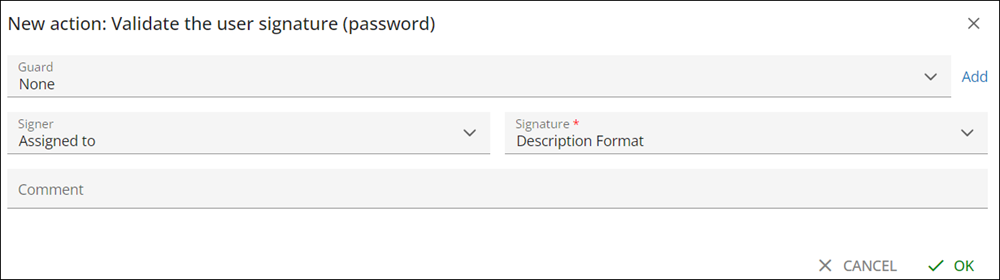
Once the all items are set, click OK to save the changes or Cancel to discard the changes.