Field Permissions
To grant or deny access to specific fields for users, click the hyperlink under the Permissions column on the fields tab. An access permission is based on a three-dimensional matrix that defines roles, item fields, and status. For every status, there is table that shows field-access permissions for each role. Select any of the following options from the list:
• Unrestricted: Select this to set the permission to unrestricted. The field can be accessed by everyone.
• Single: Select this option to provide default permissions based on the roles and participants of the project. The image given below displays the window where you can select the read and edit permissions for participants and roles.
• Per Status: Select this option to define permission based on the status of the tracker item. After you select this option, statuses are displayed based on the tracker state transition diagram. Access permissions are a 3–dimensional matrix of permissions, with the axes of roles and status. For every status displayed, a table with field-access permissions for each role opens in a new window.
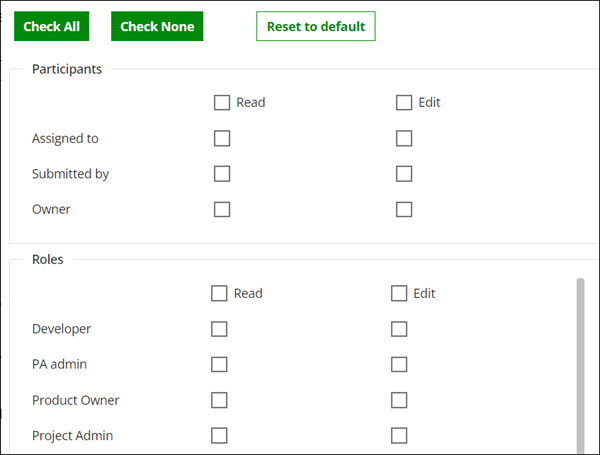
This window allows you to select the read and edit permissions for all the available participants and roles for the selected status. The following options are available in this window:
◦ Check All: Click to grant read and edit permissions to every role and participant.
◦ Check None: Click to clear all the selections made inside the table.
◦ Reset to default: Click to select the default permissions for the status.
 |
For a newly created field all the users are assigned the edit permissions by default.
|
• Same as: Select this option to copy the permissions of another field. You can copy the permissions of another field by selecting it from the provided list. Default value permissions can also be set at the top of the page for each status and label.
Each member's view or edit access to a field is defined for each status of the issue. Define a default value for the field or set the field as required in the field Access definitions.
Field Access Permissions in State Transitions
The state transition window handles the transition between the source status and the target status of a tracker item.
If the user initiating the state transition has permission to edit a field in either the source status or the target status, that field is editable in the transition window. After you click Apply in the transition window, Codebeamer X assigns the target status to the item. This behavior ensures that the user who transitions the item can handle the mandatory fields.
For more information about transitioning items, see State Transitions and Transition menu.