Adding Comments and Attachments
You can add comments to a work item by clicking the Add Comment/Attachment on the Comments & Attachments tab, under Details. After you enter the comment, click Save.
Including References to Users in a Comment
When you add a comment to a work item, you can include references to users in the comment.
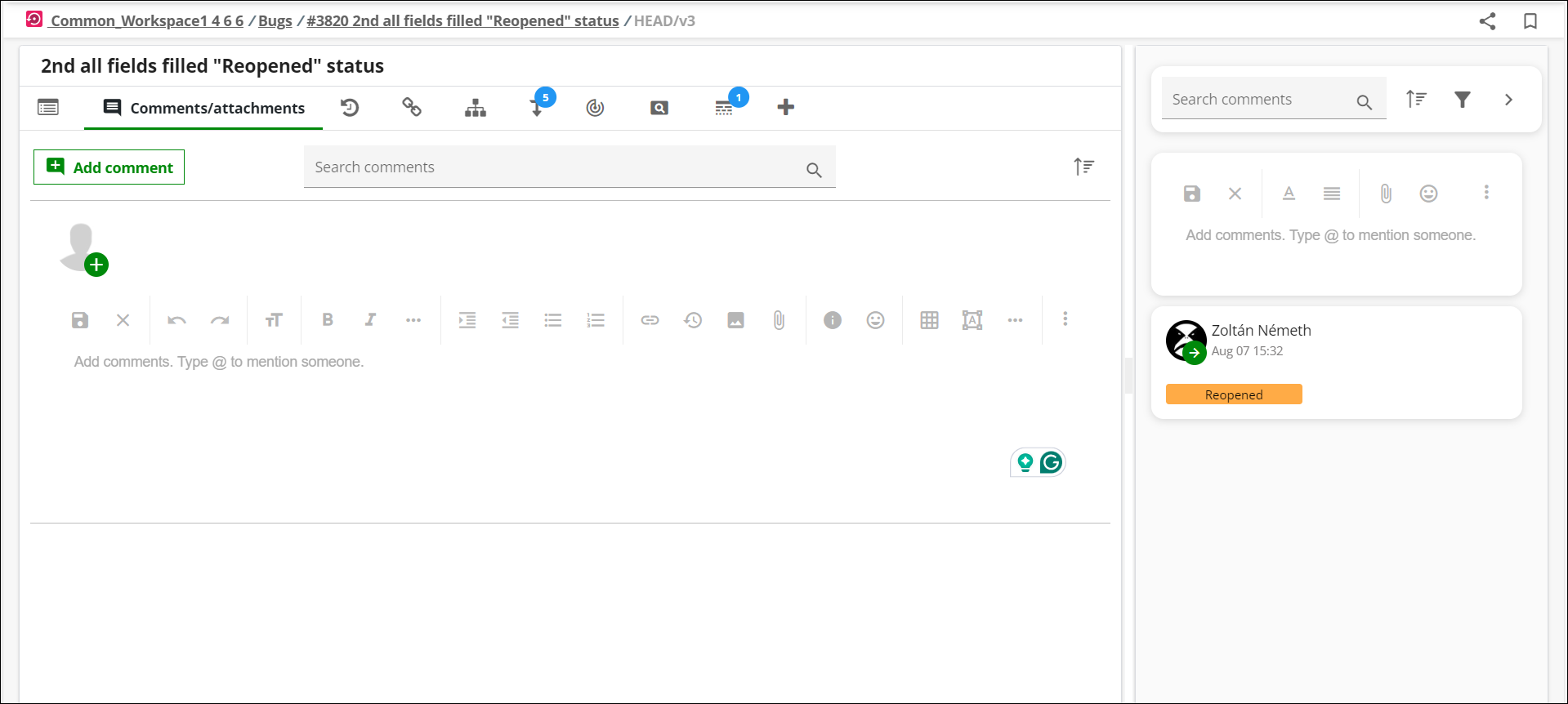
When adding a user to a comment, you can search for the user based on the name, username, or email address. If you include the @ symbol in the comment field and start typing, the system automatically displays a list of users whose name, username, or email address includes the letters that you inserted. You can also add an attachment in the comments box. To search for a comment, enter a string the search box.
The comments pane on the right side of the screen displays all the comments added for the tracker item. You can perform the following operations on the existing comments:
• Reply: Click to add a reply to an existing comment.
• Click  to view the following options:
to view the following options:◦ Edit: Click to edit the comment.
◦ Delete: Click to delete a comment.
◦ Copy URL: Click to copy the URL of the comment.
•  : Click to filter the existing comments based on the following options:
: Click to filter the existing comments based on the following options:◦ Comments
◦ Attachments
◦ Review comments
◦ Status change
◦ Worklogs
•  : Click to sort the comments based on the date of creation.
: Click to sort the comments based on the date of creation.When a user is included in a comment of a work item, the user receives a notification indicating that they were mentioned in a work item.
 |
It is possible to add references to users in the Description field using the same functionality as described in this section. However, when a reference to a user is added to the Description field, no notification will be sent to the user.
|
If a user is included in the Description field, the Follow option is automatically set for the user for the work item. This means that the user gets a notification each time another user edits the work item.
|
|
To set the Follow option for the selected user, the user who updates the description requires the "Issue - Subscribe for Others" permission to the tracker that contains the work item. The Follow option can only be set for the selected user if the user has at least "Read" permission to the tracker.
For more information on permissions, contact your Project Administrator. If you are the Project Administrator, see Tracker Configuration for more information on how to set permissions for trackers.
|
Including References to Teams in a Comment
When you add a comment to a work item, it is possible to include references to teams in the comment. For example:
When adding a team to a comment, you can search for the team based on the team's name. If you include an @ symbol in the comment field and start typing, the system will automatically display a list of teams whose name includes the letters that you inserted.
When a team is added to a comment in a work item, a notification is sent to the team E-mail address. The notification is sent if an email address is specified for the team in the Team tracker. If no email address is specified for the team, a notification is sent to the team members indicating that they are mentioned in a work item. The team must contain team members to receive notification.
For more information on the fields of the Team tracker, see Tracker Types.
|
|
You can also add references to teams in the Description field using the same functionality as described in this section. However, when a reference to a team is added to the Description field, no notification will be sent to the team E-mail address.
|
Adding Private Comments
You can add comments to an issue by clicking on the Add Comment/Attachment link. You can select a specific role from the Visible forwindow to make your comment visible only for the members in the selected role. This feature allows you to designate information suitable for the external or internal users. For example, when a customer submits an issue, developers can discuss an issue internally with private comments and reply to the customer when they form a common understanding.
Delete or Edit Comments
Delete or Edit comments by selecting Delete or Edit from the comments pane on the right. Click and select Delete. Click Yes in the confirmation window to delete the comment.Codebeamer X prompts you to confirm the delete operation.
and select Delete. Click Yes in the confirmation window to delete the comment.Codebeamer X prompts you to confirm the delete operation.