Excel Multi-Choice and Multi-Value Import
Importing Multi-Value Choice Fields or other Multi-Value Fields from Excel or Word Tables
You need configure the choice field with multiple value before importing an items. Follow the steps given below:
1. Click  More actions and select Configuration option.
More actions and select Configuration option.2. Click Field and select New choice field to create a new field.
3. In the Label field type multi.
4. Select the multiple checkbox in the Datasource section.
5. Click OK to save the modification.
After completing the steps, a work item can be imported from Excel. This field should get two values, for example for example A and B.
Import Multi-Values using a Multi-Row Data
 |
Download the template document multiValue-multiRow.xlsx.
|
To import data, add the values in new rows respectively as shown in the template. Keep the name and description columns of the new rows empty as shown in the following image.

You can configure a new field with multiple values and import the values from excel sheet as shown in following image.
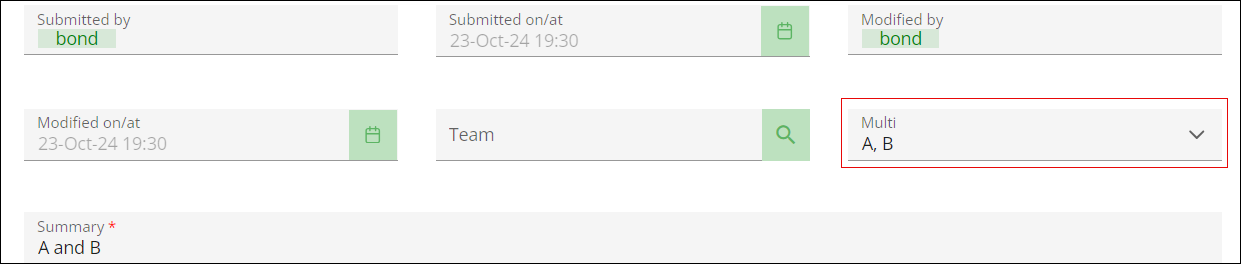
Importing Multi-Values from Single Cell using Conversions
|
|
Download the multiValue-split.xlsx example document.
|
Multiple values can be separated by commas and imported from the single cell using Splitteroption at the time of import.

1. On Configure field conversions page select Splitter from the dropdown list for the Multi field.
2. Select A separator text option from the drop down list, of the Split by field.
3. Add a comma , as delimiter in the Separator field.
4. Click Next and finish the import.
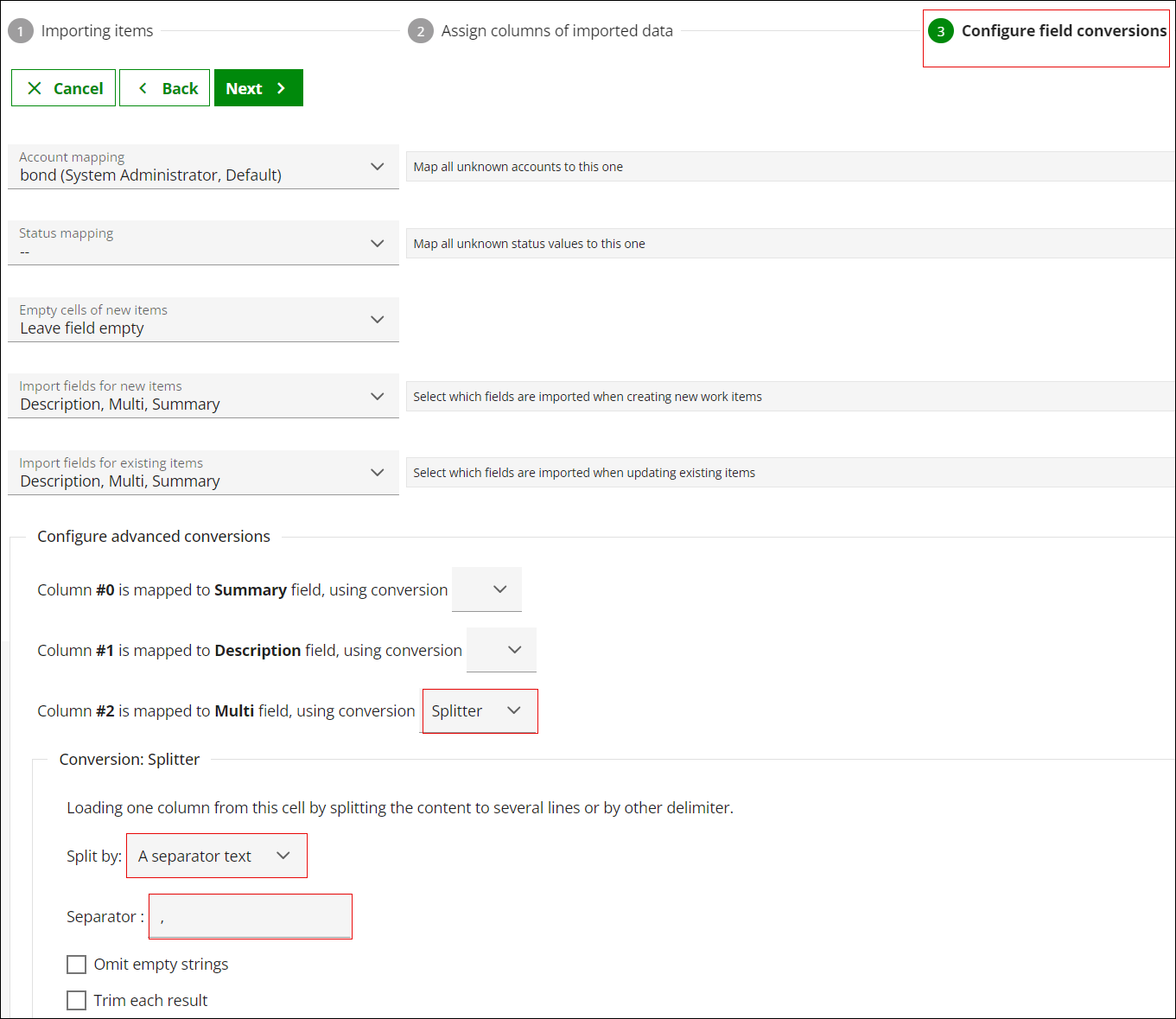
This conversion splits the A,B into value A and value B.
Configuring How Export Works with Multi-Values
By setting the "exportMultiValuesToMultiRows" value to "true" multi-values can be exported into multiple rows. For more information, see Configuring Excel Export Default Settings.