Sending Diagnostic Data to PTC Manually from a Client Machine
As a user of a Creo Elements/Direct Modeling application, you can open the Diagnostic Tools dialog box to view the pending data to be transferred to PTC on the Pending Data tab. Click Send via e-mail to send the Creo Elements/Direct Modeling application-related and system information report as an e-mail attachment to a designated PTC Technical Support Engineer.
1. Click > > . The Diagnostic Tools dialog box opens.
2. For each Creo Elements/Direct Modeling application you have installed, click the Pending Data tab to view the product and system information.
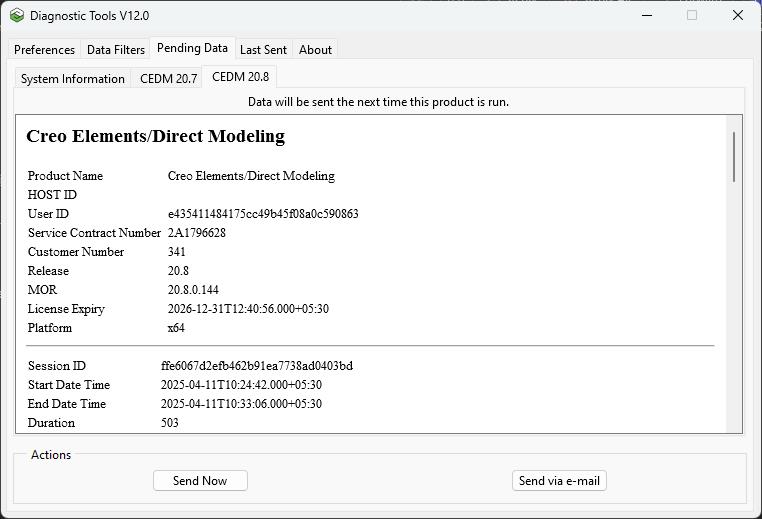
3. Send the product and system information to PTC using one of the following methods:
◦ Click Send via e-mail to send a report as an e-mail attachment to a designated PTC Technical Support Engineer. For example, if the Creo Elements/Direct Modeling tab is active, you can send a report for Creo Elements/Direct Modeling to a PTC Technical Support Engineer.
◦ Click Send Now to send the product and system information to the database using https secure communication protocol. For example, if the Creo Elements/Direct Modeling tab is active, the product and system information for Creo Elements/Direct Modeling is sent to the database.
 | If a connectivity issue exits, an error dialog box appears and you are prompted to review or to decline the review of a Technical Support article: 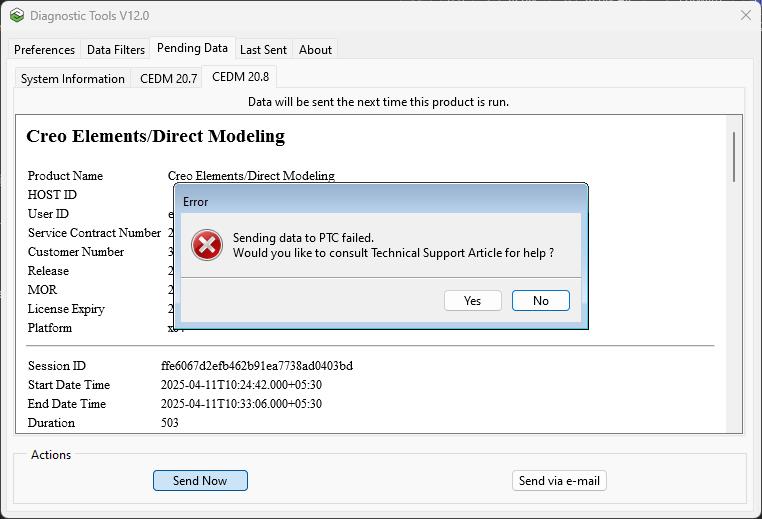 Click Yes, to view the PTC Technical Support article for further assistance. |