Sending Diagnostic Data to PTC Automatically
When you exit from a Creo Elements/Direct Modeling application session, the Diagnostic Tools utility automatically collects information related to the application and transfers it to PTC. The information transfer is based on the filter settings on the Data Filters tab and the frequency settings on the Preferences tab. For each session, Diagnostic Tools checks for new data before the transfer. The information is automatically encrypted and transferred using SSL protocol.
1. Click > > . The Diagnostic Tools dialog box opens.
2. On the Preferences tab, configure the settings to specify the frequency for transfer of product and system-related information to PTC.
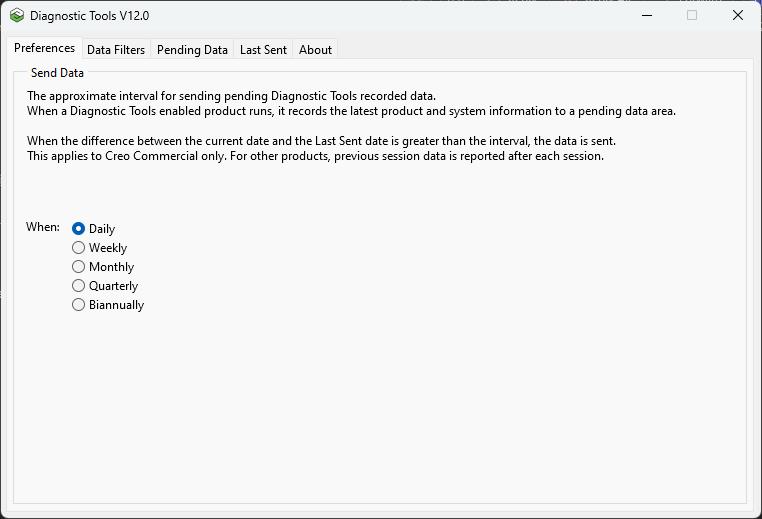
3. Review the settings under the Data Filters tab.
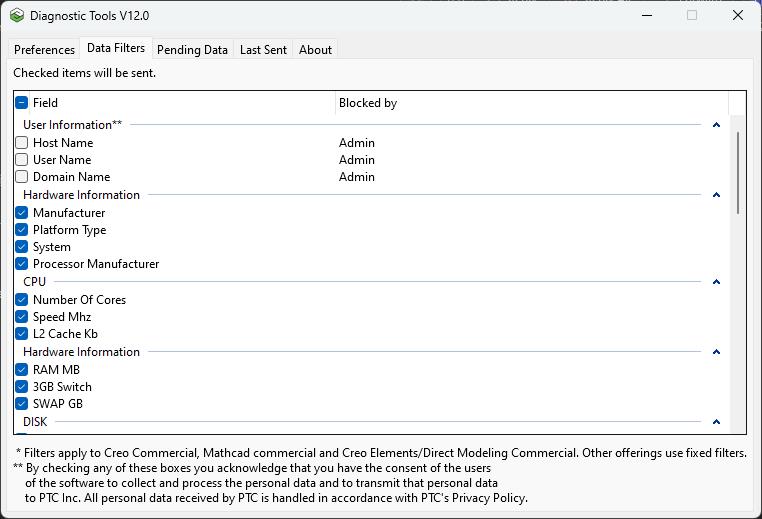
4. Exit from the Diagnostic Tools dialog box.
5. Start Creo Elements/Direct Modeling 20.7 or later releases.
6. Exit Creo Elements/Direct Modeling.
The diagnostic data is automatically collected. Timestamps of previously collected data are checked against the designated sending interval and automatically transferred to PTC if the interval is exceeded. Data becomes available on the Creo Elements/Direct Modeling Performance Advisor dashboard within 4 hours.
Start Diagnostic Tools to view the session data. The session data is visible on the Pending Data tab of the Diagnostic Tools dialog box.
 | If the client is successfully connected to PTC, the diagnostic data is visible on the Sent tab. If a connectivity issue exists, the data remains on the Pending tab. The client makes additional attempts to send the data to PTC the next time you start Creo Elements/Direct Modeling, or if you click Send Now on the Pending Data tab. |