By default, selecting a closed section for a revolved cut will result in the material removal side to be the inside of the sketch. This can easily be flipped in the dashboard.
Task 2-27. Create a Revolved Cut, hollowing out the crankcase.
Click Saved View List from the main toolbar and select Standard Orientation.
Click Shading from the main toolbar.
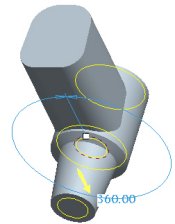
With the sketch still selected, start the Revolve Tool from the feature toolbar.
Right-click and select Remove Material.
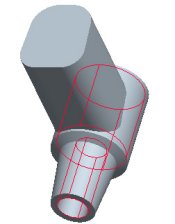
Click Complete Feature.
Revolved Cut Created
Click Save from the main toolbar, and click OK. Click File > Close Window.


 Previous


 from the main toolbar and select Standard Orientation.
 from the main toolbar.
 from the feature toolbar.
 .
.
 from the main toolbar, and click OK. Click File > Close Window
  .
.