Previous Page 50 of 89 Next
Information

Automatically Grouped Features (continued)

Creating datum features while a feature dashboard is open allows multiple datum features (of any type) to be auto-grouped with the feature being created. Not only does this allow all the dimensions of the features to be displayed at once, This also allows easy access to unhide or redefine the datum features. Datum features can also be grouped when creating other feature types, such as a datum plane and axis for a coaxial hole.

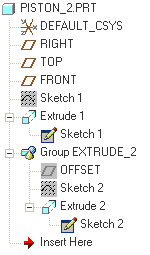
Task 2-21. Continue to examine the resulting sketches and sketch-based features.

  1. Click Settings > Tree Filters from the model tree.
    1. Disable Used Sketch and click Apply.
    2. Notice the 'used' sketches are removed from the model tree display, but you can still access them by expanding feature nodes.
    3. Enable Used Sketch and click OK.


Disabling Used Sketch Display

Information

Redefining Sketches and Features

A Sketch can be easily selected and edited / redefined by selecting the link to the sketch within the sub-node of the feature, or by selecting the original (hidden) sketch.

When redefining a feature (ex: Extrude) you can select an alternate sketch or Unlink from the selected sketch, creating an internal sketch within the feature.

Sketches that are unlinked are no longer considered `Used' when using the Used Sketch display option. They display with the format S2D0001.


Previous Home Next