 |
|
|
Creating a Sketch
Use the Sketch Tool to create a Sketch feature. The Sketch Tool uses a dialog box instead of the dashboard, so that sketches can still be created when the dashboard is open. |
|
| Task 2-14. Create PISTON_2.PRT, and then create a circular sketch. |
- Click New
 from the main toolbar. from the main toolbar.
- Enter PISTON_2 as the name, and click OK.
- Click Datum Planes
 from the main toolbar to enable their display. from the main toolbar to enable their display.
- Click Datum Points
 , and Coordinate Systems , and Coordinate Systems  from the main toolbar to disable their display. from the main toolbar to disable their display.
- Start the Sketch Tool
 from the feature toolbar. from the feature toolbar.
- Select datum plane TOP from the model.
- Notice that in the Sketch dialog box datum plane RIGHT is automatically selected as the Reference plane, facing the Right.
- Click Sketch, and sketch as shown in the following figure:
- Click Close from the References dialog box.
- Click Datum Planes from the main toolbar to disable their display.
- Click Circle
 from the sketcher toolbar, and sketch a circle as shown. from the sketcher toolbar, and sketch a circle as shown.
- Middle-click to stop sketching, and to allow items to be selected.
- Double-click on the dimension, type 21, and press ENTER.
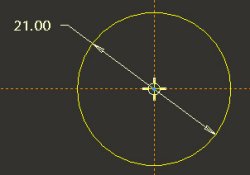
Creating a Sketch |
- Click Complete Sketch
 from the sketcher toolbar. from the sketcher toolbar. |


 Previous

