Selecting multiple edges for a chamfer results in multiple chamfer sets by default. Pressing CTRL and selecting multiple edges results in a single chamfer set.
Task 2-11. Create a chamfer with two sets on the CRANKSHAFT_2.PRT.
Select the Folder Browser , and click Working Directory to view the Part_Modeling folder.
Double-click CRANKSHAFT_2.PRT to open it.
Start the Chamfer Tool from the feature toolbar.
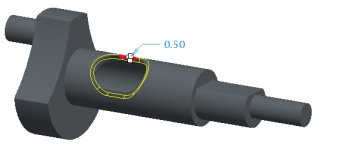
Select the first edge shown in the following figure and edit the chamfer distance to 0.5 in the dashboard.
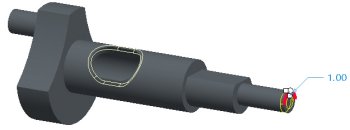
Select the second edge (without using CTRL) and drag the chamfer distance to 1.
Chamfer with Two Sets
Select the Sets tab to view the selected references.


 Previous


 , and click Working Directory
  to view the Part_Modeling folder.
 from the feature toolbar.
 from the dashboard.