 |
|
|
External Sketches
An External Sketch is simply a Sketch feature in the model tree that is selected to be used in a feature tool, such as the Extrude Tool. The flexibility of using External Sketches allows you to quickly select and alternate sketch for a feature. |
|
| Task 1-14. Redefine an Extrude to use an alternate sketch on the CRANKSHAFT. |
- Select the Folder Browser
 , then click the Part_Modeling folder. , then click the Part_Modeling folder.
- Select CRANKSHAFT.PRT from the browser to view its preview, and then click Open in Pro/E
 . .
- Select the ALT_LOBE_SKETCH from the model tree, right-click and select Unhide.
- Select EXTRUDE_2 from the model tree, right-click and select Rename.
- Type LOBE_EXTRUDE as the name, and press ENTER.
- Select an alternate sketch for an extruded protrusion:
- With LOBE_EXTRUDE still selected, right-click and select Edit Definition.
- Orient the model as shown in the following figure.
- Select the ALT_LOBE_SKETCH from the model tree.
- Click the yellow arrow on the model to flip the direction of feature creation.
- Click Complete Feature
 . .
|
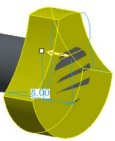 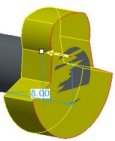 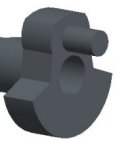
Redefining an Extrude Feature |
|
|
|
The alternate sketch is automatically hidden once used by the extrude feature. |
| |


 Previous


