Configuring Windchill Risk and Reliability for Secure Network Communication
Configuring Windchill Risk and Reliability for secure communications involves using a certificate for digital signing of messages in the transport. Windchill Risk and Reliability relies on Windows certificate validation. Therefore, the certificate must be fully trusted by Windows and include a private key, as it is used to encrypt communication. If the certificate is not trusted by Windows, Windchill Risk and Reliability communication fails.
The primary activity is to configure the services for secure communication. This involves enabling encryption for the services and specifying the certificate to use for encryption.
Server Certificate Requirements
|
Property
|
Required Value
|
Description
|
|
Store
|
Local Machine > Personal (MY)
|
The service runs under a machine account (or the WAS process identity).
|
|
Private key
|
Must be present and exportable (for backup)
|
The TLS handshake requires a private key to prove the server identity.
|
|
Subject / SAN
|
CN = <server-fqdn> or DNS Name = <server-fqdn> in SAN
|
The client validates that the name in the certificate matches the endpoint address. This is located in the clients.config (endpoint address="net.tcp://yourhost.com:27001/Relex.BusinessObjects.IService").
|
|
Enhanced Key Usage (EKU)
|
Server Authentication (1.3.6.1.5.5.7.3.1)
|
Required by the TLS for the server proof of identity.
|
|
Key Usage
|
Digital Signature + Key Encipherment
|
The TLS handshake uses both.
|
|
Validity
|
Current date inside Valid From / Valid To
|
|
|
Trusted chain
|
Root/Intermediate CAs in Trusted Root Certification Authorities (machine store)
|
The client trusts the server if the root authority certificate is trusted.
|
Client Certificate Requirements
|
Property
|
Required Value
|
Description
|
|
Store
|
Local Machine > Personal (MY)
|
The client process must have read access to the private key.
|
|
Private key
|
Present
|
Required to respond to the server’s certificate request.
|
|
Enhanced Key Usage (EKU)
|
Client Authentication (1.3.6.1.5.5.7.3.1)
|
The server validates that the certificate is allowed for client authentication.
|
|
Key Usage
|
Digital Signature (minimum)
|
The TLS client-authentication handshake signs the proof to confirm its identity.
|
|
Subject
|
Any
|
The server validates the client by using the ClientCertificate element.
|
|
Trusted chain
|
Root/Intermediate CAs in Trusted Root Certification Authorities on the SERVER machine.
|
The server must trust the client’s issuing Certificate of Authority (CA).
|
You must request a certificate to use for communication by following the procedure that your company uses. The certificate must be installed on the Windchill Risk and Reliability application server and on the client machines. This can be done with standard Windows deployment mechanisms or manually through the Windows Local Computer Certificate Manager.
The following files must be modified to enable secure configuration:
• Windchill Risk and Reliability\bindings.config
• Windchill Risk and Reliability\servicebehaviors.config
• Web\web.config
• Web\Include\bindings.config
• Odata\web.config
• Odata\Include\bindings.config
Before making these configurations, there is additional context you must understand. This configuration enables encrypted communication between the client and the server using shared certificates. WRR uses two‑way communication, so both the desktop and the servers act as a client and a server. The settings below configure the communication to validate that both sides are trusted sources.
To enable this secure communication, the client must have access to the private key of the certificate to verify that the communication is coming from a trusted host. In legacy Windows domains, all domain users have access to the private keys in the Local Machine personal store.
If the computer is not using a legacy domain and is using Azure AD instead, users no longer have permission to access the private keys in the Local Machine personal store. Permission issues with the key will cause an error when starting the desktop application.

If you want to maintain full secure communication, you must give users read access to the certificate you are using. This is similar to what is required for IIS, as documented below. You can also use other mechanisms, such as groups, to assign access.
If there are issues configuring the secure communications, an alternative to giving users access to the private key would be to disable the client certificate validation which is less secure and not recommended. Be aware that the communication will still be encrypted but any host that has access to the certificate that you specified will be able to access the services without host validation. You should verify that this complies with your company’s security policy prior to pursuing this configuration. To support this configuration there are two changes to the following instructions:
1. Instead of using <sslStreamSecurity requireClientCertificate="true" />, use <sslStreamSecurity requireClientCertificate="false" /> in the various locations.
2. In the servicebehaviors.config and web.config, leave the clientCredentials section commented out.
Update the Server Configuration
The files for server configuration (mentioned in the previous section) are located in the root install directory where WRR is installed: C:\Program Files\PTC\Windchill Risk and Reliability 13.1\.
Follow these steps to update the server configuration:
1. Stop the WRR services.
2. Edit the Windchill Risk and Reliability\bindings.config file.
Uncomment the following line:<sslStreamSecurity requireClientCertificate="true" /> This enables secure communication. If you encounter issues and want to disable secure communication, comment out the above line.
3. Edit the Windchill Risk and Reliability\servicebehaviors.config file.
Remove the comment tags from the serviceCredentials and clientCredentials element blocks.
Specify your certificate information. The certificate is identified by its thumbprint. Search for yourCertificateThumbprint in the file and replace it with your certificate’s thumbprint.
4. Edit the Web\web.config file.
If you are not using SSO or the Dataengine this step can be skipped.
Remove the comment tags from the serviceCredentials and clientCredentials element blocks.
Specify your certificate information for SSO and DataEngine. We use the thumbprint to identify the certificate just search for yourCertificateThumbprint in the file and replace with your certificates thumbprint.
5. Edit the Web\Include\bindings.config file.
If you are not using SSO or the Dataengine this step can be skipped.
Uncomment the following line:<sslStreamSecurity requireClientCertificate="true" />This enables secure communication. If you encounter issues and want to disable secure communication, comment out the above line.
6. Edit the Odata\web.config file.
If you are not using the REST endpoints this step can be skipped.
Remove the comment tags from the serviceCredentials and clientCredentials element blocks.
Specify your certificate information for the REST endpoints. We use the thumbprint to identify the certificate just search for yourCertificateThumbprint in the file and replace with your certificates thumbprint.
7. Edit the Odata\Include\bindings.config file.
If you are not using the REST endpoints this step can be skipped.
Uncomment the following line:<sslStreamSecurity requireClientCertificate="true" />This enables secure communication. If you encounter issues and want to disable secure communication, comment out the above line.
8. Grant IIS access to the private key.
If you are using the same certificate as IIS, you can skip this step. Otherwise, you must grant IIS access to the certificate so it can encrypt communication.
Follow these steps to grant IIS access:
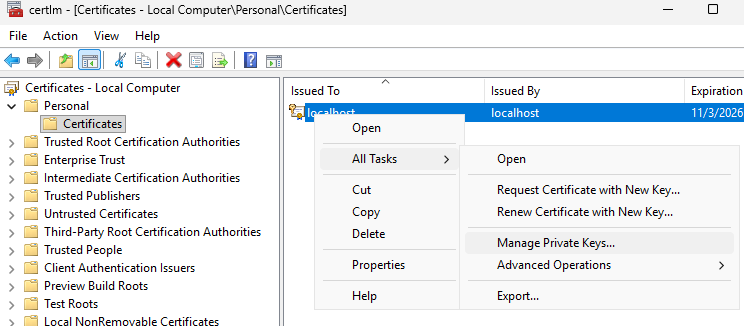
a. Go to the certificate in the local computer certificate management and select > .
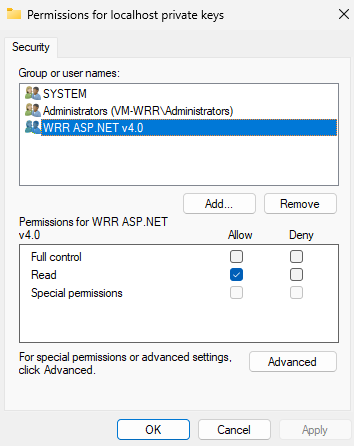
b. Add the user IIS APPPOOL\WRR ASP.NET v4.0 from the local computer and grant the user a Read permission.
c. Restart IIS.
Desktop Client Key Access
Depending on how certificates are deployed on the client machine, additional configuration may be required. Similar to IIS, users must have access to the private key to encrypt communication with the server. When the key resides in the local computer’s personal certificate store, Windows restricts access by default.
Therefore, on any computer where Windchill Risk and Reliability will be installed, the user must have Read access to the certificate. This access can be granted to a user group, such as Domain Users. Alternatively, machine administrators already have access to the private key, so if the user has administrative privileges and runs Windchill Risk and Reliability as an administrator, it will function as expected. If credentials are not recognized, related errors will appear in the logs listed below.
Troubleshooting
Check the following locations for any errors in the logs:
|
Errors
|
Log Location
|
|---|---|
|
Services fail to start
|
C:\Program Files\PTC\Windchill Risk and Reliability 13.1\Windchill Risk and Reliability\Logging\RiskAndReliability.log
|
|
Odata not functioning
|
C:\Program Files\PTC\Windchill Risk and Reliability 13.1\Odata\Logging\RiskAndReliability.log
|
|
DataEngine or SSO not functioning
|
C:\Program Files\PTC\Windchill Risk and Reliability 13.1\Web\Logging\RiskAndReliability.log
|
Common issues encountered during the configuration:
• The certificate subject / DNS name does not match the value of your host in clients.config. Ensure that the certificate name matches the host.
• If the desktop application works, but the DataEngine or OData endpoints do not, you may have missed granting IIS access to the private key. Verify permissions and ensure there are no errors when you run the command.