3. Press ENTER again or click the Next match  or Previous match
  icon to search the next or previous matching objects.
or Previous match icon to search the next or previous matching objects. or Previous match icon to search the next or previous matching objects. | The structure is expanded to reveal the previous or next matching object even though it may be multiple levels deep in the structure. Expansion stops when a matching object is found. Continue searching by clicking the next and previous match icons. The find operation locates matches to all the associated objects displayed in the structure. For example, matches are found for documents associated to parts. A message is displayed to the right of the Find in Structure field when the top or bottom of the structure is reached. |
 icon to the right of the text entry field to clear all highlighting within the structure and start a new search.
| | Only those branches of the structure having rows matching the entered text string are expanded. The find operation will locate matches for all associated object types displayed in the structure. For example, matches will be found for documents associated with parts within a part structure. A message is displayed to the right of All showing the total number of structure rows containing matches. |
 | Use the selected structure rows and the shortcut menu actions to perform operations such as Check Out or Add to Baseline. |
icon to the right of the text entry field to clear all highlighting within the structure and start a new search.| | • Soft attributes for part master are unavailable in the Criteria drop-down menu in the Attribute Query Expression window. • The Status attribute is available from the baseline member link attributes. • AML/AVL are subtypes of a part. In the Type list when you select Manufacturer Part or Vendor Part option for the part, these attributes become available in the Attribute Query Expression window. • For part structure browser, the Floating Baseline Member Link attributes are unavailable in the Criteria drop-down menu in the Attribute Query Expression window. |
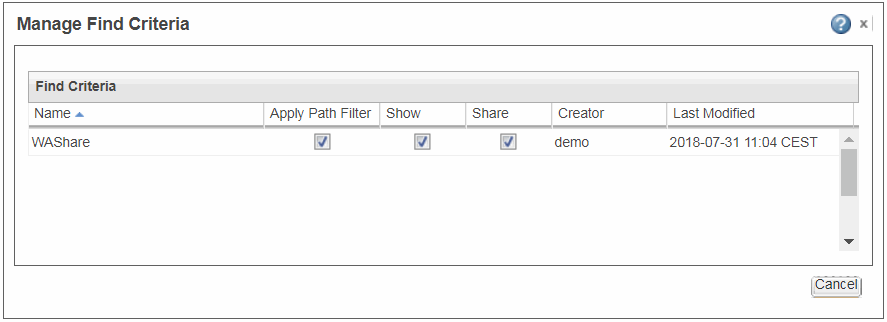
Action | Description | ||
Edit | Edit the query expression for the selected search criteria. | ||
Show | Make the search criteria that you created, visible in the Advanced drop-down menu. To view a search criteria that is shared by another user, use any of the following actions: • In the Manage Find Criteria window select the Show check box. • Use the Show shortcut menu action. | ||
Share | Share the search criteria that you created, with other users. To share a search criteria that is created by another user, use any of the following actions: • In the Manage Find Criteria window, select the Share check box. • From the shortcut menu, select Share.
| ||
Save As | Create a copy of the search criteria that you created. You can also use this action for the search criteria created and shared by other users. This creates a copy of the existing search criteria that you can rename. This new search criteria has the status of the Share attribute carried over from the source search criteria. The Show attribute is enabled by default. | ||
Delete | Delete the search criteria that you created. |
| | You can edit the search criteria name inline. |