Plan Training Assignments Table
The Plan Training Assignments table in Windchill helps Control Document Planners manage training details like intervals, lead times, and assigned Training Groups for Control Documents affected by a Change Notice or a Change Task.
Though the table is not part of Windchill’s default interface, it can be added using the Task Form Templates and is a fixed, built-in feature that streamlines training tracking within the same workspace.
Accessing the Plan Training Assignments Table
The Plan Training Assignments table is not part of the default user interface when Windchill is first installed. It can be incorporated into a Change Task page using Task Form Templates.
The following steps illustrate how to add this table when working with a fresh, out-of-the-box installation:
1. Log in to Windchill as an administrator.
2. Go to > > , and click the Create Task Form Template  icon.
icon.
icon.The New Task Form Template window opens.
3. In the New Task Form Template window, do the following:
a. Type any desired name for the template in the Template Name field.
b. From the Subject Class drop-down list, select wt.change2.WTChangeOrder2|com.ptc.ControlledDocChangeAndTraining.
c. Select the appropriate option from the Task Type drop-down list.
d. Type a brief description in the Description field.
e. In the Customize Tabs section, select Configure in wizard.
The window expands to show additional options.
f. Click the  icon to create a new tab under the Tabs section.
icon to create a new tab under the Tabs section. | Adding a tab enables the Tables/Attributes field. |
g. Click the Edit  icon, scroll down, select Plan Training Assignments, and then click OK.
icon, scroll down, select Plan Training Assignments, and then click OK.h. Add any additional Tables/Attributes as preferred.
4. Go to > > , and search for the template named Change Notice and Training Controlled Documents Version 2.
5. Right-click the template name, and select Edit.
The Change Notice and Training Controlled Documents Version 2 workflow opens.
6. In this template workflow, do the following:
a. Select Create Training and Set Deadline.
The Create Training and Set Deadline window opens.
b. On the Activity tab, select Native from the Template Format drop-down list. Select the name of task form template you created earlier in the Template Name field, and click OK.
c. On the Variables tab, individually select and delete the following variables: TrainingDeadline, LinkToTraining, trainingInterval, and trainingIntervalLeadTime.
d. Right click the arrow connecting Create Training Set Deadline and Populate Deadline and URL on PBO, and select Delete Link to remove the link.
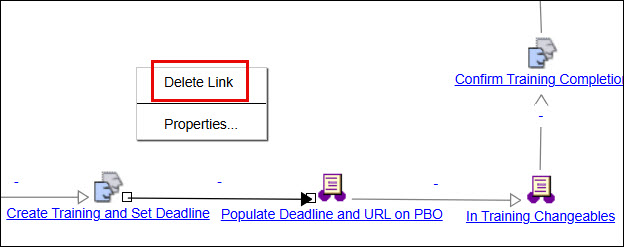
e. Draw a new arrow between Create Training Set Deadline and In Training Changeables.
f. Go to File, save the changes, and Check In the workflow template.
| | For steps 4–6, it is a best practice to create a custom workflow instead of modifying the out-of-the-box version of the workflow. The steps provided here, are intended only as an example to demonstrate how the workflow can be adjusted to display the Plan Training Assignments table. |
As a result of completing these steps, the Plan Training Assignments table now appears on the Create Training and Set Deadline Change Task page for any newly created tasks.
Toolbar
The following menu options are available on the toolbar of the Plan Training Assignments table.
Icon | Action | Description | ||
|---|---|---|---|---|
 | Expand | Clicking this icon displays the Training Groups linked to the selected Control Documents. If no document is selected, it displays the Training Groups for all documents in the table. | ||
 | Collapse | Clicking this icon hides the Training Groups displayed in the expanded view. | ||
 | Copy Selected Object | Places a copy of the selected object temporarily on the clipboard. | ||
 | Paste | Pastes objects added to the clipboard.
| ||
 | Assign Training Groups | Designates which training group is responsible for completing or managing the training associated with the Control Document. | ||
 | Assign Training Details | Used to specify key training-related information for a Control Document. | ||
 | Check In | Used to finalize and save changes made to a document. | ||
 | Check Out | Used to lock the document for making changes to it. | ||
 | Cancel checkout of object | Used to discard any changes made to the object while it was checked out. |
Table Column Names
The following columns are available in the Plan Training Assignments table.
Name | Description | ||
|---|---|---|---|
General Status | Displays the object’s current check-out status. | ||
Type | Displays the type-specific icon for the object. | ||
Name | Displays the name attribute of the object. | ||
Document Number | Unique identifier for a specific document. | ||
CAGE Code | Specifies the globally unique organization identifier under which the organization is registered. | ||
Document Version | Displays the specific iteration of a document that reflects changes or updates made over time. | ||
State | Indicates the current lifecycle status of an object. | ||
View Information | Displays an icon that links to the object's information page. | ||
Training Link | Displays a URL that allows the user to access the training.
| ||
Training Deadline | Displays the date by which assigned training must be completed. | ||
Training On Release | Indicates whether the training must be triggered automatically when a Control Document is officially released. | ||
Training Interval | Specifies the recurrence interval for training, in days. For example, a value of 365 indicates annual training. | ||
Training Interval Lead Time | Specifies the number of days before the next scheduled training when the user receives a retraining task. For example, a value of 30 assigns the task 30 days in advance. |
Assign Training Details Wizard
The Assign Training Details wizard is designed to support the Plan Training Assignments table. You can assign and edit training attributes for multiple control documents efficiently.
For more information, see Editing Multiple Documents.