Reconciling a Process Plan
Use the  Reconcile Process Plan action in the process plan browser (PPB) to allocate parts to operations in a process plan.
Reconcile Process Plan action in the process plan browser (PPB) to allocate parts to operations in a process plan.The working of this action depends on the value set in the Attribute Mapping Name for Automatic Part Allocation preference. This preference defines the attribute mapping name for the automatic part allocation. You can specify the value in the following format: Part_Usage_Attribute:Operation_Usage_Attribute. For example, Part_Usage:Operation_Usage. The values indicate the mapping between the part usages and the operation usages. You must specify the part usage attribute before the operation usage attribute. The default value is VMS:VMS.
For more information, see Automatically Allocating Parts to an Operation in PPB Using Attribute Mapping and Range-Based Approach. The use cases and key points mentioned in the Automatically Allocating Parts to an Operation in PPB Using Attribute Mapping and Range-Based Approach topic are also applicable to the Reconcile Process Plan action.
Reconcile Process Plan action.Use Case
Consider that the following structure is present in PPB:
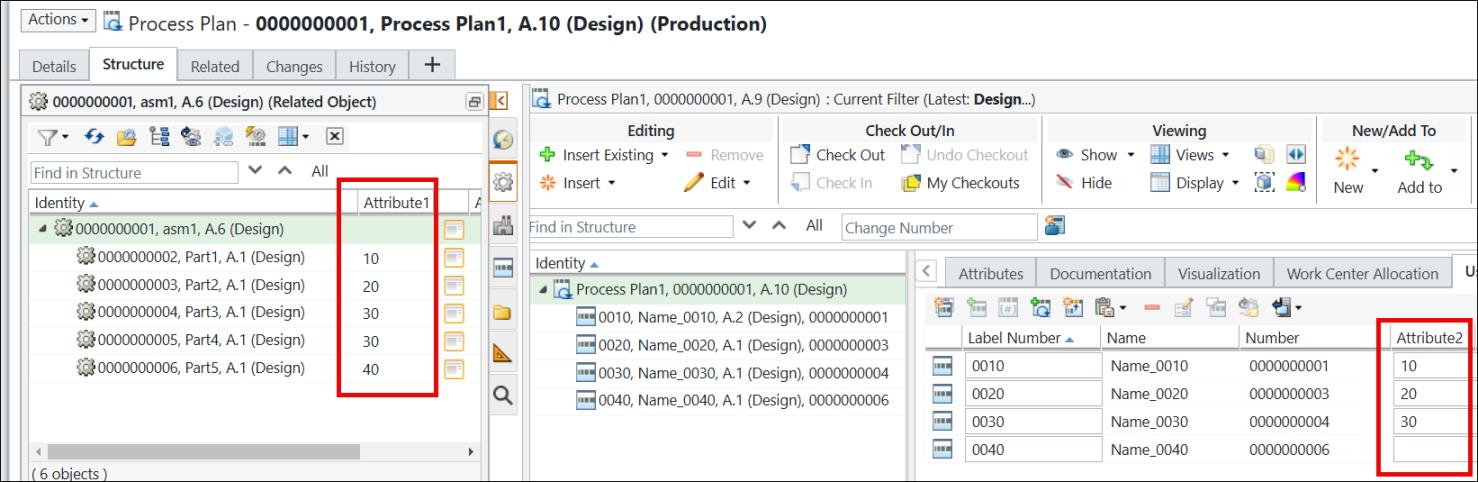
• Process Plan1 has four operations under it. The value of the attribute Attribute2 is set for three of the four operations. You can view the attribute Attribute2 in the Uses tab of PPB.
• The value of the Attribute Mapping Name for Automatic Part Allocation preference is set to Attribute1:Attribute2.
• In this use case, the value of the Highlight Inconsistencies in Structure preference is set to Yes. This is an optional step.
1. In the Structure tab of PPB, select the process plan.
2. In the Editing action set, select  Edit > Reconcile Process Plan.
Edit > Reconcile Process Plan.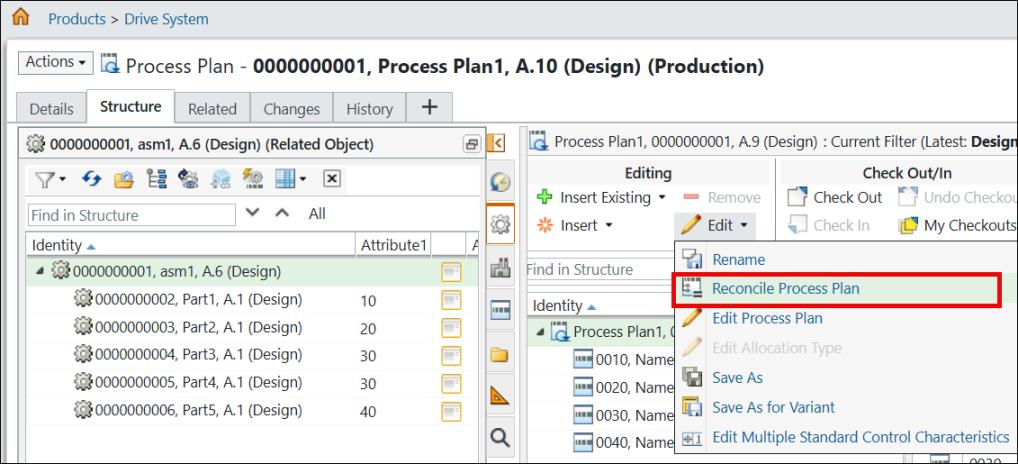
Based on the value set in the Attribute Mapping Name for Automatic Part Allocation preference, the system automatically allocates parts to operations. The system displays the Discrepancy Report, which contains information about the discrepant entities. The system highlights and expands the operations in the process plan structure to which the parts are automatically allocated.
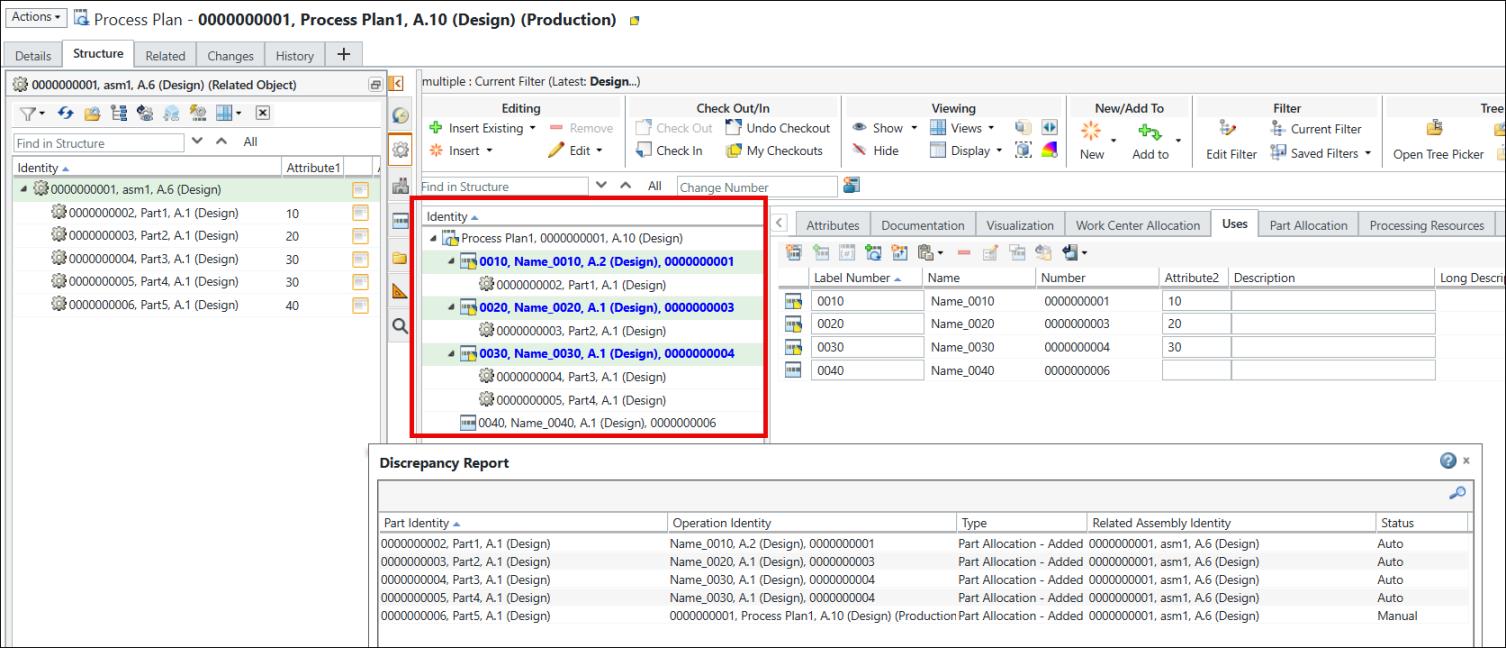
 | The system highlights and expands operations only if you set the value of the Highlight Inconsistencies in Structure preference to Yes. |
◦ For Part1, the value of attribute Attribute1 is set as 10. For operation 0010, the value of attribute Attribute2 is set as 10. Hence, the system allocates Part1 under operation 0010. In the Discrepancy Report, the status of Part1 is Auto.
Similarly, the system allocates Part2 under operation 0020.
◦ For Part3, the value of attribute Attribute1 is set as 30. For operation 0030 and 0040, the value of attribute Attribute2 is set as 30. Hence, the system allocates Part3 and Part4 under operation 0030. In the Discrepancy Report, the status of Part3 and Part4 is Auto.
◦ For Part4, the value of attribute Attribute1 is set as 40. No operation under Process Plan1 has the value of Attribute2 set as 40. Hence, Part4 is not allocated to any operation. In the Discrepancy Report, the status of Part4 is Manual. This means that you can allocate Part4 manually to any operation.
The implementation of the Reconcile Process Plan is complete. Optionally, click Close to close the Discrepancy Report dialog box.
Reconcile Process Plan is complete. Optionally, click Close to close the Discrepancy Report dialog box.Additional Information
• The following columns appear in the Discrepancy Report dialog box:
◦ Part Identity
◦ Operation Identity
◦ Type
◦ Related Assembly Identity
◦ Status
• The Type column shows whether the part is added, removed, or replaced.
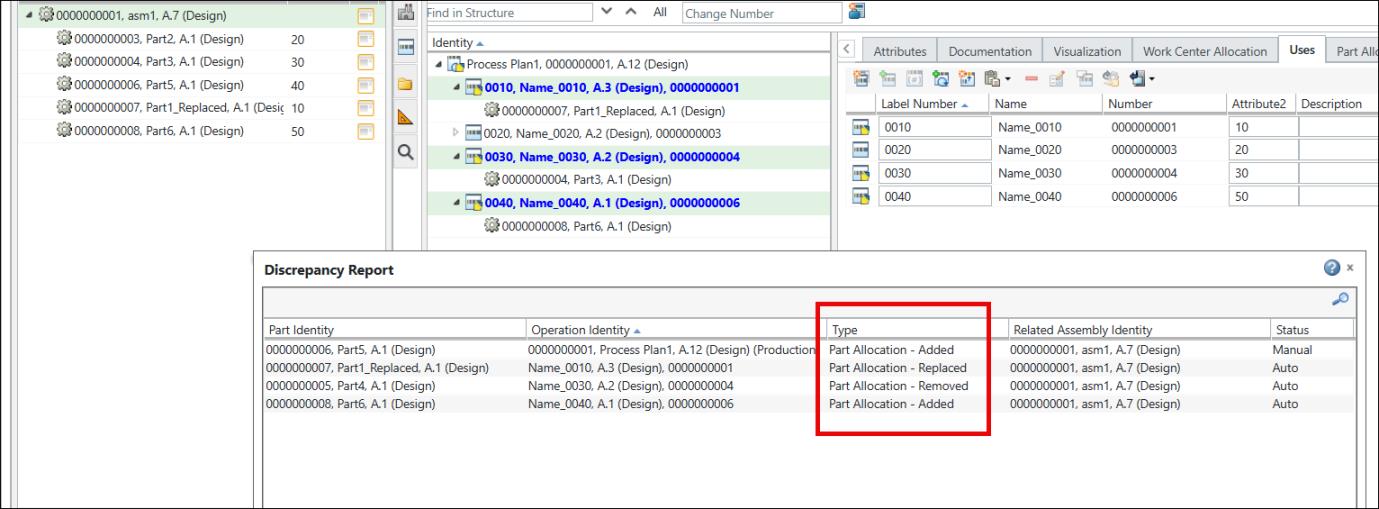
• The Status column displays the status as Auto or Manual.
The system displays the status as Auto if the parts are automatically allocated to the process plan after the implementation of the Reconcile Process Plan is complete.
Reconcile Process Plan is complete.• In the Process Plan Browser (PPB), you can allocate multiple parts to an operation in a single click. You can use the automatic part allocation feature in MPMLink by using the following two methods:
a. Matching two attributes — You can specify the same values for the attributes created on operations and part usages. If the system finds the same attribute values, it allocates the part usage under the operation.
b. Creating an attribute to define the range — You can specify a range for operations under a process plan. After specifying the range, you can use the Auto Allocate Assembly or Auto Part Allocation actions to allocate the parts with values within the specified range to operations under the process plan. Before specifying a range, you must specify a delimiter value in the Delimiter to Define the Range preference. The default delimiter value for this preference is >. You can also specify the delimiter of your choice. For example, -, @, >>, <, and so on.
You can create an attribute on the Manufacturing Operation Usage Link to define the range. To assign individual values to parts, you can create an attribute on Part Usage and use it to assign individual values to parts.
| | • The data type of the attributes created on the Manufacturing Operation Usage Link and Part Usage must be of type String. • The names of the attributes created on the Manufacturing Operation Usage Link and Part Usage can be the same or different, based on your business use case. |
For both methods, you can then map the attributes created on operations and part usages using the Attribute Mapping Name for Automatic Part Allocation preference.