Tutorial 9: Updating Variant Equivalent Links
To support vertical copy-over of attributes and associations during mass BOM update you must add and configure the com.ptc.windchill.mpml.copyOver.mapsb.massBOM.vertical.update.wt.part.WTPart property in the mpmlink.properties.xconf file located at Windchill/codebase/com/ptc/windchill/mpml/xconfs.
• <Property name="com.ptc.windchill.mpml.copyOver.mapsb.massBOM.vertical.update.wt.part.WTPart" multivalued="," default=""/>
• <Property name="com.ptc.windchill.mpml.copyOver.mapsb.massBOM.vertical.update.wt.part.WTPartUsageLink" multivalued="," default=""/>
You can use these properties according to your business use case.
For example, you can configure the property in the following format:
• <Property name="com.ptc.windchill.mpml.copyOver.mapsb.massBOM.vertical.update.wt.part.WTPart" value="WCTYPE|wt.part.WTPart~MBA|source"/>
• <Property name="com.ptc.windchill.mpml.copyOver.mapsb.massBOM.vertical.update.wt.part.WTPartUsageLink" value="WCTYPE|wt.part.WTPartUsageLink~MBA|findNumber"/>
Restart the Windchill server after propagating the property to the mpmlink.properties.xconf file for the changes to take effect.
 |
When you define a property or attribute in both horizontal and vertical copy over, the vertical copy over takes precedence and overrides the value set in the horizontal copy over.
|
Tutorial
This tutorial demonstrates how to update variant equivalent links using the  Update Mass Downstream BOMs action.
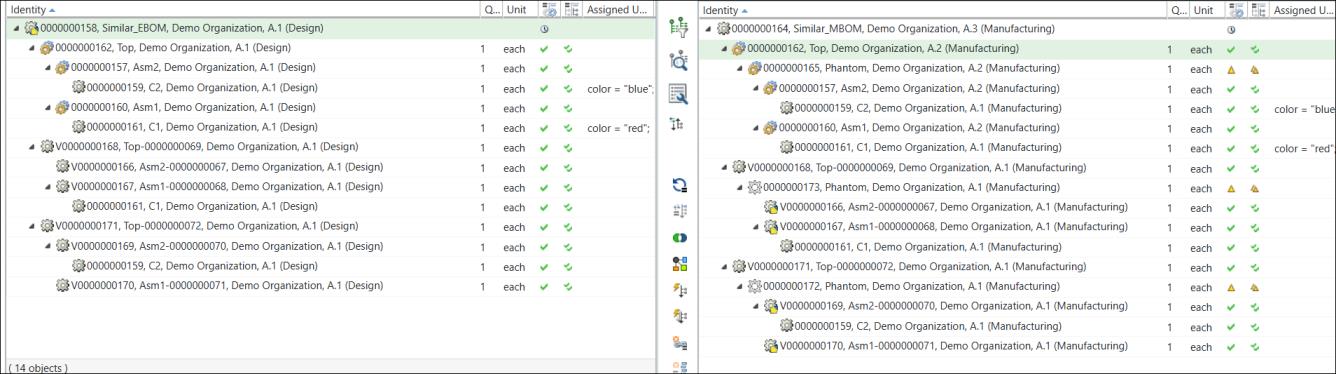
Update Mass Downstream BOMs action.1. Consider the following structure is present in the BOM Transformer:
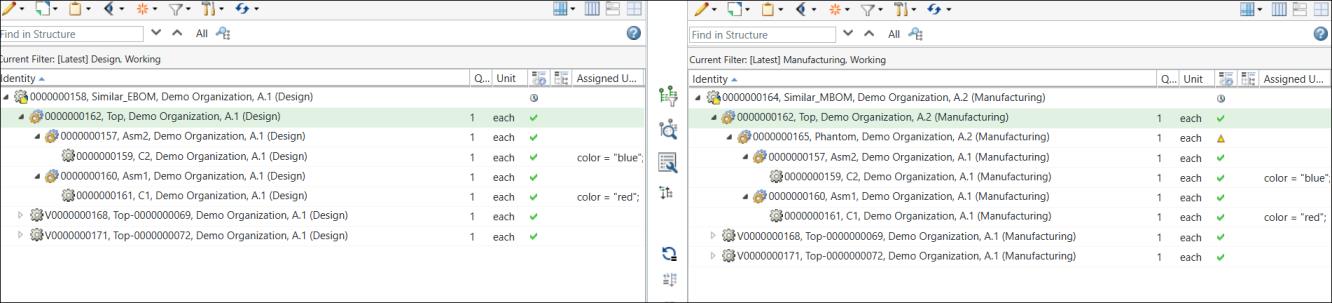
The manufacturing variants are generated using the  Generate Mass Downstream BOMs action. For more information, see Tutorial 8: Vertical Copy-Over of Attributes and Associations.
Generate Mass Downstream BOMs action. For more information, see Tutorial 8: Vertical Copy-Over of Attributes and Associations.In the expanded form, the structure appears as follows:
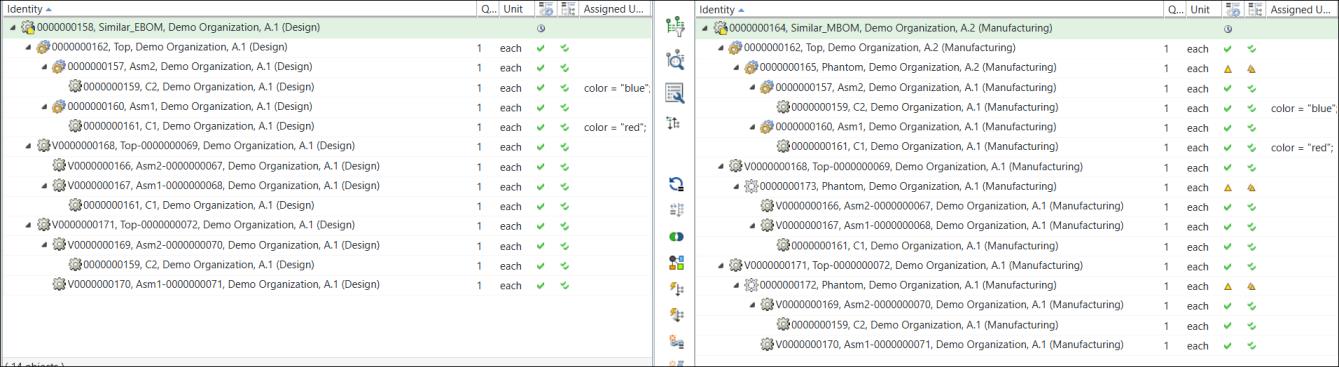
| | When a manufacturing variant is generated, additional links are created between configurable MBOMs and their manufacturing variants. These are called variant equivalent links. For more information, see Variant Equivalent Links. |
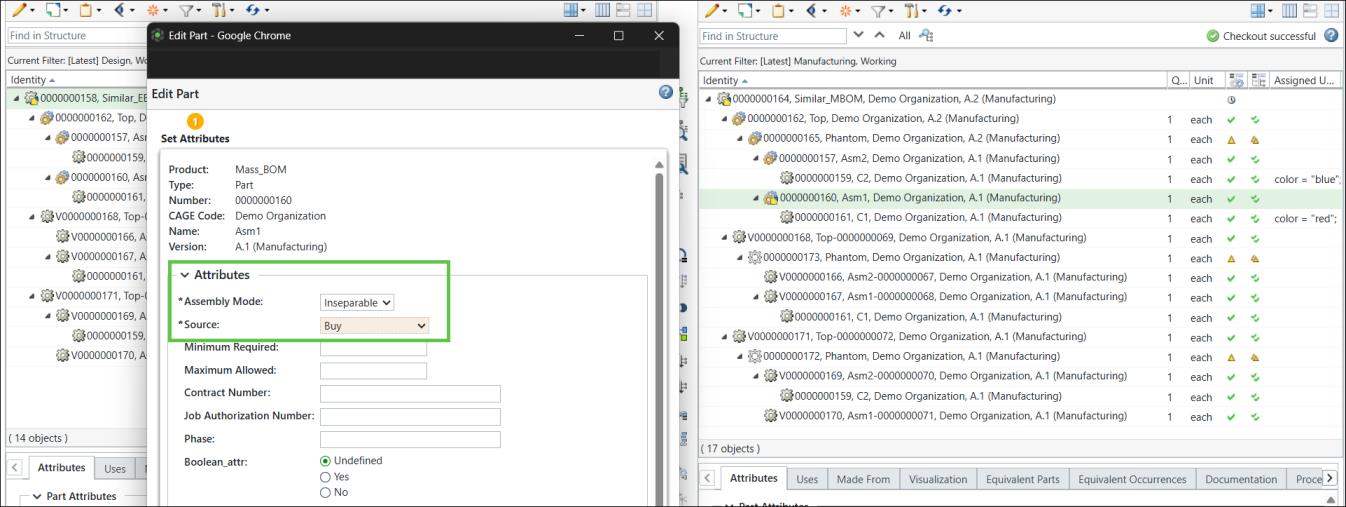
2. Select the part 0000000160, Asm1, (Manufacturing) in the downstream view and initiate the Edit Part action.
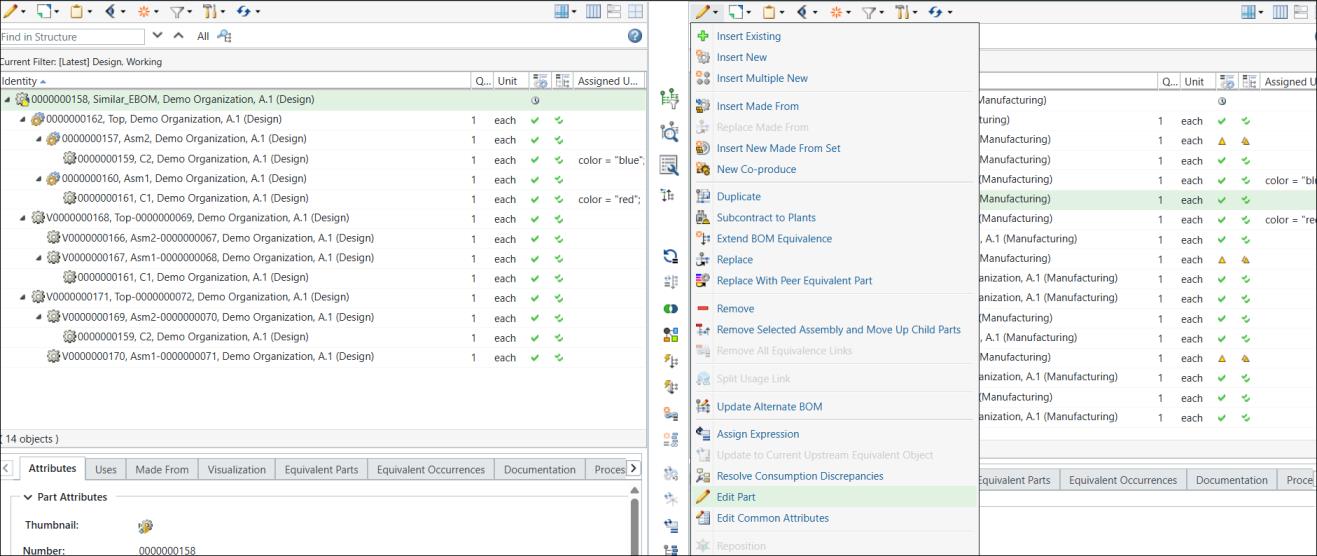
Note the highlighted attributes for the part 0000000160, Asm1, (Manufacturing).
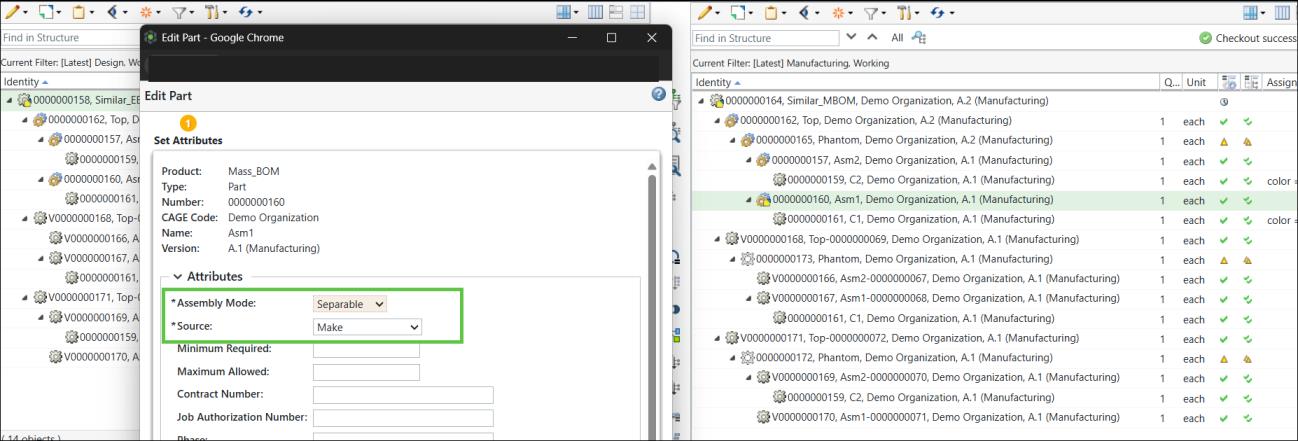
3. Change the value of the highlighted attributes.
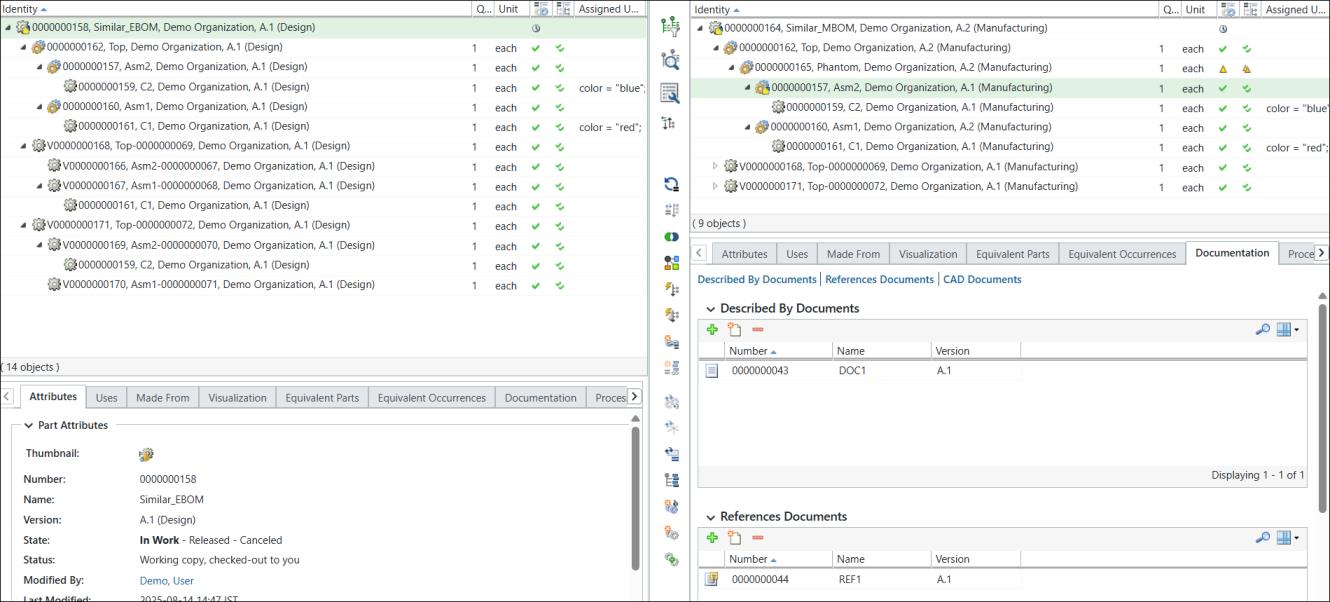
4. Associate two new documents with the part 0000000157, Asm2, (Manufacturing).
5. Select the generic mBOM 0000000162, Top, (Manufacturing) in the downstream view and click  New/Add > Update Mass Downstream BOMs.
New/Add > Update Mass Downstream BOMs.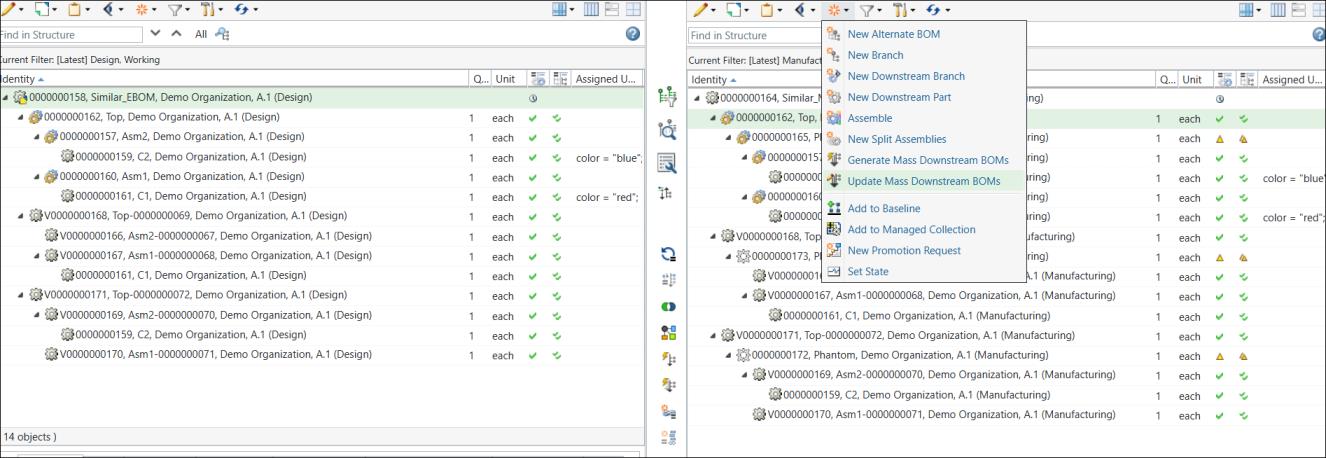
6. The following message appears when you initiate the Update Mass Downstream BOMs action:
Update Mass Downstream BOMs action: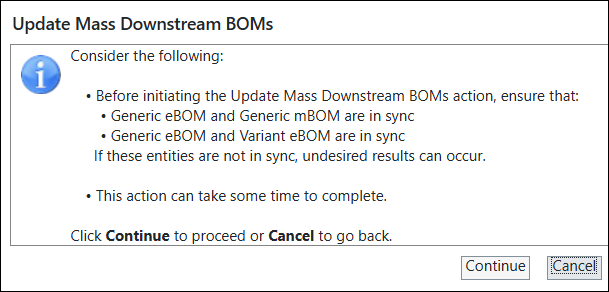
Click Continue.
7. The Update Mass Downstream BOMs dialog box opens. It displays the following information:

8. Click Finish. The Update Mass Downstream BOMs dialog box closes. The system updates the selected variant mBOMs based on the changes made in the generic mBOM structures.
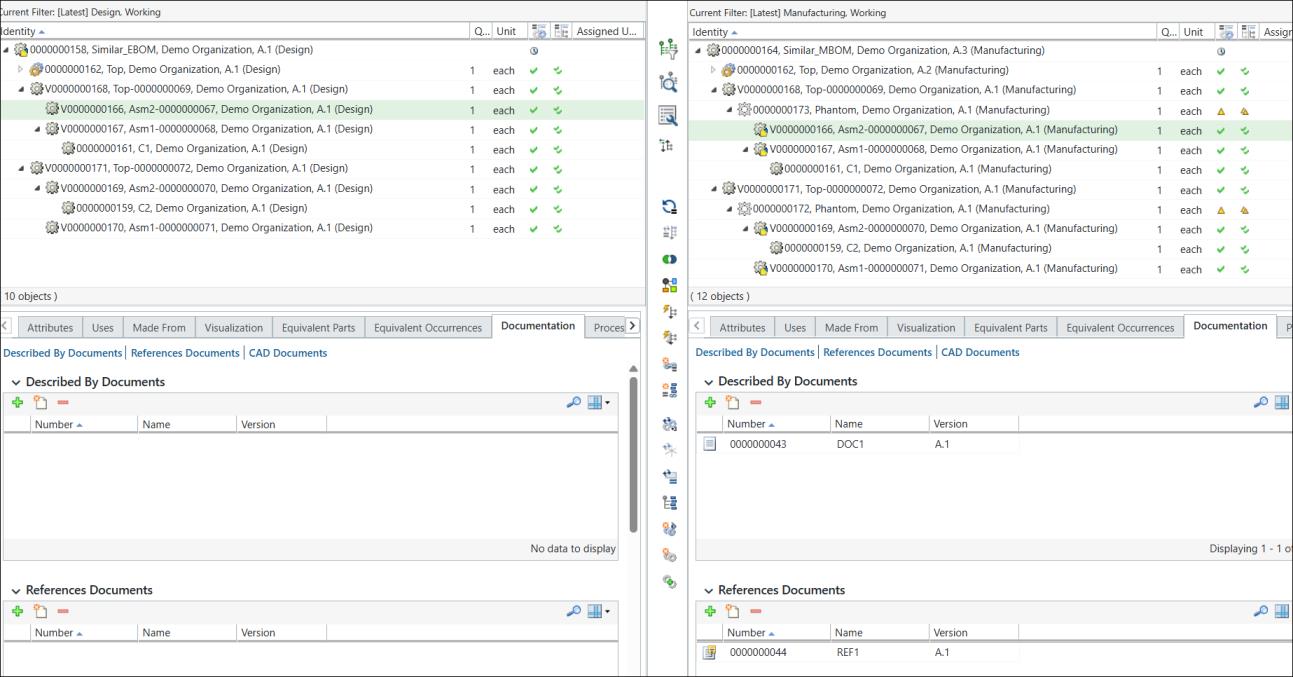
9. The associations are also copied over.
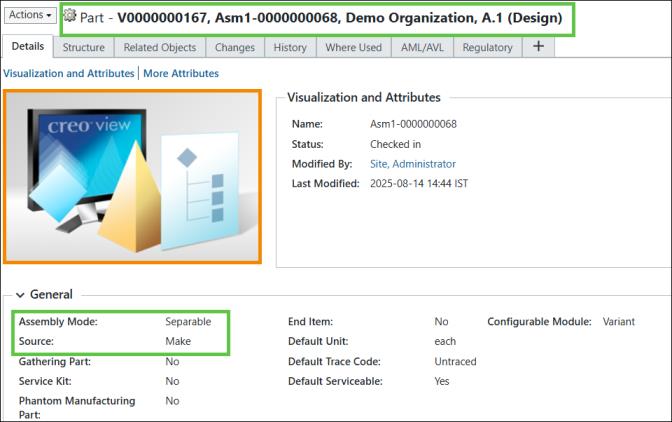
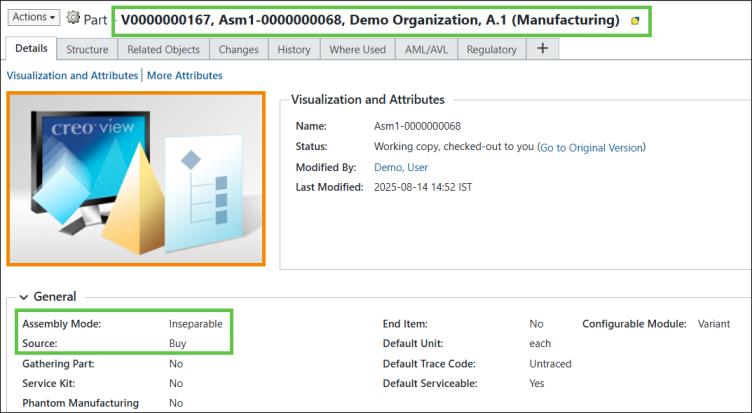
Note the difference between the old and new attributes.
| | The following properties were used in this tutorial: • <Property name="com.ptc.windchill.mpml.copyOver.mapsb.massBOM.vertical.update.wt.part.WTPart" value="WCTYPE|wt.part.WTPart~MBA|source"/> • <Property name="com.ptc.windchill.mpml.copyOver.mapsb.massBOM.vertical.update.wt.part.WTPart" value="WCTYPE|wt.part.WTPart~MBA|partType"/> • <Property name="com.ptc.windchill.mpml.copyOver.mapsb.massBOM.vertical.update.wt.part.WTPart" value="WCTYPE|wt.part.WTPart~MBA|describedBy@WCTYPE|wt.part.WTPartDescribeLink"/> • <Property name="com.ptc.windchill.mpml.copyOver.mapsb.massBOM.vertical.update.wt.part.WTPart" value="WCTYPE|wt.part.WTPart~MBA|references@WCTYPE|wt.part.WTPartReferenceLink"/> |