Using Change Management BOM Redlines with Change Intents
This topic describes the behavior and usage of the Revise, New, and Save As change intents, including how each intent is assigned during the change process. It also explains the closed-loop Change Management process for the Save As and New change intents, which includes key stages such as change planning, change implementation, change release, and any post-release activities.
The following table outlines the different types of change intent in Windchill, their respective sources, and required actions.
|
Change Intent
|
Source for BOM Redline Creation
|
Action to Apply Change Intent or Redline
|
|---|---|---|
|
Revise
|
Latest Released predecessor revision
|
Revise
|
|
Save As
|
Source Part at a particular version
|
Apply Change Intent
|
|
New
|
New Part at initial revision and iteration
|
Apply Change Intent
|
Revise Change Intent
The Revise change intent is used when a BOM redline is created based on the latest Released predecessor revision of a part. The definition of Released is determined by system configuration. When this intent is assigned, the BOM redline must be applied using the Revise action on the change task. Any affected object marked with the Revise change intent and associated with a BOM redline must follow a specific action path. This involves using the Revise action on the change task to apply the redline to the Resulting Objects table. This ensures consistency in how changes are tracked and implemented, reinforcing the structured nature of the closed-loop change management process.
New Change Intent
The New change intent is assigned when a BOM redline is created for a newly introduced part at its initial revision and initial iteration. In this case, the BOM redline is based on the new part itself, which must be created outside the change notice and added to the Affected Objects table using methods such as find, paste, or collect. To apply the BOM redline to the Resulting Objects table, the Apply Change Intent action must be used on the change task. This specific action ensures the change process follows a consistent and traceable path within the closed-loop change management framework.
Save As Change Intent
The Save As change intent is assigned when a BOM redline is created based on a specific version of an existing Source Part. The user initiates the action from the Source Part listed in the affected objects table and provides input to define the new part, including attributes such as part number, organization id, part name, view, context, and folder location. To apply the BOM redline to the Resulting Objects table, the Apply Change Intent action must be used on the change task. This specific action ensures the change process follows a consistent and traceable path within the closed-loop change management framework.
Modifying Change Intent
When working with BOM redlines, certain restrictions apply to modifying the change intent—specifically for the Revise, Save As, and New change intents. If a BOM redline already exists for an affected object, the assigned change intent cannot be directly changed. To modify the change intent in such cases, the following steps must be followed:
1. Delete the existing BOM redline associated with the affected object
2. Reassign the desired change intent value.
3. Create a new BOM redline based on the updated intent.
Modifications to the change intent are currently restricted to the Revise, Save As, and New change intents when a BOM redline exists.
Creating Redline Using the Change Intent
The steps for creating a Save As change intent BOM redline and a New change intent BOM redline are slightly different than the steps to create a Revise change intent BOM redline.
Save As Parts
To create a redline for Save As change intent part, follow these steps:
1. Add the Source Part to the Affected Objects table using the find, paste, or collect methods.
2. Create a redline for the Source Part from the Affected Objects table using Save As and Create BOM Redline action.
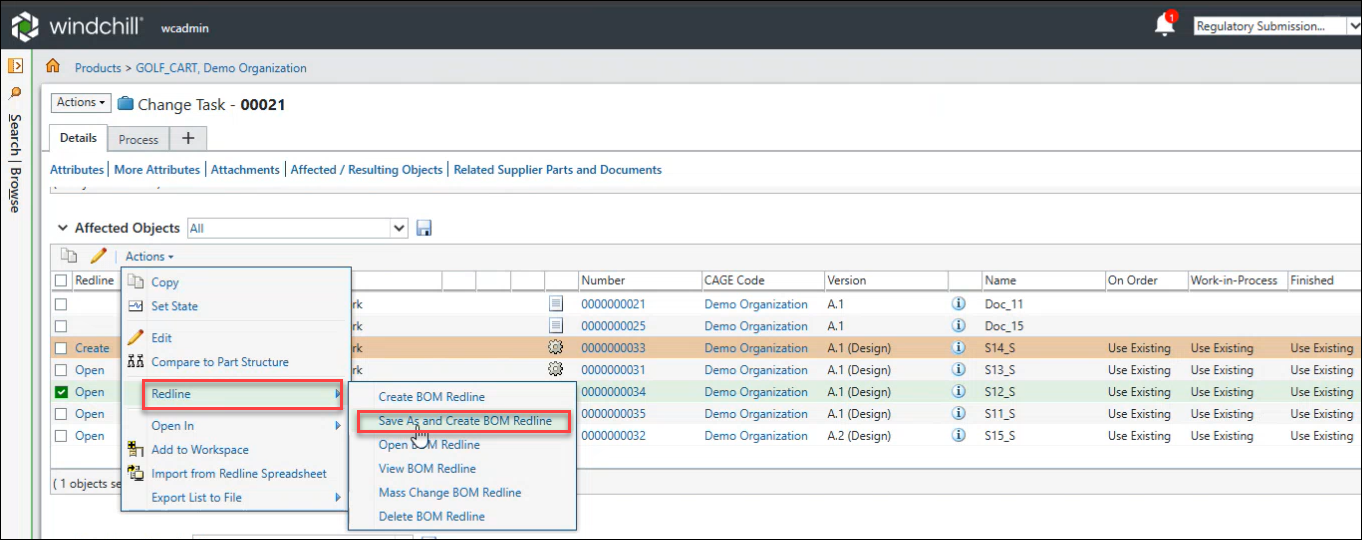
The creation of the New Part follows similar configuration rules regarding an auto-generated or manually defined Part Number.
3. Specify the required inputs for the New Part to be created such as Organization ID, Part Name, Part View, Context, and Folder Location.
You can also create redline for Save As part using these steps:
1. Create a Save As Part outside of the change notice.
2. Add the created new Save As Part to the Affected Objects table using the find, paste, or collect methods.
3. Create a redline for the new Save As Part from the Affected Objects table using the Create BOM Redline action.
Once the BOM redline is created, it can be opened and modified in the same way as a regular BOM redline.
New Parts
To create a redline for New change intent part, follow these steps:
1. Create a New Part outside of the change notice.
2. Add the created New Part to the Affected Objects table using the find, paste, or collect methods.
3. Create a redline for the New Part from the Affected Objects table using the Create BOM Redline action.
Once the BOM redline is created, it can be opened and modified in the same way as a regular BOM redline.
Applying the Change Intent to the New Resulting Object
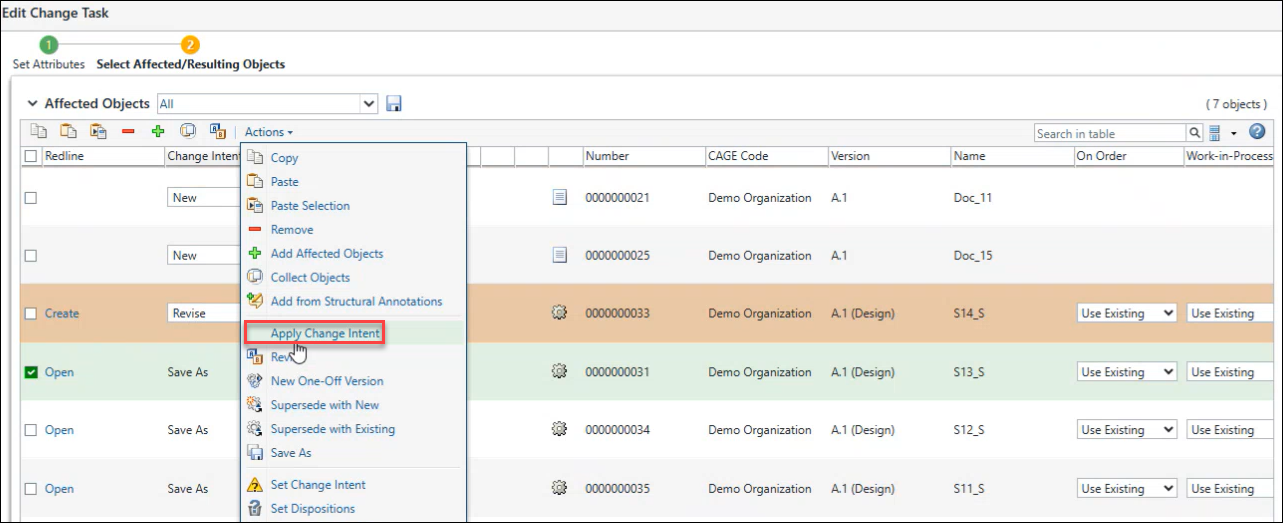
The Apply Change Intent action on the change task applies the change intent to the new resulting object. The Apply Change Intent action can be used for one or more new or save as parts that may have an associated BOM redline. All of the data associated with the BOM redline is applied to the new Part as its second iteration. The new Part is added to the Resulting Objects table.
 | The Apply Change Intent action is available when the Add Resulting Objects in Change Process preference is set to either Disable or Any State in Change Context. However, if the preference is set to Implementation State in Change Context, the action will only be visible when the change task or notice is in the Implementation state. |
Noted Behaviors of the New and Save As BOM Redline
This section outlines the key behaviors of the New and Save As BOM redlines, highlighting how they differ from the regular BOM redline in terms of part modification, mass change operations, and handling of revisions during an open redline.
Modifying the New Part with an Open Save As and New BOM Redline
For both New and Save As change intents, the new part is created at its initial revision (for example, A.1) on the latest iterated affected object (main branch). This version is not expected to be modified until the BOM redline is applied.
Using Mass Change Operations
Both Save As and New BOM redlines are eligible candidates for mass change operations. They follow the same rules as the regular BOM redline during these operations. However, the key difference is New and Save As BOM redlines do not support automatic creation of mass change action on-the-fly and must be created manually.
Releasing New Revisions of the Original Source Part
Following is the description how the Save As and New BOM redlines behave when new revisions of the Source or New Part are released via separate change notices:
• For Save As BOM Redline
If a new revision of the original Source Part is released via another change notice, the open Save As BOM redline does not get synchronized. The Source Part version remains fixed for the life of the Save As Part and its associated BOM redline.
• For New BOM Redline
If the initial revision of the New Part is released via another change notice, the open New BOM redline also does not get synchronized. The New Part version remains fixed for the life of the BOM redline.
Related Topics