Set the Actual Start Date and Actual Finish Date
The Actual Start Date and Actual Finish Date attributes now exist OOTB on the change notice and change task.
You can track the implementation progress of the change notice from the Implementation Plan tab. The Implementation Plan includes the Actual Start Date and Actual Finish Date for each change task. These new attributes, along with the State attribute, help determine which change tasks have started and which have finished.
As a change administrator, you can refer to this topic to understand how the actual start date and actual finish date are set in the workflows.
Include the Actual Start Date and Actual Finish Date on UI
To include the actual start date and the actual finish date on the Implementation Plan table and the Table Views page, update the Primary Attributes Info Page Layout in the Type and Attribute Management utility for the following attributes:
• The Actual Start Date and Actual Finish Date attributes for the change tasks
• The Actual Finish Date attribute for the change notice
For more information, see Working with the Type and Attribute Management Utility.
Set the Actual Start Date
To set the Actual Start Date on the Change Activity With Release Workflow Version 1, follow these steps:
1. In the workflow, click the Synch on Change Notice Implementation synchronization robot.
2. In the Synch on Change Notice Implementation window, click Synchronize.
3. In the Object Event, call the setECTActualStartDate API to get the Actual Start Date as shown below:
//If Change Activity is ready to execute, continue the workflow
boolean isReady = com.ptc.windchill.pdmlink.change.server.impl.WorkflowProcessHelper.isChangeActivityReady((wt.change2.ChangeActivity2)primaryBusinessObject);
if (isReady)
{
com.ptc.windchill.pdmlink.change.server.impl.WorkflowProcessHelper.setECTActualStartDate((wt.change2.WTChangeActivity2)primaryBusinessObject);
result = "Go";
}
else
result = null;
boolean isReady = com.ptc.windchill.pdmlink.change.server.impl.WorkflowProcessHelper.isChangeActivityReady((wt.change2.ChangeActivity2)primaryBusinessObject);
if (isReady)
{
com.ptc.windchill.pdmlink.change.server.impl.WorkflowProcessHelper.setECTActualStartDate((wt.change2.WTChangeActivity2)primaryBusinessObject);
result = "Go";
}
else
result = null;
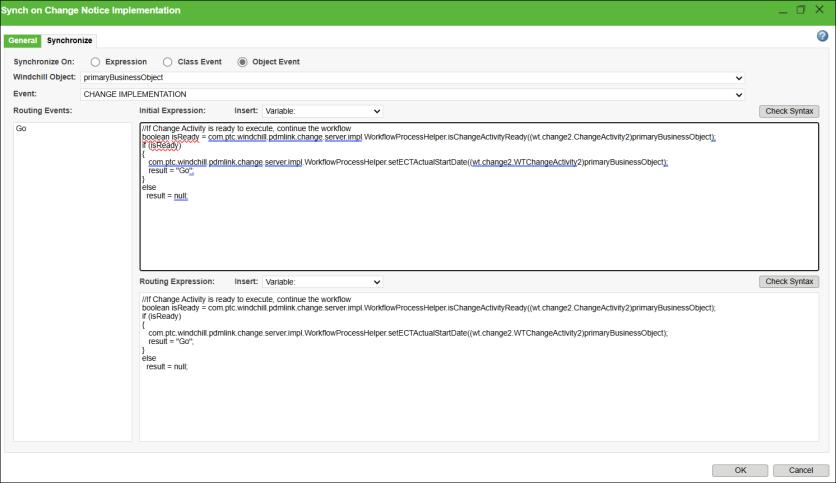
This sets the Actual Start Date for the change task.
Set the Actual Finish Date
To set the Actual Finish Date on the Change Activity with Release Workflow Version 1, follow these steps:
1. In the workflow, click the Release Changeables for Change Task.
2. In the Release Changeables for Change Task window, click Synchronize.
3. In the Synchronize window, call the releaseChangeable2 API to get the Actual Finish Date as shown below:
com.ptc.windchill.pdmlink.change.server.impl.WorkflowProcessHelper.releaseChangeables2((wt.change2.WTChangeActivity2)primaryBusinessObject);
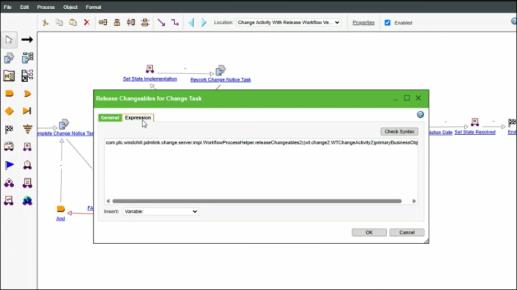
This sets the Actual Finish Date for the change task.