Open from Windchill (CATIA V5)
This action enables you to select a CAD object from the active workspace, or from the commonspace of the registered Windchill server, and open it into your active CATIA V5 design session. The Open from Windchill action is available on the PTC Windchill menu and PTC Windchill Toolbar in CATIA V5.
You can open a CAD document from the Windchill commonspace or workspace. Other objects that are required to open the selected CAD document are also collected.
 |
To work with Windchill Workgroup Manager, you must first register a server and select an active workspace. For more information, see the Windchill Workgroup Manager Installation Guide.
|
When you click Open from Windchill, you can browse for the file you want to open in CATIA V5.
|
|
The Open from Windchill action does not support opening multiple CAD documents at the same time.
|
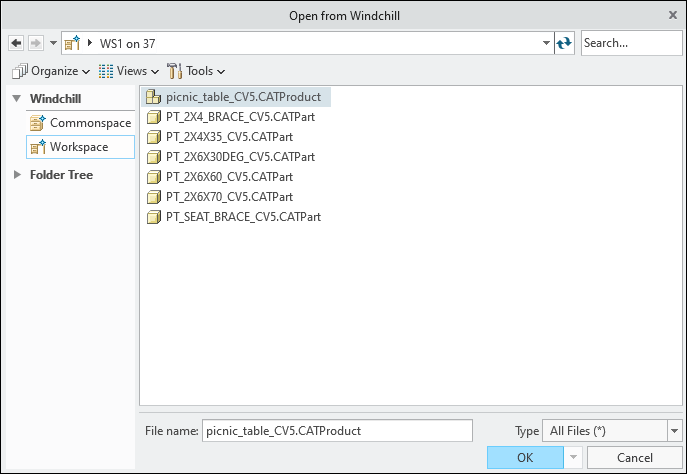
Select a file or type the name of a file you want to open in the Filename: box. You can filter the display by selecting either all the files or only CATIA V5 files using the Type menu. Use the Search utility to find CAD documents by partial name or wildcard (*).
 | Alternatively, you can right-click the object in the Windchill workspace or commonspace and click Open in CATIA V5. |
To customize the view for the Open from Windchill window, you can select options from the following menus.
• Views
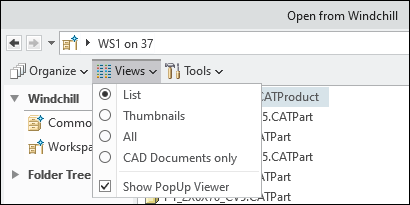
Under the Views menu, you can select a view type as List, Thumbnails, All, or CAD Documents only. If the CAD document has a viewable representation (thumbnail), you can see the preview by setting the view to thumbnails.
• Tools
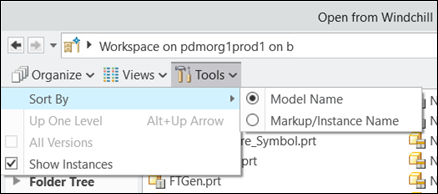
Under the Tools menu, you can determine whether you want to show the instance next to all objects and define the sort order by Model Name or Markup/Instance Name.
For more information, see Best Practices to Open Large Assemblies in CATIA V5.