Editing Multiple Attributes of Operations
Use the  Edit Multiple Objects action to edit multiple attributes of the following objects:
Edit Multiple Objects action to edit multiple attributes of the following objects:• Operations
• Standard operations
• Subtypes of operations and standard operations
You can also edit the values of cascading attributes associated with these objects.
The Edit Multiple Objects action is available at the following locations:
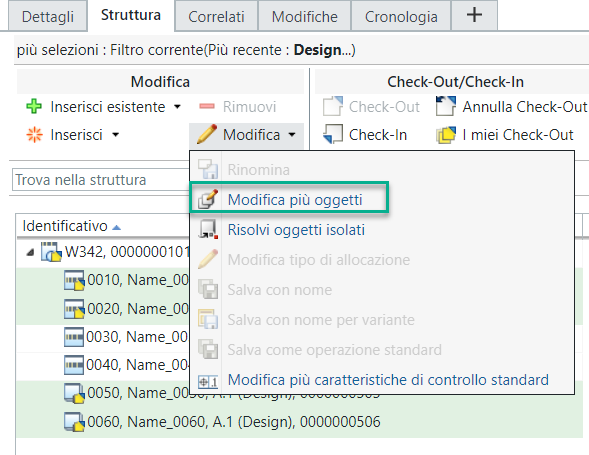
Edit Multiple Objects action is available at the following locations:• Editing section present in the Structure tab of the Process Plan Browser
• Right click menu of the Process Plan Browser
• Folder Browser page — Actions list and right click menu
• Search Results page — Actions list and right click menu
• Resulting Objects table of a change task
 | You must select valid objects and invoke the Edit Multiple Objects action. Valid objects in this case are operations, standard operations, and their subtypes. You can also select different valid objects. For example, you can select two operations and two standard operations. |
The following procedure applies for the Edit Multiple Objects action invoked from any of these locations.
Edit Multiple Objects action invoked from any of these locations.1. Depending on the location from where you will use the action, perform the following:
◦ Browse to the Structure tab of the Process Plan Browser. From the process plan tree structure, select one or more valid objects. From the Editing section, click  Edit > Edit Multiple Objects. The Edit Multiple Operations dialog box opens. Alternatively, you can right-click and select > Edit Multiple Objects to open the Edit Multiple Operations dialog box.
Edit > Edit Multiple Objects. The Edit Multiple Operations dialog box opens. Alternatively, you can right-click and select > Edit Multiple Objects to open the Edit Multiple Operations dialog box.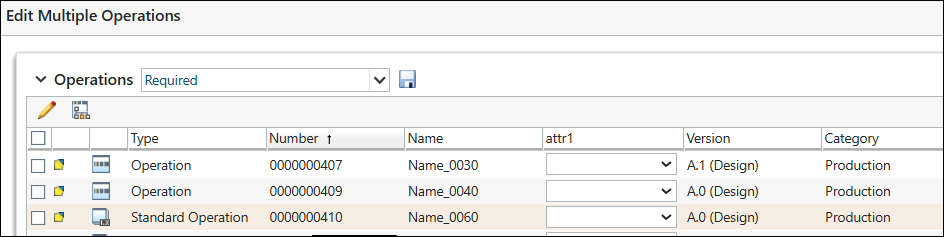
◦ In the folder browser page, select one or more valid objects. In the Actions list, select Edit Multiple Objects. The Edit Multiple Operations dialog box opens. Alternatively, you can right-click and select Edit Multiple Objects to open the Edit Multiple Operations dialog box.
Edit Multiple Objects. The Edit Multiple Operations dialog box opens. Alternatively, you can right-click and select Edit Multiple Objects to open the Edit Multiple Operations dialog box.◦ From the New Change Task wizard when creating a change notice. On the Select Affected/Resulting Objects tab, from the Actions menu for the Affected Objects or Resulting Objects table, select Edit Multiple Objects. The Edit Multiple Operations dialog box opens.
Edit Multiple Objects. The Edit Multiple Operations dialog box opens.◦ In the folder browser page, enter a number in Search in table and click  . In the search results page, select the valid objects. Right-click and select Edit Multiple Objects to open the Edit Multiple Operations dialog box.
. In the search results page, select the valid objects. Right-click and select Edit Multiple Objects to open the Edit Multiple Operations dialog box.2. Based on your business requirement, select the entities in the Edit Multiple Operations dialog box.
3. Click  Edit Attribute Value to set any of the attributes of objects selected for the action.
Edit Attribute Value to set any of the attributes of objects selected for the action.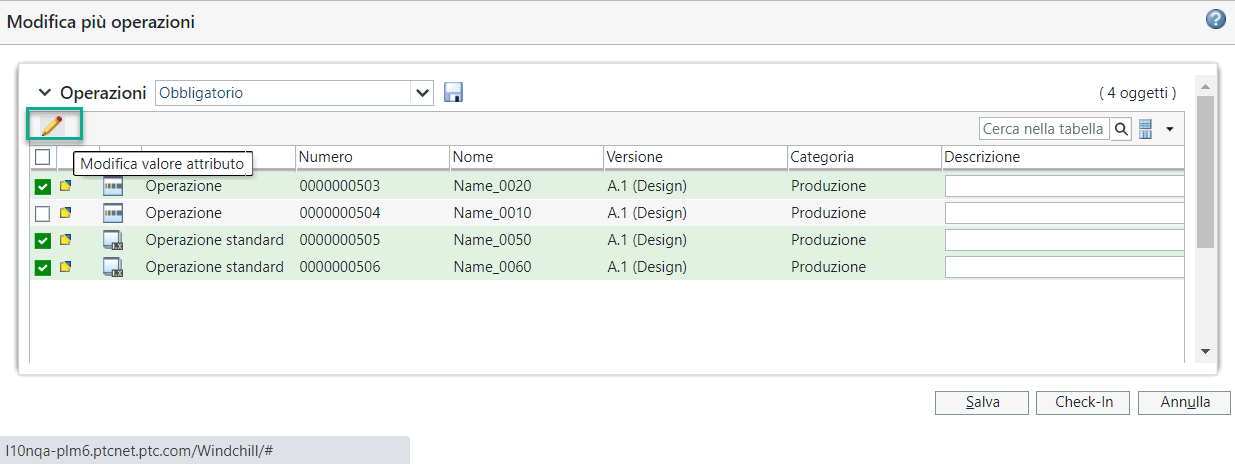
4. In the Edit Attribute Value dialog box, the Set list contains a list of required attributes currently displayed in the columns of the Edit Multiple Operations dialog box.
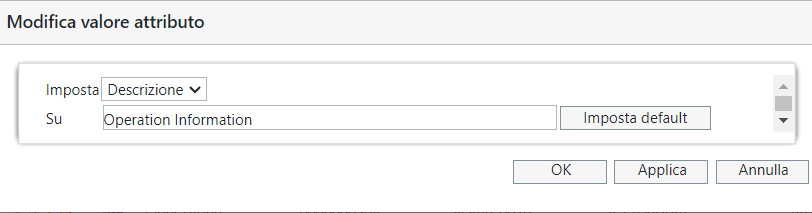
Depending on the attribute selected in the Set list, the To field presents a list or an input panel. Click Apply to set the value and leave the Edit Attribute Value dialog box open. Or, click OK to exit the Edit Attribute Value dialog box and return to the Edit Multiple Operations dialog box, where the newly set value is displayed. For more information, see Setting Attribute Values.
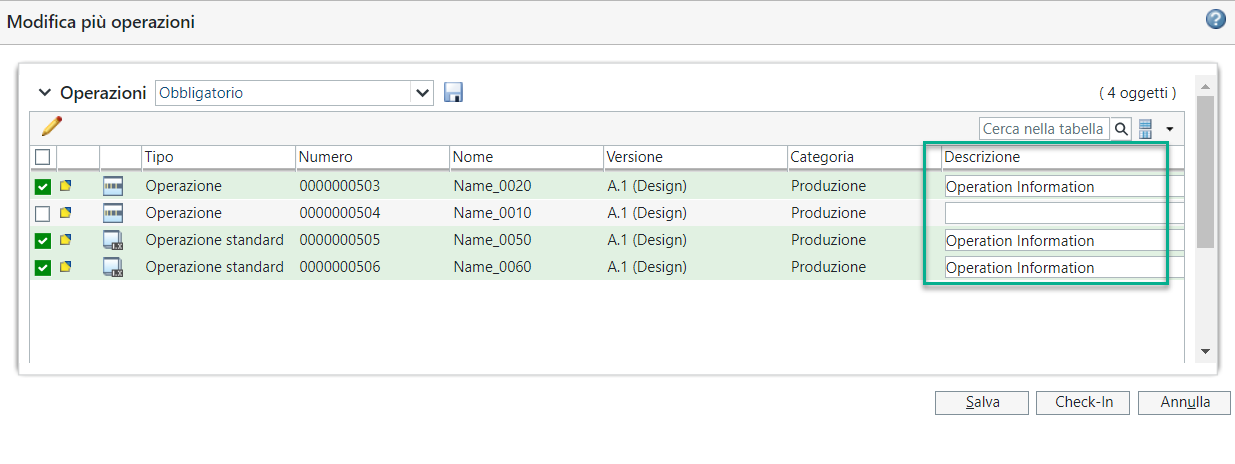
5. After making all the desired changes do one of the following:
a. Click Save to save the changes without performing a check in.
or
b. Click Check In to complete your edits and make the changes available to other users.
Additional Information
• If you select one or more invalid objects and invoke the Edit Multiple Objects action, the system displays the following user message — This action is supported only for operations. Select one or more operations and initiate the action.
Edit Multiple Objects action, the system displays the following user message — This action is supported only for operations. Select one or more operations and initiate the action.• If any of the selected operation is already checked out by another user then it will continue to show the message — Object Already Checked Out.
• You can use the  Where used action available in the Edit Multiple Operations dialog box to view the process plans where the selected operation is used.
Where used action available in the Edit Multiple Operations dialog box to view the process plans where the selected operation is used.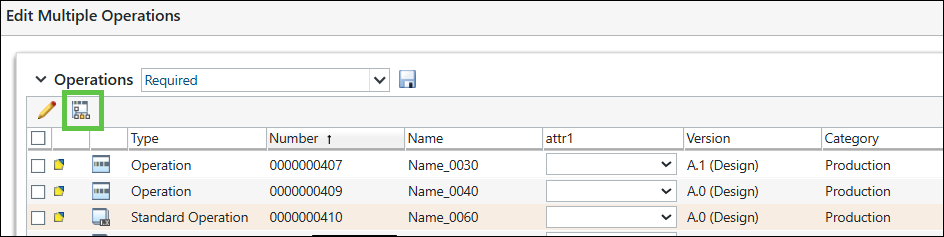
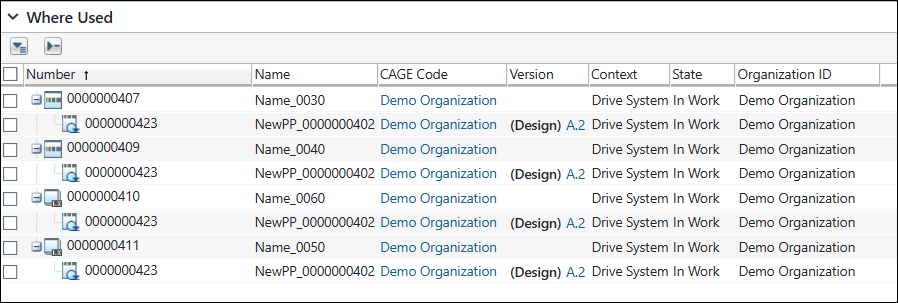
The Version column in the table contains a hyperlink to the information page of the latest version. The system displays each line item with a sign to expand or collapse.