Frequently Used Preferences in Windchill Preference Management Utility (AutoCAD)
This section contains some of the more frequently used preferences that can be set or modified depending on your Windchill role.
 |
The intent of this section is to list the most frequently used preferences, and not every preference that can be set using the Preference Management utility. For the complete list of preferences for AutoCAD that can be managed from the Preference Management utility, refer to the Preference Management utility in Windchill.
|
The following tables list the most frequently used preferences in the categoriesOperation, Workgroup Manager Client, and Workspaces that can ne managed for Windchill Workgroup Manager for AutoCAD per your Windchill role.
Preferences under Operation
To view the server-side preferences that can be set from the Operation category and its subcategories, refer Operation Preferences.
Preferences Under Workgroup Manager Client
The following table describes the most frequently used preferences that can be set or modified from the Workgroup Manager Client category and subcategories.
|
Name
|
Context
|
All Values
|
||
|---|---|---|---|---|
|
AutoCAD Blocks Configuration File Location
|
• Site
• Organizations
• Products
• Projects
• Libraries
|
BlocksConfig.txt
|
||
|
AutoCAD Standard Drawing Definition
|
• Site
• Organizations
|
• attribute_only (default)
• filename
|
||
|
Disable Check out on the fly
|
• Site
• Organizations
• Products
• Projects
• Libraries
|
Controls the display of the Conflicts (for Check out on the fly) window upon execution of Save action and resolves the checkout conflict with one of the following options:
• Check-out — Disable the Conflicts (for Check out on the fly) window and checkout the document.
• Revise and Check out — Disable the Conflicts (for Check out on the fly) window; revise and checkout the document.
• Continue — Disable the Conflicts (for Check out on the fly) window and continue to save the document without a checkout.
• No (default) — Enables the display of the Conflicts (for Check out on the fly) window.
|
||
|
|
• Site
• Organizations
• Products
• Projects
• Libraries
|
• Off
• Blocks
• Custom
|
||
|
>
|
• Site
• Organizations
|
• PTC_WM_ITERATION
• CAD Document Iteration System Attribute
|
||
|
>
|
• Site
• Organizations
|
• PTC_WM_LIFECYCLE_STATE
• CAD Life Cycle State System Attribute
|
||
|
>
|
• Site
• Organizations
|
• PTC_WM_LIFECYCLE
• CAD Life Cycle System Attribute
|
||
|
>
|
• Site
• Organizations
|
• PTC_WM_NAME
• CAD System Attribute
|
||
|
>
|
• Site
• Organizations
|
• PTC_WM_NUMBER
• CAD System Attribute
|
||
|
>
|
• Site
• Organizations
|
The default name is set to a blank value.
Setting the property name to PTC_WM_CREATED_BY creates the property that displays the name of the user that created the CAD document.
|
||
|
>
|
• Site
• Organizations
|
The default name is set to a blank value.
Setting the property name to PTC_WM_CREATED_ON creates the property that displays the date and time when the CAD document was created.
|
||
|
>
|
• Site
• Organizations
|
The default name is set to a blank value.
Setting the property name to PTC_WM_MODIFIED_BY creates the property that displays the name of the user that last modified the CAD document.
|
||
|
>
|
• Site
• Organizations
|
The default name is set to a blank value.
Setting the property name to PTC_WM_MODIFIED_ON creates the property that displays the date and time when the CAD document was last modified.
|
||
|
>
|
• Site
• Organizations
|
• PTC_WM_ORGANIZATION_ID
• <CAD System Attribute>
|
||
|
>
|
• Site
• Organizations
|
• PTC_WM_PART_NAME
• CAD System Attribute
|
||
|
>
|
• Site
• Organizations
|
• PTC_WM_PART_NUMBER
• CAD System Attribute
|
||
|
>
|
• Site
• Organizations
|
• PTC_WM_REVISION
• CAD System Attribute
|
||
|
>
|
• Site
• Organizations
|
${internet_domain_name}.Note
|
||
|
>
|
• Site
• Organizations
• Products
• Projects
• Libraries
• User
|
• Required
• All
• None
|
||
|
>
|
• Site
• Organizations
• Products
• Projects
• Libraries
• User
|
• None
• All
• Initially Selected
|
||
|
>
|
• Site
• Organizations
|
<search string>
|
||
|
Synchronize Number and File Name
|
• Site
• Organizations
|
• Yes
• No
|
||
|
Undo Checkout Overwrite Local Content
|
• Site
• Organizations
• Products
• Projects
• Libraries
• User
|
• Yes
• No
|
||
|
Update Overwrite Local Content
|
• Site
• Organizations
• Products
• Projects
• Libraries
• User
|
• Yes
• No
|
||
|
Upload After Native Save
|
• Site
• Organizations
• Products
• Projects
• Libraries
• User
|
• Yes
• No
|
||
|
Upload CAD/Dynamic Document and Attachment Filter
|
• Site
• Organizations
• Products
• Projects
• Libraries
• User
|
• CAD/Dynamic Document Type
• Attachment File Type
• Content Category
|
||
|
Upload Related Drawings
|
• Site
• Organizations
• Products
• Projects
• Libraries
• User
|
• Yes
• No
|
||
|
Mapping Custom System Attributes and File Properties
|
Site
|
Specifies the additional attributes from the objects related to the CAD document that are shown as parameters in the CAD tool
|
|
|
• When you upgrade from an older release to Windchill 11.1 M020, a performance issue may be observed when you open a large CAD assembly saved in the previous release with one of the above properties configured with non-empty name. This is because for Windchill 11.1 M020 onwards, the Windchill Workgroup Manager enforces to propagate additional Windchill system attributes to CAD models when opening CAD documents from Windchill by default. This propagation of the Windchill system attributes increases the loading time of the files as compared to that without propagating these attributes.
• If these Windchill system attributes are not a part of your requirement, you can ignore these attributes by setting their attribute names to blank values. The Windchill Workgroup Manager will not propagate the Windchill system attributes to CAD models and performance degradation for legacy data will be avoided. The following image displays how the Windchill server preference setting were set and the default system attributes were propagated. 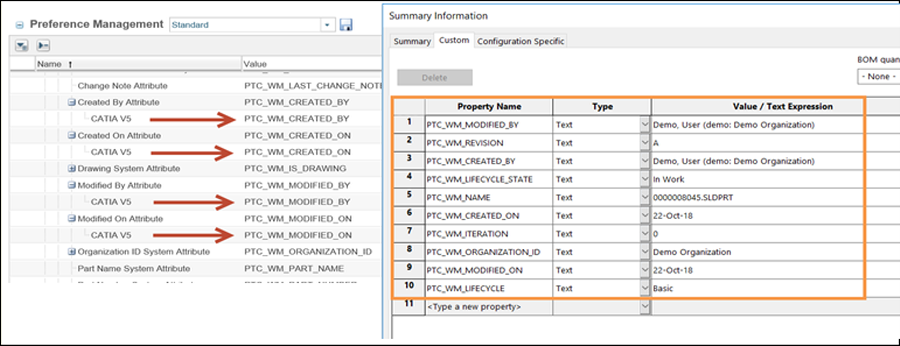 |
Preferences under Workspace
The following table describes the most frequently used preferences that can be set or modified from the Workspace category and subcategories.
|
Name
|
Context
|
All Values
|
||
|---|---|---|---|---|
|
>
|
• Site
• Organizations
• User
|
• DOWNLOAD
• LINK
|
||
|
> <preference name>
|
• Site
• Organizations
• User
|
Select the preference and the appropriate value from the list of preferences for AutoCAD.
|
||
|
>
|
• Site
• Organizations
• User
|
• Yes
• No
|
||
|
> <preference name>
|
• Site
• Organizations
• User
|
Select the preference and the appropriate value from the list of preferences for AutoCAD.
|
||
|
>
|
• Site
• Organizations
• User
|
• Yes
• No
|
||
|
>
|
• Site
• Organizations
• User
|
• Yes
• No
|
||
|
>
|
• Site
• Organizations
• User
|
• DEFAULT
• LATEST
• AS_STORED
• WS_DEFAULT
|
||
|
>
|
• Site
• Organizations
• User
|
• DEFAULT
• LATEST
• AS_STORED
• WS_DEFAULT
|
||
|
>
|
• Site
• Organizations
• User
|
• SELECTED_AND_MODIFIED
• SELECTED
• ALL
|
||
|
>
|
• Site
• Organizations
• User
|
• Yes
• No
|
||
|
> <preference name>
|
• Site
• Organizations
• User
|
Select the preference and the appropriate value from the list of preferences for AutoCAD.
|
Preferences under Revise
The following table describes the preferences under the Revise category:
|
Name
|
Context
|
Description
|
||
|---|---|---|---|---|
|
>
|
• Site
• Organizations
|
The Include Related CAD / Dynamic, Include Related Documents and Include Related Parts values are set by default.
|