Working with Worker Agent Administration
Access Worker Agent Administration as follows:
1. Open Windchill in a Web browser.
2. From the Windchill Navigator, click the Utilities link from the Site container, and then click Worker Agent Administration.
3. The Worker Agent Administration window opens.
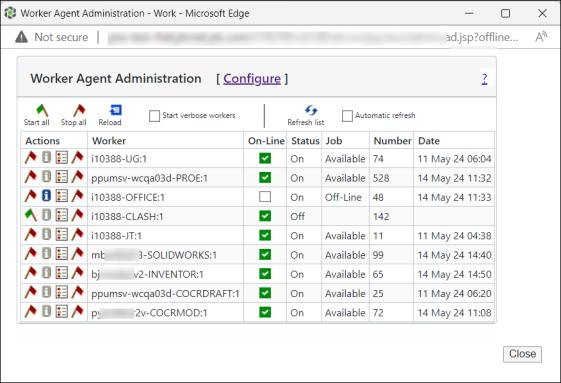
To perform certain tasks on this window, click Configure. The Worker Configuration window appears. The tasks you can perform in this window are:
• Add Worker
• Edit Worker
• Delete Worker
Click Show Help, to view detailed instructions about performing each task and for other descriptions.
The following table describes the functions of the icons and options on the Worker Agent Administration window:
Worker Agent Administration Table | |||
|---|---|---|---|
Icon or Option | Description | ||
 | At the top of the Worker Agent Administration table, the Start all icon starts all workers configured for publishing.When the Start all icon appears next to a worker in the Actions column, you can click the icon to send a message to the Worker Agent to start that worker. | ||
 | At the top of the Worker Agent Administration table, the Stop all icon stops all workers from publishing.When the Stop all icon appears next to a worker that is available, you can click the icon to stop either the worker or the worker monitor. | ||
 | The worker flag appears grayed out when Windchill is unable to start the newly configured worker. When you hover over the flag, the tooltip indicates Executable not Safe. This indicates that Windchill is not configured to safely execute the worker application. Configure the mandatory wvs property worker.exe.allowlist.prefixes listing allowed worker host directories safe for execution. Refer topic Enhanced Security Measures in Worker Configuration for more details | ||
 | Reloads the Worker Agent configuration file (agent.ini), which stores information about the configured workers. | ||
Start verbose workers | When this check box is selected, any worker that is started manually from the Worker Agent uses worker-specific options that are stored in the worker's debug_options.txt file. Selecting this check box typically provides information in the worker log file to aid in debugging. | ||
 | Refreshes the Web page, so it reflects the current state of the workers. | ||
Automatic refresh | Selecting this check box refreshes the window to reflect recent changes.
| ||
Configure | Opens the Worker Configuration dialog box, where you can add, edit, and delete workers. Clicking Show Help expands the window to reveal detailed instructions about the available options. This function displays throughout the wizard. | ||
Close | Exits the Worker Agent Administration window. | ||

The following table describes the columns in the Worker Agent Administration window at the row level, and is used by administrators to determine the need for workers of a particular type:
Worker Agent Administration Table (Row Level) | |||
|---|---|---|---|
Column | Description | ||
Actions | Displays the following icons: • The Start icon and the Stop icon represent whether the worker can be started (is online) or stopped (is offline).If the icon is a green flag, the worker is stopped; click the icon to start the worker. If the icon is a red flag, the worker is started; click the icon to stop the worker. A second red flag appears when the worker is started. Click the second red flag to stop the worker monitor.
• The test worker icon  opens the Testing a Worker from Windchill window (the worker must be started and offline for this action to be enabled). This window is described in the next section. opens the Testing a Worker from Windchill window (the worker must be started and offline for this action to be enabled). This window is described in the next section.• The worker log icon  opens the Displaying the Worker Log Files window, described below. opens the Displaying the Worker Log Files window, described below. | ||
Worker | Displays a description of the worker, the host name, the authoring application type, and an instance number
| ||
On-Line | Select the On-Line check box to put the worker in online status, which means new jobs can be sent to that worker. Deselect the On-Line check box to put the worker in offline status, which means new jobs cannot be sent to that worker. The worker continues to run and process jobs that it has already started, but does not begin any new ones.
| ||
Status | Displays whether the worker is online, offline, busy, and so forth. | ||
Job | Displays what the worker is processing. When the worker is idle, the field says Available; when the work is offline, the field says Off-Line. | ||
Number | Displays the number of jobs a worker has processed since Windchill was last restarted or the configuration file was last reloaded. | ||
Date | Displays the time and date a worker was last used by the system. If a worker has never been used, this field displays the date and time it was started. | ||
Testing a Worker from Windchill
Click the test worker icon in the Actions column to test the worker. This tests the configuration of FTP or shared file systems, application (such as CAD), license availability, and general worker functioning prior to populating data in Windchill. Before running a worker test, ensure that the worker is started, and put offline (so it cannot be sent any jobs). The worker test action is then enabled. The Worker Test window shows a log of the process of converting a test file, as well as a message as to its success or failure.
in the Actions column to test the worker. This tests the configuration of FTP or shared file systems, application (such as CAD), license availability, and general worker functioning prior to populating data in Windchill. Before running a worker test, ensure that the worker is started, and put offline (so it cannot be sent any jobs). The worker test action is then enabled. The Worker Test window shows a log of the process of converting a test file, as well as a message as to its success or failure.Displaying the Worker Log Files
Click the worker log icon in the Actions column to display a list of worker log files (monitor, helper, and worker) that are on the worker machine. Click the file name links of these files to open another window that shows the contents of that log file.
in the Actions column to display a list of worker log files (monitor, helper, and worker) that are on the worker machine. Click the file name links of these files to open another window that shows the contents of that log file.