Creo View WebGL Viewer Settings
You can set the Creo View WebGL Viewer preferences from the preferences dialogue box launched from the Visualization tab. The administrators can configure the properties using the wvs.properties file. The default viewer preferences are applied as per the initial wvs.properties configuration.
Setting the Preferences using the Dialog box
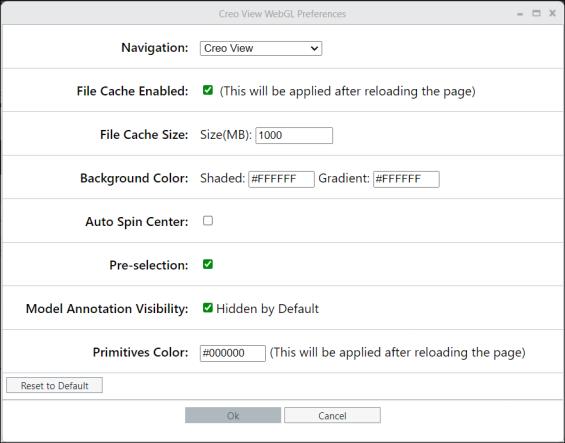
To open the preferences dialogue box, navigate to the Visualization tab and press Shift+P on the keyboard. The Creo View WebGL preferences dialogue box will appear as shown below:
Properties | Value | ||
|---|---|---|---|
Navigation | Select any one of the Navigation modes from the preference drop-down menu in the preference dialogue box. The following navigation modes are available. • Creo View • Creo • CATIA V5 Compatible • Explore | ||
File Cache Enabled | WebGL Viewer supports caching of the part geometry locally in the browser for faster loading of models on subsequent loads. The File Cache Enabled preference is selected by default. | ||
File Cache Size | The File Cache Size preference defines the maximum size limit of the file cache. When the size of the cache exceeds this set limit, the files that were not accessed for a long time are removed from the cache first. The File Cache Size is set to 1Gb (1000 Mb) by default.
| ||
Background Color | You can change the background color in the Visualization tab by setting the hex values for Shaded and Gradient. Shaded color can be used to the primary background color, and Gradient can be used to achieve a gradient by setting the color at the bottom of the background. To achieve a single-color background, both values must be set to the same color. | ||
Auto Spin Center | The Auto Spin Center check box is used to set the spin center is the center of the WebGL panel, when rotating the part geometry. If this check box is selected, the spin center is the mouse position where you clicked in the WebGL panel for rotation, when rotating the part geometry.
| ||
Pre-selection | The Pre-selection check box is selected by default, meaning when you hover over a part geometry in the Visualization tab, it gets highlighted. | ||
Model Annotation Visibility | Model annotations are hidden by default. You can enable model annotations by clearing the Model Annotation Visibility check box. | ||
Primitives Color | You can set the primitives color for WebGL by setting the hex value. The default value is #FF0000. Changing the primitives color value of WebGL reflects the new primitives color on the CAD geometries, where the color is not set by the CAD tool, after refreshing the page. |

Resetting the Preferences
The existing preferences can be reset to the current Windchill defaults by selecting the Reset to Default button on the Creo View WebGL Preferences dialogue box. This will reset the preference values to either the WVS defaults or to the values defined using the WVS properties in the wvs.properties file.