Custom Selection Action in the Visualization Tab of the PPB Tree Picker
In the Visualization tab of the process plan browser tree picker, click  Selection Assistance > to enable the Custom Selection action. An administrator can customize the selection criteria for Custom Selection action by configuring the com.ptc.windchill.associativity.downstreamCustomVizSelectionObjectTypes property and specifying valid values.
Selection Assistance > to enable the Custom Selection action. An administrator can customize the selection criteria for Custom Selection action by configuring the com.ptc.windchill.associativity.downstreamCustomVizSelectionObjectTypes property and specifying valid values.The com.ptc.windchill.associativity.downstreamCustomVizSelectionObjectTypes property is included in the associativity.properties.xconf located at <Windchill>\codebase\com\ptc\core\foundation\associativity\xconfs. For example, you can configure the property in the following format:<AddToProperty name="com.ptc.windchill.associativity.downstreamCustomVizSelectionObjectTypes" value=" wt.part.WTPart|CusAtt|yes"/>
When you enable the Custom Selection action and select a part in the tree picker visualization pane, the system selects the first-level node under the matching part in the path in the process plan tree structure. Refer to the next examples for more details.
Examples
Consider that the following property is added to the associativity.properties.xconf file: <AddToProperty name="com.ptc.windchill.associativity.downstreamCustomVizSelectionObjectTypes" value=" wt.part.WTPart|CusAtt|yes"/>
Consider that the following property is added to the custom.site.xconf file: <AddToProperty name="com.ptc.windchill.associativity.downstreamCustomVizSelectionObjectTypes" value=" wt.part.WTPart|CusAtt|yes"/>
Example 1
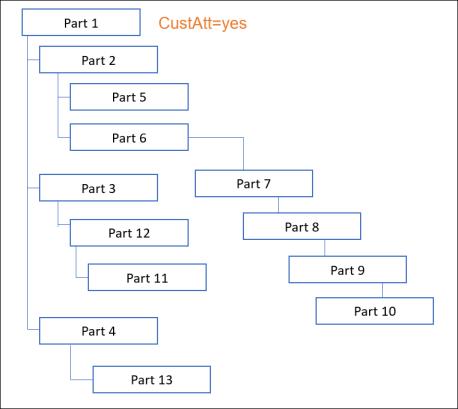
Part 5 is selected in the Visualization tab of the process plan browser tree picker. If Part 1 satisfies the criteria set in the property, the system selects Part 2 in the process plan browser tree structure.
Part 11 is selected in the Visualization tab of the process plan browser tree picker. If Part 1 satisfies the criteria set in the property, the system selects Part 3 in the process plan browser tree structure.
 | When using the Custom Selection action, the action traverses the structure from bottom to top. When the system finds the part with the attribute specified in the property, the system selects the first-level node under the matching part. |
Example 2
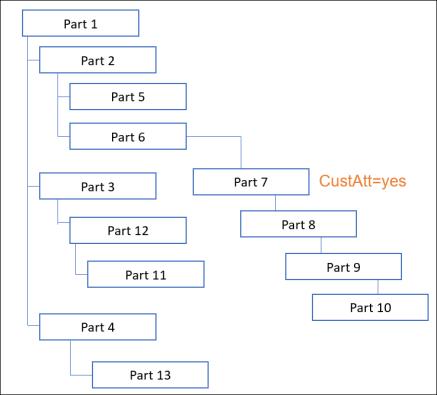
Part 10 is selected in the Visualization tab of the process plan browser tree picker. If Part 7 satisfies the criteria set in the property, the system selects Part 8 in the process plan browser tree structure.
Example 3
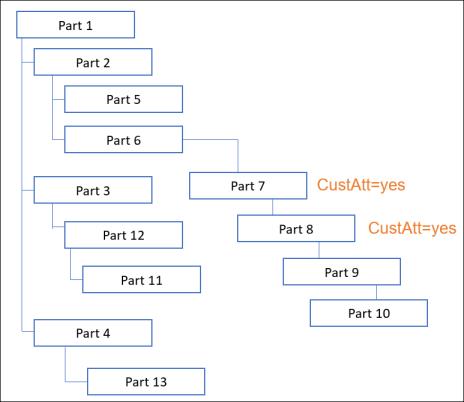
Part 10 is selected in the Visualization tab of the process plan browser tree picker. If Part 7 and Part 8 satisfy the criteria set in the property, the system selects Part 9 in the process plan browser tree structure.
You can specify the following values in the properties:
• Object types — For example, WTPart1. Specify multiple values using a semicolon separator.
• Object Type Name, Attribute Name, and Attribute value — For example, wt.part.WTPart|Source|Make. Specify these values using a pipe separator. The attribute value should be of type string.
• A combination of the first two entities — For example, WTPart1;wt.part.WTPart2|Source|Make.
| | To ensure successful operation, provide valid attribute values. Note that the attribute values are case-sensitive. |
Configuring Custom Selection Properties
• When specifying the object types:
<AddToProperty name="com.ptc.windchill.associativity.downstreamCustomVizSelectionObjectTypes" value="wt.part.WTPart1; wt.part.WTPart2"/>
• When specifying the object types with attribute type and attribute value:
<AddToProperty name="com.ptc.windchill.associativity.downstreamCustomVizSelectionObjectTypes" value="wt.part.WTPart|source|Make"/>
• When specifying a combination, configure the property as follows:
<AddToProperty name="com.ptc.windchill.associativity.downstreamCustomVizSelectionObjectTypes" value=" WTPart1;wt.part.WTPart2|source|Make"/>
Restart the Windchill server after configuring the property for the changes to take effect.
After configuring the property, when you enable the Custom Selection action and select a part in the Visualization tab, the tree structure is traversed from the bottom to the top. The first level child part of the parts that satisfy the criteria set in the property is selected.
Consider the following information related to the Custom Selection action:
• When you select the Custom Selection action, the Select Parent and Select First Level Assembly actions are disabled.
• If you selected the Custom Selection action before closing the process plan browser, the same action is selected by default when you open a new process plan browser session.
• Before using the Custom Selection action, you must enable the  > action.
> action.When multiple values are specified in the com.ptc.windchill.associativity.downstreamCustomVizSelectionObjectTypes property, traversing stops as soon as the part that satisfies one of the set values is found. For example, for the following property definition, traversing through the structure stops when a part satisfies the WTPart1 value is found:<AddToProperty name="com.ptc.windchill.associativity.downstreamCustomVizSelectionObjectTypes" value=" WTPart1;wt.part.WTPart2|source|Make"/>
Additional Information
When both the Select Allocatable Parts and Custom Selection actions are enabled at the same time, the system gives preference to the Select Allocatable Parts action.
Consider that the following part structure is present in the process plan browser:
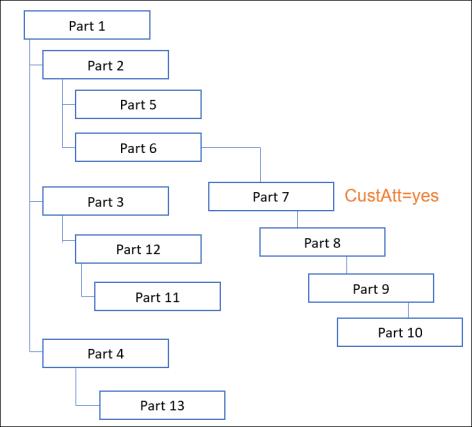
• A global attributeCusAtt is created on the part type in the Type and Attribute Management utility.
• The following property with the CusAtt attribute on WTpart type is added to the associativity.properties.xconf located at <Windchill>\codebase\com\ptc\core\foundation\associativity\xconfs:
<AddToProperty name="com.ptc.windchill.associativity.downstreamCustomVizSelectionObjectTypes" value=" wt.part.WTPart|CusAtt|yes"/>
Consider that both the Select Allocatable Parts and Custom Selection actions are enabled in the process plan browser tree picker.
• If you select Part 5 in the Visualization tab of the process plan browser tree picker, the system selects the allocatable part, that is Part 2, in the process plan browser tree structure.
| | If only the Custom Selection action were enabled, the system would have selected Part 3. |
• If you select Part 9 in the Visualization tab of the process plan browser tree picker, the system selects the non-phantom part Part 7 in the process plan browser tree structure.
| | The system does not select Part 6, as it is a phantom part. Phantom parts cannot be allocated. |