Viewing Process Plan Related Information
The Show Process Plan Related Information preference controls the display of related information for a process plan. When set to Show Automatically (default), the system automatically displays the related information in the process plan tree structure, and no selection is required. When set to Show, the object is not displayed in the process plan tree structure. In this case, you must click the Show action to view the object in the process plan tree structure. When the field is left blank, the related information is not displayed in the tree structure.
 |
• The display order of the related information for a process plan depends on the values set for objects in the Define the Order for the Process Plan Assignable Objects preference. For more information, see Defining the Order for the Process Plan Assignable Objects. • You must select valid objects and then initiate the  Show or Show or  Hide actions available in the Viewing action set of the process plan browser. For example, if you want to show or hide objects present under an operation, you must select an operation and then click the Show or Hide actions. In this case, only the objects present under the operation appear or disappear. For more information, see Viewing Action Set - Process Plan Browser. Hide actions available in the Viewing action set of the process plan browser. For example, if you want to show or hide objects present under an operation, you must select an operation and then click the Show or Hide actions. In this case, only the objects present under the operation appear or disappear. For more information, see Viewing Action Set - Process Plan Browser. |
Consider the following examples:
Example 1
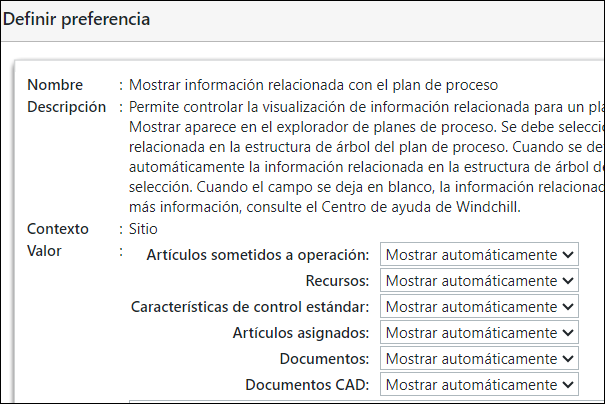
The values in the Show Process Plan Related Information preference are set as shown in the following image:
According to the values set in the Show Process Plan Related Information preference, the process plan tree structure appears as follows:
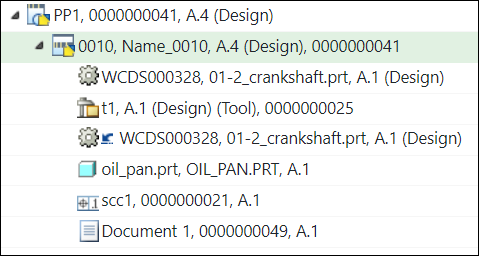
• All the objects appear in the process plan tree structure because the values for all the objects are set to Show Automatically.
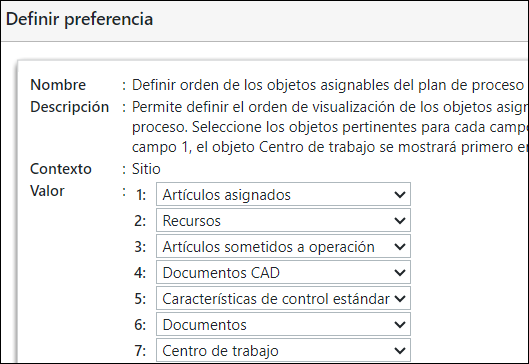
• In this example, the objects appear in a particular order because of the following values set in the Define the Order for the Process Plan Assignable Objects preference.
Example 2
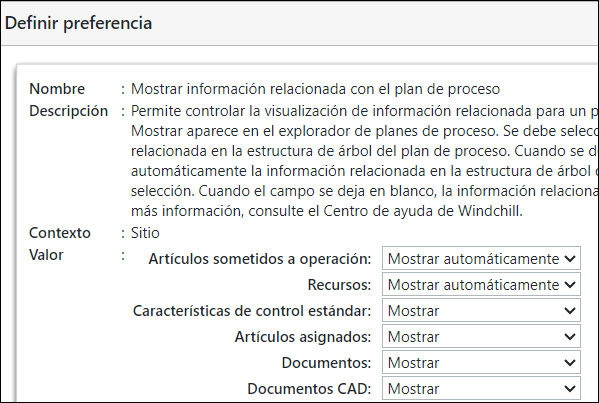
The values in the Show Process Plan Related Information preference are set as shown in the following image:
According to the values set in the Show Process Plan Related Information preference, the process plan tree structure appears as follows:
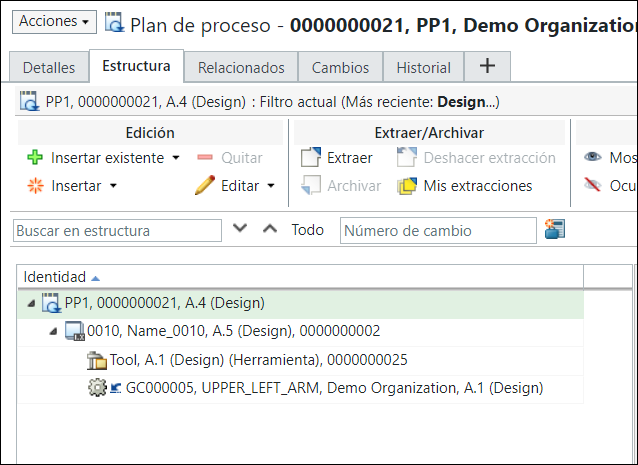
The objects for which the value is set to Show Automatically appear in the process plan tree structure. If you click the Show list the check mark appears in front of the objects for which the value is set to Show Automatically.
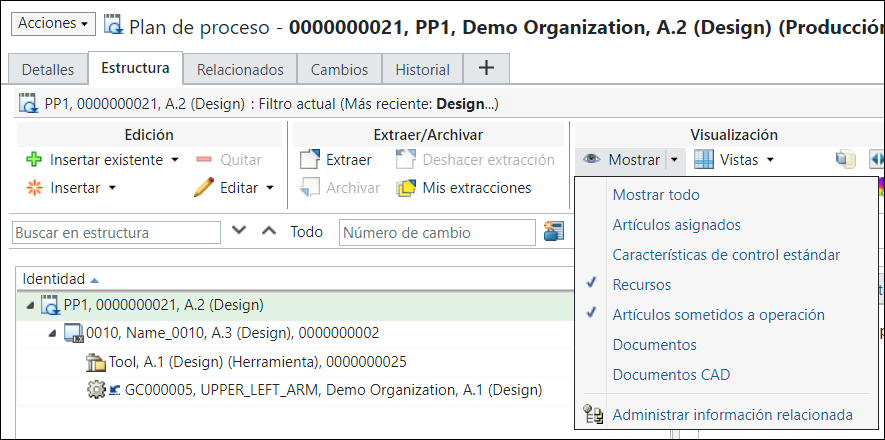
If you click Show, the objects for which the value is set to Show also appear in the process plan tree structure.
Example 3
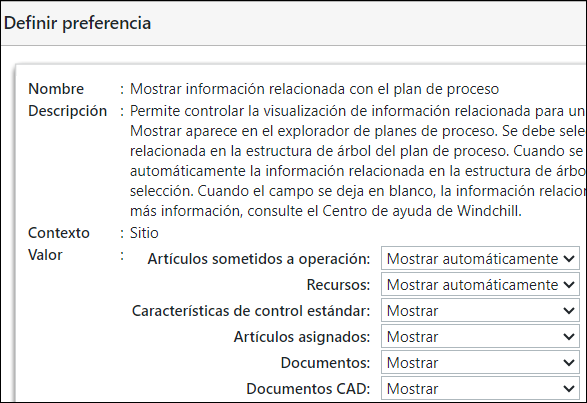
The values in the Show Process Plan Related Information preference are set as shown in the following image:
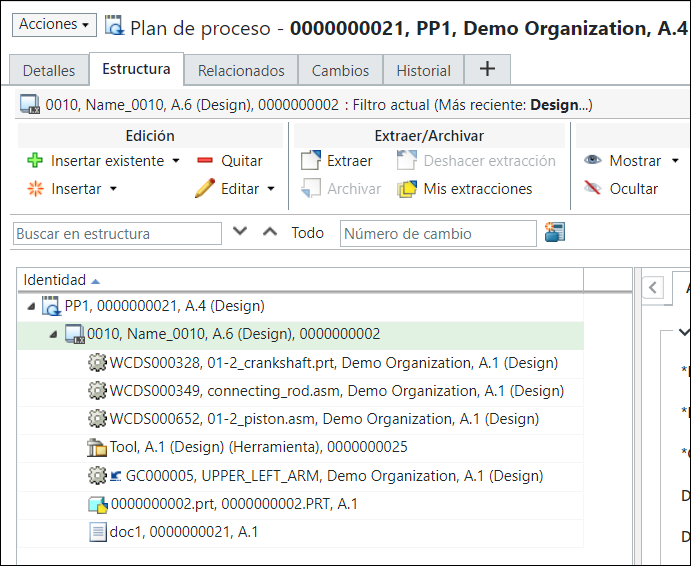
According to the values set in the Show Process Plan Related Information preference, the process plan tree structure appears as follows:
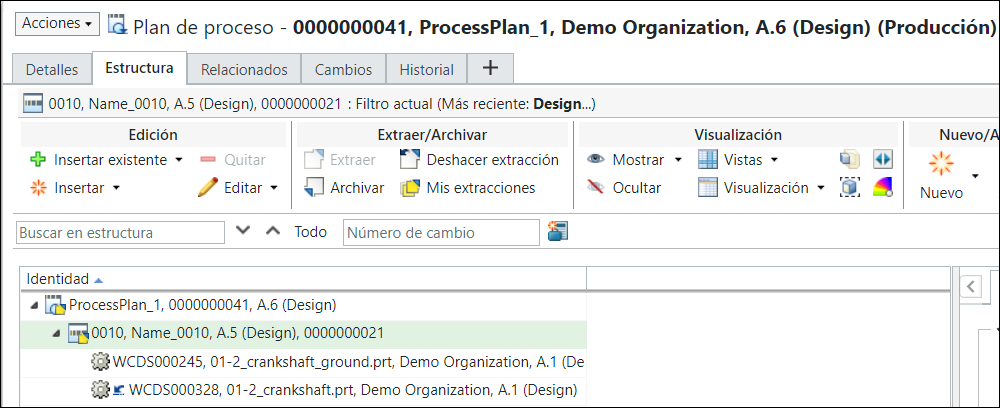
If you click Show, the objects for which the value is set to Show also appear in the process plan tree structure.
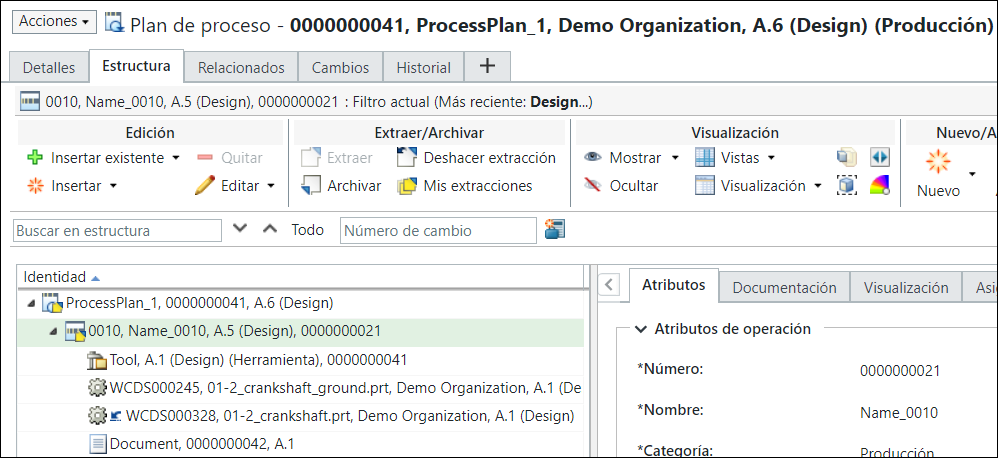
The objects for which the value is set to blank do not appear in the process plan tree structure.