Working with *.slddrt, *.sldblk, and *.sldbomtbt Files
Windchill Workgroup Manager 13.1.0.1 and later versions support the template files, such as *.slddrt, *.sldblk, and *.sldbomtbt. In Windchill, these template files are classified under the Document Category: Format. To work on these files, add the Windchill commonspace folder to the SOLIDWORKS System Options by following these steps:
1. In SOLIDWORKS, navigate to > , and then click File Locations.
2. In the Show folders for box, select one of the following options to enter the file location:
◦ Sheet Formats (*.slddrt)
◦ Blocks (*.sldblk)
◦ BOM Templates (*.sldbomtbt)
3. In the Folders box, enter the commonspace folder path.
For example, for *.sldblk files, select Blocks in the Show folders for list and add the path to the Windchill commonspace folder, as shown in the example below:
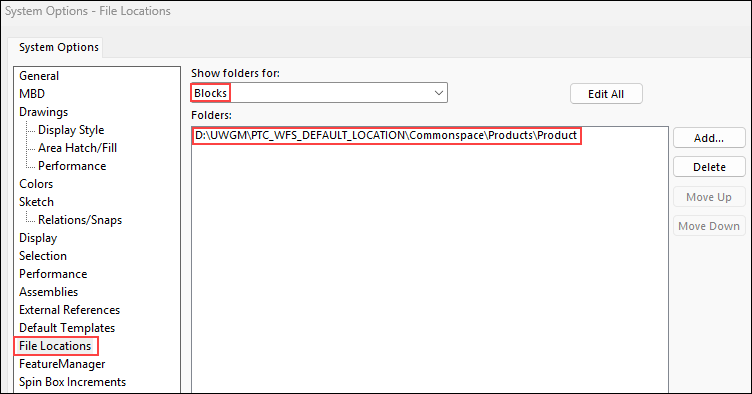
After adding the path to the Windchill commonspace, you can use the checked-in template files from Windchill in SOLIDWORKS.
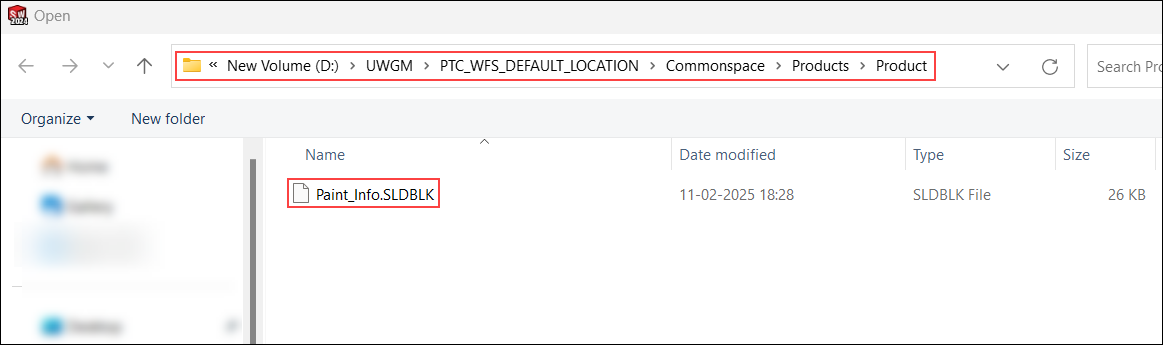
For Blocks, you can also add the commonspace folder path in SOLIDWORKS Design Library. This enables you to drag the Blocks directly into the SOLIDWORKS graphic area from the Design Library.
 | The following PDM actions are not supported for the *.slddrt, *.sldblk, and *.sldbomtbt file formats: • > • Open from Windchill |
Starting with Windchill 13.1.1.0, the default value for Disallow Product Structure Links by Document Types preference is set to FORMAT for SOLIDWORKS. This setting prevents the CAD documents in the Format document category from creating owner-associations with Windchill parts, even if you select the Auto Associate Parts to CAD Documents checkbox during a checkin. See Configuring Auto Associate.
| | To auto-associate parts with CAD documents in the Format document category, clear the default preference value. |