Best Practices: Working with NX CAD Data
When working on a design in a shared NX CAD environment, it is crucial to keep your design data up to date in Windchill.
Managing NX CAD Data in Windchill Workgroup Manager
When connected to NX, Windchill Workgroup Manager allows you to modify and check in the CAD data to Windchill. For example, you can perform the following actions:
• Rename attributes (Name, Number, and File Name).
• Edit the file-based attributes.
• Modify Name, Number, and File Name of family table instances.
• Modify assemblies using Top-Down Design.
Windchill Workgroup Manager can pre-process the CAD data when you open it from Windchill. However, there are some functional limitations and performance impacts when handling these updates.
To prevent issues for your colleagues due to outdated CAD data, open the CAD data in NX, apply your modifications, and then check-in the data back to Windchill.
Best Practices: Opening NX CAD Data from Windchill
1. In Windchill, use Add to Workspace to download the required CAD data from commonspace to your workspace.
2. In the NX Home tab, click > > > and set the assembly load options to either Fully Load or Fully Load - Lightweight Display.
3. Click Save as Default and OK to apply the changes:
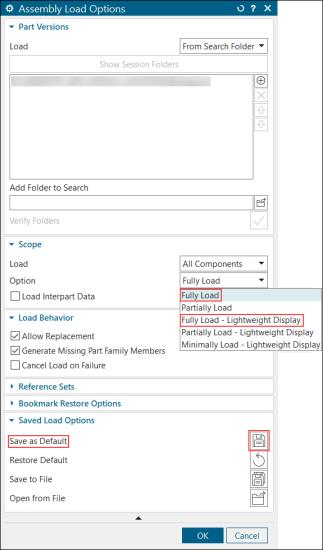
 | • If the instance names or numbers of family tables are changed, add all the modified family table instances to the workspace. • You can also set the load options in the load_options.def configuration file in the NX installation directory. For example, to set the load options to Fully Load, set the LoadOptions_PartLoadOption: fully_load preference in the load_options.def configuration file. |
Best Practices: Recognizing NX CAD Data in Windchill
To ensure Windchill recognizes the NX CAD assembly without parts as an assembly while saving it to Windchill, you can configure a designated string parameter. Create the PTC_WM_IS_ASSEMBLY parameter and set its value to TRUE before saving the model to Windchill.
You can customise the parameter in > > > .
If required, modify the Assembly System Attribute preference to specify a different parameter name. To ensure consistent behavior across new assemblies, you can also define PTC_WM_IS_ASSEMBLY in your NX assembly CAD document template in Windchill.
| | You must have Administrator rights to access the Templates page. For more information, see Creating a CAD Document Template and Accessing Object Templates. |
To recognise if the NX CAD data is a drawing while saving it to Windchill, you can configure a designated string parameter.
Create the PTC_WM_IS_DRAWING parameter and set its value to TRUE before saving the file. You can customise the parameter in the > > > .
You can modify the Drawing System Attribute preference to specify a different parameter name if required. For more information, see Drawing Attribute Method (NX).