Generating Localized Operations and Manufacturing BOMs Automatically
Creating Localized Operations and mBOMs
You can create localized operations under a process plan in plant layout by allocating parts to a zone or workstation. For information on plant layout, see Opening Manufacturing Structures Associated with Routing Plan.
Before you begin, ensure that the upstream structure is opened in the plant layout. To create a localized operation, use one of the following methods:
• Drag a part from the Tree Picker to a zone or workstation in the Routing Plan tab.
• Copy a part from the Tree Picker and paste it to a zone or workstation in the Routing Plan tab.
An mBOM and an operation are autogenerated. The operation is localized to a plant and the part is allocated to it. The message “Downstream data created successfully” appears in the top-right corner of the window. Warning or error messages may be displayed, if any.
Allocating Parts to Localized Operations
To allocate a part to a localized operation, use one of the following methods:
• Drag a part from the Tree Picker to the Localized Operations table in the Routing Plan tab.
• Copy a part from the Tree Picker and paste it to the Localized Operations table in the Routing Plan tab.
An mBOM is autogenerated and the part is allocated to the selected operation.
Additionally, the 3D Tree Picker visualization hides the allocated parts, while the Visualization tab displays them.
Checking Routing Allocation Status
You can view the allocation status of parts assigned to localized operations using the  Display Part Allocation Status action in the Tree Picker toolbar. The status appears in the Routing Allocation Status column, which is not available out of the box. To display this column, you can customize the current view or create a new view using the Manage Structure Views action. For more information, see Customizing Table Views.
Display Part Allocation Status action in the Tree Picker toolbar. The status appears in the Routing Allocation Status column, which is not available out of the box. To display this column, you can customize the current view or create a new view using the Manage Structure Views action. For more information, see Customizing Table Views.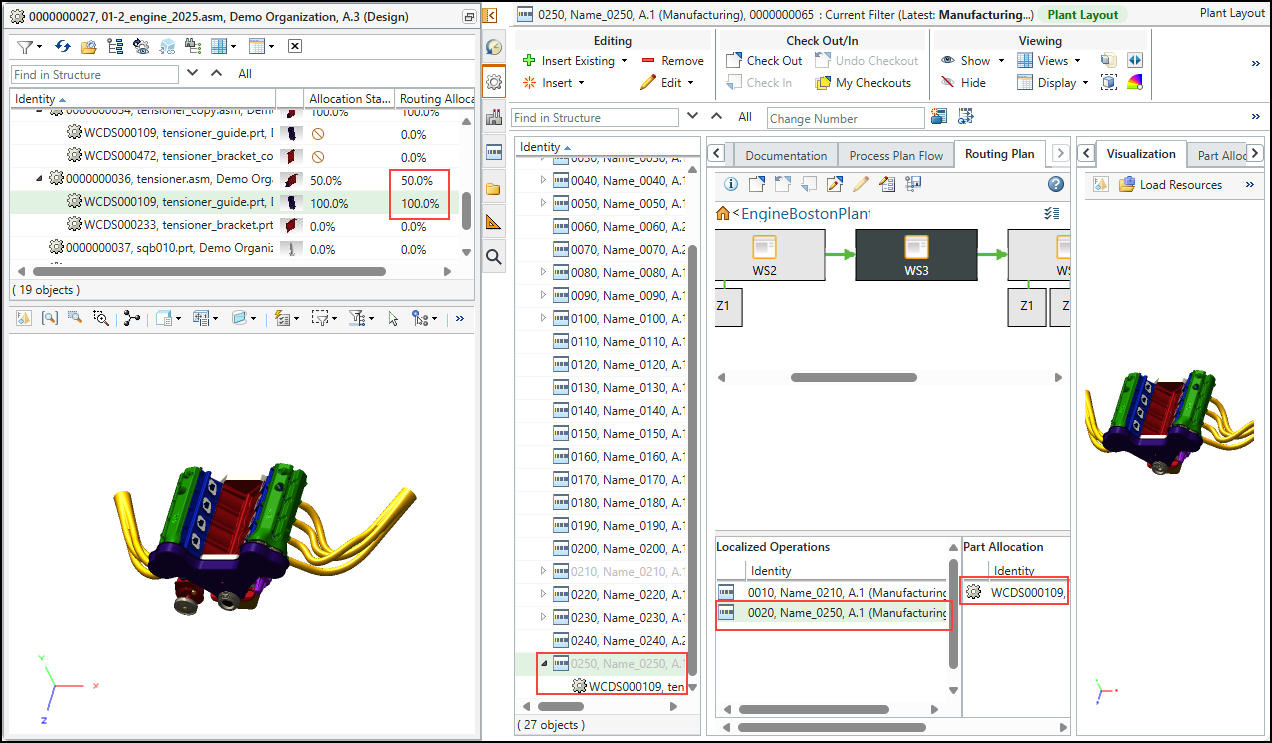
In the above example, tensioner_guide is allocated to WS3. One localized operation Name_0250 is created, and the part is assigned to this operation. As one out of two parts is allocated to the localized operation, the Routing Allocation Status column shows “50%” for its parent part tensioner.
Downstream Structure Update
In the downstream structure, tensioner_guide is added to the root node.
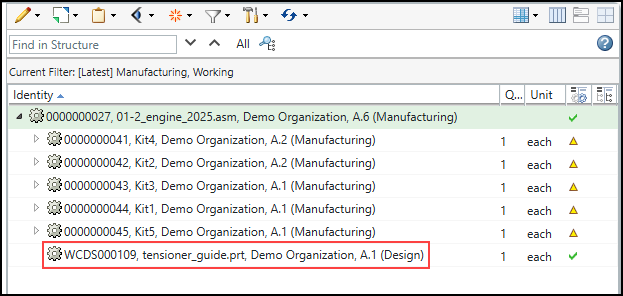
You can specify the rules that should apply when transforming upstream parts to the downstream structure. For more information, see Generating a Downstream Structure.
Key Points
• You can drag or copy a part to a workstation or to a zone under a workstation only once.
• The localized operation appears faded in the process plan tree structure.
• You can manage the display of allocated parts using the > dialog box from the Viewing action set. For more information, see Defining the Appearance of Allocated Parts.
• When you click a workstation or zone, the associated localized operations are displayed in the Localized Operations table at the bottom of the Routing Plan tab.
• When you click a localized operation in the table, the allocated part and its associations are displayed. For more information, see Actions for Localized Operations.
• When you allocate or reallocate a part, the out-of-date icon appears in the Routing Allocation Status column for parts with existing routing allocation status. Click the Display Part Allocation Status action to display the updated status.
Display Part Allocation Status action to display the updated status.• The Display Part Allocation Status action does not calculate the routing allocation status in the Process Plan Browser. The Routing Allocation Status column in the Process Plan Browser, displays the value “0” (Zero).
Display Part Allocation Status action does not calculate the routing allocation status in the Process Plan Browser. The Routing Allocation Status column in the Process Plan Browser, displays the value “0” (Zero).