Opening Objects from Search Results
You can open objects directly from the search results. You can customize table views to view the document format icon. This enables you to simply drag and drop the object and open or assemble them as required.
To open or assemble objects from search results:
1. Search your object from the Windchill search. From the Search results table view, click Customize and from the Set Column Display, add the Document Format column to the Selected Columns list.
2. From the Customize View List window, activate the new customized view using Set Active View and click OK. You can see the CAD tool icon in the search results window.
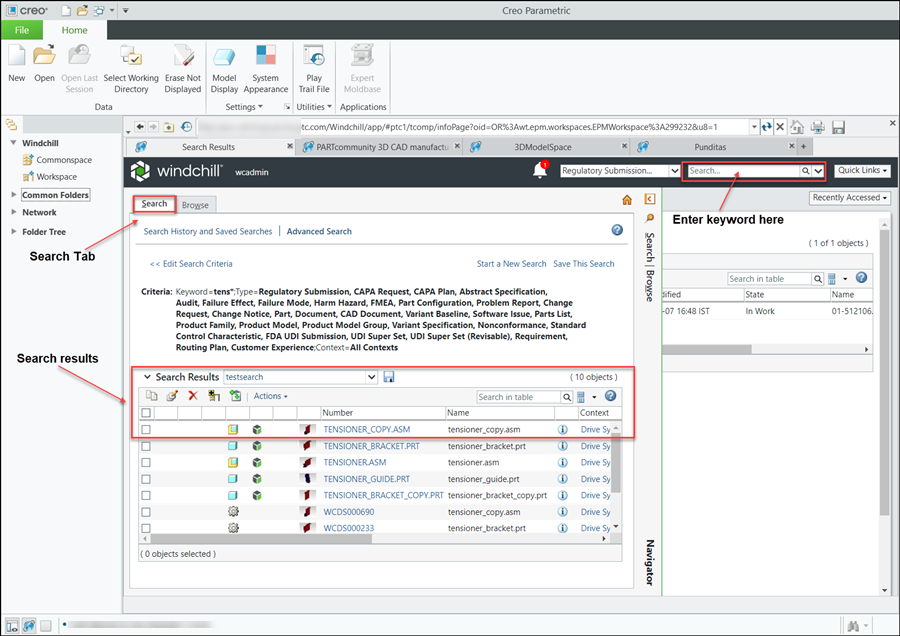
3. Click on the icon or drag and drop it in the CAD tool window. Now if you select another object from the search results and again drag and drop the same to the CAD Tool window, it opens the objects.
 | When using Creo, if you drag and drop an object it can also start assemble with the assembly in the CAD window. |