Save to Workspace (CATIA 3DEXPERIENCE)
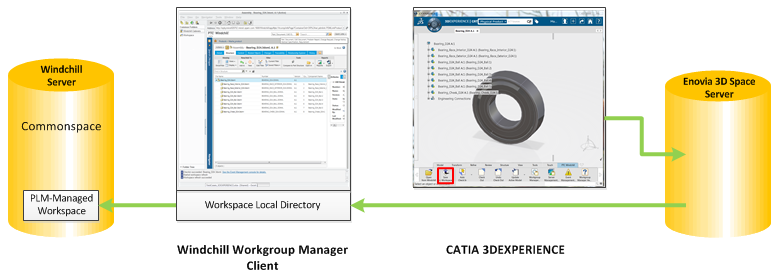
This action saves the CAD object in the active CATIA 3DEXPERIENCE design session, including all dependents that have been modified, to the workspace local directory and automatically uploads them to the active workspace on the registered Windchill server. The Save to Workspace action is only available from the Windchill action bar in CATIA 3DEXPERIENCE. The data flow is illustrated in the following figure.
 | You can change the save_to_ws.upload client preference setting to No to disable the “upload to the server-side workspace” portion of the Save To Workspace action. By default, it is set to Yes. For more information, see Supported Preferences in the wgmclient.ini File |
Procedure
To save a CAD object and upload it to the active server-side workspace:
1. From CATIA 3DEXPERIENCE, select  on the Windchill action bar.
on the Windchill action bar.The Save to Workspace window opens.
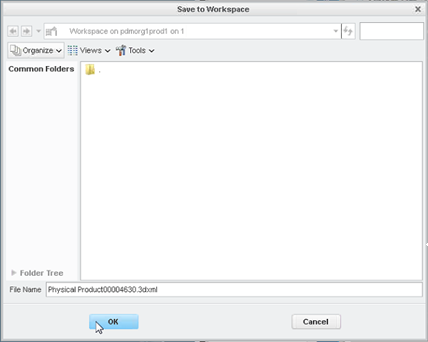
2. In the Save to Workspace window, click OK to save the object and its modified dependents to the server-side workspace last saved to.
 | When the Save to Workspace operation is in progress, you might experience the following: • The CAD application UI is blocked until the native CAD tool action is completed. • CAD actions on the Workspace page remain available. • A progress indicator shows that the action is being performed in the background. Check the status periodically to identify any errors or failures. Click the Event Management icon to address errors or resolve conflicts. |
| | You can customize the view in the Save to Workspace window. For more information, see the Customizing the Window View section in the Open from Windchill topic. |