Tutorial 5: Replacing a Part in Generic mBOM
This tutorial demonstrates how you can replace a part in the generic mBOM.
Tutorial
1. Consider that the following structure is present in the BOM Transformer:
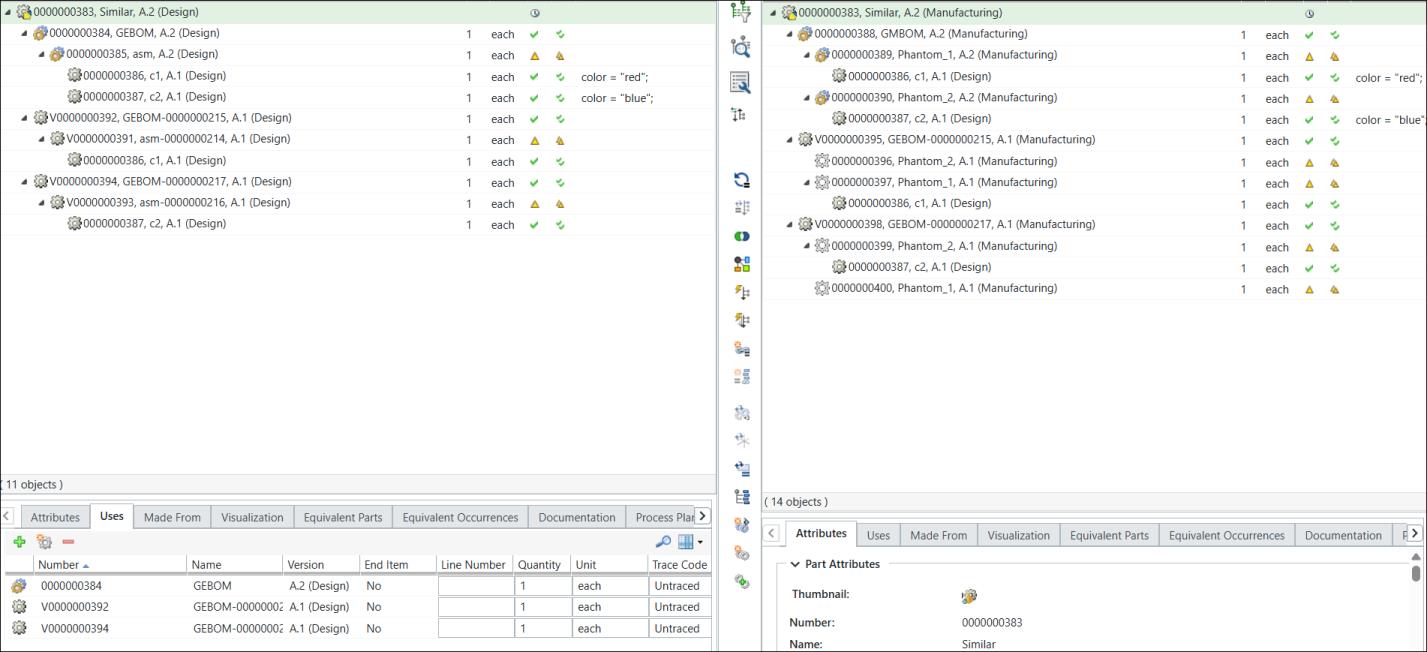
◦ Generic eBOM 0000000384, GEBOM, (Design) is present in the upstream view. The assembly under the generic eBOM 0000000385, asm, (Design) contains two child parts C1 and C2. Different options and choices are assigned to parts C1 and C2.
◦ Generic mBOM 0000000388, GMBOM, (Manufacturing) is present in the downstream view.
◦ Variants are created for the generic eBOMs, 0000000392 (Design) and 0000000394 (Design) in the upstream view. The system generates variant mBOMs in the downstream view using the variant eBOMs.
2. Select the part 0000000389, Phantom_1 (Manufacturing) present under the Generic mBOM 0000000388, GMBOM, (Manufacturing) in the downstream view. Right-click and select Replace.
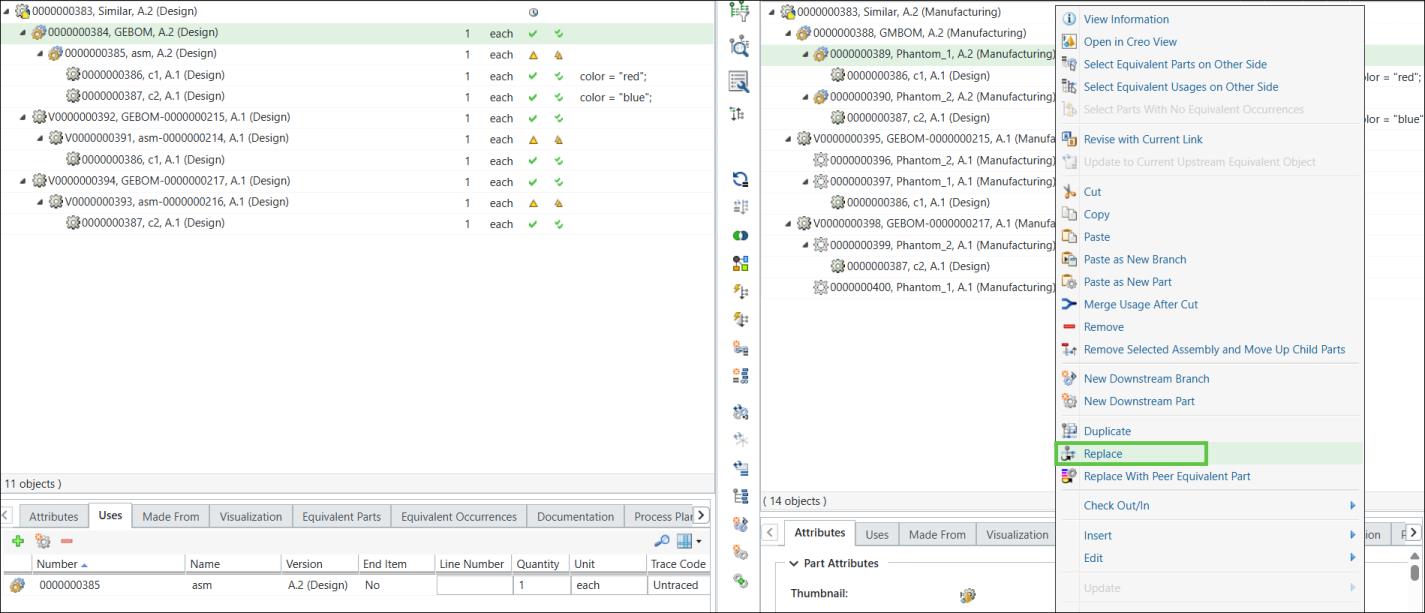
The Replace Part dialog box opens.
3. In the Name field, enter the name of the replaced part. For example, new_Phantom1.
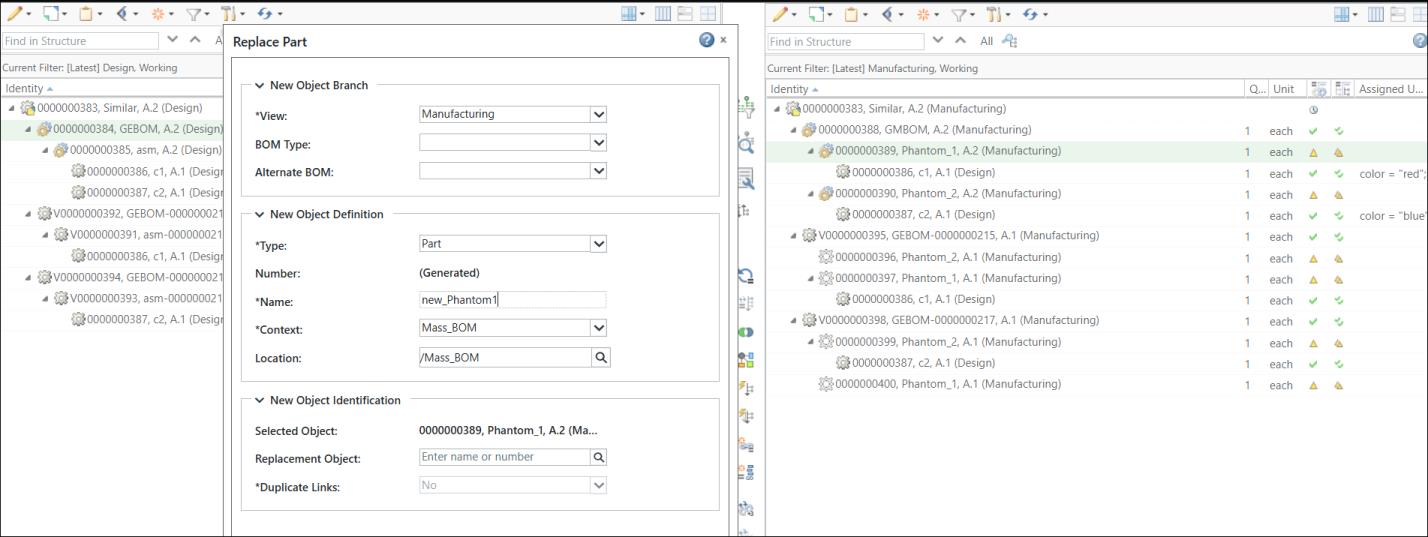
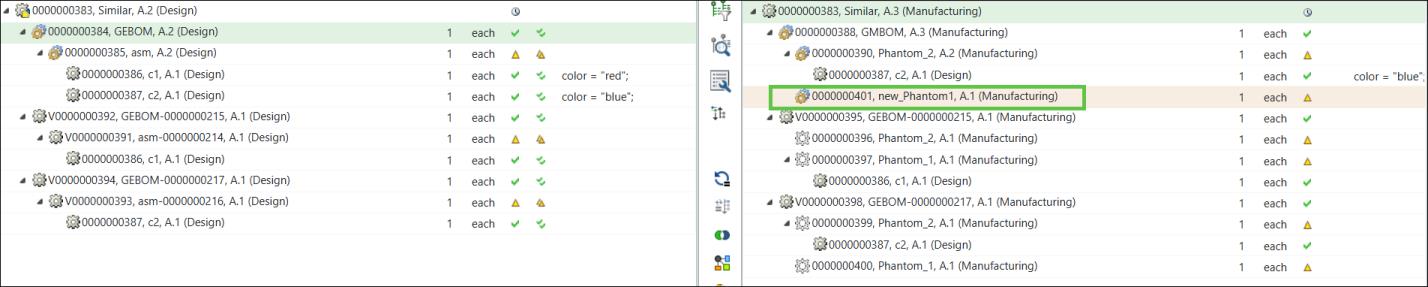
4. Click OK. The Replace Part dialog box closes. A non-configurable part 0000000401, new_Phantom (Manufacturing), is added under the part0000000388, GMBOM, (Manufacturing).
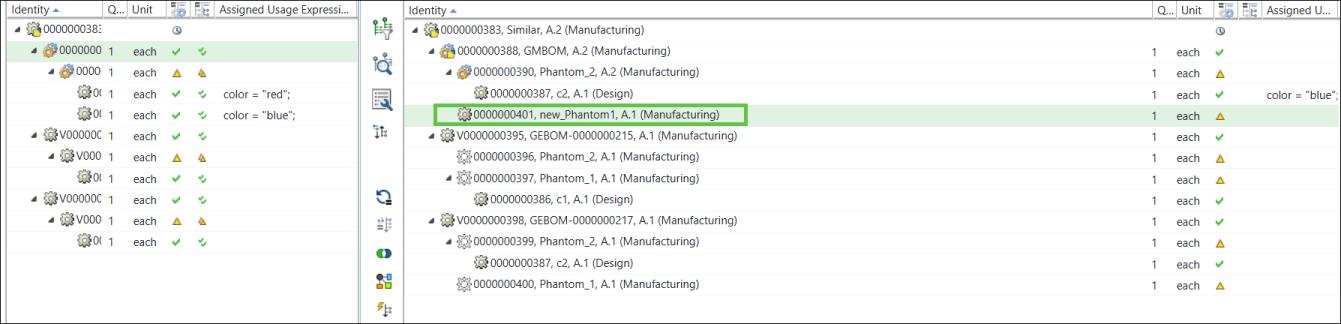
5. Convert the non-configurable part to configurable based on the requirement to make the same replacement changes in the variant mBOMs.
Select the non-configurable part 0000000401, new_Phantom (Manufacturing) in the downstream view and click  Editing > .
Editing > .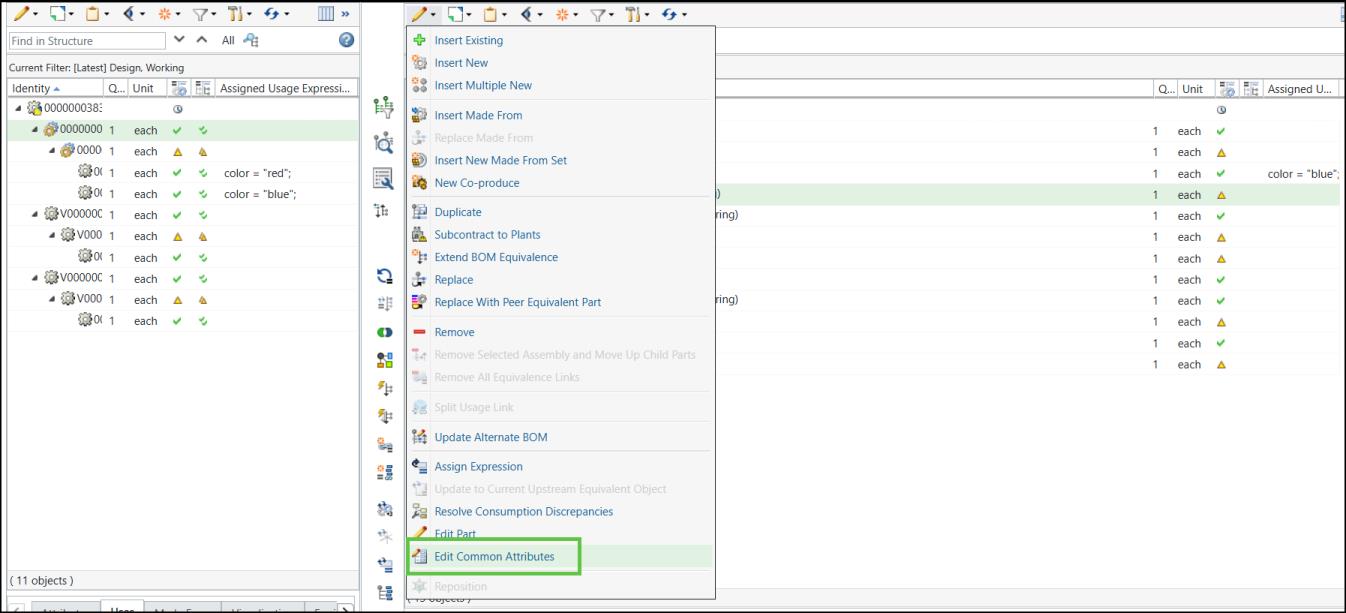
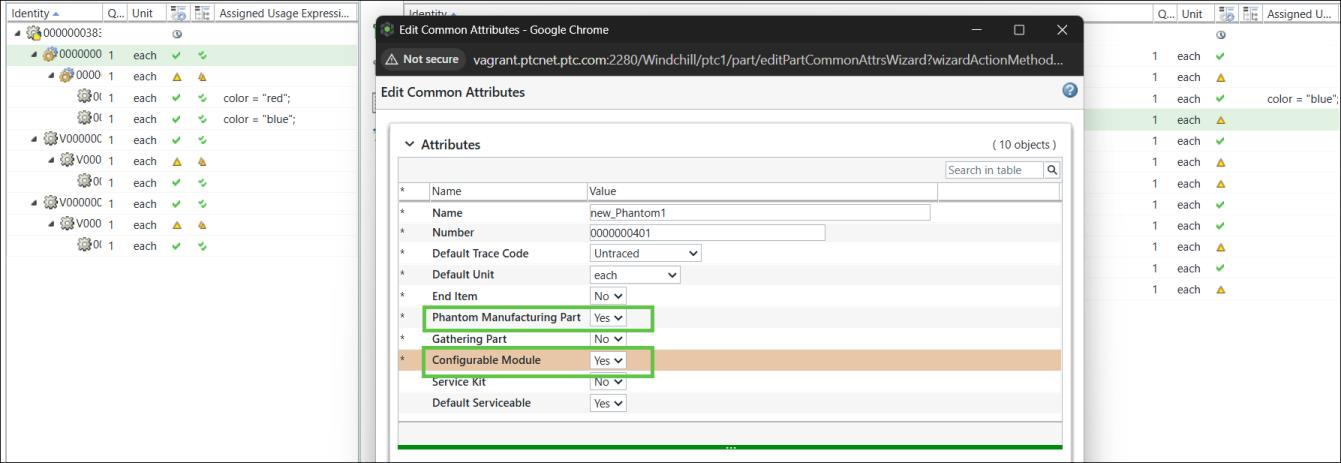
6. The Edit Common Attributes dialog box opens. Change the value of thePhantom Manufacturing Part and Configurable Module attributes to Yes.
7. Click OK to close the Edit Common Attributes dialog box. The updated structure appears in the BOM Transformer.
8. Initiate the Update Mass Downstream BOMs action
Select the generic mBOM, 0000000388, GMBOM, (Manufacturing), in the downstream view, and click  New/Add >
  Update Mass Downstream BOMs.
New/Add > Update Mass Downstream BOMs.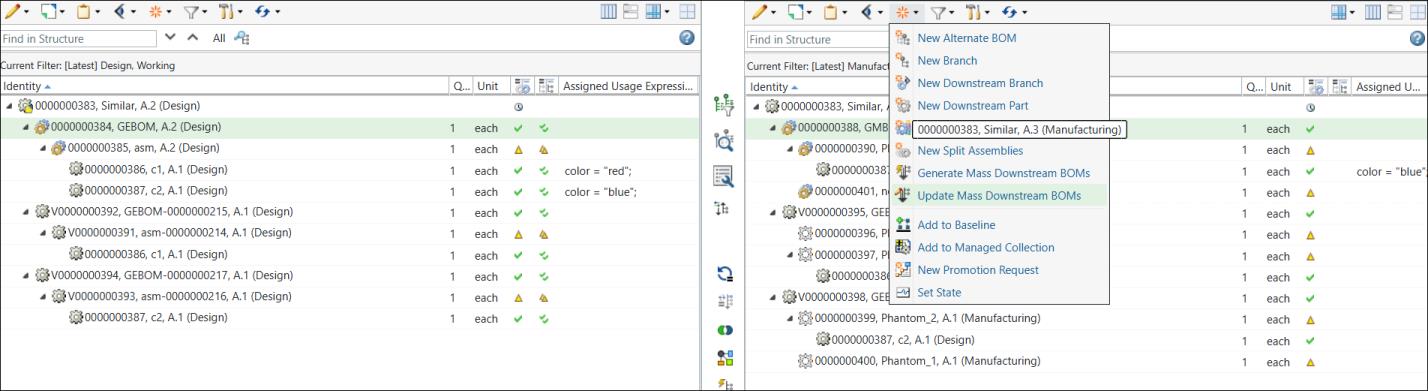
9. The following message is displayed when you initiate the Update Mass Downstream BOMs action:
Update Mass Downstream BOMs action: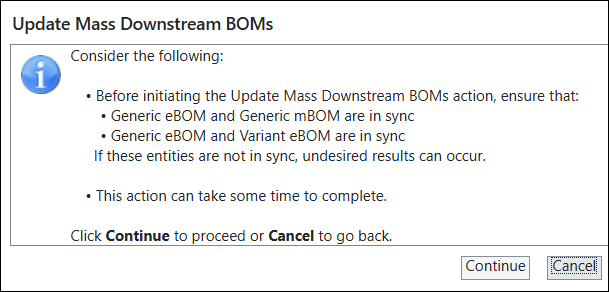
Click Continue.
10. The Update Mass Downstream BOMs dialog box opens with the following information.

11. Click Finish. The Update Mass Downstream BOMs dialog box closes. The system updates all variant mBOMs based on the changes made in the generic mBOM structure.
