Tutorial 5: Selectively Generating Multiple Mass mBOMs
You can selectively generate variant mBOMs from a particular variant eBOM. Select the following entities in the BOM Transformer and then click the  Generate Downstream BOMs action available in the middle pane toobar:
Generate Downstream BOMs action available in the middle pane toobar:• Variant eBOMs
• Respective generic mBOMs associated with variant eBOMs
After the Generate Downstream BOMs action is complete, the system generates variant mBOMs which are relevant to the selected variant eBOMs.
Generate Downstream BOMs action is complete, the system generates variant mBOMs which are relevant to the selected variant eBOMs.Use Case
Consider that the following structure is present in the BOM Transformer:
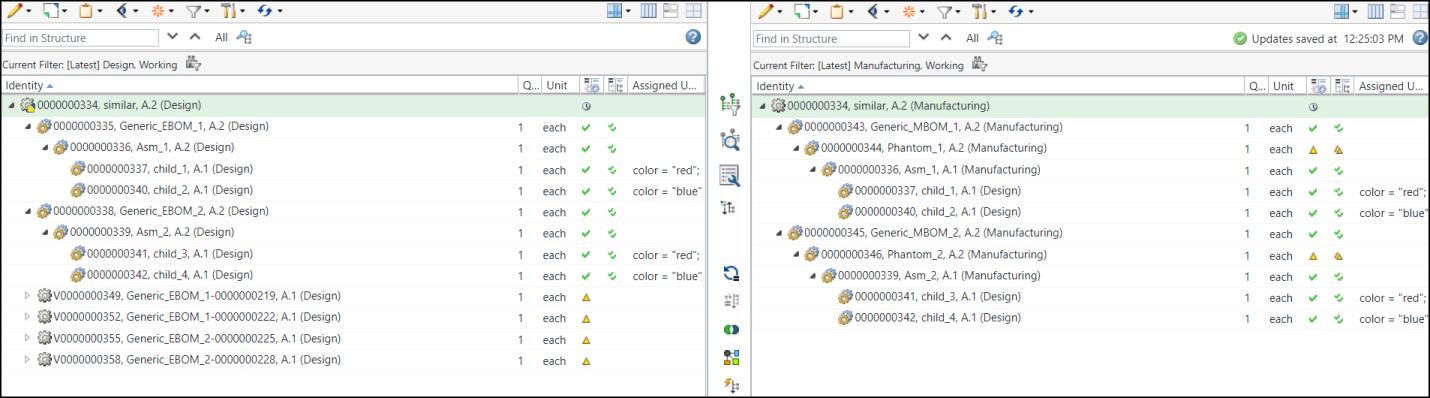
• Two generic eBOMs, 0000000335 and 0000000338 are present in the upstream view.
• Two generic mBOMs, 0000000343 and 0000000345 are present in the downstream view.
• Variants are created for the generic eBOMs, 0000000335 and 0000000338 in the upstream view. The variants in the upstream view are added in the downstream view using the Insert Existing action.
The requirement is to generate variant mBOM from a particular variant eBOM. That is, you can selectively generate the variant mBOMs for a particular variant eBOM. Perform the following steps:
1. Select the variants V0000000349 and V0000000355 in the upstream view.
 | The variant V0000000349 and V0000000355 are associated with generic mBOMs 0000000343 and 0000000345 respectively. |
2. Select the generic mBOMs 0000000343 and 0000000345 in the downstream view.
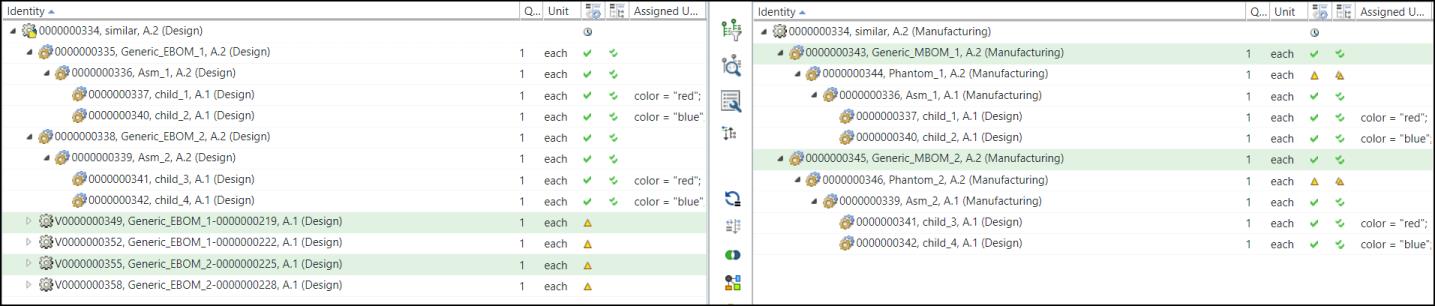
3. In the middle pane toolbar of the BOM Transformer, click the Generate Downstream BOMs action. The Generate Mass Downstream BOMs dialog box opens. It contains the View Upstream Parameters and Set Downstream Parameters steps.
Generate Downstream BOMs action. The Generate Mass Downstream BOMs dialog box opens. It contains the View Upstream Parameters and Set Downstream Parameters steps.4. In the View Upstream Parameters step, the record of the selected variants V0000000349 and V0000000355 appear.

The Upstream Variant Part column displays information about the variants.
The Generate Downstream BOM column displays information about the generic mBOM that is associated with the variant displayed in the Upstream Variant Part column. For example, generic mBOM 0000000345 with variant specification 000127 (RED) is associated with the variant V0000000355.
5. Click Next. The Set Downstream Parameters step appears.

You can also use the  Set Location action to set a location. The Set Location window opens when you click Set Location. Select the Context and Folder, and then click OK. You can view the contents of the selected folder by clicking Open. For more information, see Setting a Location.
Set Location action to set a location. The Set Location window opens when you click Set Location. Select the Context and Folder, and then click OK. You can view the contents of the selected folder by clicking Open. For more information, see Setting a Location.| | You must have the appropriate permissions to access the specified folders. |
6. Click Finish. The Generate Mass Downstream BOMs dialog box closes. The relevant variant mBOMs V0000000359 and V0000000361 appear in the downstream view.
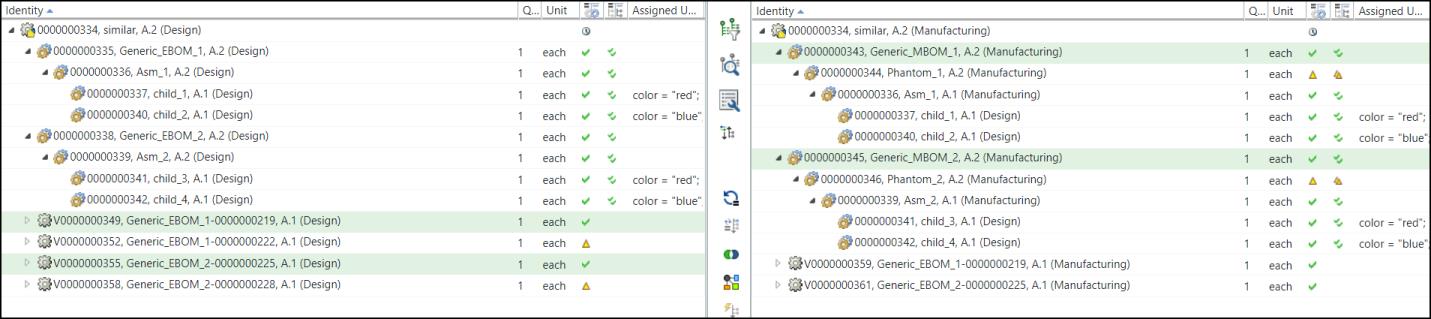
In the expanded form the structure appears as follows:
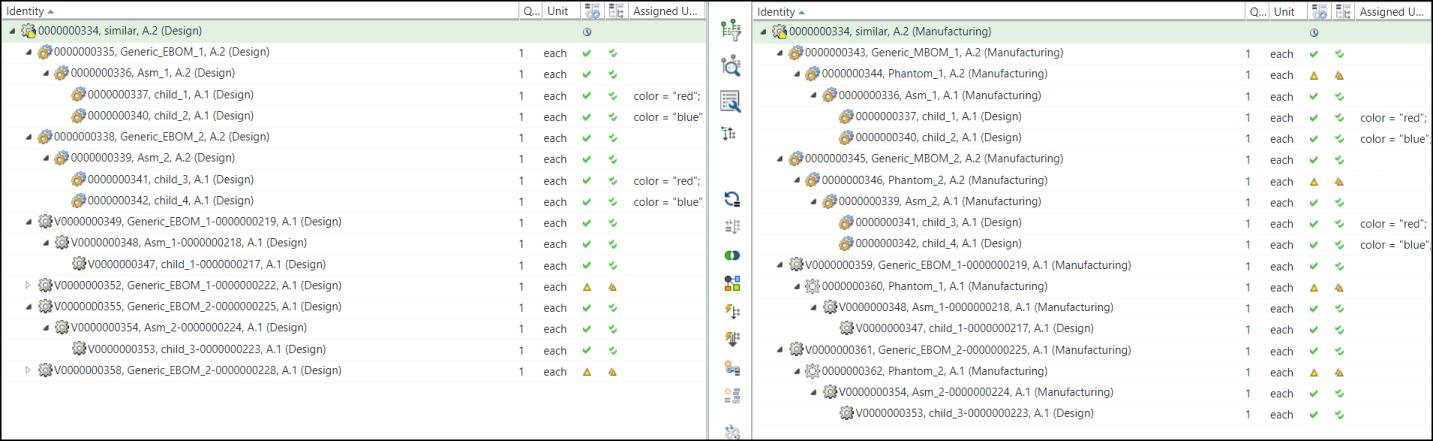
The variants V0000000349 and V0000000355 were selected in the upstream view and the generic mBOMs 0000000343 and 0000000345 were selected in the downstream view. The Generate Downstream BOMs action was initiated. Due to the this, the system created variant mBOMs for only the selected generic mBOMs 0000000343 and 0000000345. The system created only two variant mBOMs because only two variants V0000000349 and V0000000355 were selected in the upstream view. The relevant variant mBOMs V0000000359 and V0000000361 appear in the downstream view
Generate Downstream BOMs action was initiated. Due to the this, the system created variant mBOMs for only the selected generic mBOMs 0000000343 and 0000000345. The system created only two variant mBOMs because only two variants V0000000349 and V0000000355 were selected in the upstream view. The relevant variant mBOMs V0000000359 and V0000000361 appear in the downstream view