Tutorial 7: Generate and Update Mass BOMs for Alternate BOMs
This tutorial demonstrates how to generate and update mass BOMs for alternate BOMs.
Tutorial
1. Consider that the following structure is present in the BOM Transformer:
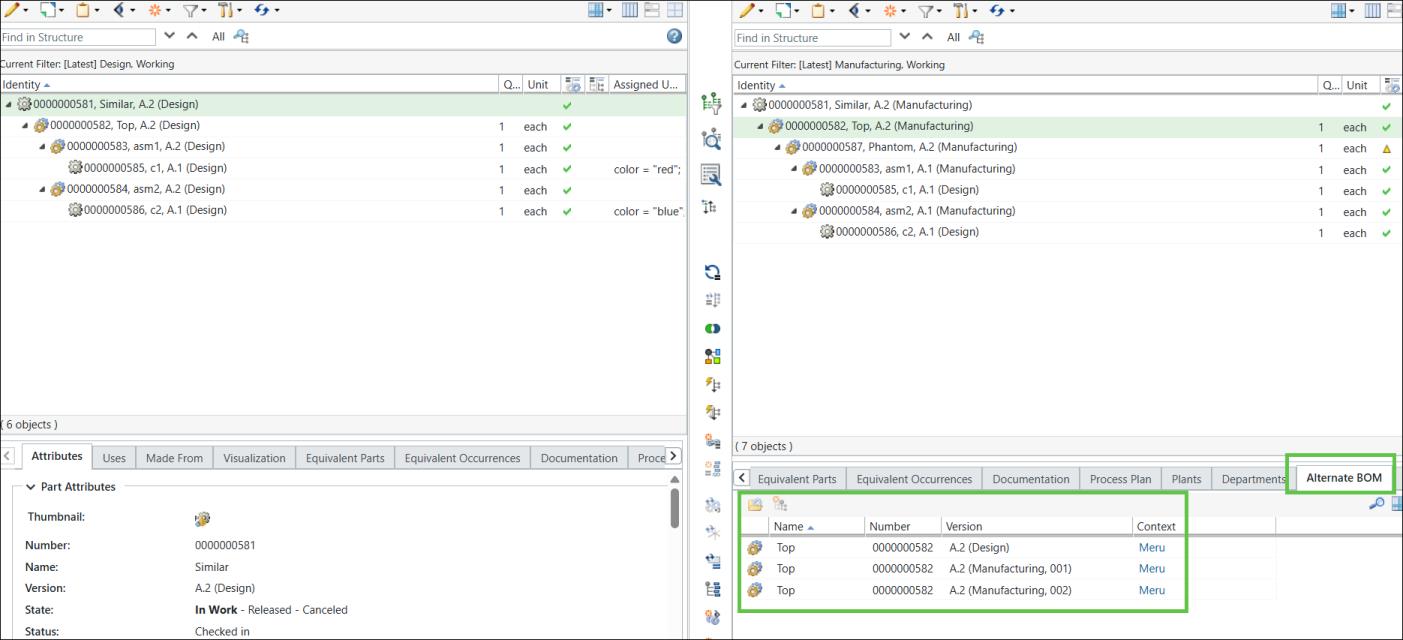
◦ A generic eBOM and a generic mBOM are present in the upstream and downstream views of the BOM Transformer under similar BOM parts or nodes.
◦ Alternate BOMs 001 and 002 are created for the following parts in the generic mBOM: 0000000582, Top, (Manufacturing), 0000000587, Phantom, (Manufacturing), 0000000583, asm1, (Manufacturing), and 0000000584, asm2, (Manufacturing).
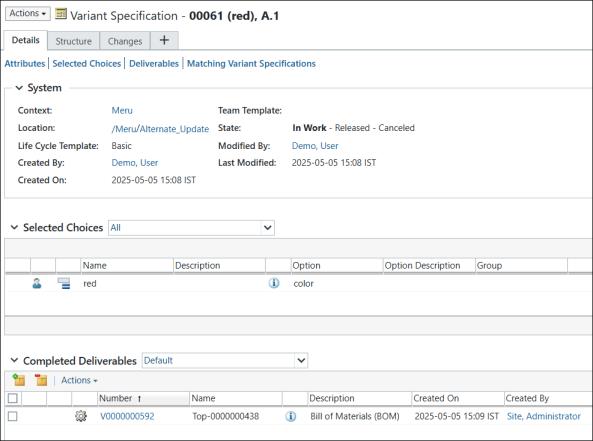
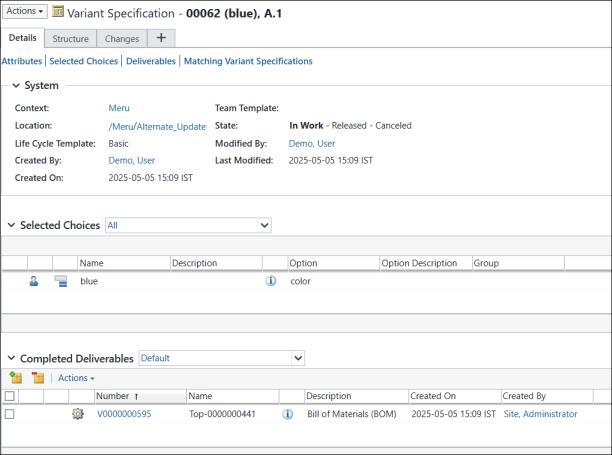
◦ The two variant specifications, 0061 (red) and 0062 (blue), are present as shown below:
2. Select generic mBOM 0000000582, Top, (Manufacturing) in the downstream view, and initiate the  Generate Mass Downstream BOMs action. The Generate Mass Downstream BOMs dialog box opens. It contains the View Upstream Parameters and Set Downstream Parameters steps. In the View Upstream Parameters step, the variants for which you want to generate the mass downstream BOMs appear.
Generate Mass Downstream BOMs action. The Generate Mass Downstream BOMs dialog box opens. It contains the View Upstream Parameters and Set Downstream Parameters steps. In the View Upstream Parameters step, the variants for which you want to generate the mass downstream BOMs appear.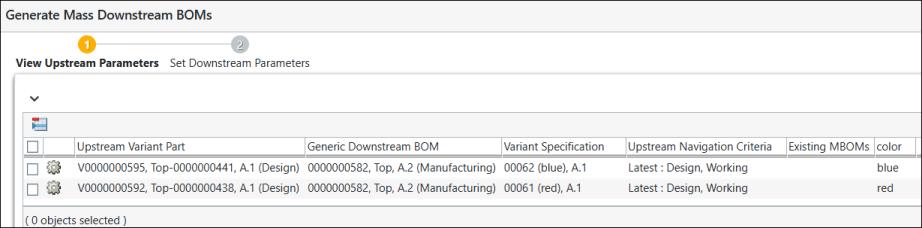
3. Click Next. The Set Downstream Parameters step appears. In the Set Downstream Parameters step, the variants for which you want to generate the mass downstream BOMs appear.
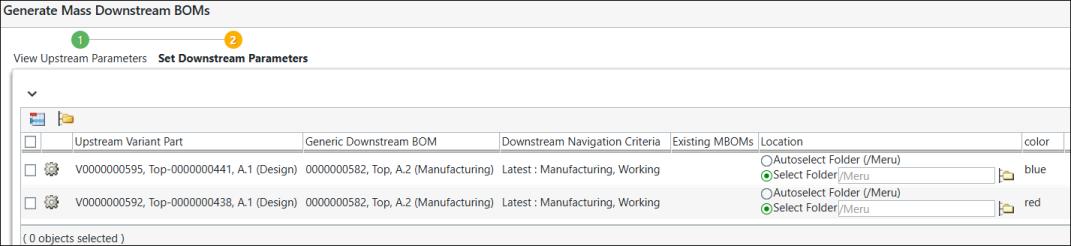
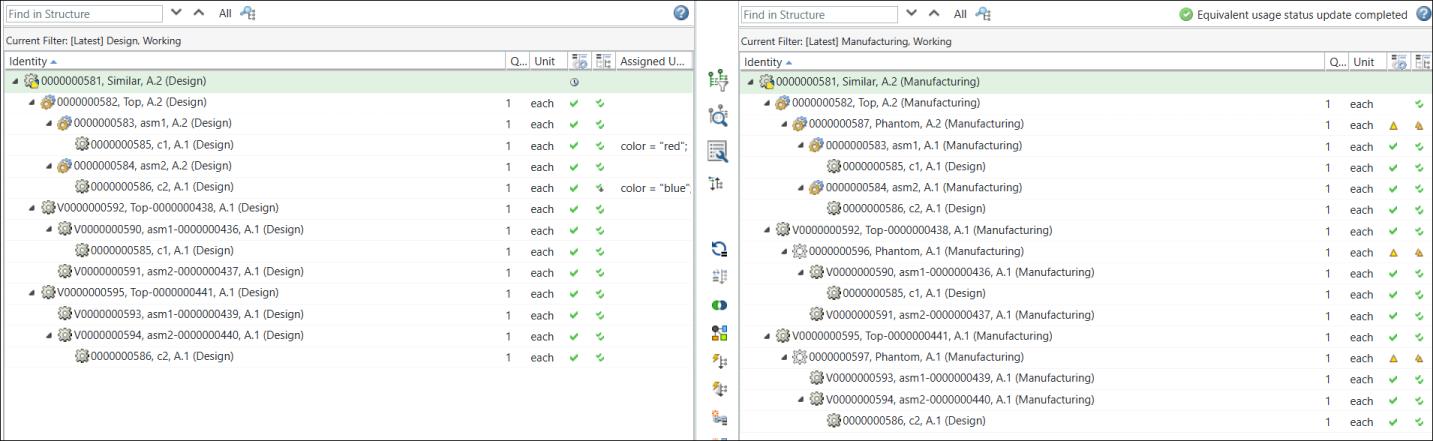
4. Click Finish. The Generate Mass Downstream BOMs dialog box closes. The eBOM and mBOM variants appear in the upstream and downstream views of the BOM Transformer.

In the expanded form, the entire structure in the BOM Transformer appears as follows:
For more information, see the following topics:
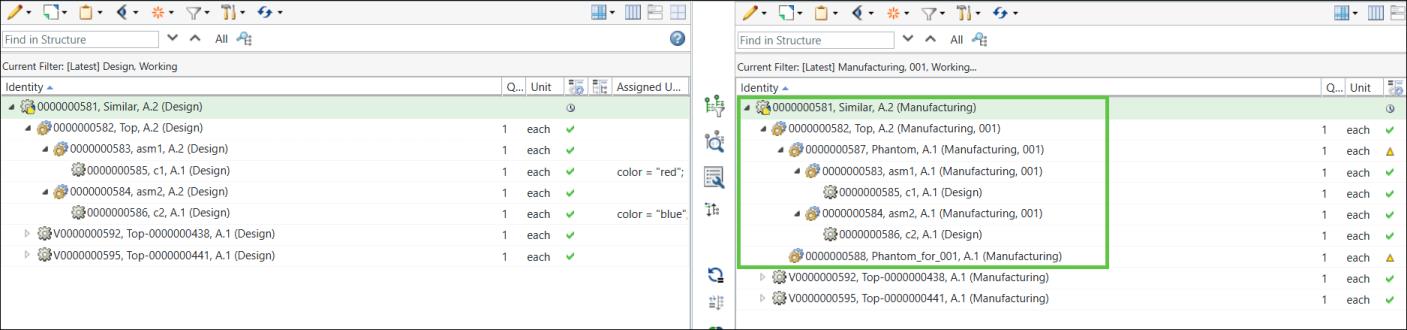
5. Open the alternate BOM 001 structure in the downstream view of the BOM Transformer.
6. Generate the mass downstream BOMs for the alternate BOMs
Select generic mBOM 0000000582, Top, (Manufacturing, 001) in the downstream view of the BOM transformer and initiate the Generate Mass Downstream BOMs action.
Generate Mass Downstream BOMs action.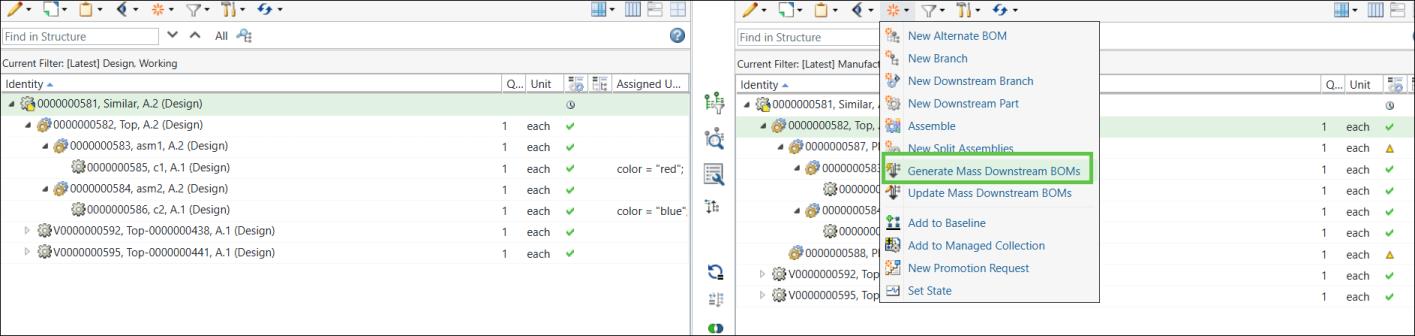
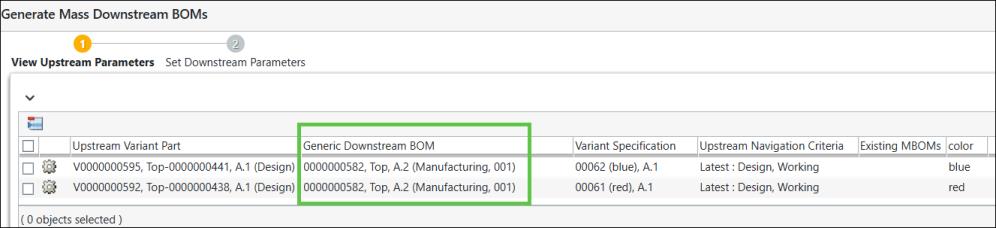
7. The Generate Mass Downstream BOMs dialog box opens. It contains the View Upstream Parameters and Set Downstream Parameters steps. In the View Upstream Parameters step, the variants for which you want to generate the mass downstream BOMs appear.
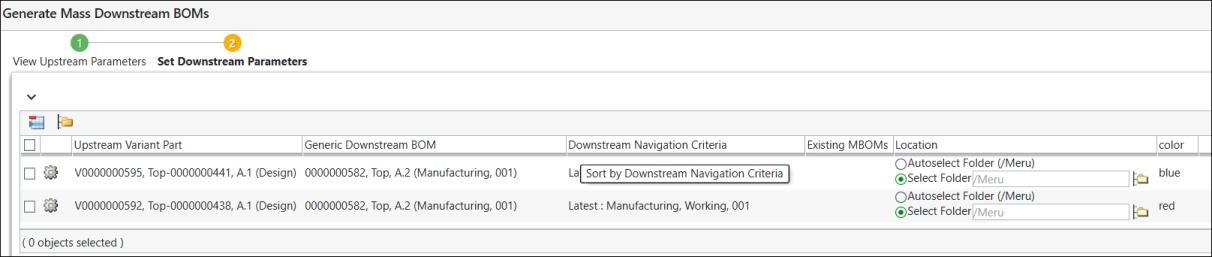
8. Click Next. The Set Downstream Parameters step appears. In the Set Downstream Parameters step, the variants for which you want to generate the mass downstream BOMs appear.
9. Click Finish. The Generate Mass Downstream BOMs dialog box closes. The eBOM and mBOM variants for the alternate BOM 001 appear in the upstream and downstream views of the BOM Transformer.
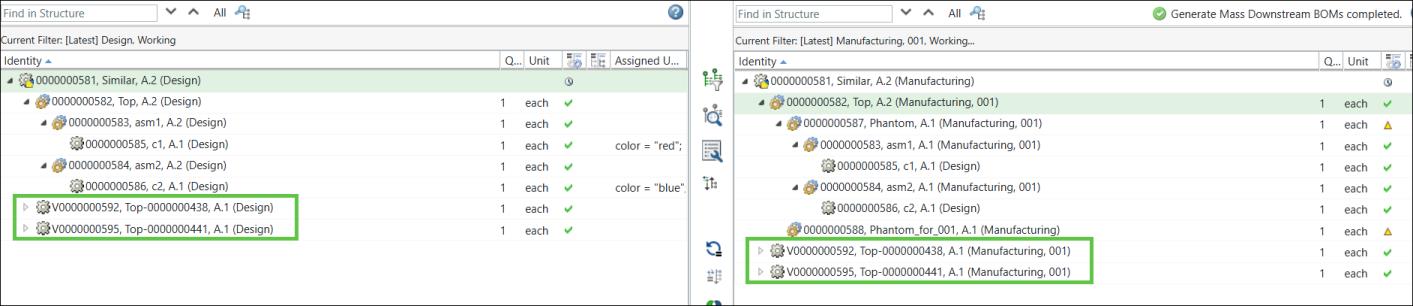
In the expanded form, the entire structure in the BOM Transformer appears as follows:
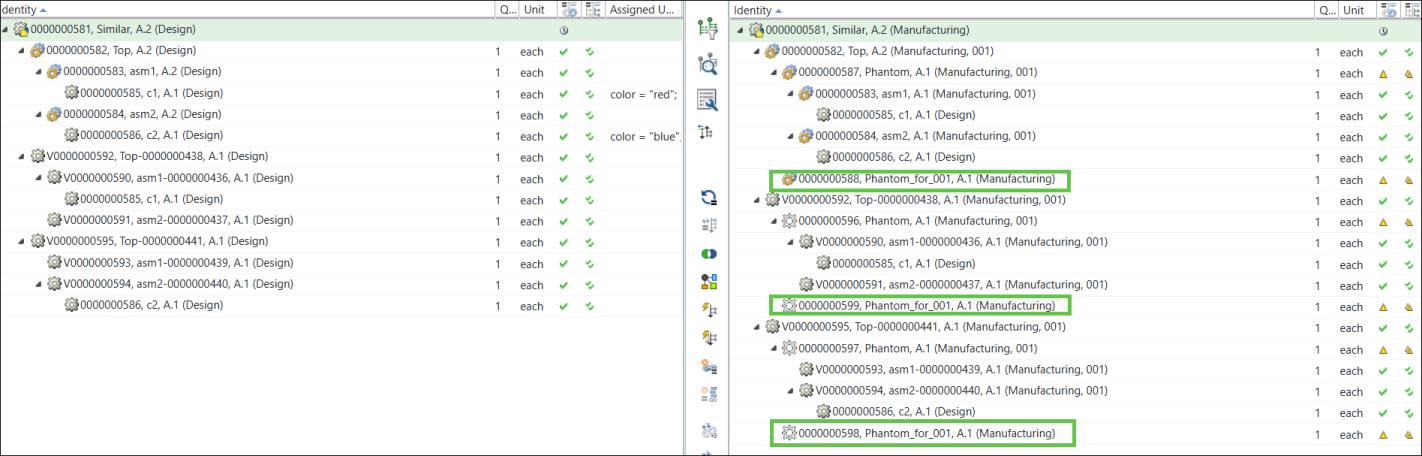
 | The variants are created according to the structure present in the alternate BOM 001. Consider the following scenario: Part 0000000588, Phantom_for_001, (Manufacturing) was present in the alternate BOM 001 structure. Hence, it also appears in the variant mBOMs for alternate BOM 001. |
10. Add discrepancies by making changes in the generic eBOM structure present in the upstream view of the BOM Transformer. In this case, part 0000000600, Added_Part is added under the sub assembly 0000000582, Top, (Design).
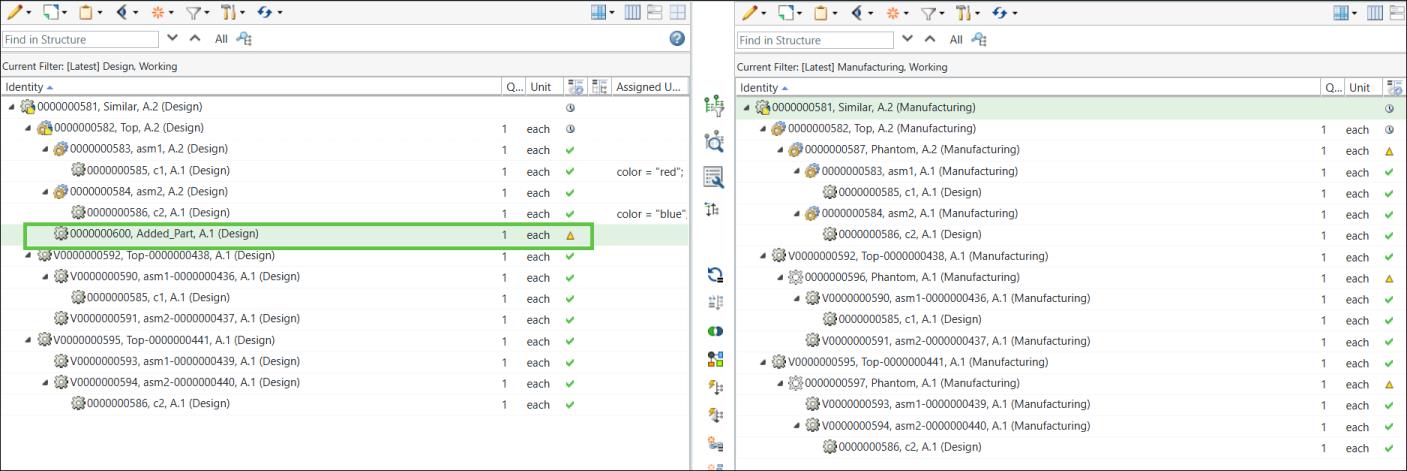
11. Part 0000000586, c2, (Design) is removed from the structure.
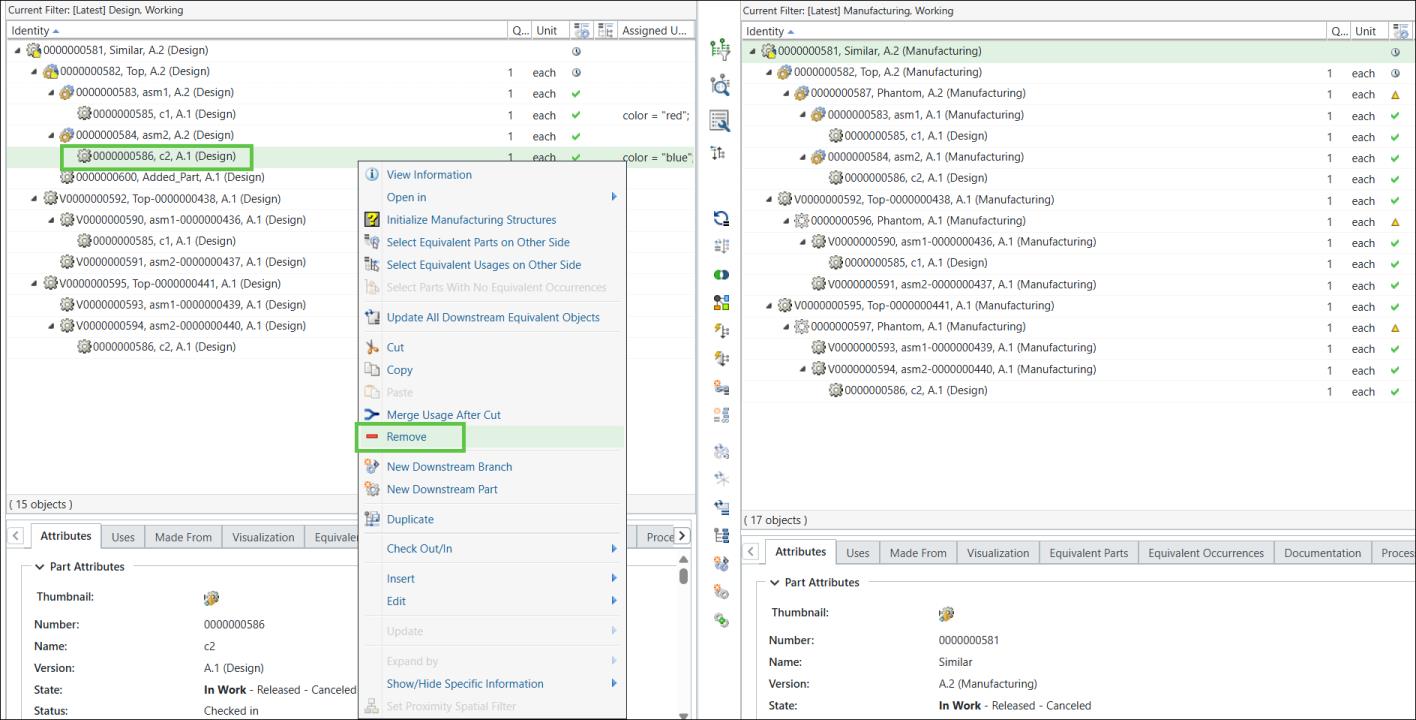
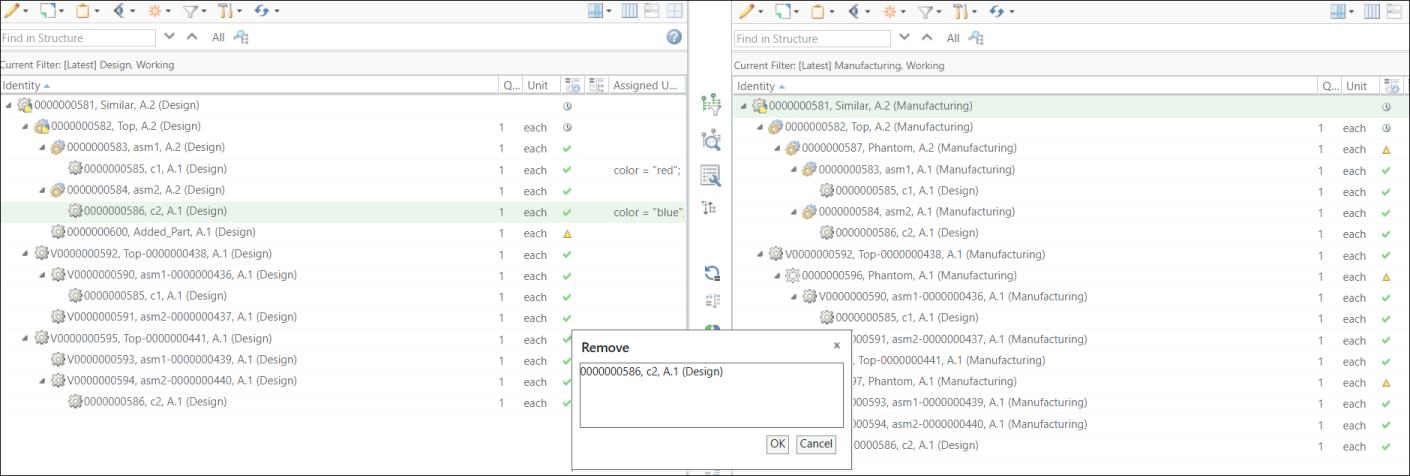
12. Select parts 0000000582, Top (Design) and 0000000582, Top (Design) in the upstream view and initiate the  Synchronize Structures action to update the changes. The Synchronize Structures dialog box opens. It lists the added and removed part entries.
Synchronize Structures action to update the changes. The Synchronize Structures dialog box opens. It lists the added and removed part entries.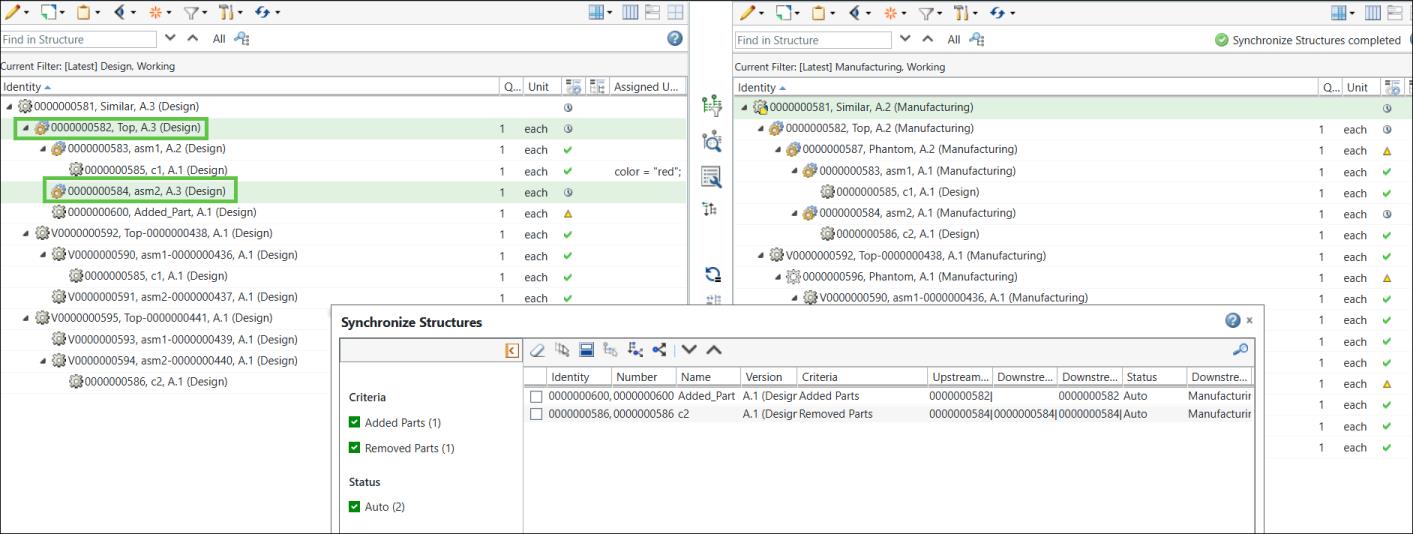
For more information, see Synchronizing Upstream and Downstream Structures.
13. Select the parts in the Synchronize Structures dialog box and click  Propagate changes to downstream to propagate the selected changes.
Propagate changes to downstream to propagate the selected changes.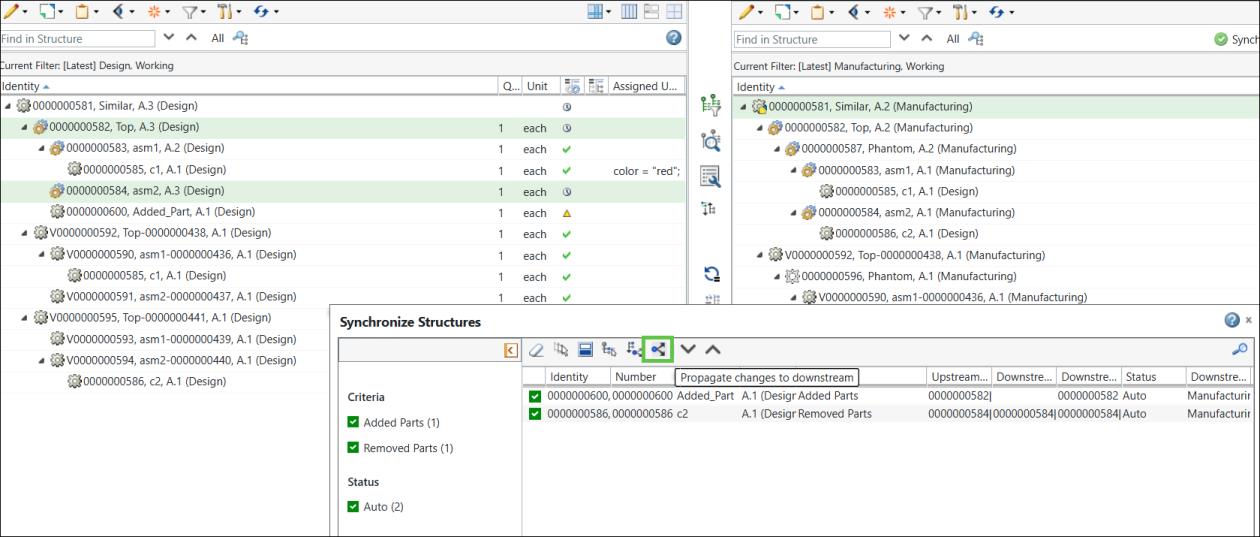
14. The updated structure appears as follows:
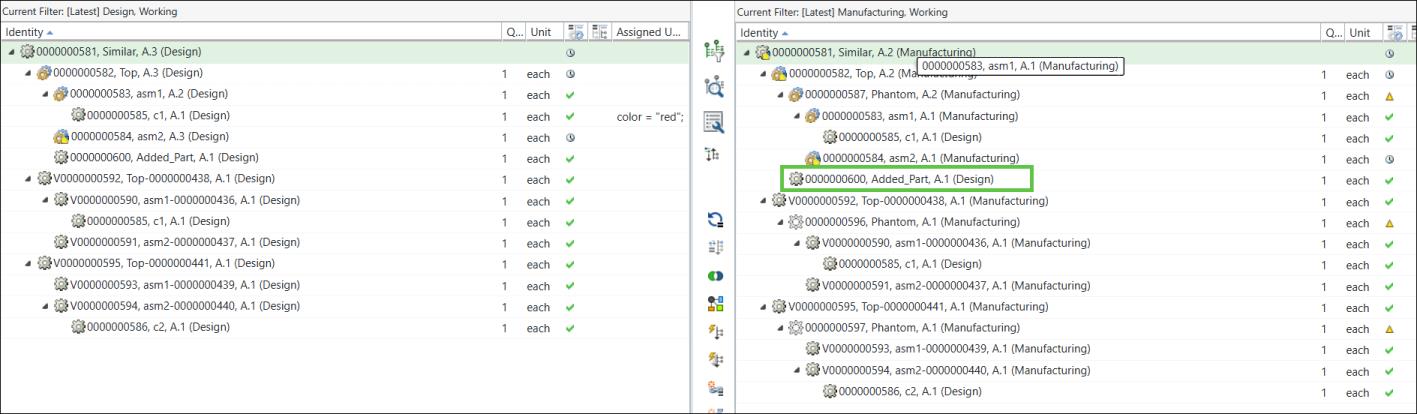
The discrepancies are propagated to the generic mBOM. The part 0000000586, c2, (Manufacturing) under 0000000584, asm2, (Manufacturing) is removed from the structure. The added part is highlighted.
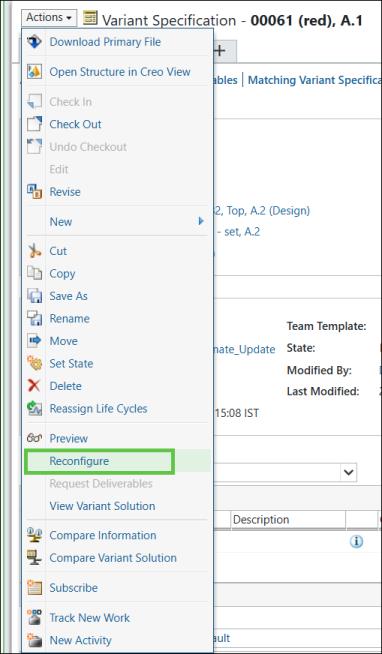
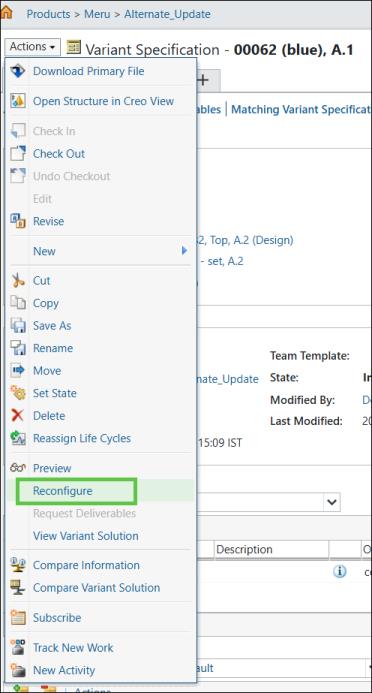
15. Reconfiguring Variants by updating the variant eBOMs in the upstream view to incorporate the updates made in the generic eBOM.
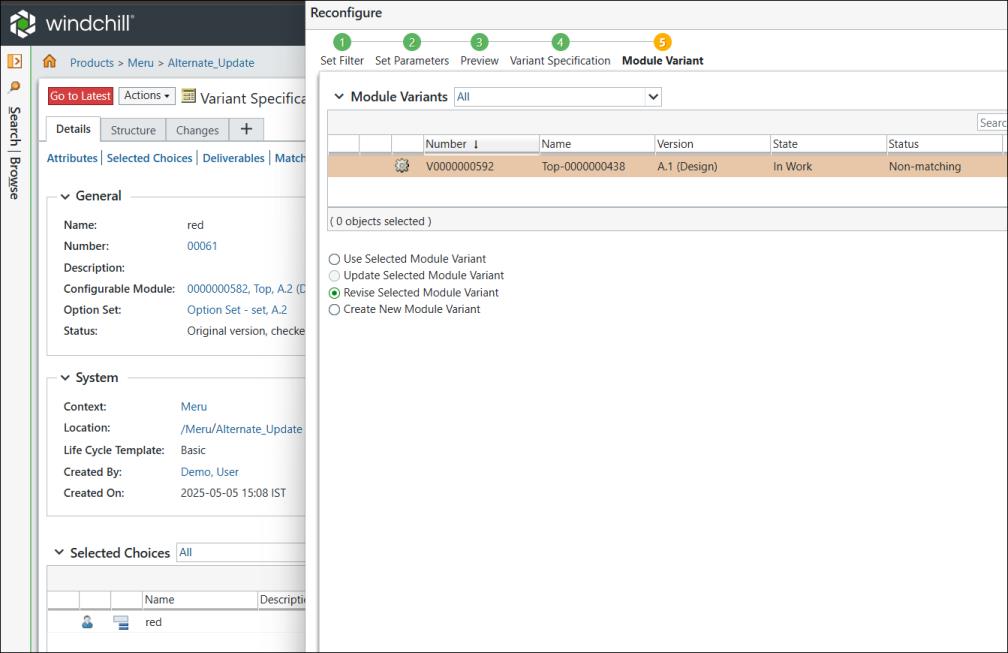
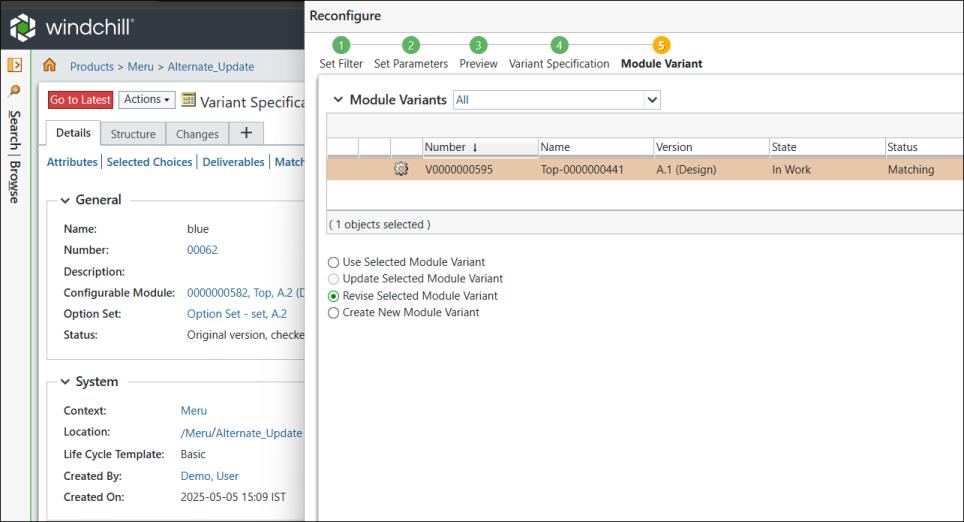
Use the Reconfigure action for the variant specifications 0061 (red) and 0062 (blue). Retain all the existing information mentioned in the tabs. Revise only the existing downstream variant specification as shown below:
In the Reconfigure dialog box, you must select the Revise Selected Module Variant option.
16. The updated variant eBOMs structure in the downstream view appears as follows:
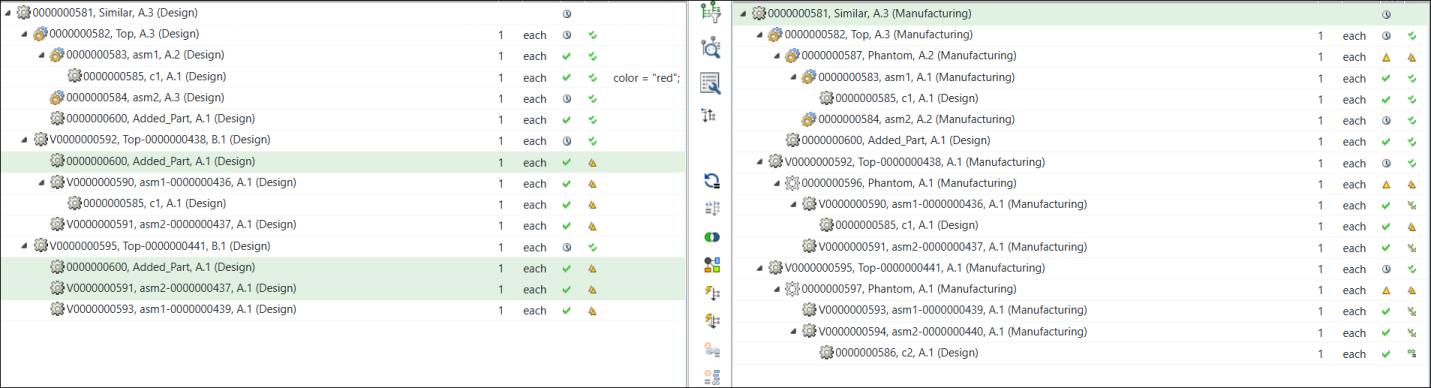
The part 0000000600, Added_Part is added under both the variant eBOMs. The part c2 under the part 0000000591, asm2 is removed.
17. Propagate changes to alternate manufacturing BOM
Select parts 0000000582 and 0000000584 in the upstream view and initiate the Synchronize Structures action to update the changes in the background. The Synchronize Structures dialog box opens. It lists the added and removed part entries.
Synchronize Structures action to update the changes in the background. The Synchronize Structures dialog box opens. It lists the added and removed part entries.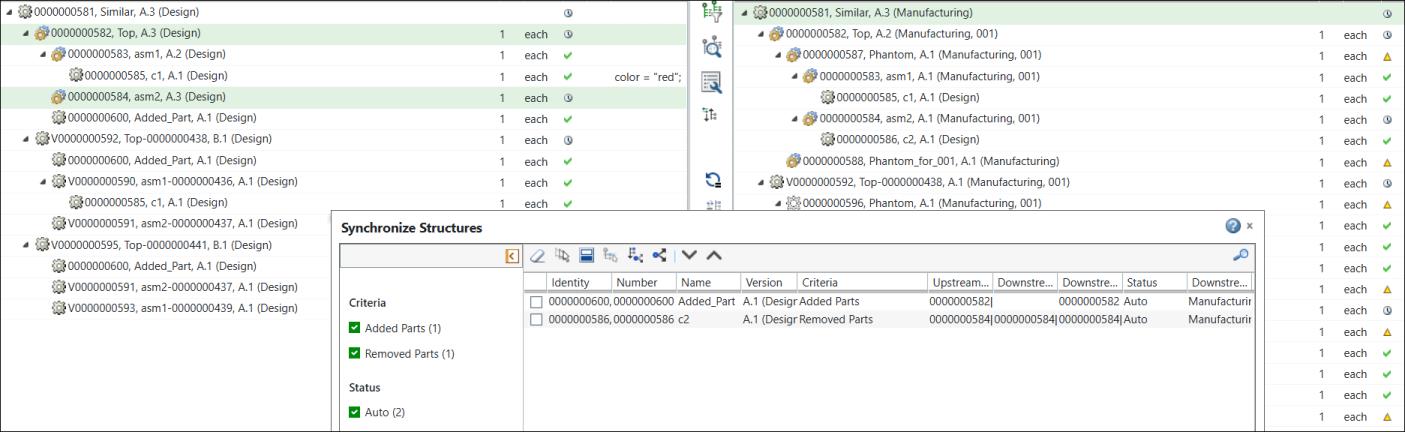
18. Select the parts in the Synchronize Structures dialog box and click Propagate changes to downstream to propagate the selected changes.
Propagate changes to downstream to propagate the selected changes.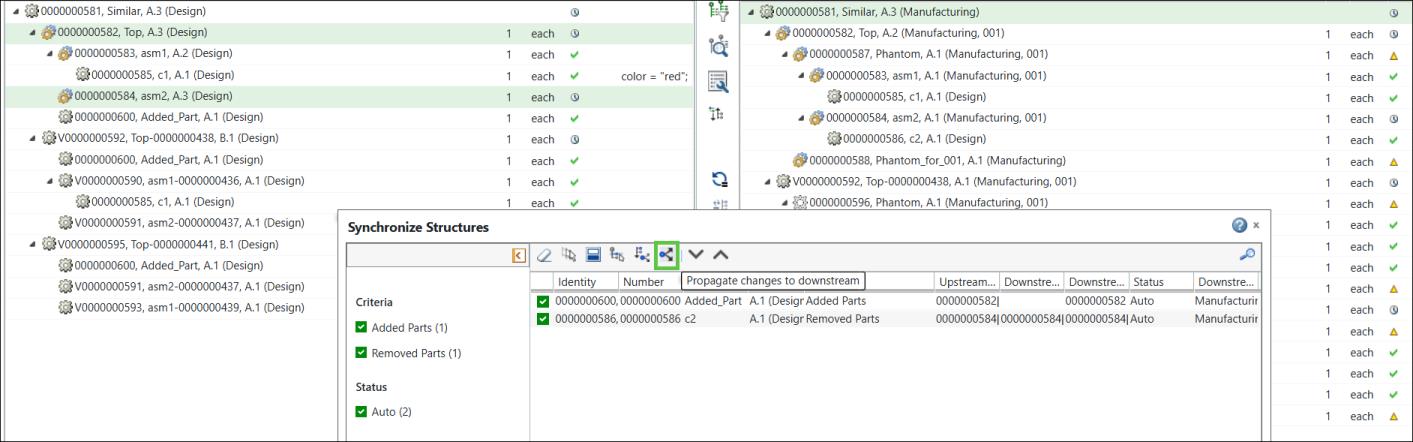
19. The updated structure appears as follows:
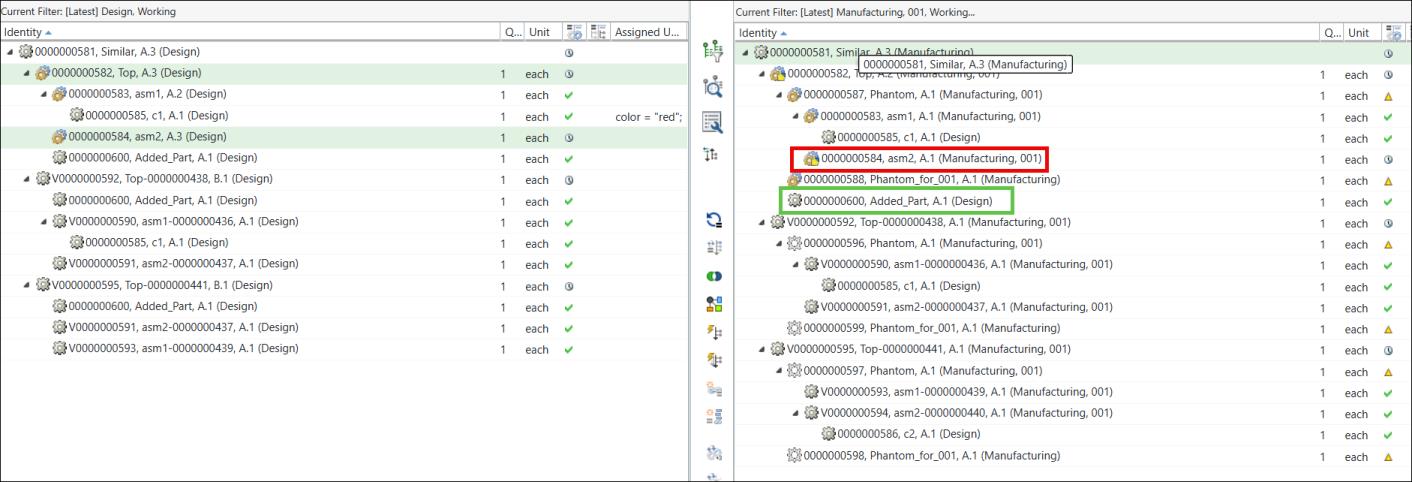
Parts are added and removed from the structures shown in this step. The part under 0000000584 was removed. Part 0000000600 was added.
| | The generic eBOM, alternate generic mBOM, and variant eBOMs are now in sync. |
20. Updating the variants of the alternate BOMs
Select the generic mBOM 0000000582, Top,(Manufacturing, 001) in the downstream view and click  New/Add >
  Update Mass Downstream BOMs.
New/Add > Update Mass Downstream BOMs.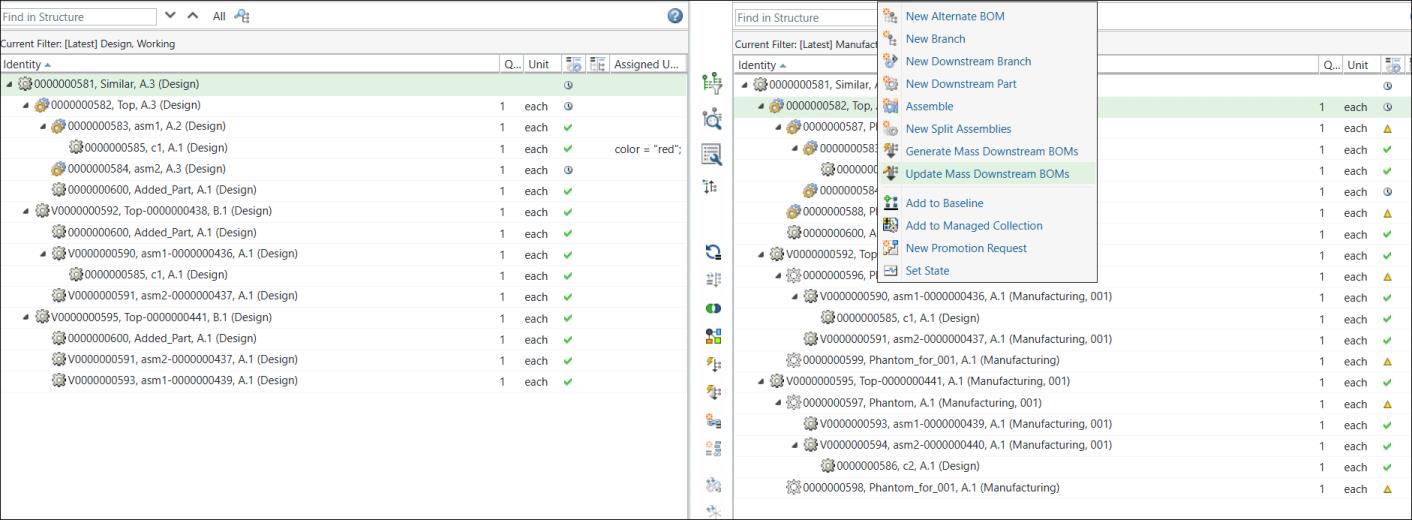
The following message appears when you initiate the Update Mass Downstream BOMs action:
Update Mass Downstream BOMs action: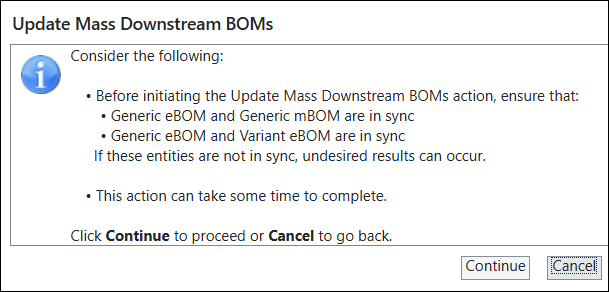
Click Continue.
21. The Update Mass Downstream BOMs dialog box opens. It displays the following information:

22. Click Finish. The Update Mass Downstream BOMs dialog box closes. The system updates the selected variant mBOMs for alternates based on the changes made in the generic eBOM, variant eBOMs, and alternate generic mBOM structures.
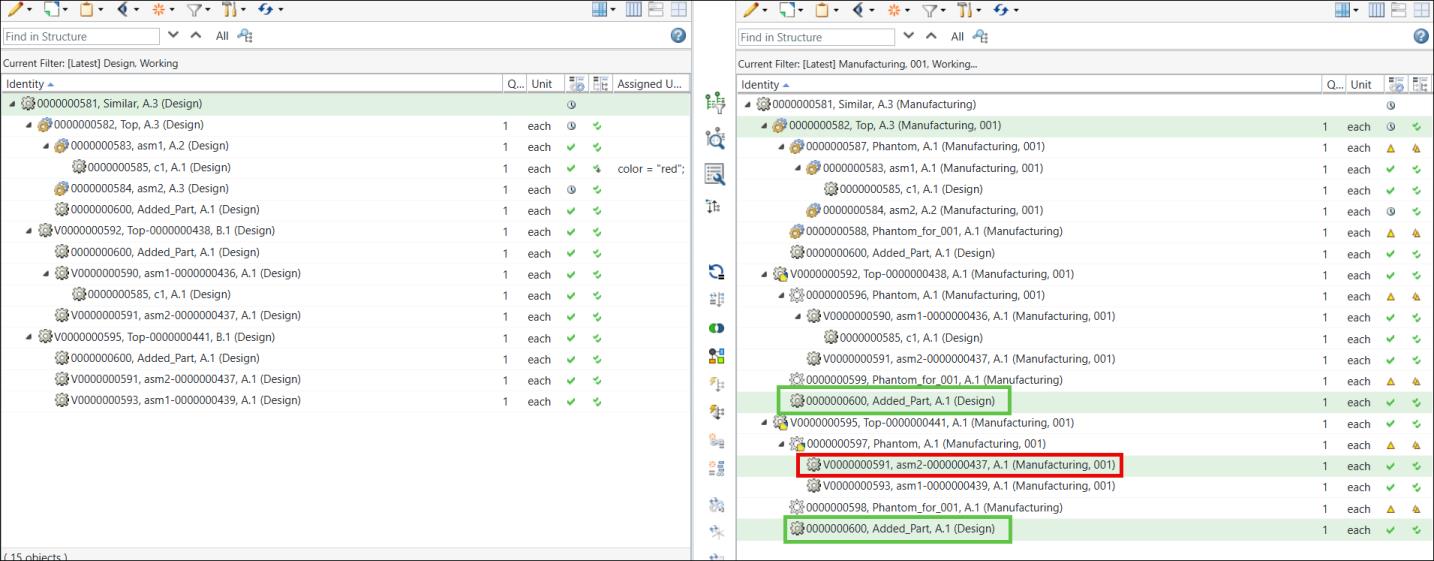
The parts added to the structure are highlighted in green. The part below the part highlighted in red is removed.