Documents Tab
When you open redline, you can view the Documents tab in the redline structure pane. The Documents tab is visible for the BOM redline part, that is a root part and for the selected child part that has a BOM redline.
From the Documents tab, you can only view the documents associated with a part. The following types of document association tables are displayed:
• Described By Documents — Displays version-specific views of documents for the selected part. You can add or remove a document as needed.
• Reference Documents — Displays the read only view of the related documents that contain essential information for the selected part.
• CAD/Dynamic Documents — Displays the read only view of the documents representing elements of a CAD assembly structure for the selected part.
 |
You cannot perform actions such as adding or deleting entries from the document association tables for Reference Documents and CAD/Dynamic Documents.
|
The following table and sections describe the Described By Documents in the redline.
A Described By Documents in Windchill is a type of document that remains unchanged in the Windchill part structure, even after the part is revised.
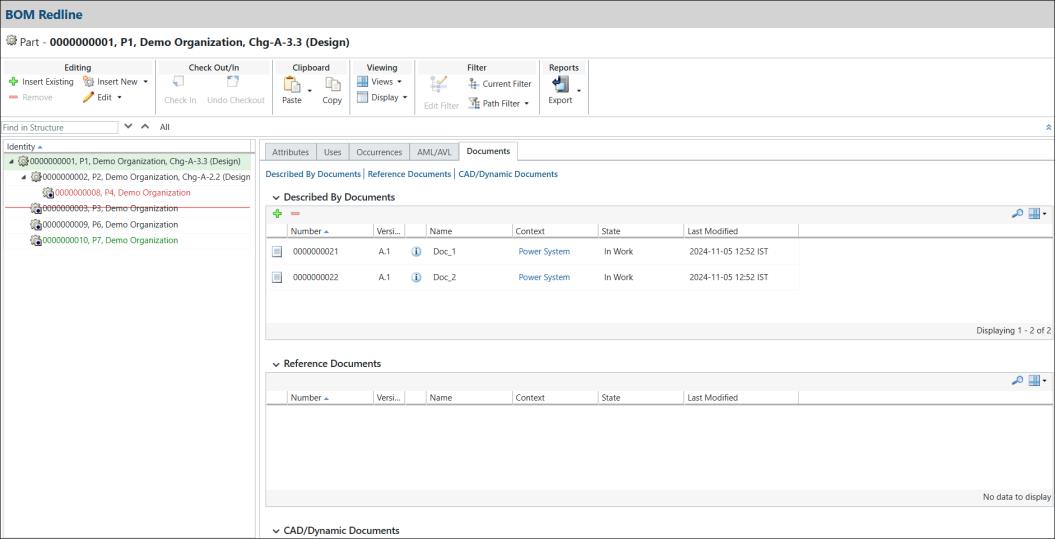
The Documents tab provides information such as name, number, version, context, state, and last modified date of a document when you select a redline. Use this table to perform the following actions:
• View the attribute information of the associated document.
• Add existing or new Described By Documents to a BOM redline or to the selected child part that has a BOM redline.
• Remove Described By Documents from a BOM redline or from the selected child part that has a BOM redline.
The following table describes the actions you can perform on the Documents tab for Described By Documents.
Action | Icon | Description | ||
|---|---|---|---|---|
Insert Existing |  | Associates an existing document with the BOM redline part and with the selected child part that has a BOM redline. For more information, see Inserting a Document. | ||
Remove Selected |  | Removes the selected Described By Documents from the BOM redline part or from the selected child part that has a BOM redline.
|
Attributes Description
The following table describes the document attributes shown in the default table view on the Documents tab:
Attribute | Description | ||
|---|---|---|---|
Change Indicator | The type of change when compared with the base object. The Change Indicator column is not available out-of-the-box.
| ||
Number | The unique numeric identifier for the document. | ||
Version | The revision and iteration of the document. | ||
Name | The text identifier for the document. | ||
Context | The context in which the object is stored, such as Product, Library, or Project. | ||
Last Modified | The date and time when the object was last checked in. |
Use Case for the Remove, Revert, and Replacement Actions
This topic explains the actions such as removing, reverting, and replacing parts associated with the Described By Documents and removing these documents within a redline structure tree.
Consider the following redline structure tree for a parent redline Part, Chg-A-1.1 with child parts in the organization:
• Part, Chg-A-1.1
◦ Part1
◦ Part2, Chg-A-2.1 (associated with a Doc_1 document)
◦ Part3
◦ Part4, Chg-A-2.5 (associated with a Doc_3 document)
◦ Part5, Chg-A-2.8
The child parts Part2, Chg-A-2.1, Part4, Chg-A-2.5, and Part5, Chg-A-2.8are also redlines. The child parts Part2 and Part4 are associated with the Doc_1 and Doc_3 Described By Documents, respectively.
Remove Action
This use case explains the redline changes when you remove a document or a part that is associated with a document.
• When you remove the child part Part2, Chg-A-2.1 from the redline structure tree, the associated Doc_1 document is also removed. In this case, the Documents tab is not visible for this redline context.
| | If you open the Part2, Chg-A-2.1 redline, you can still observe the Documents tab and the Doc_1 document in it. |
• When you remove the associated document Doc_3 from Part4, Chg-A-2.5, the Doc_3 document is removed. The Documents tab is still visible because the part is a redline.
Revert Action
The Revert action does not revert the changes related to documents.
If you make some changes to the child part Part5, Chg-A-2.8, such as modifying part uses, attributes, occurrences, and adding the document Doc_5 to the child part and perform the Revert action, you can observe the following:
• Changes to part uses, attributes, and occurrences are restored to their original state.
• The Documents tab still shows Doc_5 because the changes are not reverted.
The resulting visual highlight Part5, Chg-A-2.8 in the redline structure tree remains red. In the Documents table, Doc_5 remains green even after the Revert action because Doc_5 is not reverted.
Replace Action
If you replace Part4, Chg-A-2.5 (associated with the Doc_3 document) with Part 8, Chg-A-2.7 (associated with the Doc_11 document), you can observe the following:
• In the redline structure tree, part uses, attributes, occurrences, and the associated document are replaced with those of Part 8, Chg-A-2.7.
• After the Replace action, the Documents table shows Doc_11.
If you replace Part4, Chg-A-2.5 (associated with Doc_3) with Part 9 which is a master part, you can observe the following:
• In the redline structure tree, part uses, attributes, occurrences, and documents are replaced with those of Part 9.
• After the Replace action, the Documents tab is not visible for the replaced part because the replaced part is a master part.
Related Topics