Tutorial 2: Selectively Updating Multiple Generic BOMs
You can selectively update variant mBOMs from a particular variant eBOM. Select one or more variant mBOMs in the downstream view of the BOM Transformer and click the  Update Mass Downstream BOMs action. After the Update Mass Downstream BOMs action is complete, the system updates the selected variant mBOMs.
Update Mass Downstream BOMs action. After the Update Mass Downstream BOMs action is complete, the system updates the selected variant mBOMs.Tutorial Structure
• Step 1— Explains the implementation and working of the  Generate Mass Downstream BOMs action.
Generate Mass Downstream BOMs action.• Steps 2 to 10— Explains the groundwork process before initiating the Update Mass Downstream BOMs action.
Update Mass Downstream BOMs action.• Steps 11 and 12 — Explain the implementation and working of the Update Mass Downstream BOMs action.
Update Mass Downstream BOMs action.Tutorial
Consider that the following structure is present in the BOM Transformer:
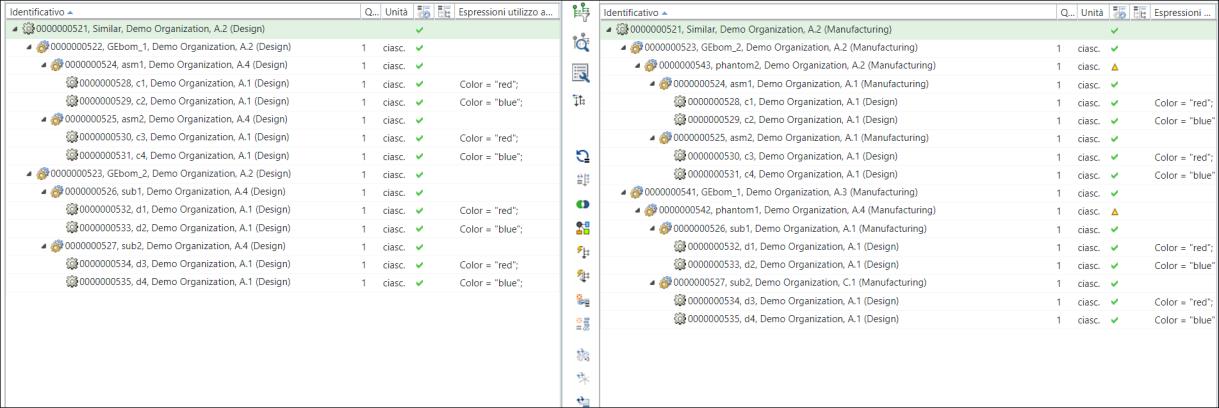
• Two generic eBOMs, 0000000311, GEBOM_1, (Design) and 0000000314, GEBOM_2, (Design) are present under the similar node 0000000310, Similar_EBOM, (Design) in the upstream view of the BOM Transformer.
• Two generic mBOMs 000000000311, GEBOM_1, (Manufacturing) and 000000000314, GEBOM_2, (Manufacturing) are present under the similar mBOM 0000000310, Similar_EBOM, (Manufacturing) in the downstream view.
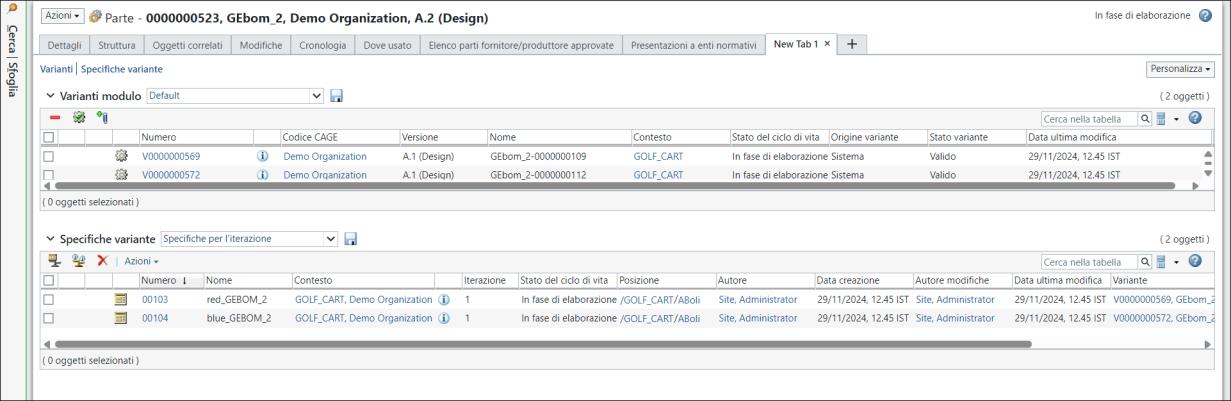
• The following two module variants or variant eBOMs are associated with the generic eBOM 0000000314, GEBOM_2, (Design). These module variants or variant eBOMs have individual variant specifications.
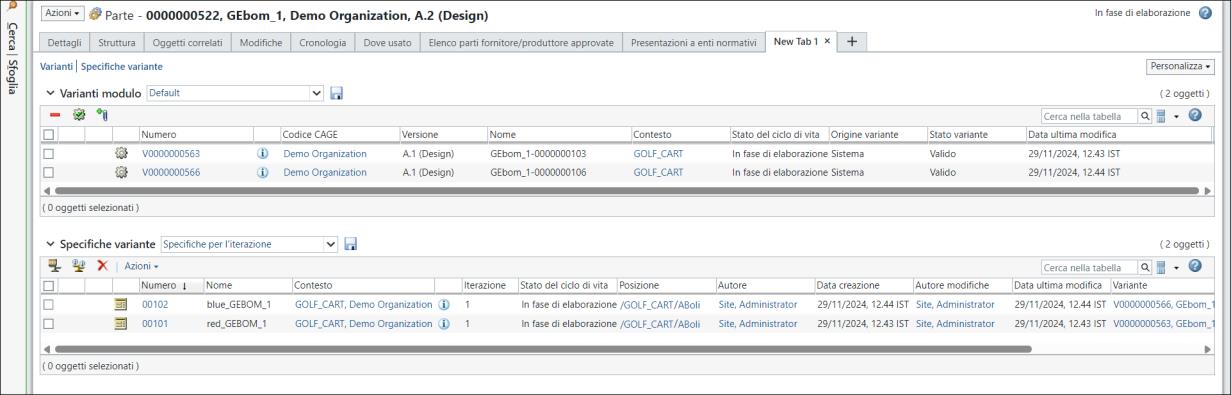
• The following two module variants or variant eBOMs are associated with the generic eBOM 0000000311, GEBOM_1, (Design). These module variants or variant eBOMs have individual variant specifications.
Perform the following steps:
1. Select the two generic mBOMs, 000000000311, GEBOM_1, (Manufacturing) and 000000000314, GEBOM_2, (Manufacturing) in the downstream view. Use the Generate Mass Downstream BOMs action to add existing variant eBOMs and generate variant mBOMs in the upstream and downstream views of the BOM Transformer.
Generate Mass Downstream BOMs action to add existing variant eBOMs and generate variant mBOMs in the upstream and downstream views of the BOM Transformer.In the downstream view, select  New/Add > Generate Mass Downstream BOMs.
New/Add > Generate Mass Downstream BOMs.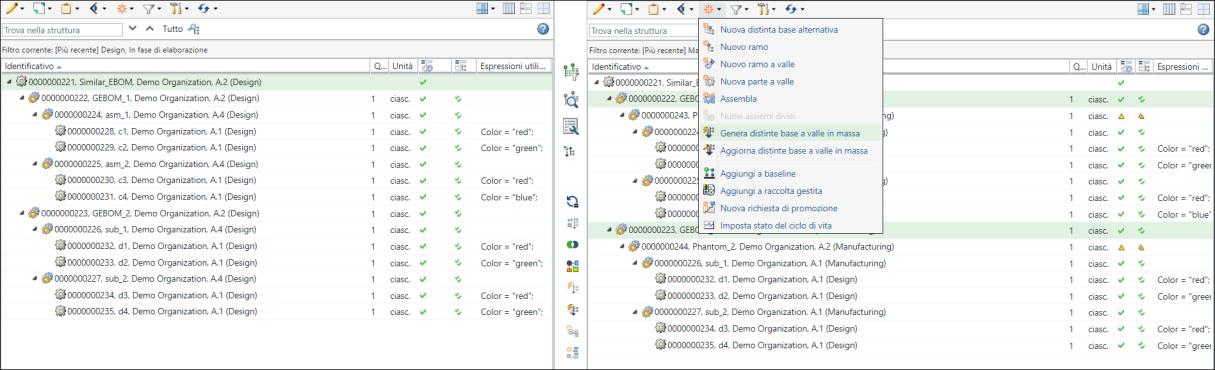
The Generate Mass Downstream BOMs dialog box opens. It contains the View Upstream Parameters and Set Downstream Parameters steps. In the View Upstream Parameters step, the variants for which you want to generate the mass downstream BOMs appear.
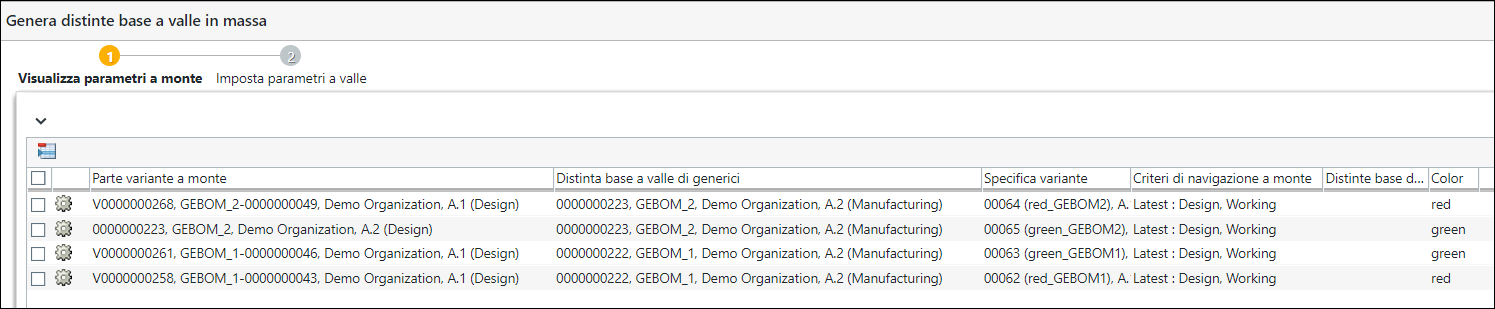
Click Next. The Set Downstream Parameters step appears. In the Set Downstream Parameters step, the variants for which you want to generate the mass downstream BOMs appear.

Click Finish. The Generate Mass Downstream BOMs dialog box closes. The eBOM and mBOM variants appear in the upstream and downstream views of the BOM Transformer.
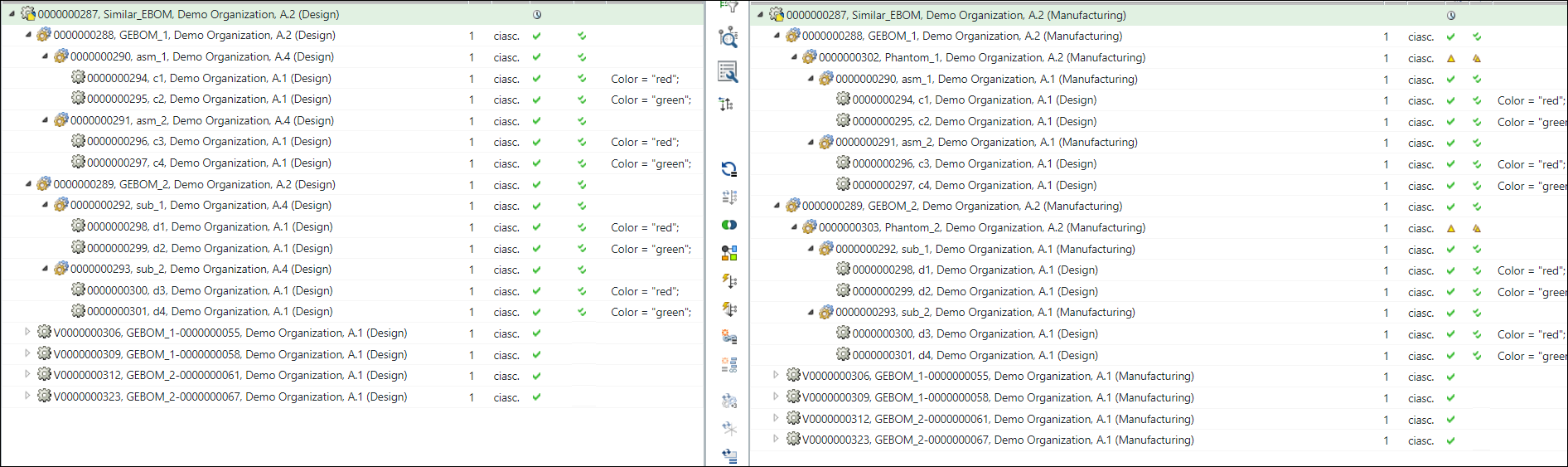
In the collapsed form, the structure in the BOM Transformer appears as follows:
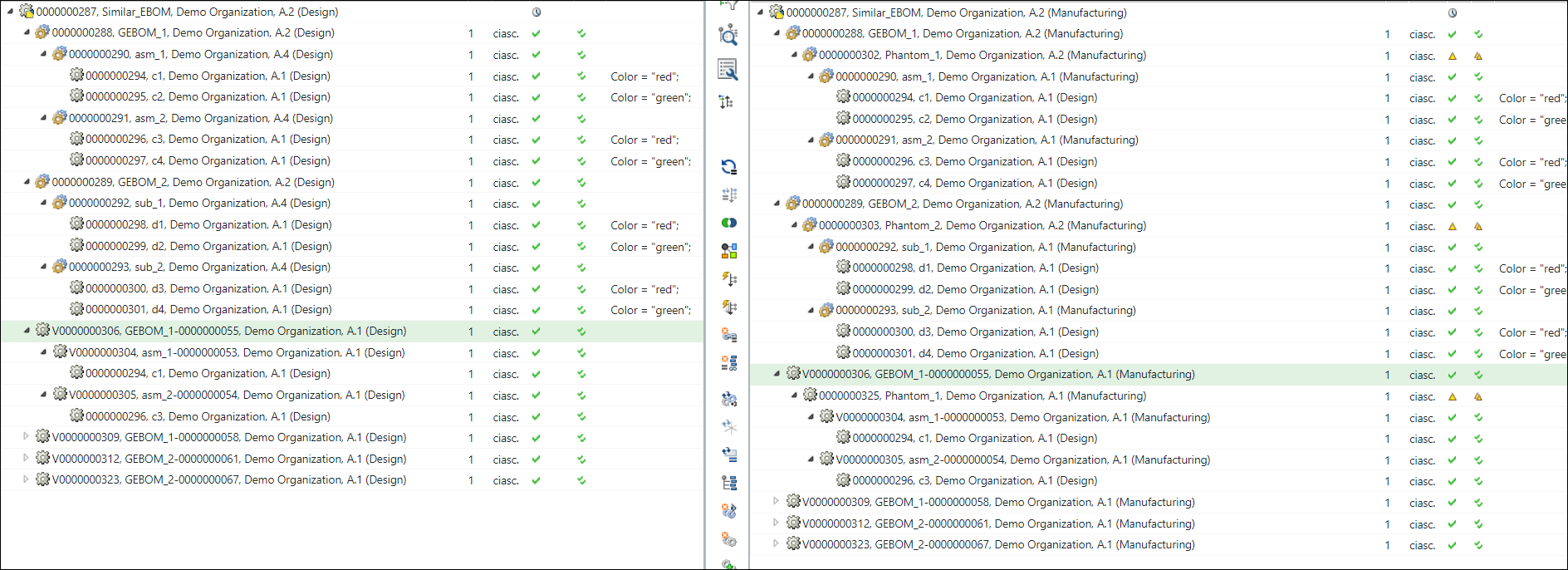
In the expanded form, the first variant structure in the BOM Transformer appears as follows:
For more information, see the following topics:
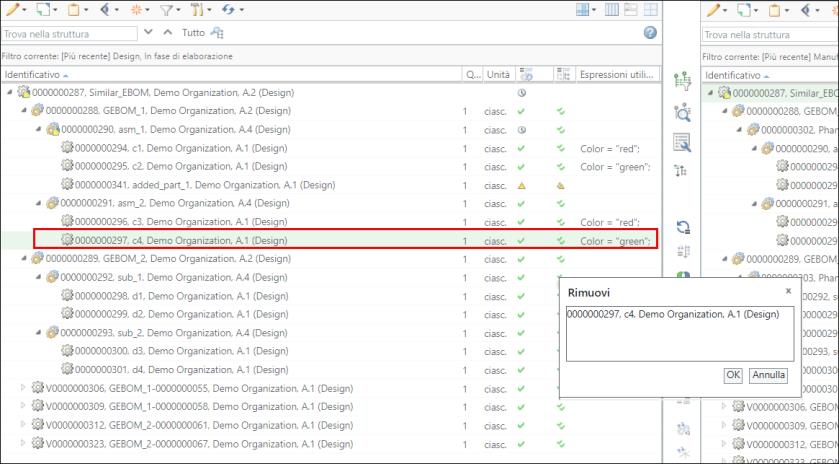
2. Add discrepancies by making changes in the generic eBOM structure 0000000311, GEBOM_1, (Design) present in the upstream view of the BOM Transformer. In this case, part 0000000349, added_part, (Design) is added under the subassembly 0000000312, asm_1, (Design). Also, part 0000000320, c4, (Design) is removed from the subassembly 0000000313, asm_2, (Design).
3. In the BOM Transformer, use the  Synchronize Structures action to detect and resolve discrepancies between the first-level equivalent parts in both structures present under the similar nodes. For more information, see Synchronizing Upstream and Downstream Structures.
Synchronize Structures action to detect and resolve discrepancies between the first-level equivalent parts in both structures present under the similar nodes. For more information, see Synchronizing Upstream and Downstream Structures.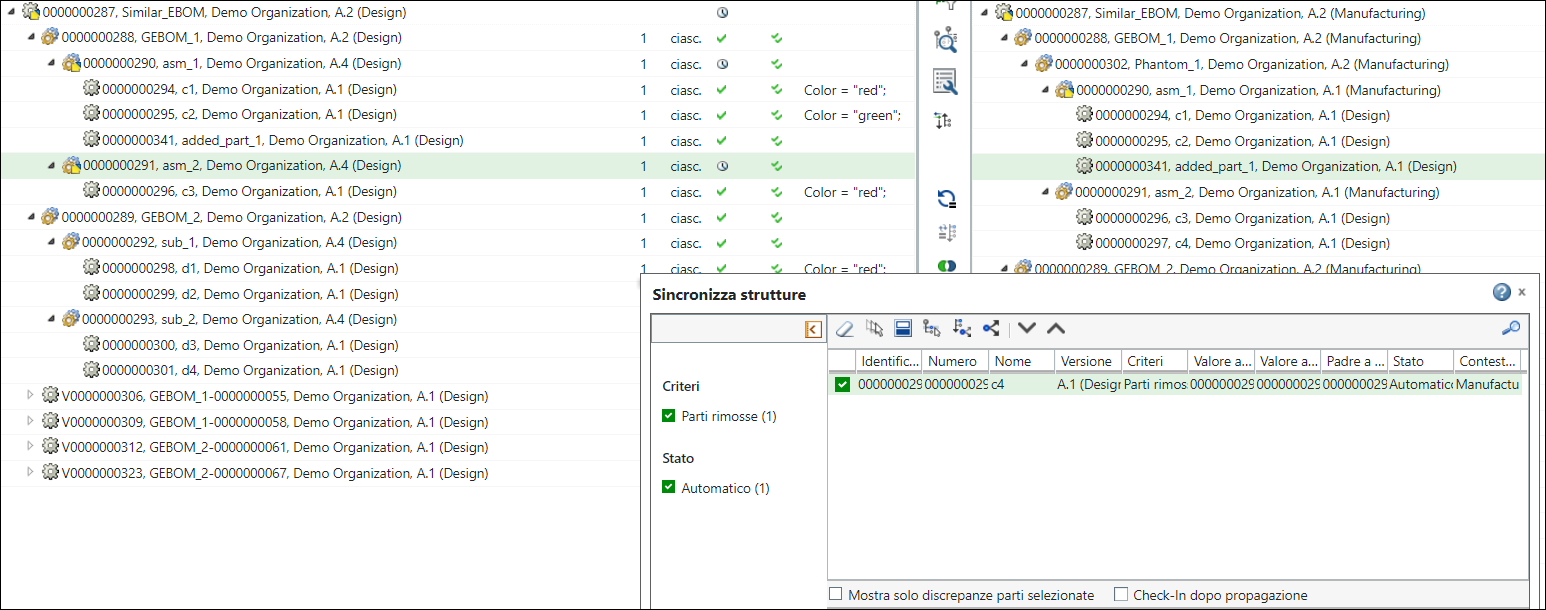
4. The updated generic mBOM structure in the downstream view appears as follows:
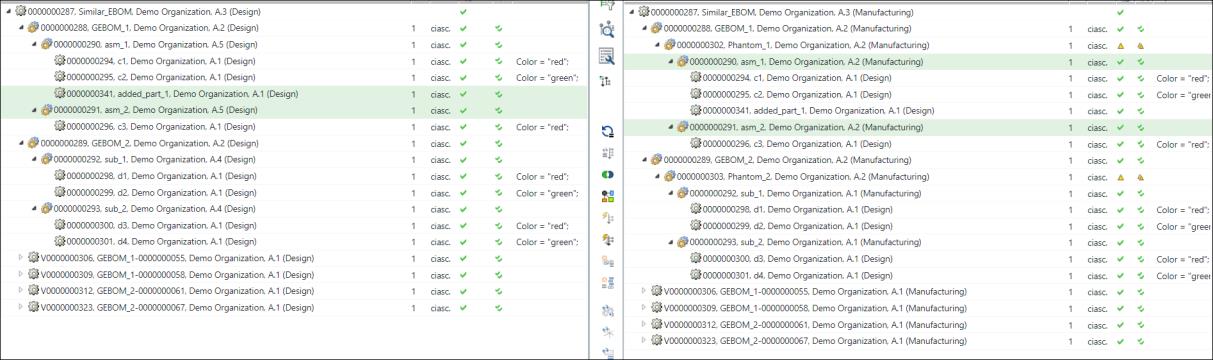
 | Part 0000000349, added_part, (Design) is added under 0000000312, asm_1, (Manufacturing). Also, part 00000000320, c4, (Design) is removed from the generic mBOM structure 0000000311, GEBOM_1, (Manufacturing). |
5. Add discrepancies in the generic eBOM structure 0000000314, GEBOM_2, (Design) present in the upstream view of the BOM Transformer. In this case, the part 0000000350, added_Part_2, (Design) is added under the subassembly 0000000315, sub_1, (Design). Also, part 0000000324, d4, (Design) is removed from the sub assembly 0000000316, sub_2, (Design).
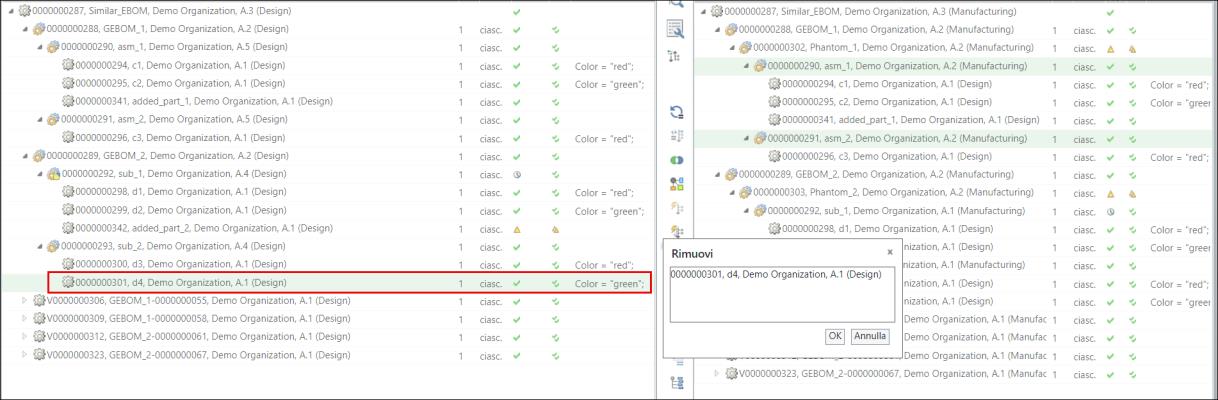
6. Use the Synchronize Structures action to detect and resolve discrepancies between the first-level equivalent parts in both the structures present under the similar nodes.
Synchronize Structures action to detect and resolve discrepancies between the first-level equivalent parts in both the structures present under the similar nodes.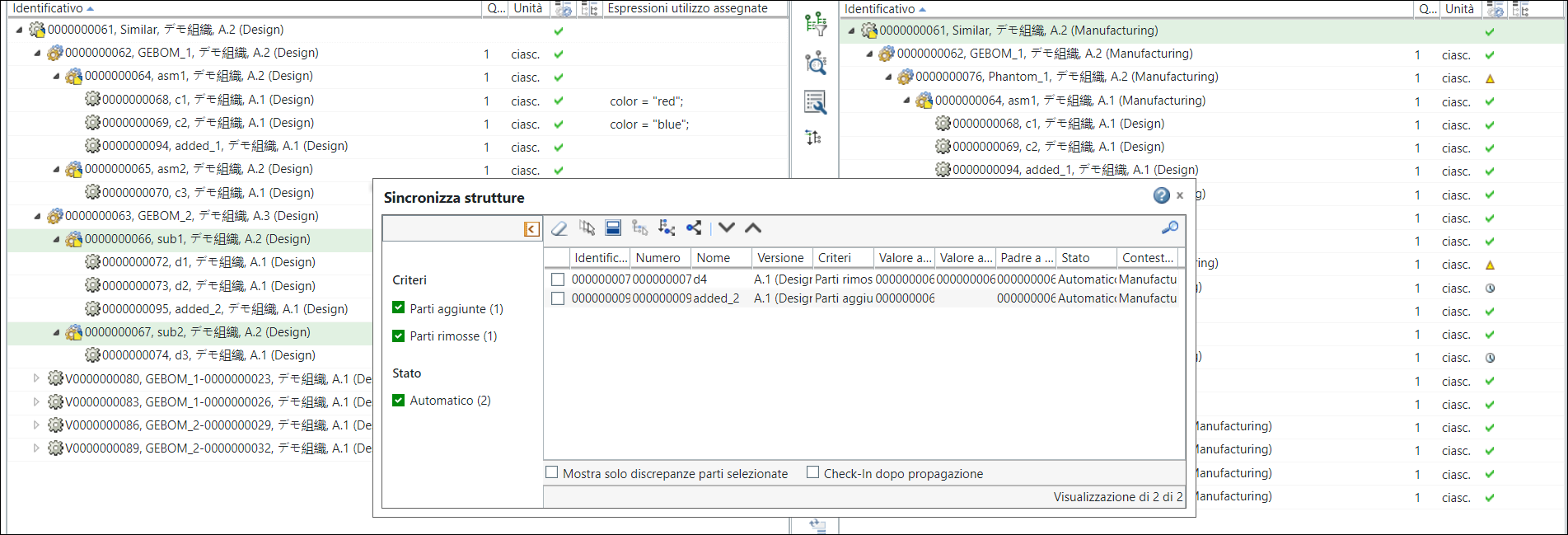
7. The updated generic mBOM structure in the downstream view appears as follows:
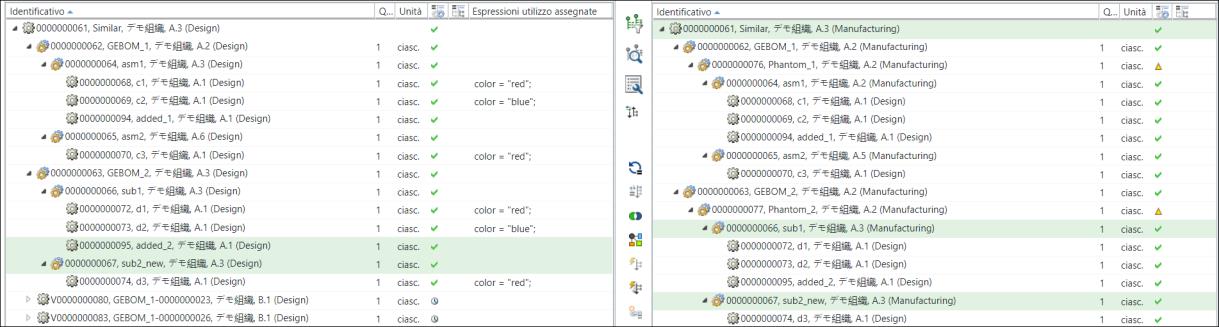
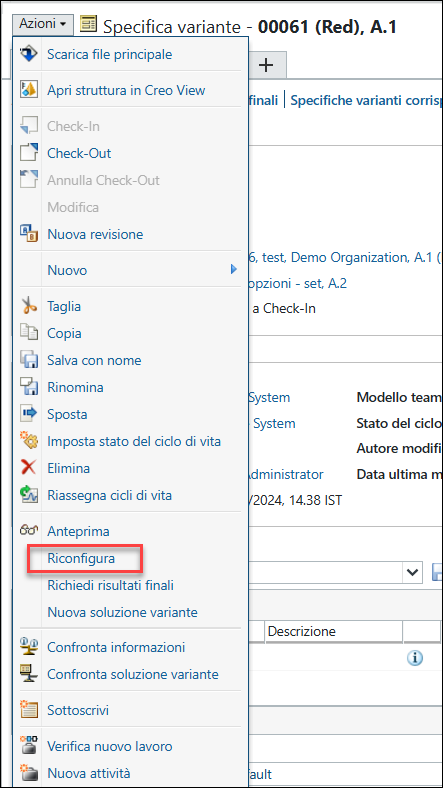
8. Configuring variants by updating the variant eBOMs.
Use the Reconfigure action for the variant specification. Retain all existing information mentioned in the tabs. Revise only the existing downstream variant specification as shown below:
9. The updated E-variant structures appear as follows:
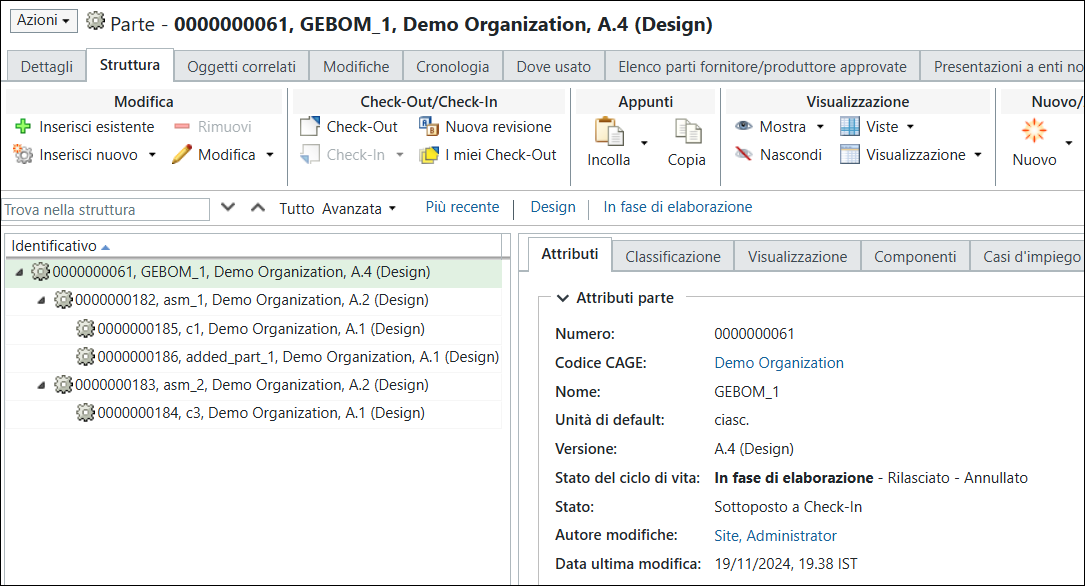
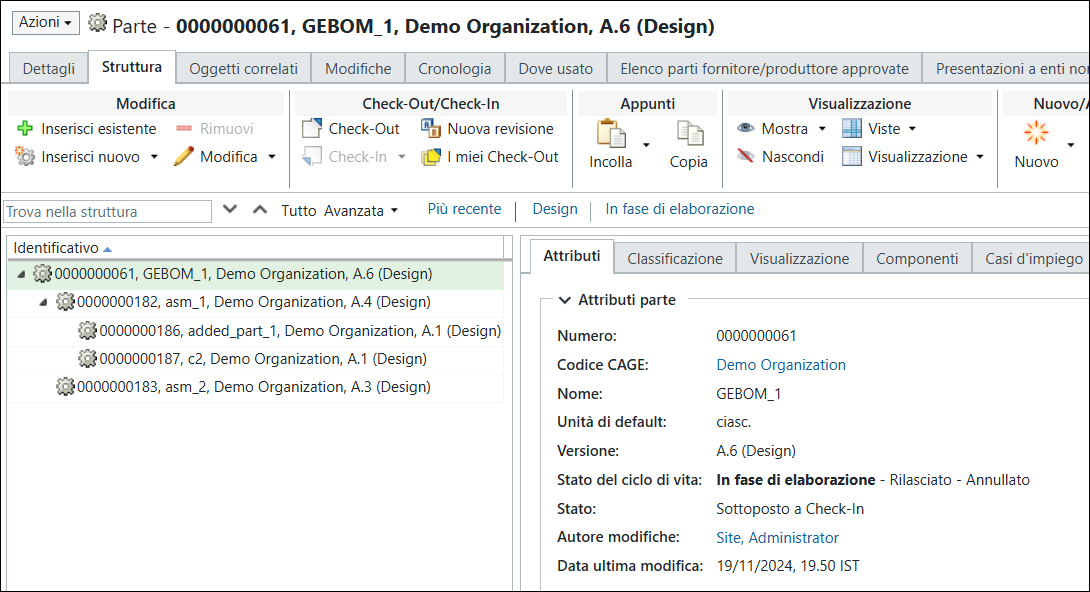
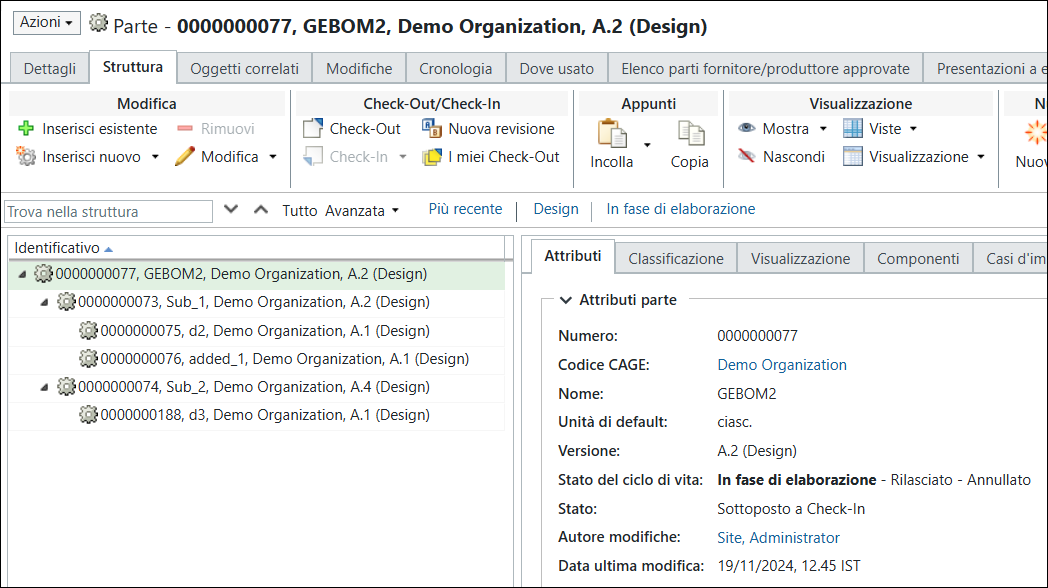
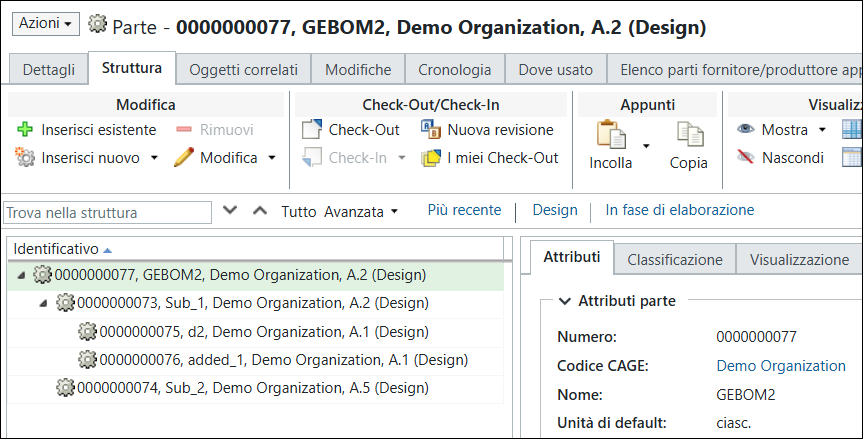
Parts are added and removed from the structures shown in this step.
10. The generic eBOM, generic mBOM, and variant eBOMs are in sync. That is, the groundwork before using the Update Mass Downstream BOMs is now complete.
Update Mass Downstream BOMs is now complete.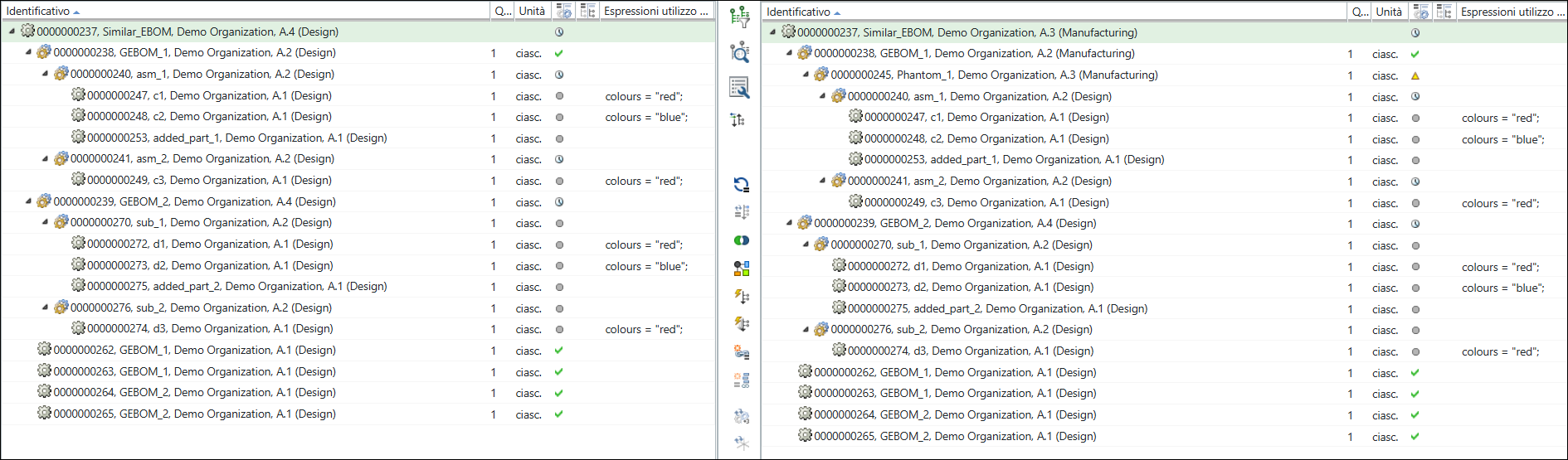
11. Select the variant mBOMs, V00000000331,GEBOM_1-00000000151, (Manufacturing) and V00000000337,GEBOM_2-00000000157, (Manufacturing) in the downstream view and click New/Add > Update Mass Downstream BOMs.
New/Add > Update Mass Downstream BOMs.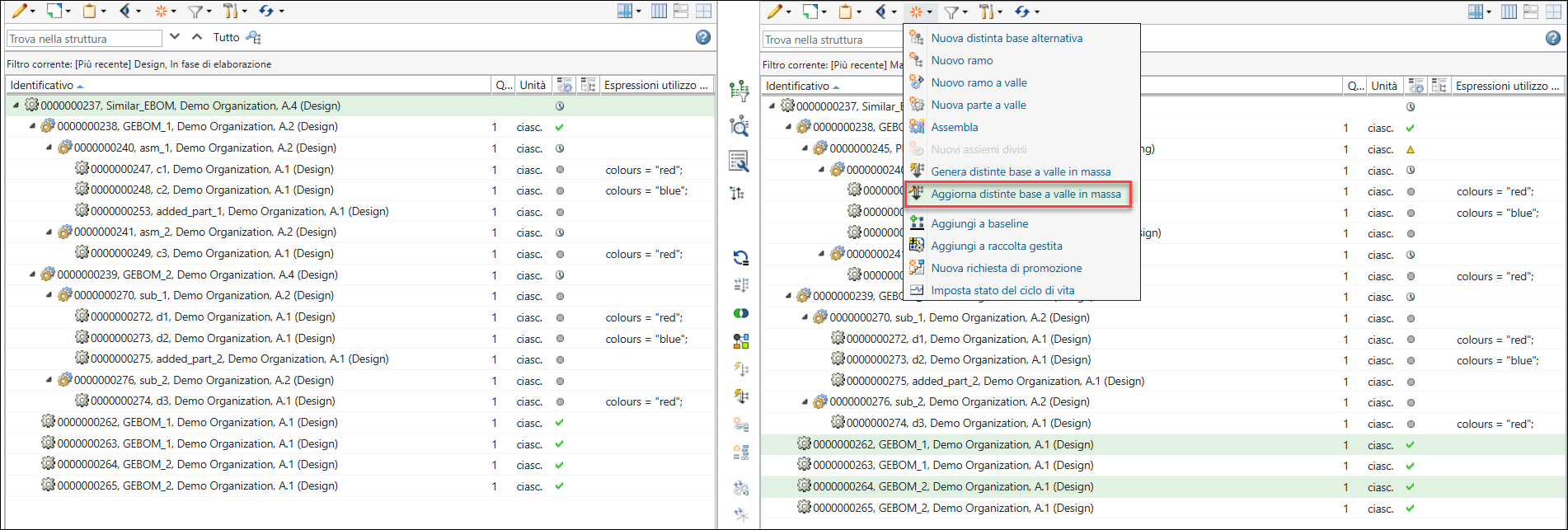
12. The Update Mass Downstream BOMs dialog box opens. It displays the information about the selected variant mBOMs.

13. Click Finish. The Update Mass Downstream BOMs dialog box closes. The system updates the selected variant mBOMs based on the changes made in the variant eBOMs and generic mBOM structures.
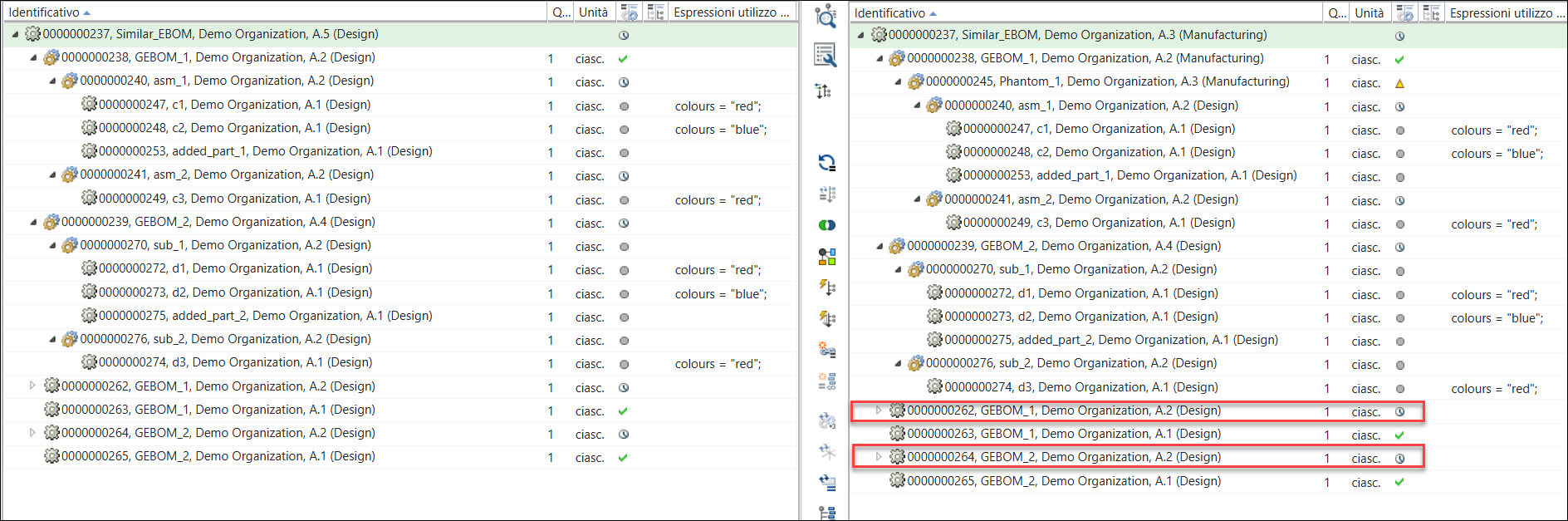
◦ The system updates the equivalent link between the variant eBOMs and variant mBOMs.
◦ The system checks out the impacted variant mBOMs nodes.
◦ Optionally, you can also use the  Update Cumulative Equivalent Status Indicator action available in the middle-pane toolbar to update the cumulative equivalent indicator status. For more information, see Updating the Cumulative Equivalent Status.
Update Cumulative Equivalent Status Indicator action available in the middle-pane toolbar to update the cumulative equivalent indicator status. For more information, see Updating the Cumulative Equivalent Status.◦ The following image displays the expanded structures:
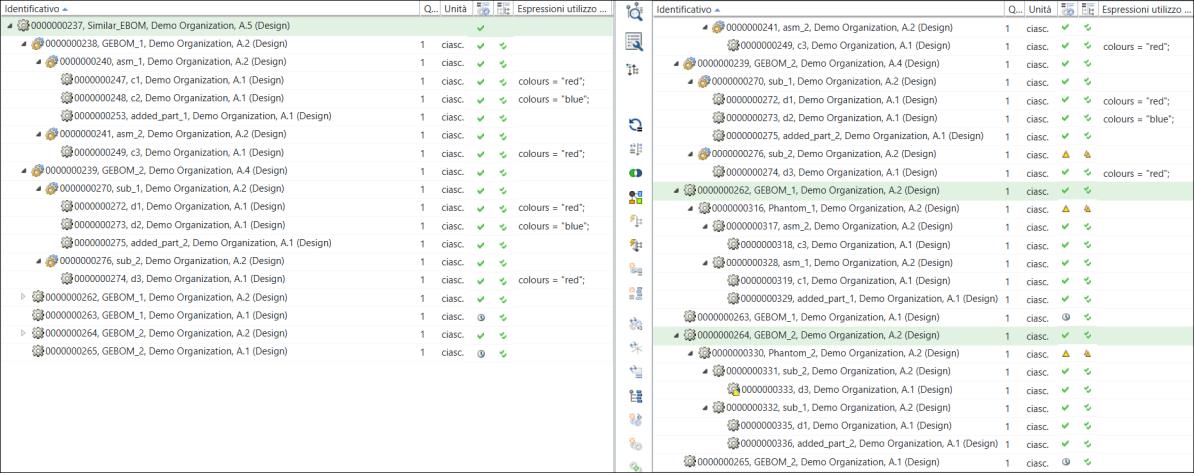
The system propagates all changes to the variant mBOMs from the variant eBOMs and generic mBOMs. Consider the structure present under the second variant mBOM V00000000337,GEBOM_2-00000000157, (Manufacturing):
▪ Part 00000000350,added_Part_2, (Design) is added under the part 00000000354,sub_1-00000000164, (Manufacturing). The part 00000000354,sub_1-00000000164, (Manufacturing) is present under the variant mBOM V00000000337,GEBOM_2-00000000157, (Manufacturing).
▪ One of the parts that were present under V00000000337,GEBOM_2-00000000157, (Manufacturing) is removed.
The system propagates similar changes to the other variant mBOM, V00000000331,GEBOM_1-00000000151, (Manufacturing).