Viewing in Creo View - Desktop and Web
Windchill provides multiple actions to open a product’s digital data in Creo View for visualization and detailed investigation. Some of the actions are considered below.
To open a product’s designed state or static representation:
• Navigate to the Details page and click on the thumbnail frame to open the object in Creo View.
• Select either a CAD Document, a Windchill part or any Windchill object and click Open In Creo View.
• If multiple representations are managed, then select the representations using > > . And then select the specific representation to open in Creo View.
To open Bill of Material (engineering BOM or manufacturing BOM or service BOM) :
• Navigate to the Bill of Material.
• Select root node or desired node.
• On right-click action or from Actions menu click Open Structure In Creo View.
These actions opens the default representation or BoM’s representation in Creo View. You can choose whether to open the representation in Creo View’s Desktop or Web platform using the Visualization preferences.
Configuring the default viewer platform
A user or an administrator can set the default viewer platform using the preference > . If the preference is set to Yes, Windchill opens the representation on the specified platform of Creo View.
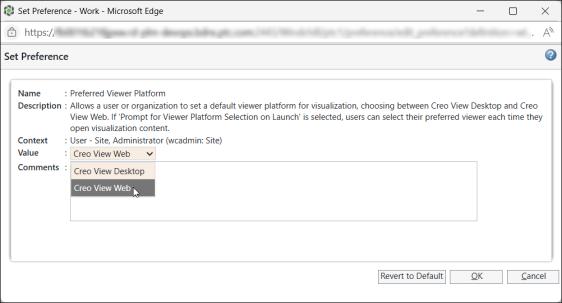
To set whether you would be prompted to select the Visualization Viewer Platform, use the preference > .

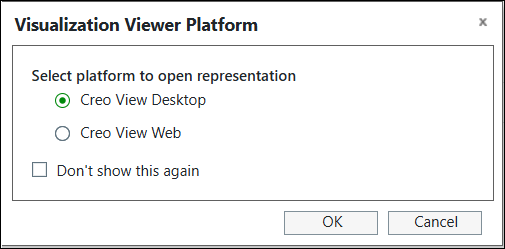
If the preference is set to Yes, then whenever you launch the representation using Open in Creo View action you are provided the options as seen below. The representation would then be opened in the selected Visualization Viewer Platform.