Editing Multiple Standard Control Characteristics Attributes Simultaneously in PPB
Use the  Edit Multiple Standard Control Characteristics action in the Process Plan Browser (PPB) to edit the attributes of multiple standard control characteristics simultaneously. You can also edit the attributes present on the links between operations and standard control characteristics. You can select the following objects and launch this action:
Edit Multiple Standard Control Characteristics action in the Process Plan Browser (PPB) to edit the attributes of multiple standard control characteristics simultaneously. You can also edit the attributes present on the links between operations and standard control characteristics. You can select the following objects and launch this action:• A process plan
• One or more standard control characteristics. The standard control characteristics can be associated with the same or different operations.
• One or more operations, standard operations, standard procedures, and sequences
• A process plan and an operation
• A process plan and multiple operations
 | You cannot select other entities with standard control characteristics and launch this action. You must select standard control characteristics independently and launch this action. You can select a combination of other entities and launch this action. For this action, you can select operations and sequences and launch this action. |
Perform the following steps to edit the attributes of multiple standard control characteristics:
1. Browse to the Structure tab of the Process Plan Browser.
2. In the process plan tree structure, select one or more valid objects.
3. In the Editing action set, select  Edit > Edit Multiple Standard Control Characteristics. The Edit Standard Control Characteristics dialog box opens.
Edit > Edit Multiple Standard Control Characteristics. The Edit Standard Control Characteristics dialog box opens.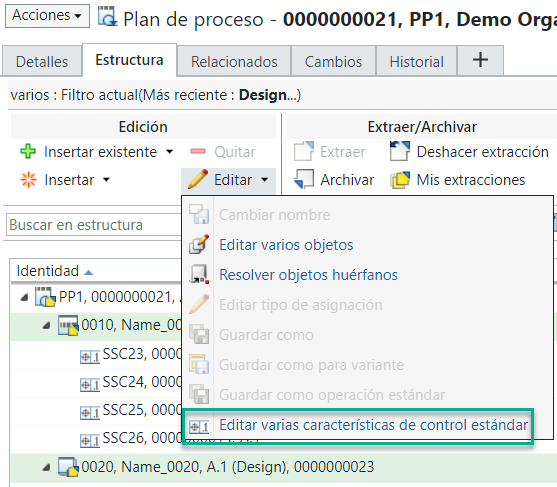
Alternatively, you can right-click and select > Edit Multiple Standard Control Characteristics to open the Edit Standard Control Characteristics dialog box.
Edit Multiple Standard Control Characteristics to open the Edit Standard Control Characteristics dialog box.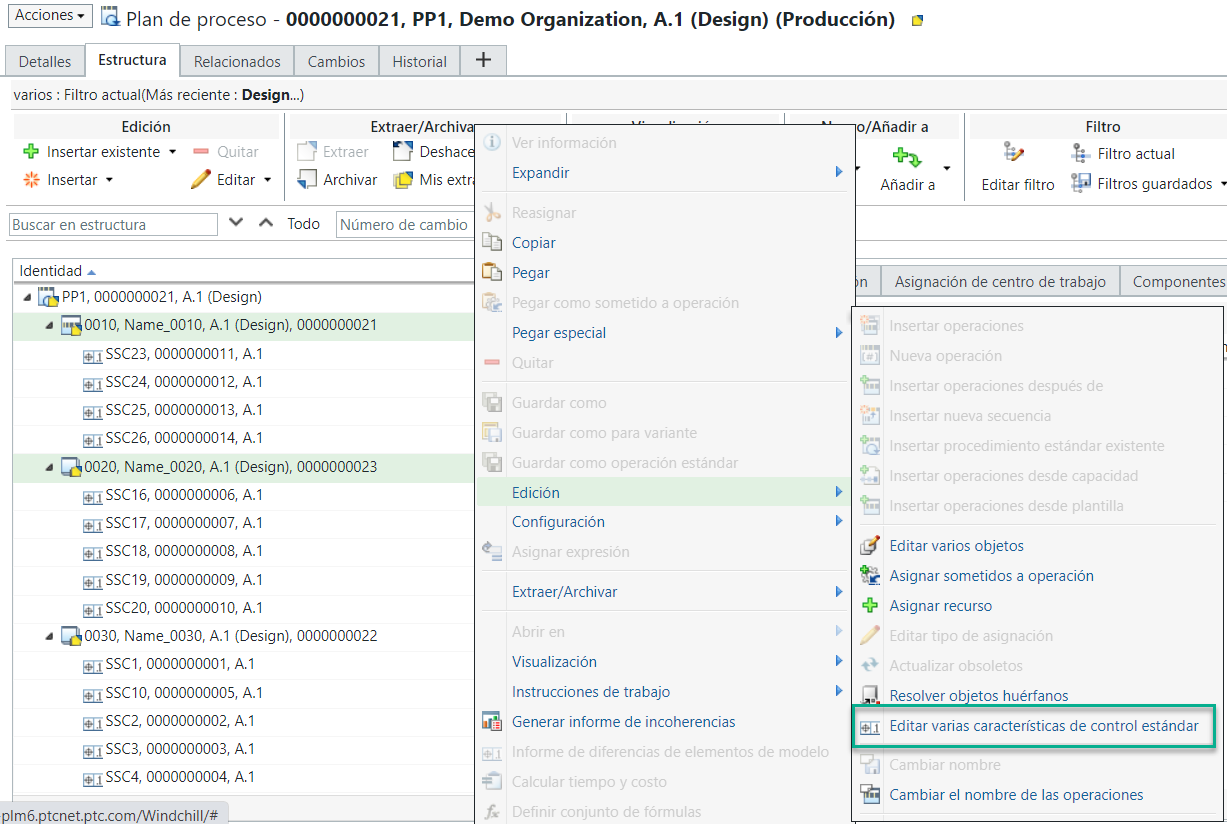
◦ The system displays the information in the Edit Standard Control Characteristics dialog box according to the objects selected in the previous step.
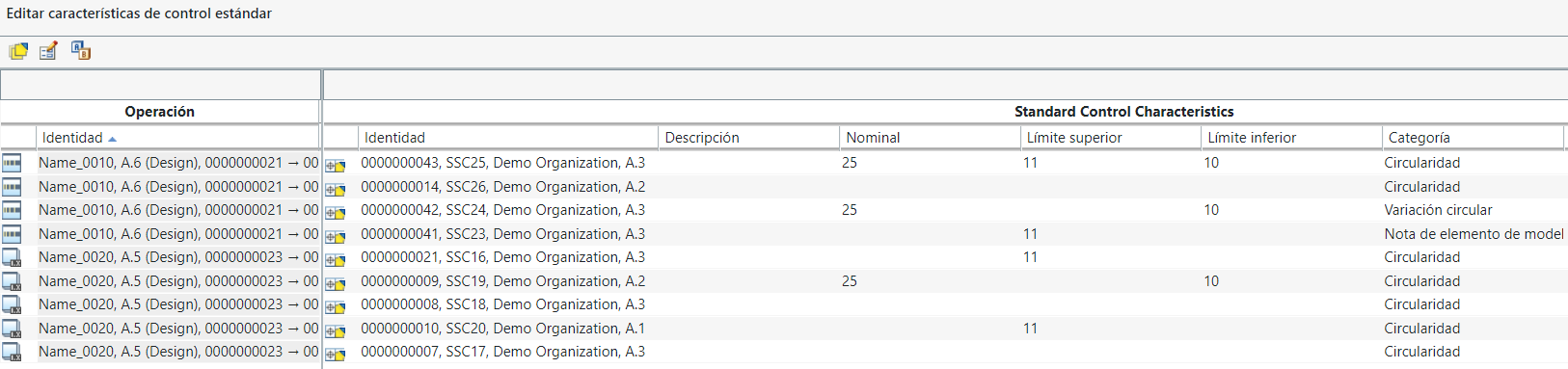
◦ The Edit Standard Control Characteristics dialog box displays the Operation and Standard Control Characteristic sections. The Identity column appears in the Operation section. This column displays the complete path of the selected operation. For example, SubOperation12 --> Operation3 -> Processplan. Refer the following image:
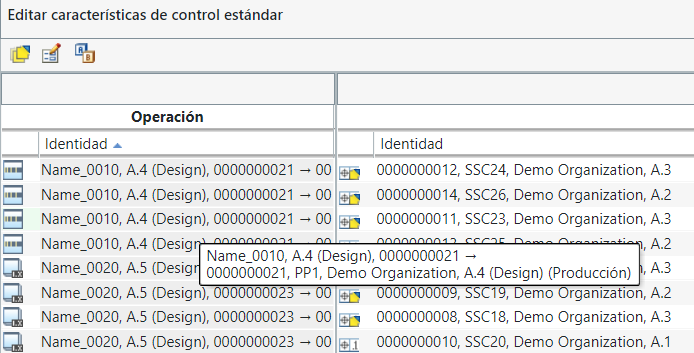
◦ The following columns appear in the Standard Control Characteristic section:
Identity, Description, Nominal Value, Upper Limit, Lower Limit, Category, Representation and Part Name.
| | You can customize the table view to display the columns for other attributes. For more information, see Creating and Editing New Table Views. |
4. Double-click a cell to edit an attribute value.
| | You can edit multiple attributes simultaneously. For more information, see Editing Multiple Attributes. |
5. When you edit an attribute, the related object is checked out automatically. Click  to check in the objects. For more information on checking in an object, see Viewing Checked Out Objects.
to check in the objects. For more information on checking in an object, see Viewing Checked Out Objects.The attribute values of the checked in objects are updated.
Key Points
• The following actions are present in the Edit Standard Control Characteristics dialog box:
Action | Description |
|---|---|
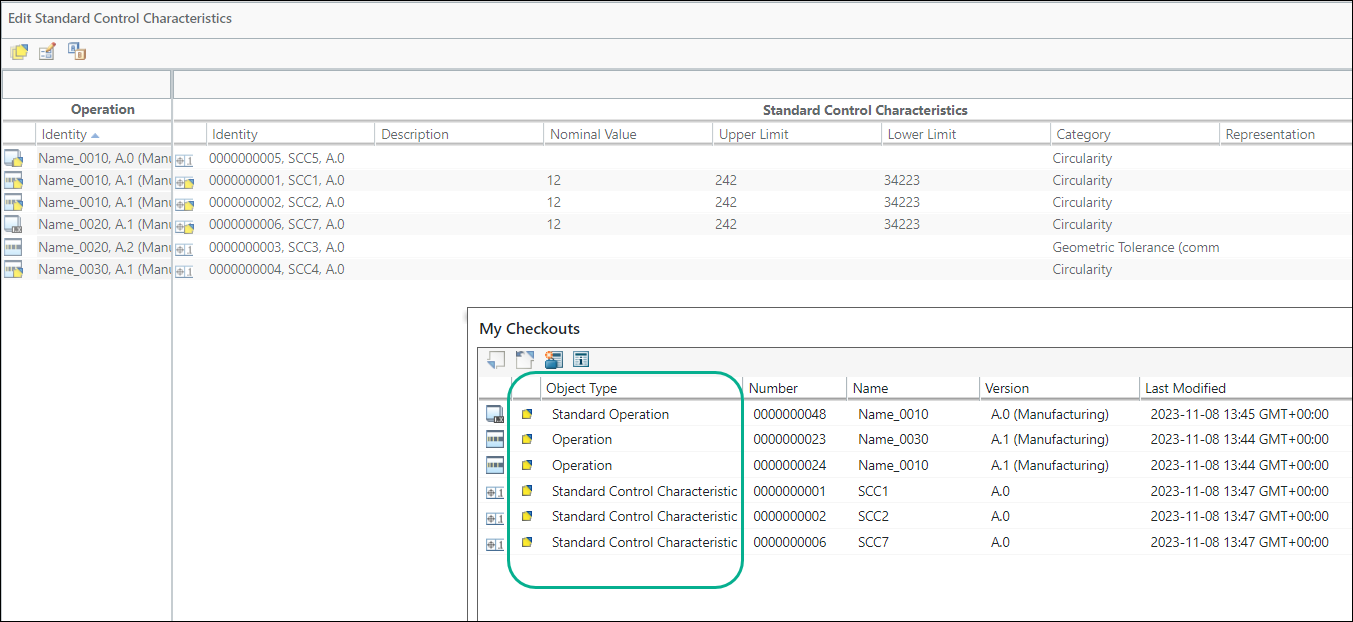
| My Checkouts | Displays the My Checkouts dialog box showing all the objects that are checked out in the Edit Standard Control Characteristics dialog box. |
 Edit Attribute Value Edit Attribute Value | Allows you to edit multiple attributes of standard control characteristics simultaneously. For more information, see Editing Multiple Attributes. |
 Revise Revise | Creates a new revision of the object. For example, your object may be revised from A.4 to B.1, depending on the revision scheme at your site. For more information, see About Revisable Objects. |
• The following actions are present in the My Checkouts dialog box:
Action | Description |
|---|---|
 Check In Check In | Check in the selected objects. For more information, see Checking In an Object. |
 Undo Checkout Undo Checkout | Clear the check out of the selected objects discarding any changes that have been made. For more information, see Undoing a Checkout. |
 New Change Notice New Change Notice | Create a new change notice. If the newly created change notice has only one task associated with it, the number of the change task is auto populated in the Change Number field once the action is completed. If the newly created change notice has multiple change tasks associated with it, any change task number is randomly auto populated in the Change Number field. You can change the already populated change task number. |
 Show/hide fields to associate a change notice Show/hide fields to associate a change notice | Show or hide the user input fields that you can use to associate a change notice with the object that you are checking in. By default, the Change Notice and Change Task user input fields are hidden. The checked in objects are added to the Resulting Objects table of the specified change task. |
An example of the My Checkouts dialog box is as follows: