Import to Workspace (NX)
You can import CAD documents and their attachments only using the embedded browser of Windchill Workgroup Manager.
Import to workspace is supported when:
• NX is started and registered with the Windchill Workgroup Manager.
• NX is registered with Windchill Workgroup Manager but not started. In this case, NX starts automatically in the background during the import and closes when import is completed.
The Import to Workspace wizard has two steps:
1. Select Files to Import
2. Specify Options
You can navigate to a subsequent step by clicking Next. Navigate to a preceding step by clicking Back or clicking the numeral corresponding to a previously completed step.
Select Files to Import
To select objects to import to a workspace, use the following procedure:
1. Select > .
The Import to Workspace window opens at the first step: Select files to import.
2. The Target Workspace field indicates the active workspace from which you invoked the import and into which the imported objects will be placed.
3. In the Add Dependencies field, set a rule for dependent objects to be collected with any selected objects, either All (default), Required, or None.
4. Click  to browse objects to import from your local file system. When you have navigated to the object, click Open to add it to the Files table. The Files table lists the files you have collected for import and is described in the following table:
to browse objects to import from your local file system. When you have navigated to the object, click Open to add it to the Files table. The Files table lists the files you have collected for import and is described in the following table:Column | Description |
|---|---|
(Select all rows) | Use check boxes to select rows to which to apply toolbar actions. The top check box selects/deselects all rows. |
(Object Type Indicator) | Displays object type icon |
File Name | Displays object file name |
Size | Displays the file size of the object |
Last Modified | Displays date and time of last modification of the file |
File Path | Displays the directory path to the file to be imported |
5. Optionally, select an object and click  to remove the object from the table.
to remove the object from the table.6. Click Next to go to the second step, Specify Options; or click Finish to initiate the import without specifying options.
 | Import to Workspace creates ghost objects in workspace when a Family Table generic part (parent file) and its instances from the NX Assembly are placed in different folders. To successfully import the assembly and its all parts to the workspace, place the Family Table generic part and its instances in the same folder. |
Specify Options
The options available in the second step of import can help resolve conflicts with objects in the target workspace or commonspace. Use the following procedure to specify import options:
1. On the Specify Options page, the objects you selected in the first step are listed in the Object List table, which is outlined in the following table:
Column | Description |
|---|---|
(Select all rows) | Use check boxes to select rows to which to apply toolbar actions. The top check box selects/deselects all rows. |
(Workspace content status) | (Active workspace only) Displays object local workspace status icon (if applicable). |
(Action status) | Indicates if object is set for check out. |
(General status) | Displays object general status icon (if applicable). |
(Status Messages) | Displays status message icon and text message in tooltip (if applicable). |
(Object Type Indicator) | Displays object type icon. |
File Name | Displays object file name. |
Size | Displays the file size of the object. |
Last Modified | Displays date and time of last modification of object. |
Location | Displays the storage location for the object. |
File Path | Displays the directory path to the file to be imported. |
2. In the View menu, you can select from the following alternative views of the Object List table:
◦ All except Family Instances
◦ All
◦ All with conflicts
3. You can further modify the collected set of objects by selecting objects and using toolbar controls as explained in the following table:
Control Icon | Action |
|---|---|
 | Invoke the Set Location window to select a database location for the selected object. |
 | Add the imported object as a new object. |
 | Add the imported object as a modified object. |
 | Reuse an existing workspace or commonspace object of the same name, rather than importing the selected object. |
 | Check out the selected object upon import. |
 | Revise the selected object upon import. |
 | Excludes selected object from the import. Clicking again (while the same object is selected) re-includes the object. |
4. Clicking the reset icon  resets the Object List to its initial state.
resets the Object List to its initial state.5. You can click Back at any time to return to the Select files to import step.
6. Click Finish to commit the import of the collected objects. The imported objects are populated in the target workspace.
The following file types are supported for the Import to Workspace action:
• NX files (.prt, .krx)
• Windchill files (.xls, .xlsx, .doc, .docx, .ppt, .pptx)
• Graphic Editor files (.jpg, .jpeg, .bmp, .cgm, .tif, .tiff, .gif, .png, .exr, .rgb, .pic, .psd, .tga, .hdr, .pcx, .wrl, .cvg, .svg, .vda, .eps, .cc4, .ai, .hpl, .obj, .pvz, .edz, .avi)
Advanced Import to Workspace Capabilities for NX
The Import to Workspace capabilities of NX are enhanced for working with the NX Reuse Library as follows:
• You can import native NX Knowledge Reuse Extension (KRX) files and graphic editor files (such as CGM, BMP, and other types).
• You can import these additional file types (along with existing file extensions) at the same time.
Advanced Import to Workspace Capabilities for NX when Working with Independent Family Table Generic/Instances
In NX, importing instances or generics to the workspace is improved when you set the Independently Modify Instances preference to Yes. The use cases below provide examples of these enhancements.
All the use scenarios in the table below refer to the Independently Modify Instances preference located in the Workgroup Manager Client section of Preference Management.
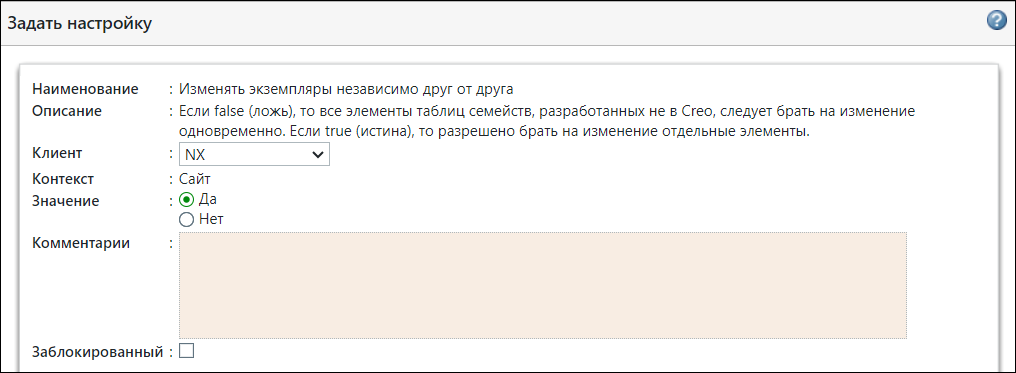
Prerequisites—The Independently Modify Instances preference for NX is set to Yes (the default value).
• You can import a standalone generic, but its instances are not saved in the workspace.
• You can import a standalone instance only when the instance’s generic is present in Windchill server or in the active workspace. If the instance’s generic is not present, import of the instance fails and Windchill displays an error message.
• When an instance is imported independently, it is added to the family table of the respective generic on the server.
• You can import an assembly that uses a Family Table instance as its dependent if the generic of the respective instance is present in Windchill or in the active workspace. If it is not present, import of the instance fails and Windchill displays an error message.
• Importing a Family Table member and an assembly at the same time is not supported, even if the Family Table member is not part of the assembly. You must separately import a Family Table member and an assembly file to the workspace.
Use Case Scenarios
Setup | Steps | Result |
|---|---|---|
• Set the Independently Modify Instances preference Value to Yes and select Client asNX. • A Family Table generic with some instances created must be available on the local file system. | 1. Launch NX in connected mode. 2. Open the generic in NX from the local file system. 3. Perform Save to Workspace. 4. Check to see if the content of the generic is copied to the Local Workspace. | • Only the generic is imported to the workspace. No instance is created or imported to workspace. • Local Workspace shows content of the generic. |
• Set the Independently Modify Instances preference Value to Yes and select Client asNX. • A Family Table generic with some instances created must be available on the local file system. | 1. Launch NX in connected mode. 2. Ensure that the Family Table generic (in the Setup column) is not present on the server. 3. Open any one instance mentioned in the Setup column in NX from the local file system. 4. Perform Save to Workspace. | The import of the instance fails with the error, “Generic is not present on the server.” |
• Set the Independently Modify Instances preference Value to Yes and select Client asNX. • A Family Table generic with some instances created must be available on the local file system. | 1. Ensure that the Family Table generic (in the Setup column) is present on the server. 2. Open any one instance mentioned in the Setup column in NX from the local file system. 3. Perform Save to Workspace. 4. Check the family tree of the generic and instance. | • The generic is downloaded to the active workspace (if it was not already there). • The generic is automatically checked out and the instance is imported successfully. • A family tree generic/instance shows the generic with those instances that are in Windchill. |
• Set the Independently Modify Instances preference Value to Yes and select Client asNX. • An assembly with one of its dependents as a Family Table instances must be available on the local file system. | 1. Launch NX in connected mode. 2. Ensure that the generic is not present on the server. 3. Open the assembly mentioned in the Setup column in NX from the local file system. 4. Perform Save to Workspace. | The import of the assembly fails with the error, “Generic is not present on the server.” |
| | The CAD icons do not appear in the Select files to import step in the Import to Workspace operation as highlighted in the following figure. 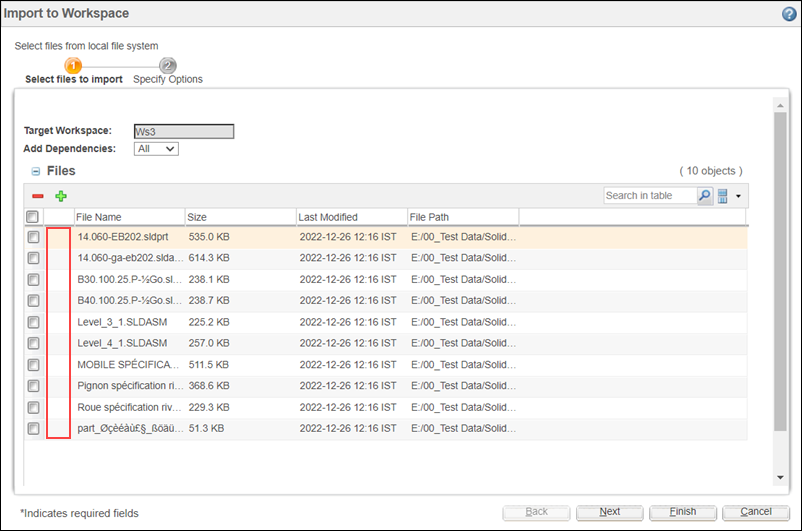 |
For more information, see Importing to the Workspace.
| | Starting with 12.1.0.0, the Windchill Workgroup Manager uses Search Folders defined by the user in .def file or in-session “as is”. As a result, Windchill Workgroup Manager expands them with the directories of the seed objects from where seed objects are selected without opening the nested folders to find the dependents. The added folders of the seed models have a higher priority. After finishing the import action, the in-session set of Search Folders is reverted back to its initial state. |
Apply Assembly Loads while Importing an NX Assembly to Workspace
1. In the NX Home tab, click > > > .
2. In the Assembly Load Options window, select From Search Folder under Part Versions.
a. In the Search Path box, add the folder path of the assembly.
b. Add 3 dots to the end of search path for importing multiple assemblies in nested folder structures. For example: D:\NXDocument\Folder…
3. To load all references from assemblies during import, select the Load Interpart Data checkbox and set it to All Levels from the Load Parents list.
4. Click Save As Default to save the load options.
5. Click OK.
6. In Windchill, import the assembly from a local directory to the workspace using the Import to Workspace action.
| | For more information, see Assembly Load Options (NX). |