Import a Classification Structure
You can import a classification structure from a JAR or ZIP file.
To export a classification structure, use the Export to XML action. For more information, see Export a Classification Structure.
 |
You must be a site administrator or a site business administrator to import a classification structure.
For information on creating a classification structure from a CSV file, see Import Classification Structure from CSV File.
|
Before You Begin
When importing a classification structure, note the following:
• The import process imports an entire classification structure, regardless of any nodes that have been selected in the classification tree.
• Matches are based on the internal name of the classification node or attribute.
• You can only import one structure under the root node. If you attempt to import multiple structures, an error appears in the method server logs indicating that there is already a structure present under the root node.
|
Does the classification node or attribute exist?
|
Result
|
|
|---|---|---|
|
In load file?
|
In Windchill?
|
|
|
Yes
|
Yes
|
The node or attribute is updated in Windchill.
|
|
No
|
Yes
|
A delete load file for the node or attribute is generated in the following location:
Windchill/temp/LWCTypeImpExp
|
|
Yes
|
No
|
The node or attribute is created in Windchill.
|
|
|
If there are no reusable attributes on the target server, the attributes are created and any existing attributes and values are overwritten.
|
Import Classification Structure Manually
Perform the following steps to import the classification structure manually:
1. From the Classification Tree, select > .
2. A warning message appears. The import action overrides the existing classification structure, and cannot be undone. Click OK to continue.
3. From the Import window, click Browse and navigate to the JAR or ZIP file that you want to import.
4. Click OK.
The Import window closes and a confirmation message appears if the import was successful. Otherwise, an error message appears.
Import Classification Structure Using Service Request
Perform the following steps to open a service request for importing the classification structure:
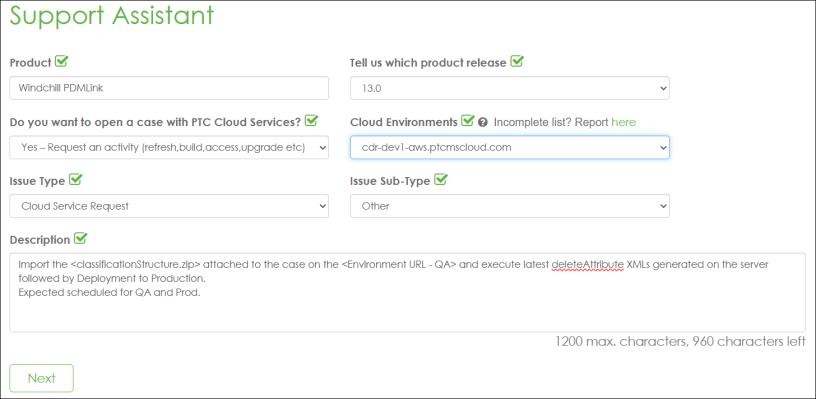
1. Click Support Assistant and log in when prompted.
2. Verify the details on the Support Assistant page for opening a case, and then click Next.
3. Select the Product as Windchill PDMLink.
4. In the Tell us which product release list, select the required product release.
5. In the Do you want to open a case with PTC Cloud Services? list, select Yes — Request an activity (refresh, build, access, upgrade etc).
6. In the Cloud Environment list, select the applicable environment.
7. In the Issue Type list, select Cloud Service Request.
8. In the Issue Sub-Type list, select Other.
9. In the Description text box, enter the description.
An example text is shown in the image below:
10. Click Next.
11. Enter other required details.
12. Click Open a Service Request.
The support case is created.
The PTC team imports the classification structure to the QA environment. The team executes the generated deleteAttribute XMLs with current timestamp from the <WT_HOME>/tmp/LWCTypeImpExp/ folder and cleans up the loadFiles after execution.
13. Validate the classification structure changes on the QA environment and inform PTC if everything is ok.
The classification structure is then loaded on the production environment and the generated deleteAttribute XMLs are executed.