Home Page Overview (Next Gen UI)
 |
The classic  Home page is the default page that appears when you log into Windchill. For more information about the classic Home page, see the Home Page Overview topic in the classic Windchill UI section in the help center. Home page is the default page that appears when you log into Windchill. For more information about the classic Home page, see the Home Page Overview topic in the classic Windchill UI section in the help center. |
The  Home page appears when you turn on the New Home toggle in the upper-right corner of the classic Home page.
Home page appears when you turn on the New Home toggle in the upper-right corner of the classic Home page.Click  to get information for the
  Home page.
to get information for the Home page.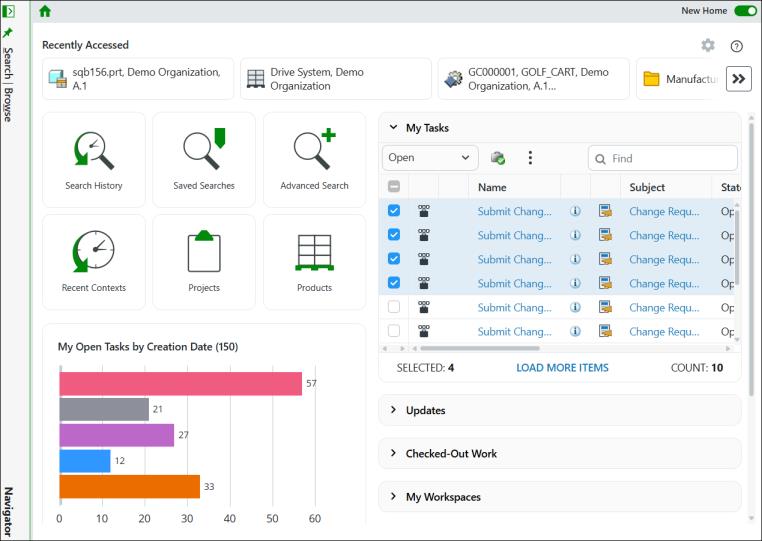
Recently Visited
At the top of this page, you can view and select the recently accessed items in the Recently Accessed section. The most recent item is displayed first, and the subsequent items follow in order from left to right. The number of items displayed depends on the width of the page. To view the next items, click  located next to the last item on the right.
located next to the last item on the right.| | For a new user, no items are displayed in the Recently Accessed section. |
You can control how many recently visited items appear in the  list by changing settings in the Recently Visited List Size and Recently Visited Contexts List Size Per Type preferences. Access the preferences from > > .
list by changing settings in the Recently Visited List Size and Recently Visited Contexts List Size Per Type preferences. Access the preferences from > > .| | By default, the system maximum is 25. Your administrator can set a maximum value for the preference. Your list may be limited by the system maximum set by the administrator, even if you enter a higher number for this preference. |
The information on the  Home page is presented in two panes, the left and right panes.
Home page is presented in two panes, the left and right panes.Content on the Right Pane
The information specific to you is displayed on the right pane. The following tables are displayed on the right pane by default:
| | • For information about the functionality of the available data tables, see the Home Page Overview topic in the classic Windchill UI section in the help center. • For information about the table and table views on Next Gen UI, see Table and Table View Overview (Next Gen UI). For additional details, see the classic Windchill UI section Table and Table View Overview in the help center. |
Content on the Left Pane
In the upper section of the left pane, a set of quick access buttons enable you to access and browse:
• Search History, Saved Searches, Advanced Search
• Recent Contexts, Projects, Products
The related actions are described in the table below. For more information, see Contexts Overview.
Quick Access Button | Action |
|---|---|
 Search History Search History | Opens the “Search History and Saved Search” page in the Search tab in the Navigator. |
 Saved Searches Saved Searches | Opens the “Search History and Saved Search” page in the Search tab in the Navigator. |
 Advanced Search Advanced Search | Opens the “Advanced Search” page in the Search tab in the Navigator. |
 Recent Contexts Recent Contexts | Opens the “Recently Visited” page in the Browse tab in the Navigator. |
 Projects Projects | Opens the “Recent Projects” page in the Browse tab in the Navigator. |
 Products Products | Opens the “Recent Products” page in the Browse tab in the Navigator. |
My Open Tasks by Creation Date Bar Chart
The ‘My Open Tasks by Creation Date’ bar chart, located below the quick-access buttons, displays your open tasks by the creation date:
• The ‘My Open Tasks by Creation Date’ bar chart shows the count of the total number of open tasks, included in parentheses next to the title.
• Different horizontal bars depict the corresponding count of your open tasks based on the legend items available out-of-the-box in the bar chart, for example, 1 to 3 Months, 3 to 6 Months, and so on.
The count is displayed on the right of the corresponding bar. For example, if you have 10 open tasks that are open from 6 to 12 months, then count 10 is displayed on the right of the associated bar.
You can also hover a pointer over a bar in the bar chart to see the corresponding information.
• The bar chart always displays your open tasks irrespective of the view that you select in the My Tasks table.
• The size that is set for a table in the > preference does not affect the count of the open tasks displayed in the bar chart.
• When you reassign one or more tasks from the My Tasks table to another user, the count is instantly updated on the associated bar in the bar chart.
• If you do not have any tasks in the My Tasks table, the bar chart is not displayed, and the count is not listed in the title.