Inserting a New Made From Set
Perform the following steps to insert a new made from set object:
1. In the upstream or downstream structure pane, select the part under which you want to create a made from set object.
 |
• The selected part must be a finished or semi finished part.
• The name of the newly created made from set object is the same as that of the selected part.
• The number is auto generated and you can configure OIR for custom numbering.
|
2. Click  Editing > ; or right-click the part and select > .
Editing > ; or right-click the part and select > .A New Made From Set dialog box opens.
| | • You can add custom attributes to made from set object using the Type and Attribute Management utility. The added custom attribute is displayed in the New Made From Set dialog box. OOTB, no attribute is added to the made from set object. |
3. Specify the following details for a Made From Set:
Name | Description | ||
Plant | In the Plant list, select the plant to be associated with the made from set object. You can associate multiple made from set objects with a plant. But one made from set object cannot be associated with multiple plants. The Plant list is populated based on the values specified in the List of Applicable Views preference. If this preference is not set, the List of Plant-Specific Views preference is considered. If both the preferences are not set, the plant view displayed for the primary part is listed along with its child view.
| ||
Alternate Number | Proceed with the displayed alternate number or select a different number from the list. An alternate number is a number that is uniquely assigned to the made from set objects under a particular part, for a given plant. The made from set and co-produce objects of a plant share alternate numbers among them when the parent part of these made from set objects in the structure is the same as the primary part of the co-produce objects. You cannot specify an alternate number that is already assigned to one of these objects when inserting a made from set object in such a structure. For information on updating the alternate number, see Updating Alternate Number of Made From Set and Co-produce Objects. | ||
Life Cycle Template | If life cycle templates are configured in your system, then the value can be (Generated). Otherwise, choose a Life Cycle Template. For more information about life cycles, see About Life Cycles. | ||
Team Template | If team templates are configured in your system, then the value can be (Generated). Otherwise, you can choose a team template. Team templates are used to help manage life cycles. For more information about team templates, see Team Template Administration. | ||
Location | Location — Set the location where the new information structure is stored. Autoselect Folder means the system sets a default location. Select Folder lets you choose a folder. Click the browse button to display the Set Location window, and set the location. |
| | If your site has organizations configured, you see an organization identifier, such as Organization ID or CAGE Code. For more information, see Owning Organization Participants. |
4. When you are done, click Finish to create the new Made From Set. A confirmation message displays indicating that the made from set was successfully created.
It may happen that you cannot view the newly created made from set in the tree structure of the BOM Transformer. To show or hide information about a made from set in the BOM Transformer, refer Show or Hide Information About a Made From Set in BOM Transformer.
Key Points
• After the creation of a Made From Set, an Alternate Made From link is automatically created between the made from set and the selected part.
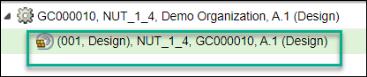
• The format of the newly created made from set that appears in the tree structure of the BOM Transformer is as follows:
(Alternate Number, Plant View Name), Part Name, Part Number, Version(View of Made From Set).
For example:(001, Design), NUT_1_4, GC000010, A.1(Design)
• You can create a customized layout to be displayed in the New Made From Set dialog box.
• You can either add a made from set, part usage, or raw material under a part. They cannot exist together under the same part.
• When the made from set is created and added under the part, the following two link attributes are added:
◦ Plant information
Displays the plant information, which is the same as the view of the Made From Set.
◦ Alternate number
Displays the alternate number selected from the Alternate Number list.
• In the process plan tree picker, if you open the made from set object, the plant and alternate information is based on the applied configuration specification.
• For a made from set object, the plant and alternate information is based on the applied configuration specification in MAPSB when you open the object as a standalone object.
• The custom attributes that you add for a made from set are visible in the Edit Part dialog box when you right-click and initiate the > action on the Made From Set. The attributes appear in the Made From Set Attributes section.
• In the BOM Transformer, the following attributes appear in the Attributes tab when you select a made from set in the tree structure:
◦ Thumbnail
◦ Number
◦ Name
◦ Version
◦ State
◦ Status
◦ Modified by
◦ Last Modified
The attributes appear in the Made From Set Attributes section.
• The Made From table in the Made From tab in BOM Transformer displays the details of made from set object you created. For more information on the Made From table, see Made From.