Tutorial 8: Vertical Copy-Over of Attributes and Associations
To support vertical copy-over of attributes and associations during mass BOM creation you must add and configure the following properties in the custom.site.xconf file. For more information, see Setting Property Values and Propagating Your Changes.
• <Property name="com.ptc.windchill.mpml.copyOver.mapsb.massBOM.vertical.addSame.create.wt.part.WTPart" multivalued="," default=""/>
• <Property name="com.ptc.windchill.mpml.copyOver.mapsb.massBOM.vertical.addSame.create.wt.part.WTPartUsageLink" multivalued="," default=""/>
• <Property name="com.ptc.windchill.mpml.copyOver.mapsb.massBOM.vertical.newBranch.create.wt.part.WTPart" multivalued="," default=""/>
• <Property name="com.ptc.windchill.mpml.copyOver.mapsb.massBOM.vertical.newBranch.create.wt.part.WTPartUsageLink" multivalued="," default=""/>"/>
• <Property name="com.ptc.windchill.mpml.copyOver.mapsb.massBOM.vertical.newPart.create.wt.part.WTPart" multivalued="," default=""/>
• <Property name="com.ptc.windchill.mpml.copyOver.mapsb.massBOM.vertical.newPart.create.wt.part.WTPartUsageLink" multivalued="," default=""/>
For example, you can configure the property in the following format: <Property name="com.ptc.windchill.mpml.copyOver.mapsb.massBOM.vertical.newBranch.create.wt.part.WTPartUsageLink" value="WCTYPE|wt.part.WTPartUsageLink~MBA|findNumber"/>
You can use these properties according to your business use case. For example, when you want use the addSame functionality for a part, you can configure the "com.ptc.windchill.mpml.copyOver.mapsb.massBOM.vertical.addSame.create.wt.part.WTPartUsageLink". That is, The same part is added from generic mBOM to variant mBOM.
 |
• When a manufacturing variant is generated, additional links are created between configurable MBOMs and their manufacturing variants. These are called variant equivalent links. For more information, see Variant Equivalent Links.
• When you define a property or attribute in both horizontal and vertical copy over, the vertical copy over takes precedence and overrides the value set in the horizontal copy over.
|
To know more about Variant Equivalent Links, see Variant Equivalent Links.
Tutorial
This tutorial demonstrates how to perform vertical copy-over of attributes and associations during mass BOM creation using the  Generate Mass Downstream BOMs action.
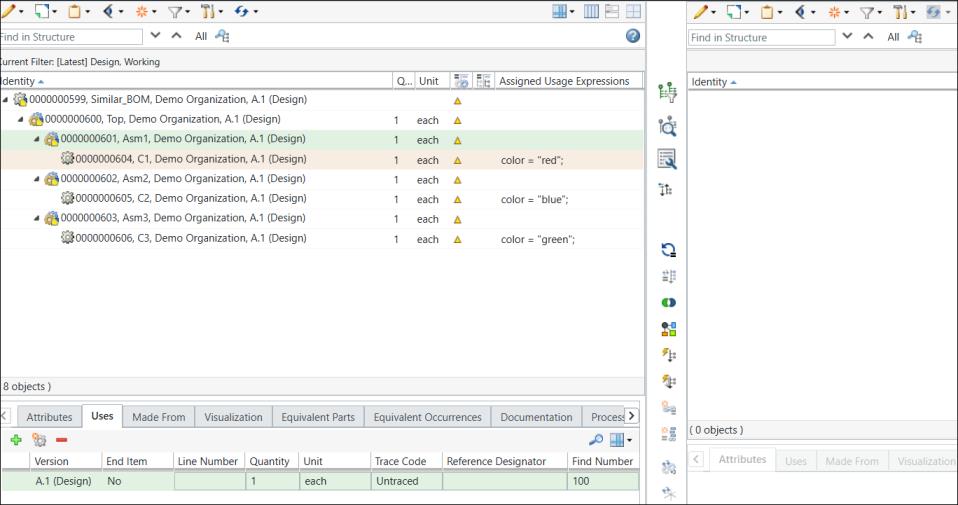
Generate Mass Downstream BOMs action.1. Consider that the following generic eBOM structure is present in the upstream view of the BOM Transformer:
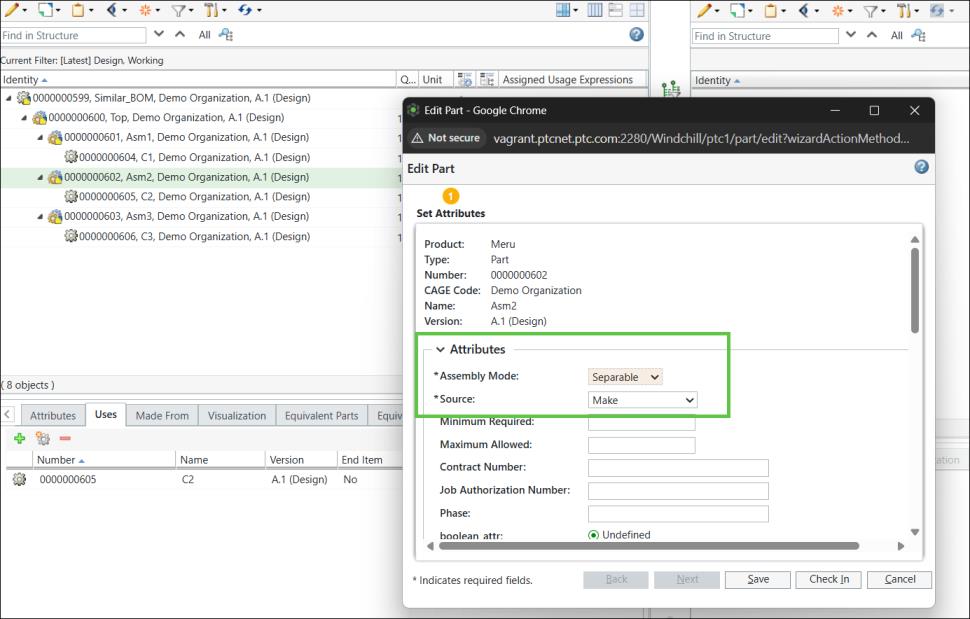
2. Select part 0000000602, Asm2 (Design) and initiate the Edit Part action.
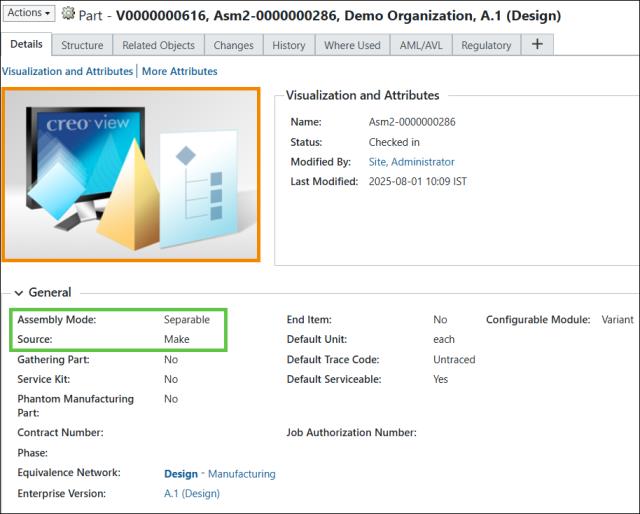
Note the highlighted attributes for the part 0000000602, Asm2 (Design).
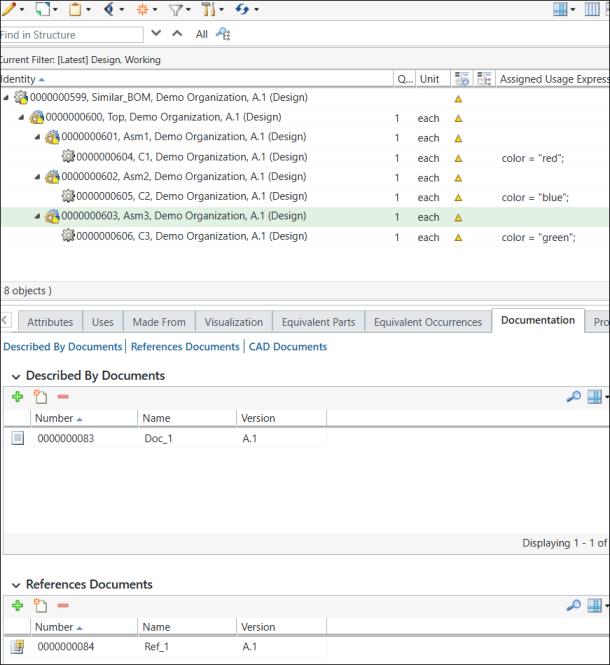
3. Two different documents are associated with the part 0000000603, Asm3 (Design).
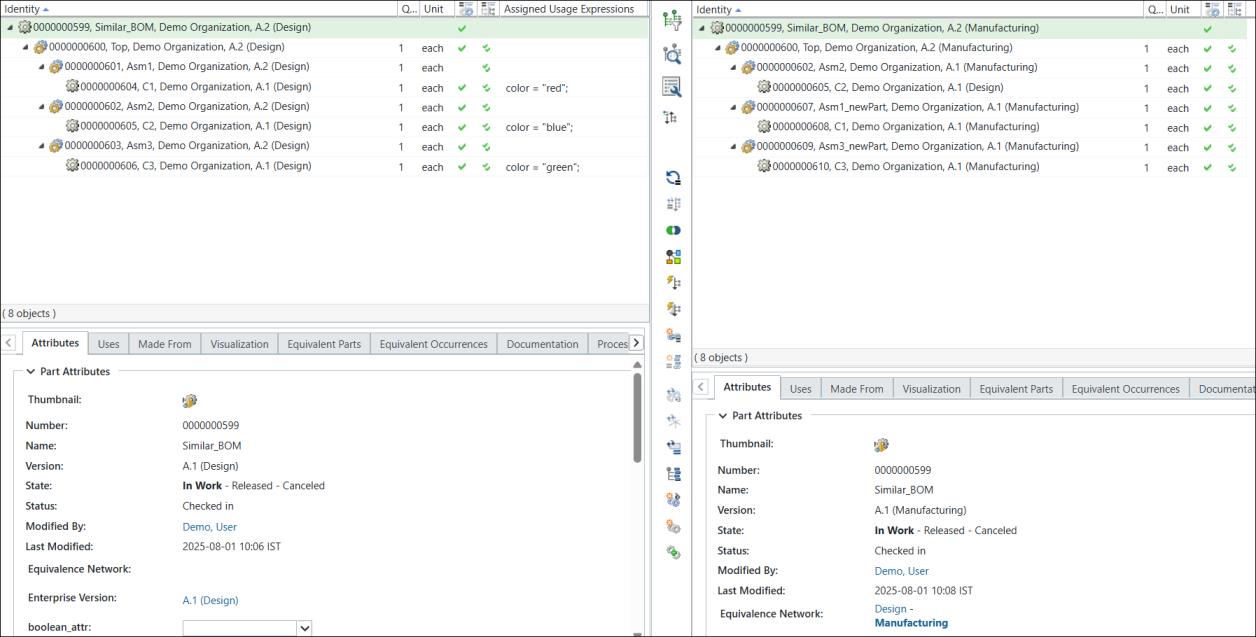
4. Create a generic mBOM from the generic eBOM using the New Downstream Branch, Copy, and Paste as New Branch actions.
5. Create variants from configurable modules using variant specifications. For more information, see Creating and Managing Variants.
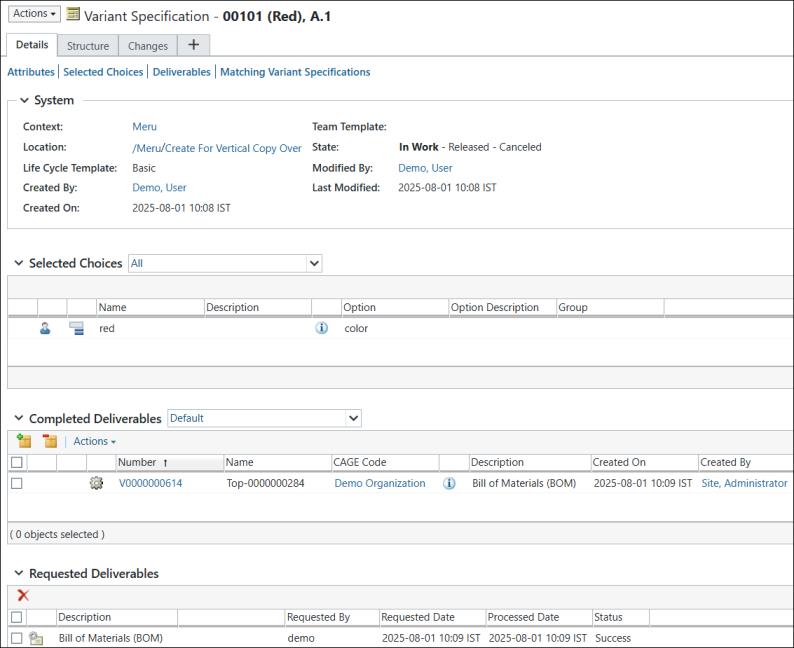
The information page of the variant specification for color Red is as follows:
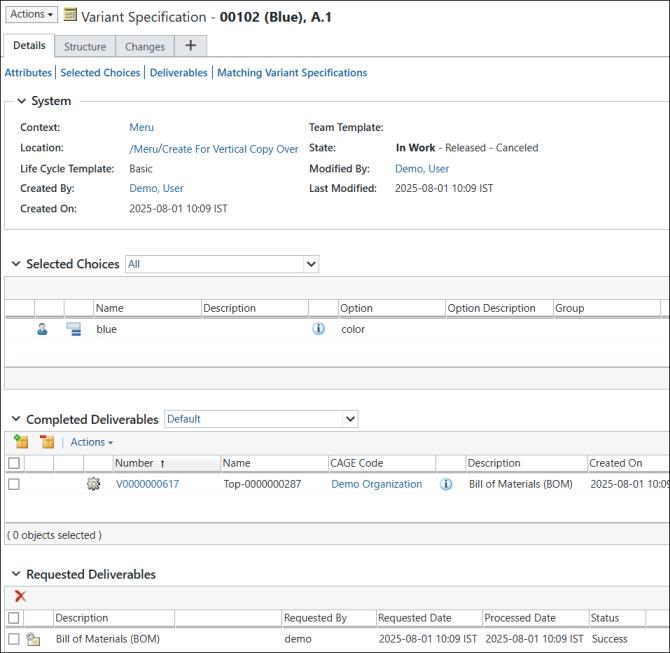
The information page of the variant specification for color Blue is as follows:
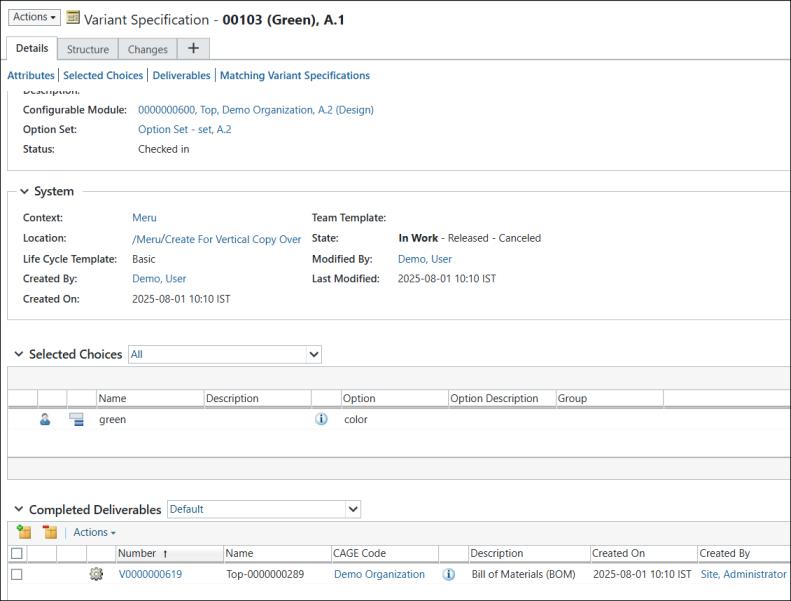
The information page of the variant specification for color Green is as follows:
6. The structure of the variant for color Red is as follows:
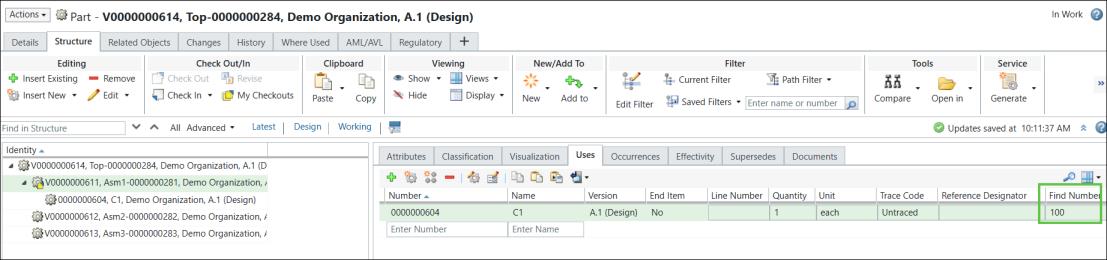
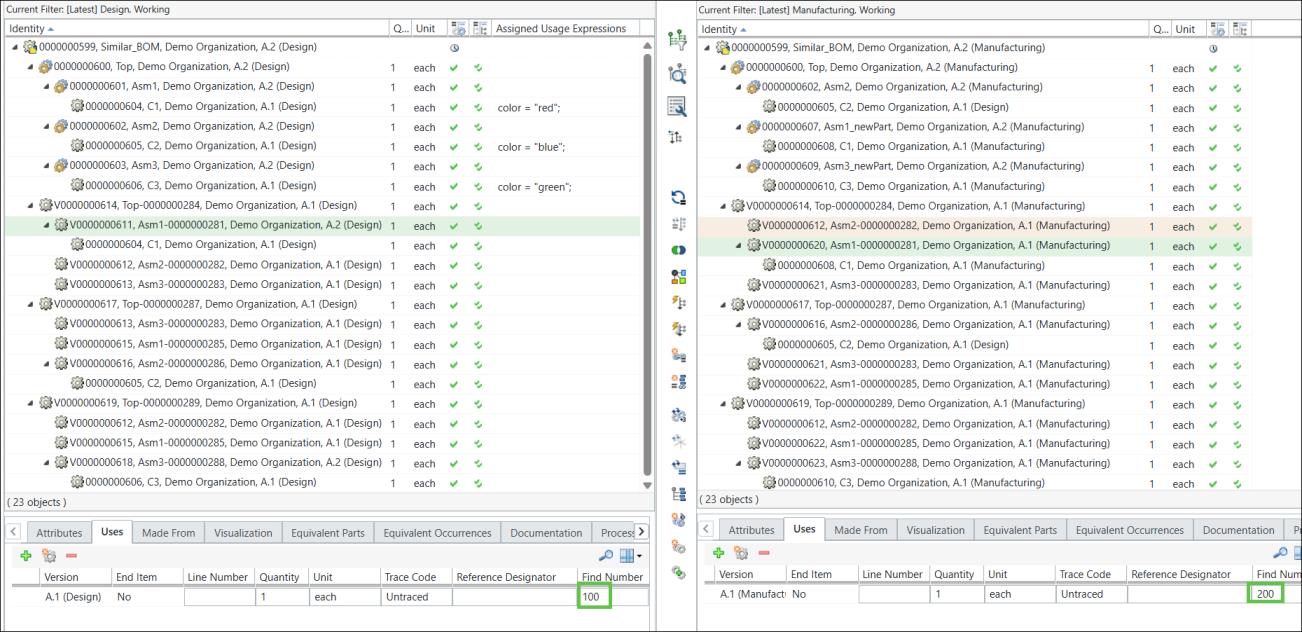
Notice the value of the Find Number attribute.
The structure of the variant for color Green is as follows:
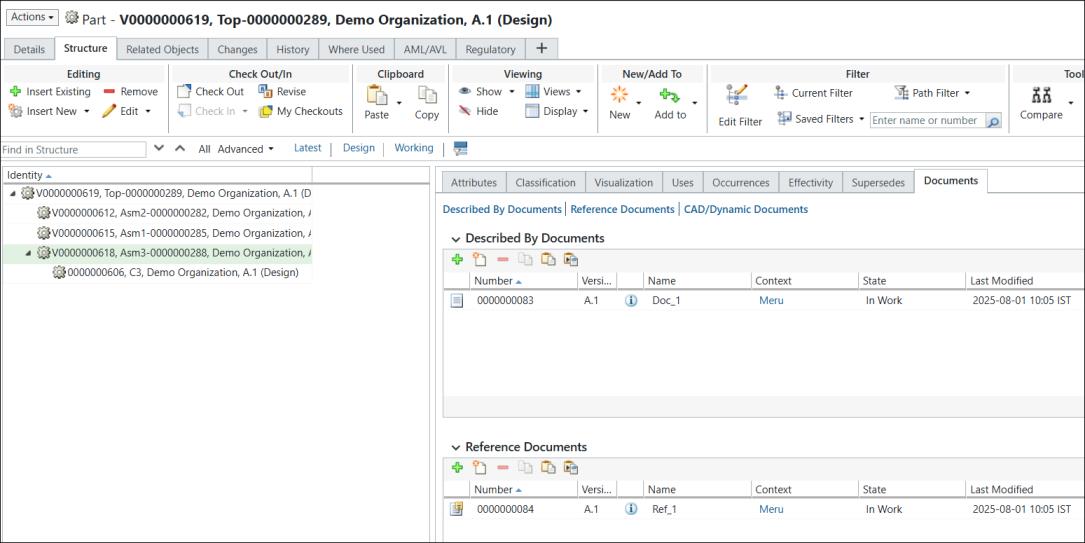
Two different types of documents are associated with part 0000000618.
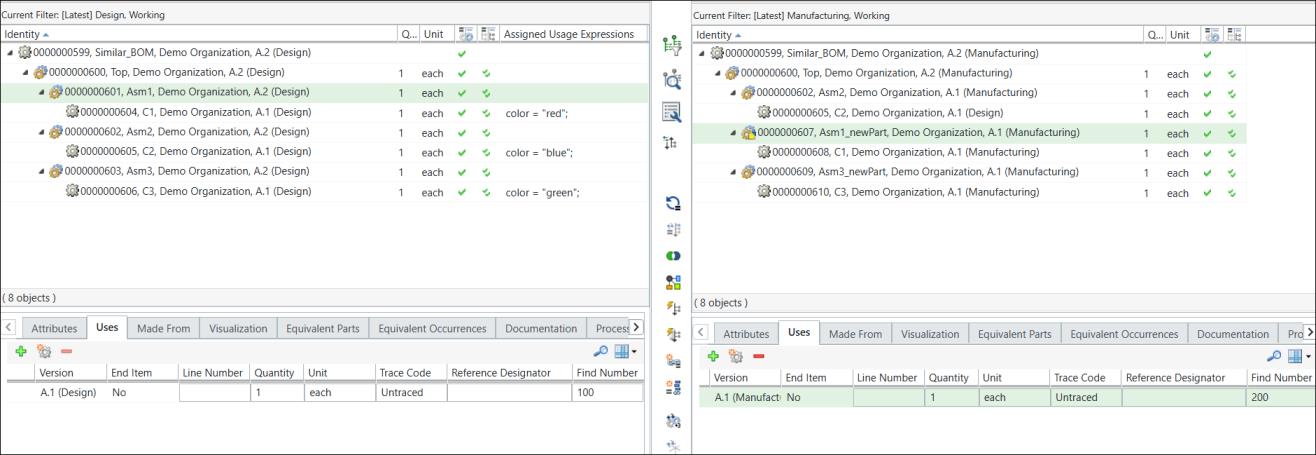
7. Notice the value of the Find Number attribute for the selected parts .
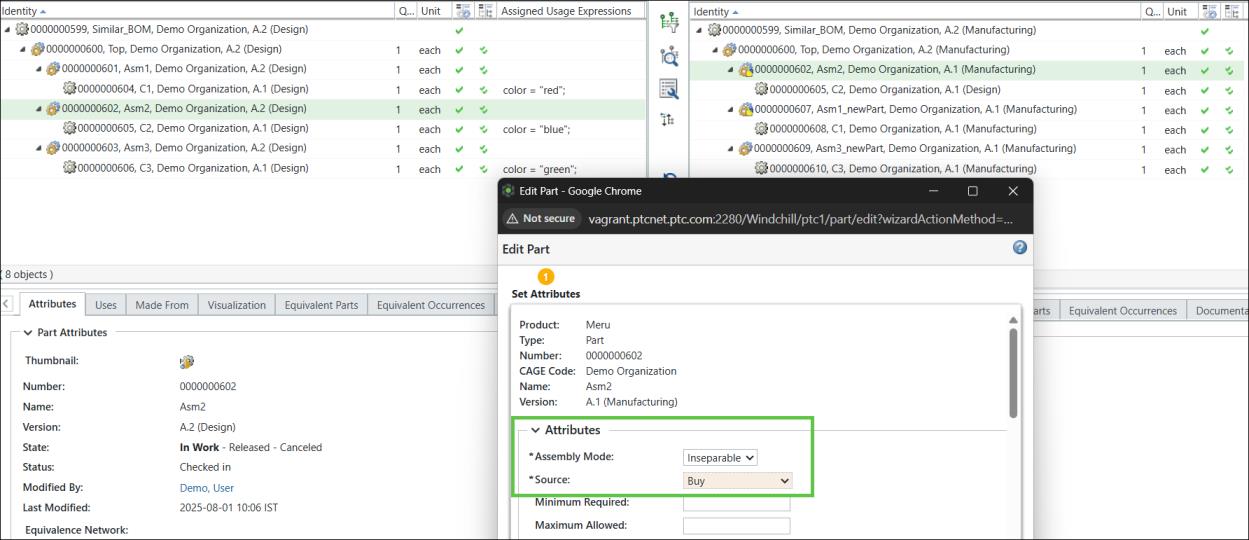
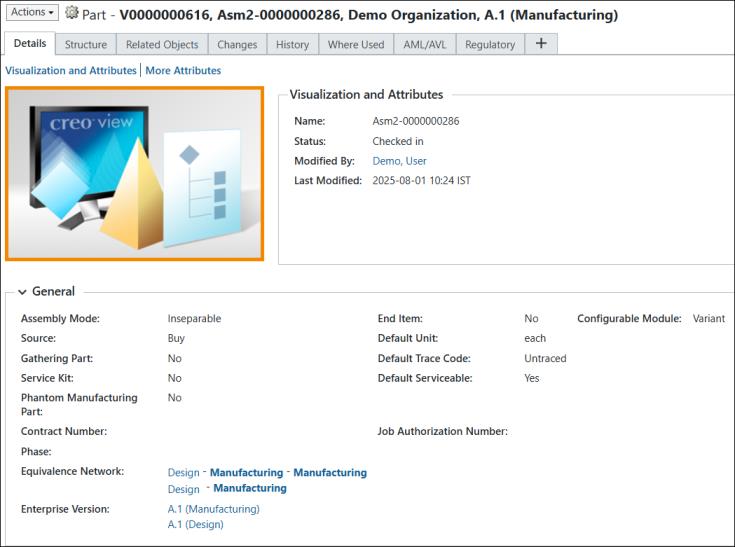
8. The value of the highlighted attributes for the part 0000000602, Asm2 (Manufacturing) are set as Inseparable and Buy respectively.
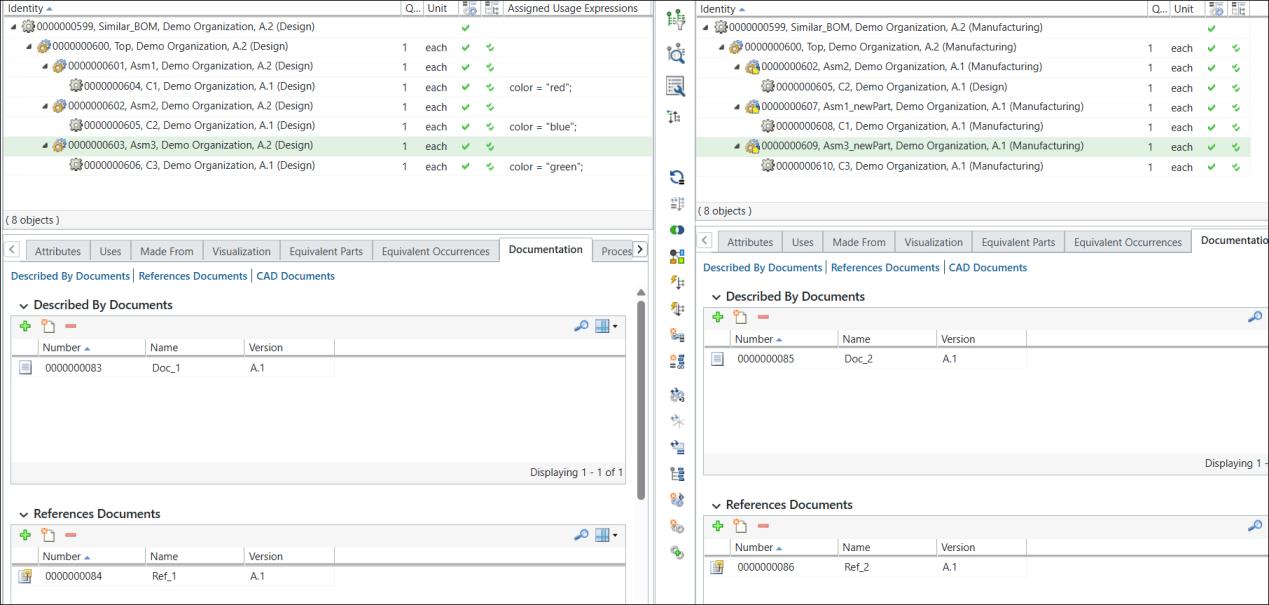
9. Two different types of documents are associated with the part 0000000609, Asm3,newPart (Manufacturing)
10. In the downstream view, select  New/Add > Generate Mass Downstream BOMs. The Generate Mass Downstream BOMs dialog box opens. It contains the View Upstream Parameters and Set Downstream Parameters steps.
New/Add > Generate Mass Downstream BOMs. The Generate Mass Downstream BOMs dialog box opens. It contains the View Upstream Parameters and Set Downstream Parameters steps.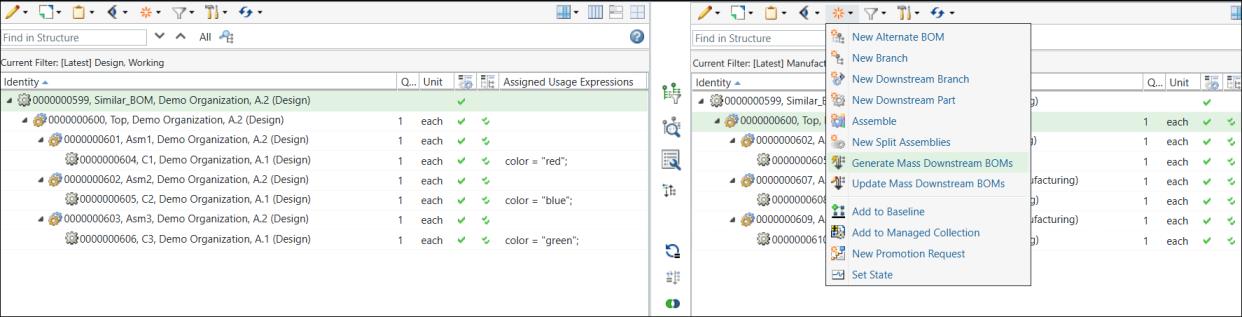
11. In the View Upstream Parameters step, the variants for which you want to generate the mass downstream BOMs appear.
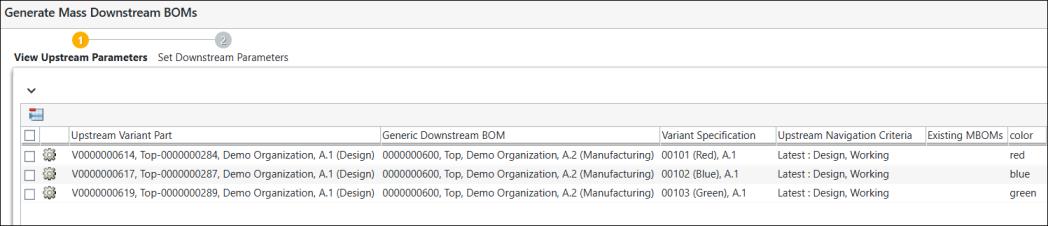
12. Click Next. The Set Downstream Parameters step appears. In the Set Downstream Parameters step, the variants for which you want to generate the mass downstream BOMs appear.
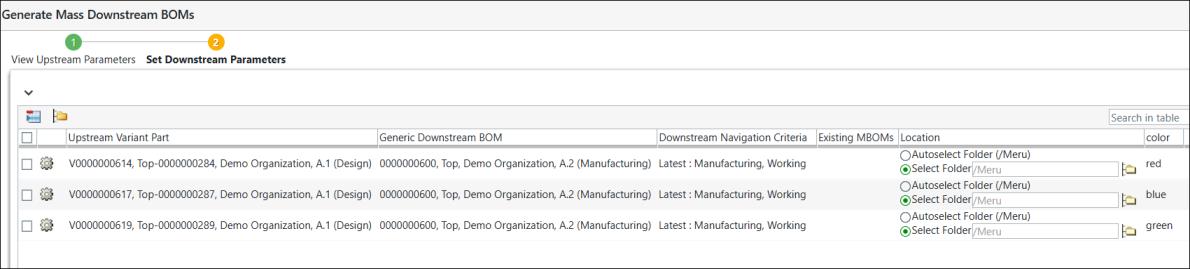
13. Click Finish. The Generate Mass Downstream BOMs dialog box closes. The eBOM and mBOM variants appear in the upstream and downstream views of the BOM Transformer.
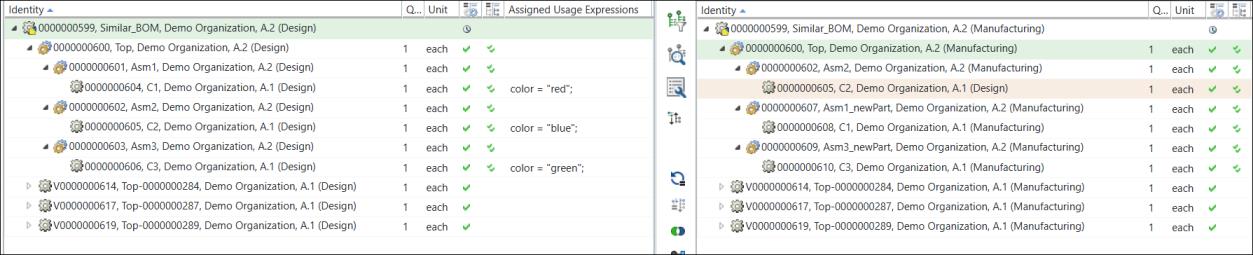
14. In the expanded form the structure appears as follows:
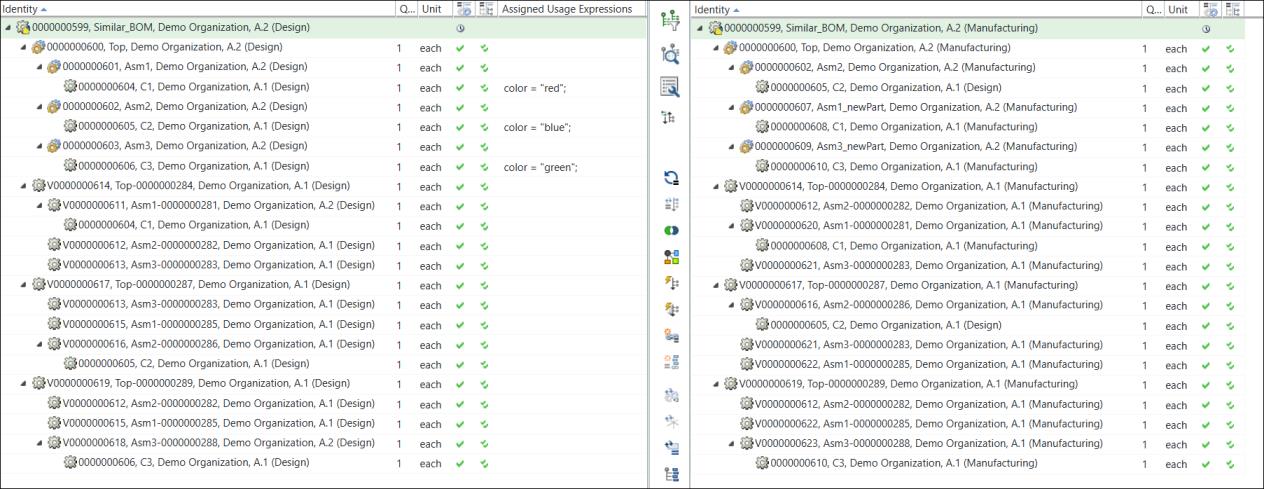
The value set in the generic mBOM is copied over in the manufacturing variants.
When a manufacturing variant is generated, additional links are created between configurable MBOMs and their manufacturing variants. These are called variant equivalent links.
15. The comparison between the new and old attribute values is as follows:
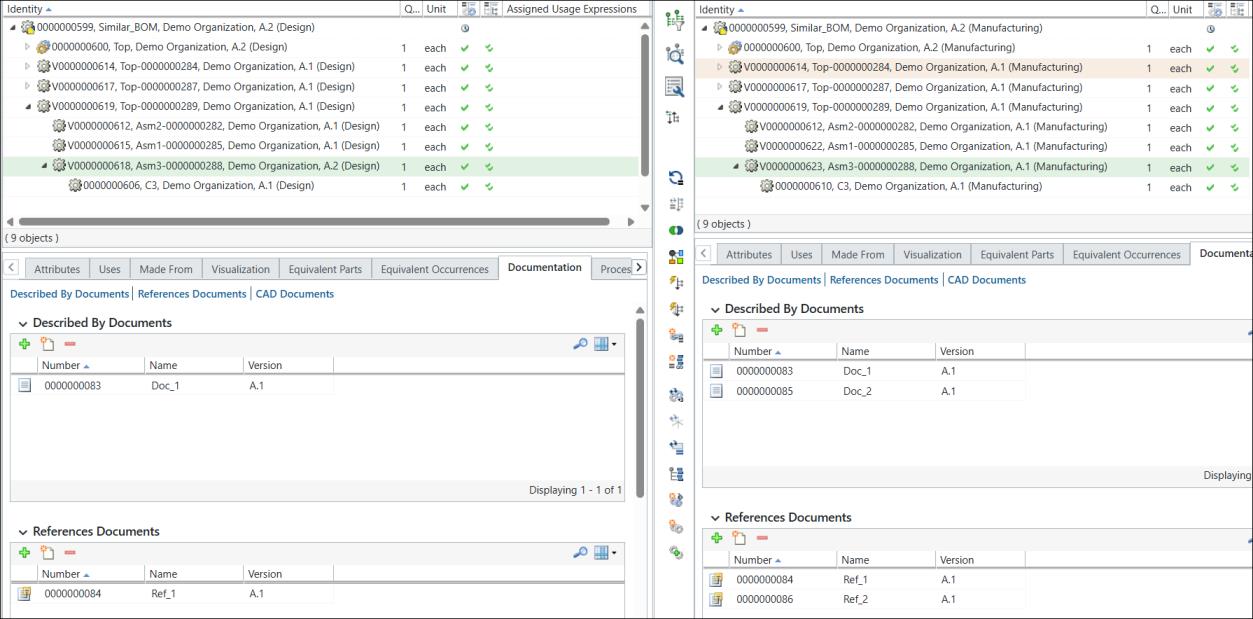
16. The associations, in this case, documents, are copied over in the manufacturing variants.
| | The following properties were used in this tutorial: • Property name="com.ptc.windchill.mpml.copyOver.mapsb.massBOM.vertical.newBranch.create.wt.part.WTPartUsageLink" value="WCTYPE|wt.part.WTPartUsageLink~MBA|findNumber"/> • <Property name="com.ptc.windchill.mpml.copyOver.mapsb.massBOM.vertical.newBranch.create.wt.part.WTPart" value="WCTYPE|wt.part.WTPart~MBA|source"/> • <Property name="com.ptc.windchill.mpml.copyOver.mapsb.massBOM.vertical.newBranch.create.wt.part.WTPart" value="WCTYPE|wt.part.WTPart~MBA|partType"/> • <Property name="com.ptc.windchill.mpml.copyOver.mapsb.massBOM.vertical.newBranch.create.wt.part.WTPart" value="WCTYPE|wt.part.WTPart~MBA|describedBy@WCTYPE|wt.part.WTPartDescribeLink"/> • <Property name="com.ptc.windchill.mpml.copyOver.mapsb.massBOM.vertical.newBranch.create.wt.part.WTPart" value="WCTYPE|wt.part.WTPart~MBA|references@WCTYPE|wt.part.WTPartReferenceLink"/> |