Editing Associations on the Standard Control Characteristics
Use the actions present under the  Edit Associations on the Standard Control Characteristics list to edit the associations on the standard control characteristics. The following actions are available:
Edit Associations on the Standard Control Characteristics list to edit the associations on the standard control characteristics. The following actions are available:Action | Description |
|---|---|
Add Described by Document | Add a Described by Document on a standard control characteristic. |
View Described by Document | View available Described by Documents on a standard control characteristic. |
Add Reference Document | Add a Reference Document on a standard control characteristic. |
View Reference Document | View available Reference Documents on a standard control characteristic. |
Add Resource | Add a Resource on a standard control characteristic. |
View Resource | View available Resources on a standard control characteristic. |
Key Points
• When you use the Add Described by Document or View Described by Document action, a check mark appears in front of the View Described by Document action present under the Edit Associations on the Standard Control Characteristics list.
Edit Associations on the Standard Control Characteristics list.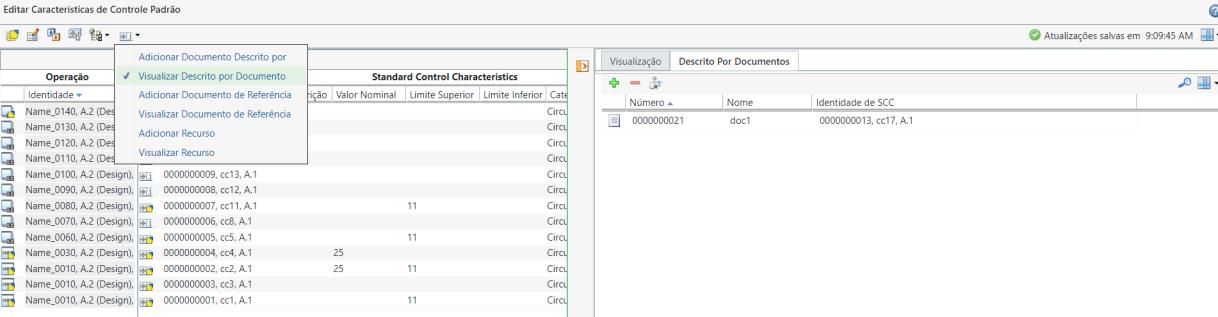
Similarly, when you use the Add Reference Document or View Reference Document action, a check mark appears in front of the View Reference Document action present under the Edit Associations on the Standard Control Characteristics list.
Edit Associations on the Standard Control Characteristics list.Similarly, when you use the Add Resource or View Resource action, a check mark appears in front of the View Resource action present under the Edit Associations on the Standard Control Characteristics list.
Edit Associations on the Standard Control Characteristics list.• The documents and resources are associated with the standard control characteristics. The standard control characteristics are checked out when the you make any changes to the documents and resources associated with standard control characteristics.
• If you choose multiple standard control characteristics, among which one or more standard control characteristics are already checked out by another user and initiate any of the Add Described by Document, Add Reference Document, or Add Resource action, then the system displays the following user message: Some of the selected Standard Control Characteristics cannot be checked out because they are checked out by another user or you do not have permission to modify them. Do you want to continue checking out the accessible Standard Control Characteristics or change the selections?. If you click OK, the Add Described by Document, Add Reference Document, or Add Resource add dialog box opens. Enter the search parameters. The system displays the search results based on the search parameters entered in the fields. Select the entity according to your business requirements and click OK. The entity is added to the standard control characteristics to which you have access. Here the entity can be a described by document, reference document, or resource.
• If a same entity is being used by multiple standard control characteristics, then the system displays multiple rows corresponding to each entity along with the multiple standard control characteristic identity. Here the entity can be a described by document, reference document, or resource.
• Consider a scenario where you select multiple standard control characteristics. Use the actions under the Edit Associations on the Standard Control Characteristics list to add documents or resources to the selected standard control characteristics. The selected documents or resources are already associated with a few of the selected standard control characteristics. The system displays a user message in such a scenario and adds the documents or resources to the remaining standard control characteristics.
Edit Associations on the Standard Control Characteristics list to add documents or resources to the selected standard control characteristics. The selected documents or resources are already associated with a few of the selected standard control characteristics. The system displays a user message in such a scenario and adds the documents or resources to the remaining standard control characteristics.Adding a Described by Document
Use the Add Described by Document action to add one or more Described by Documents on the selected standard control characteristics. Consider that certain information is displayed in the Edit Standard Control Characteristics dialog box. This information is displayed according to the objects selected in the process plan tree structure.
1. Select one or more standard control characteristics in the Edit Standard Control Characteristics dialog box.
2. Click Edit Associations on the Standard Control Characteristics > . The Add Described by Document dialog box opens.
Edit Associations on the Standard Control Characteristics > . The Add Described by Document dialog box opens.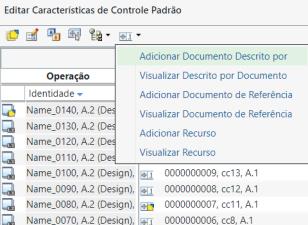
3. Enter the search parameters. The system displays the search results in the Add Described by Document dialog box based on the search parameters entered in the fields.
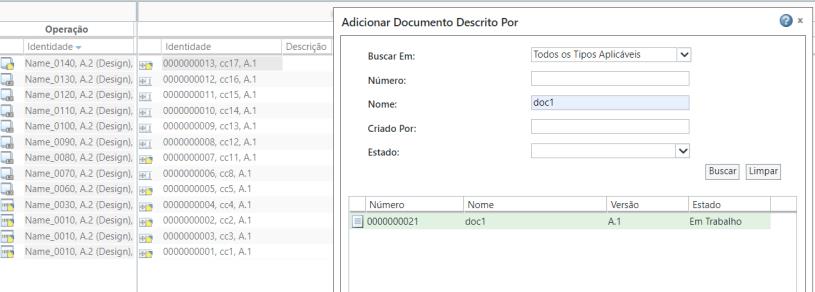
4. Select one or more Described by Document according to your business requirements and click OK. The Add Described by Document dialog box closes.
5. A new pane appears displaying the details about the newly added Described by Documents in the Described by Document tab.
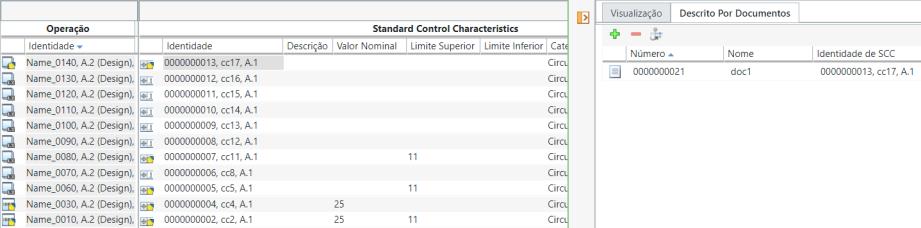
 | Click  to expand or collapse the newly displayed pane. to expand or collapse the newly displayed pane. |
The following columns are available in the Described by Document tab:
Column | Description |
|---|---|
Number | Displays the number of the Described by Document. |
Name | Displays the name of the Described by Document. |
SCC Identity | Displays the identity of the standard control characteristic to which the Described by Document is associated. |
The following actions are available in the Described by Document tab:
Action | Description | ||
|---|---|---|---|
 Insert Existing Insert Existing | Search for and add a Described by Document. Use the following procedure: 1. Select one or more standard control characteristics in the Edit Standard Control Characteristics dialog box. 2. In the Described by Documents tab, select Insert Existing. The Add Described by Document dialog box opens.3. Enter the search parameters. The system displays the search results in the Add Described by Document dialog box based on the search parameters entered in the fields. 4. Select one or more Described by Document according to your business requirements and click OK. The Add Described by Document dialog box closes, and the Described by Documents are added in the Described by Document tab. | ||
 Remove Selected Remove Selected | Remove one or more Described by Documents. 1. In the Described by Documents tab, select one or more Described by Documents. 2. Click Remove selected. The system removes the selected Described by Documents from the Described by Document tab.
|
 Replace Replace | Replace one or more reference documents. 1. In the Described by Documents tab, select one or more described by documents. 2. Click Replace. The Replace Described by Document dialog box opens.3. Enter the search parameters. The system displays the search results in the Replace dialog box based on the search parameters entered in the fields. 4. Select the described by document according to your business requirements and click OK. The Replace Described by Document dialog box closes, and the described by documents are replaced in the Described by Documents tab.
|
Viewing Described by Documents
Use the View Described by Document action to open the Described by Documents tab and view the information about the associated described by documents. Consider that the following information is displayed in the Edit Standard Control Characteristics dialog box. This information is displayed according to the objects selected in the process plan tree structure.
1. Select one or more standard control characteristics in the Edit Standard Control Characteristics dialog box.
2. Click  Edit Associations on Usage Link > .
Edit Associations on Usage Link > .3. A new pane appears displaying the details about the described by documents present on the selected standard control characteristics in the Described by Document tab.

| | Click to expand or collapse the newly displayed pane. |
4. Optionally, you can click on the standard control characteristics in the Edit Standard Control Characteristics dialog box to view the details about the described by documents present on the selected standard control characteristics.
| | When you select multiple standard control characteristics, the system displays all the described by documents present on the selected standard control characteristics. When you select only one standard control characteristic, the system displays the described by documents present on the selected standard control characteristic. |
The following actions are available in the Described by Document tab:
Action | Description | ||
|---|---|---|---|
| Insert Existing | Search for and add a described by document. Use the following procedure: 1. Select one or more standard control characteristics in the Edit Standard Control Characteristics dialog box. 2. In the Described by Document tab, select Insert Existing. The Add Described by Document dialog box opens.3. Enter the search parameters. The system displays the search results in the Add Described by Document dialog box based on the search parameters entered in the fields. 4. Select one or more described by document according to your business requirements and click OK. The Add Described by Document dialog box closes and the described by documents are added in the Described by Document tab. | ||
| Remove Selected | Remove one or more described by documents. 1. In the Described by Document tab, select one or more described by documents. 2. Click Remove selected. The system removes the selected described by documents from the Described by Document tab.
|
| Replace | Replace one or more described by documents. 1. In the Described by Documents tab, select one or more described by documents. 2. Click Replace. The Replace Described by Document dialog box opens.3. Enter the search parameters. The system displays the search results in the Replace dialog box based on the search parameters entered in the fields. 4. Select the described by document according to your business requirements and click OK. The Replace Described by Document dialog box closes, and the described by documents are replaced in the Described by Documents tab.
|
Adding a Reference Document
Use the Add Reference Document action to add one or more reference documents on the usage link of the selected standard control characteristics. Consider that the following information is displayed in the Edit Standard Control Characteristics dialog box. This information is displayed according to the objects selected in the process plan tree structure.
1. Select one or more standard control characteristics in the Edit Standard Control Characteristics dialog box.
2. Click Edit Associations on the Standard Control Characteristics > . The Add References Document dialog box opens.
Edit Associations on the Standard Control Characteristics > . The Add References Document dialog box opens.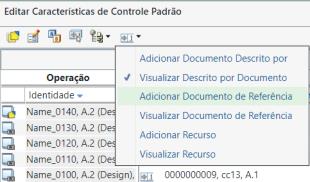
3. Enter the search parameters. The system displays the search results in the Add References Document dialog box based on the search parameters entered in the fields.
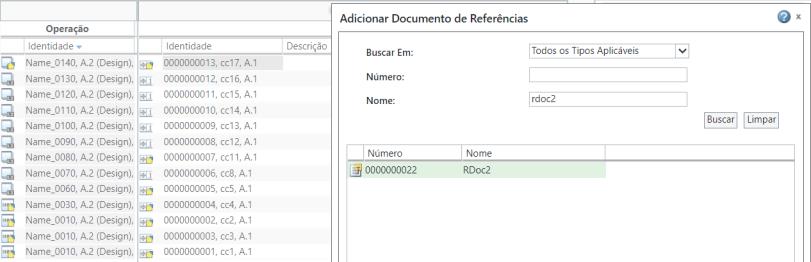
4. Select one or more reference documents according to your business requirements and click OK. The Add References Document dialog box closes.
5. A new pane appears displaying the details about the newly added reference documents in the Reference Documents tab.
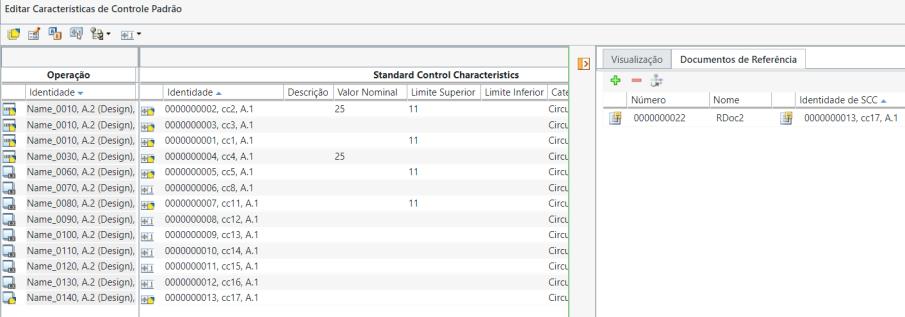
| | Click to expand or collapse the newly displayed pane. |
The following columns are available in the Reference Documents tab:
Column | Description |
|---|---|
Number | Displays the number of the reference document. |
Name | Displays the name of the reference document. |
Operation Identity | Displays the identity of the operation to which the reference document is associated. |
SCC Identity | Displays the identity of the standard control characteristic to which the reference document is associated. |
The following actions are available in the Reference Documents tab:
Action | Description | ||
|---|---|---|---|
| Insert Existing | Allows you to search for and add reference documents. Use the following procedure: 1. Select one or more standard control characteristics in the Edit Standard Control Characteristics dialog box. 2. In the Reference Document tab, select Insert Existing. The Add References Document dialog box opens.3. Enter the search parameters. The system displays the search results in the Add References Document dialog box based on the search parameters entered in the fields. 4. Select one or more reference documents according to your business requirements and click OK. The Add References Document dialog box closes, and the reference documents are added in the Reference Documents tab. | ||
| Remove Selected | Allows you to remove one or more reference documents. 1. In the Reference Documents tab, select one or more reference documents. 2. Click Remove selected. The system removes the selected reference documents from the Reference Documents tab.
|
| Replace | Allows you to replace one or more reference documents. 1. In the Reference Documents tab, select one or more reference documents. 2. Click Replace. The Replace Reference Document dialog box opens.3. Enter the search parameters. The system displays the search results in the Replace Described by Document dialog box based on the search parameters entered in the fields. 4. Select a reference document according to your business requirements and click OK. The Replace Reference Document dialog box closes, and the reference documents is replaced in the Reference Documents tab.
|
Viewing Reference Documents
Use the View Reference Document action to open the Reference Documents tab and view the information about the associated reference documents. Consider that the following information is displayed in the Edit Standard Control Characteristics dialog box. This information is displayed according to the objects selected in the process plan tree structure.
1. Select one or more standard control characteristics in the Edit Standard Control Characteristics dialog box.
2. Click Edit Associations on Usage Link > .
Edit Associations on Usage Link > .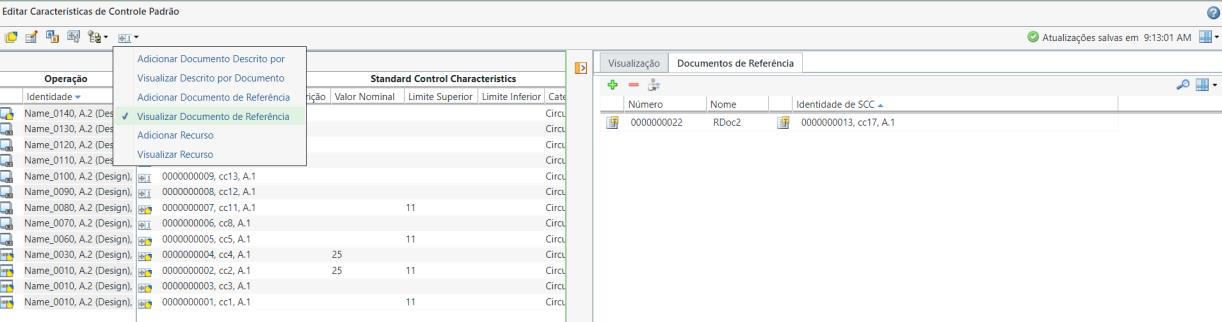
3. A new pane appears displaying the details about the reference documents present on the selected standard control characteristics in the Reference Documents tab.
| | Click to expand or collapse the newly displayed pane. |
4. Optionally, you can click on the standard control characteristics in the Edit Standard Control Characteristics dialog box to view the details about the reference documents present on the selected standard control characteristics.
| | When you select multiple standard control characteristics, the system displays all the reference documents present on the selected standard control characteristics. When you select only one standard control characteristic, the system displays the reference documents present on the selected standard control characteristic. |
The following actions are available in the Reference Documents tab:
Action | Description | ||
|---|---|---|---|
| Insert Existing | Search for and add reference documents. Use the following procedure: 1. Select one or more standard control characteristics in the Edit Standard Control Characteristics dialog box. 2. In the Reference Documents tab, select Insert Existing. The Add References Document dialog box opens.3. Enter the search parameters. The system displays the search results in the Add References Document dialog box based on the search parameters entered in the fields. 4. Select one or more reference documents according to your business requirements and click OK. The Add References Document dialog box closes and the reference documents are added in the Reference Documents tab. | ||
| Remove Selected | Remove one or more reference documents. 1. In the Reference Documents tab, select one or more reference documents. 2. Click Remove selected. The system removes the selected reference documents from the Reference Documents tab.
|
| Replace | Replace one or more reference documents. 1. In the Reference Documents tab, select one or more reference documents. 2. Click Replace. The Replace Reference Document dialog box opens.3. Enter the search parameters. The system displays the search results in the Replace Described by Document dialog box based on the search parameters entered in the fields. 4. Select a reference document according to your business requirements and click OK. The Replace Reference Document dialog box closes, and the reference documents is replaced in the Reference Documents tab.
|
Adding a Resource
Use the Add Resource action to add one or more resources on the selected standard control characteristics. Consider that the following information is displayed in the Edit Standard Control Characteristics dialog box. This information is displayed according to the objects selected in the process plan tree structure.
1. Select one or more standard control characteristics in the Edit Standard Control Characteristics dialog box.
2. Click Edit Associations on the Standard Control Characteristics > . The Allocate Resource dialog box opens.
Edit Associations on the Standard Control Characteristics > . The Allocate Resource dialog box opens.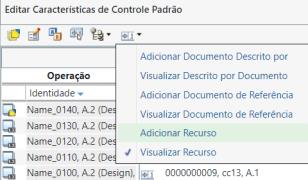
3. Enter the search parameters. The system displays the search results in the Allocate Resource dialog box based on the search parameters entered in the fields.
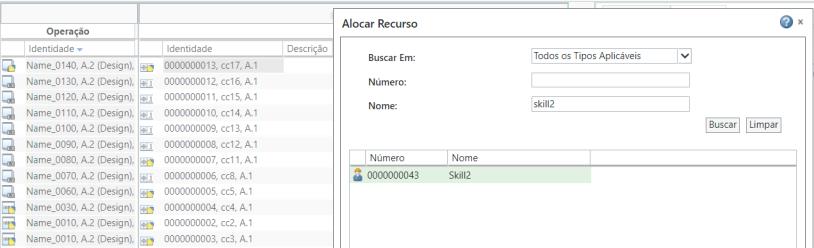
4. Select one or more resources according to your business requirements and click OK. The Allocate Resource dialog box closes.
5. A new pane appears displaying the details about the newly added resources in the Resources tab.
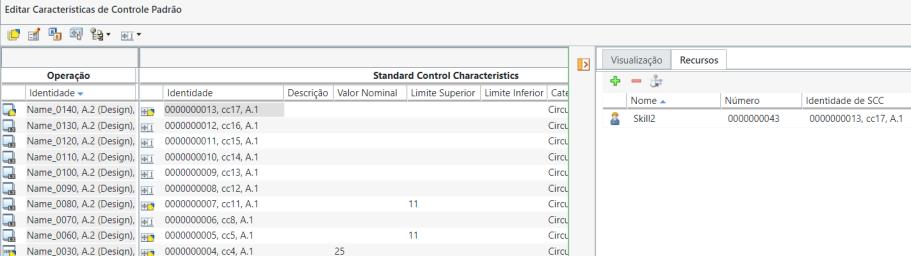
| | Click to expand or collapse the newly displayed pane. |
The following columns are available in the Resources tab:
Column | Description |
|---|---|
Number | Displays the number of the resource. |
Name | Displays the name of the resource. |
Operation Identity | Displays the identity of the operation to which the resource is associated. |
SCC Identity | Displays the identity of the standard control characteristic to which the resource is associated. |
The following actions are available in the Resources tab:
Action | Description | ||
|---|---|---|---|
| Insert Existing | Search for and add resources. Use the following procedure: 1. Select one or more standard control characteristics in the Edit Standard Control Characteristics dialog box. 2. In the Resources tab, select Insert Existing. The Add Described by Document dialog box opens.3. Enter the search parameters. The system displays the search results in the Allocate Resource dialog box based on the search parameters entered in the fields. 4. Select one or more resources according to your business requirements and click OK. The Allocate Resource dialog box closes, and the resources are added in the Resources tab. | ||
| Remove Selected | Remove one or more resource. 1. In the Resources tab, select one or more resource. 2. Click Remove selected. The system removes the selected Resources from the Resources tab.
|
| Replace | Replace one or more resources. 1. In the Resources tab, select one or more resources. 2. Click Replace. The Replace Resource dialog box opens.3. Enter the search parameters. The system displays the search results in the Replace Resource dialog box based on the search parameters entered in the fields. 4. Select one or more resources according to your business requirements and click OK. The Replace Resource dialog box closes, and the resources are replaced in the Resources tab.
|
Viewing Resources
Use the View Resource action to open the Resources tab and view the information about the associated resources. Consider that the following information is displayed in the Edit Standard Control Characteristics dialog box. This information is displayed according to the objects selected in the process plan tree structure.
1. Select one or more standard control characteristics in the Edit Standard Control Characteristics dialog box.
2. Click Edit Associations on the Standard Control Characteristics > .
Edit Associations on the Standard Control Characteristics > .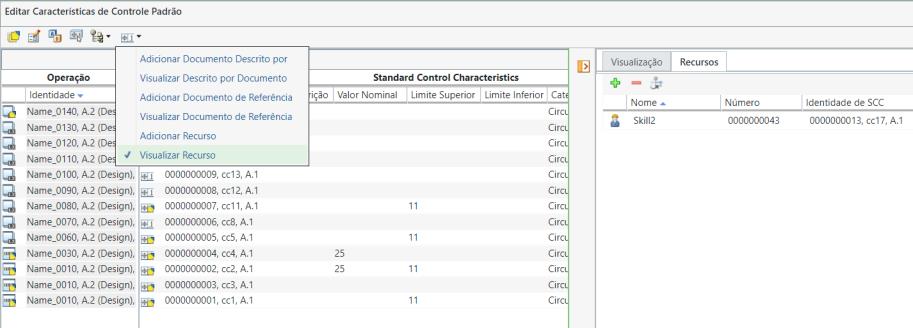
3. A new pane appears displaying the details about the resources present on the selected standard control characteristics in the Resources tab.
| | Click to expand or collapse the newly displayed pane. |
4. Optionally, you can click on the standard control characteristics in the Edit Standard Control Characteristics dialog box to view the details about the resources present on the selected standard control characteristics.
| | • When you select multiple standard control characteristics, the system displays all the resources present on the selected standard control characteristics. When you select only one standard control characteristic, the system displays the resources present on the selected standard control characteristic. • If a same resource is being used by multiple standard control characteristics, then the system displays multiple rows corresponding to each resource along with the multiple standard control characteristic identity. |
The following actions are available in the Resources tab:
Action | Description | ||
|---|---|---|---|
| Insert Existing | Search for and add resources. Use the following procedure: 1. Select one or more standard control characteristics in the Edit Standard Control Characteristics dialog box. 2. In the Resources tab, select Insert Existing. The Allocate Resource dialog box opens.3. Enter the search parameters. The system displays the search results in the Allocate Resource dialog box based on the search parameters entered in the fields. 4. Select one or more resources according to your business requirements and click OK. The Allocate Resource dialog box closes and the resources are added in the Resources tab. | ||
| Remove Selected | Allows you to remove one or more resources. 1. In the Resources tab, select one or more resources. 2. Click Remove selected. The system removes the selected Resources from the Resources tab.
|
| Replace | Allows you to replace one or more resources. 1. In the Resources tab, select one or more resources. 2. Click Replace. The Replace Resource dialog box opens.3. Enter the search parameters. The system displays the search results in the Replace Resource dialog box based on the search parameters entered in the fields. 4. Select one or more resources according to your business requirements and click OK. The Replace Resource dialog box closes, and the resources are replaced in the Resources tab.
|