Editing a Distribution Target
Existing Distribution Targets can be edited to, for example, change a name, or to add additional descriptions to the target. You can also use the Edit Distribution Target window to change the Status of a distribution target. The status of a distribution target determines whether business and manufacturing objects can be published to it. Only Active distribution targets can receive published objects.
 |
Test or obsolete distribution targets can be set to Inactive, and does not appear when you search for a distribution target.
|
 |
If you have administrative access, you can edit the transaction logs as well. For more information on editing transaction logs, see Administering Transactions. It is not possible to edit a distribution target when there is a release of an object to that target still pending.
|
To edit a Distribution Target, use the following procedure:
2. In the Distribution Targets table, select the distribution target to be edited.
3. From the right-click actions menu of the Distribution Targets table click Edit Distribution Target  . The Edit Distribution Target window appears.
. The Edit Distribution Target window appears.4. Use the Define Target window to edit the Primary Attributes of the distribution target and click Next.
| | If you have chosen Distributed Process as your distribution target type, an additional step appears: Set Default Process. In this step, select the distributed process that to associate with the new distribution target and click Next. |
5. Use the Define Settings and Parameters window to further define your distribution target and click Finish.
| | You can specify a previously saved filter that to use when publishing an object, by selecting an existing filter in the Saved Filter to be used field. However, this filter does not apply to the top node. By default, the view that the top node belongs to is used with the saved filter while navigating a structure. For the view that is set on the saved filter to be used, set the preference Use View Information from the Applicable Saved Filter to Yes. This has relevance only to those saved filters that use a Windchill view in their configuration specifications |
| | Note the following: • The Saved Filter to be used field appears under each of the following sections in the Define Settings and Parameters step of the Edit Distribution Target window: BOM Settings, Change Notice Settings, and Process Plan Settings. • The attributes that appear under CAD Document Settings are used for processing a CAD document structure. This is regardless of whether the structure was released as a standalone object, or in association with a Change Notice or a promotion request. For example, the attribute Saved Filter to be used when Publishing a CAD Document Structure is only used even if a Change Notice holding the structure as a resulting object was released. • The attribute Publish Control Characteristics when Publishing a Part that appears in the Part Settings section determines whether to process control characteristics associated to a part. This is regardless of whether the part is published as a standalone object, or in association with an assembly, a change notice, a promotion request, or a process plan. • The attribute Publish Control Characteristics when Publishing a Process Plan that appears in the Process Plan Settings section determines whether to process control characteristics associated to a process plan (or to an operation). This is regardless of whether the process plan is published in object-centric mode, or in association with a change notice or a promotion request. • With the attribute Publish Control Characteristics when Publishing a Process Plan set to Yes, control characteristics associated to an operation are published on publishing the holding process plan. This occurs regardless of the value of the attribute Publish Control Characteristics when Publishing a Part, even if the control characteristic is also associated to a part. • Since publishing of control characteristics to Oracle Applications is not supported, you may want to set both the Publish Control Characteristics attributes to No when publishing to Oracle Applications. • The attribute ESI Response Output Format that appears in the General Parameters section determines the format of the ESI response that gets generated for a distribution target. The attribute can be set only at the time of creating a distribution target and cannot be edited after. |
Change Target Type
After migrating to Windchill+, the status of existing distribution targets of type SAP and Oracle Applications is set to inactive by default. You can update these targets to an available distribution target type such as File, Email, or Abstract MES.
| | Before changing a distribution target type, you can review its existing destination details such as DSN for Oracle Applications, and Client number and System ID for SAP form its information page. |
Follow the steps to change the distribution target type:
1. Navigate to > .
2. In the Distribution Targets table, select the distribution target you want to update.
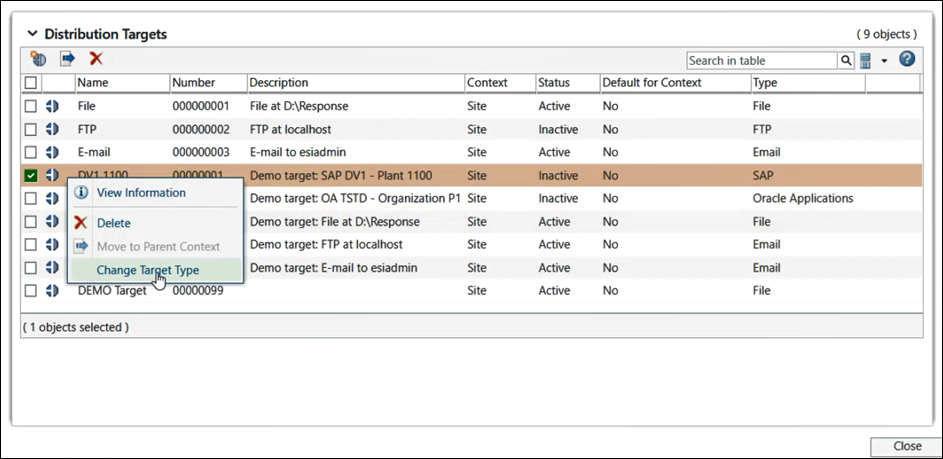
3. Right-click the selected distribution target and select Change Target Type.
 | This is a one-time activity. The selected distribution target will be changed to a subtype. You cannot undo this change. |
4. A warning message appears on the screen. Click OK to confirm.
5. In the Change Target Type window, select the new distribution target type and click OK.
6. Right-click the distribution target and select Edit Distribution Target. In the Edit Distribution Target window, on the Define Target tab, update the primary attributes such as Status and Path (for File type), and then click Next.
7. On the Define Settings and Parameters tab, configure additional settings for the distribution target and click Finish.