AML/AVL Tab
The AML/AVL (Approved Manufacturer List/Approved Vendor List) tab displays information such as sourcing context, manufacturer/vendor part number, manufacturer/vendor organization id, manufacturer/vendor, and manufacturer/vendor sourcing status in a table. For more information on AML/AVL, see Managing the AML/AVL and History Reports.
The AML/AVL tab is visible when the selected part is a BOM redline. It is hidden if the selected part is a part master in the redline structure tree. Out-of-the-box, the tab appears after Occurrences. However, you can change the sequence by dragging the tab.
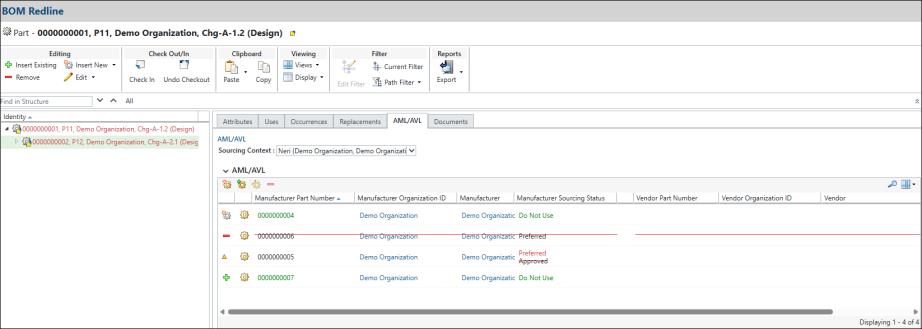
In the AML/AVL table, you can add, edit, or remove the manufacturer parts (AML). The view of the AML/AVL table can also be customized. There are three default views: AML, AVL, and ALL.
If there are multiple parts, you can find the desired part using the Search  action.
action.The AML/AVL tab follows the standard practices of redline process. Merging the redline with the affected object version and the synchronizing the redline with the latest released resulting object follow the same conventions. For more information, see the Redline Process topic.
When you delete the entire BOM redline, including the parent and child redlines, the AML/AVL information is also deleted.
The following table describes the available actions in the table view on the AML/AVL tab:
Action | Icon | Description | ||
|---|---|---|---|---|
Create new manufacturer part for this list |  | Creates a new manufacturer part to the AML list. For more information, see Creating New Manufacturer and Vendor Parts. | ||
Add existing manufacturer part to this AML |  | Adds an existing manufacturer part to this AML. For more information, see Adding a Manufacturer Part. | ||
Edit manufacturer sourcing status of this AML |  | Edits the sourcing status of one or more manufacturer parts. For more information, see Modifying the Sourcing Status. | ||
Remove Selected |  | Removes a manufacturer part from the list.
|
 | The actions are currently enabled only for manufacturer parts and are disabled for vendor parts. If you change the view of the AML/AVL tab to AVL, these actions are disabled. |
Attributes Description
The AML/AVL table column displays the following information:
Tab | Description | ||
|---|---|---|---|
Sourcing Context | Displays a list of sourcing context based on the Part Structure Browser and allows you to change the value.
| ||
Manufacturer Part Number | Specifies the manufacturer part number. | ||
Manufacturer Organization ID | Specifies the manufacturer organization ID. | ||
Manufacturer | Specifies the name of manufacturer. | ||
Manufacturer Sourcing Status | Indicates the relationship of supplier parts to the OEM part, showing whether the manufacturer part is approved, preferred, or not used. | ||
Vendor Part Number | Specifies the vendor part number. | ||
Vendor Organization ID | Specifies the vendor Organization ID. | ||
Vendor | Specifies the name of vendor. | ||
Vendor Sourcing Status | Indicates the relationship of supplier parts to the OEM part, showing whether the vendor part is approved, preferred, or not used. |
Change Indicators for AML/AVL Tab
The change indicator displays a summary of the type of change that occurred when comparing the base object with the redline. The following table explains the icons and descriptions used in the Change Indicator column:
Indicator | Icon | Description |
Blank | Indicates that the part is not modified. | |
Insert New |  | Indicates that an existing part that is not released, or a newly created part, is inserted. |
Insert Existing |  | Indicates that an existing released part is inserted into the redline structure. |
Edit |  | Indicates that the sourcing context of the manufacturer part is modified. |
Remove | | Indicates that the manufacturer part is removed from the redline structure. |
Sourcing Context
The AML/AVL table includes a Sourcing Context picker, similar to the Part Structure Browser. It displays a list of sourcing contexts you have visited, with the most recently visited appearing first. Changing the Sourcing Context value will update the list of manufacturer parts and vendor parts displayed in the AML/AVL table. The Sourcing Context value is the same for both parent and child parts. Changing it for one will apply to both.
Sourcing Context values are based on the PSB. Specifying a value in the PSB will reflect in the redline structure browser and vice versa. You can add a new Sourcing Context from the PSB, after which it will appear in the redline structure browser.
For more information on sourcing contexts, see Sourcing Contexts.
Planned Modifications for AML/AVL
Currently, you can add, edit, or remove only the manufacturer parts (AML) in the AML/AVL tab. Any planned BOM modifications (changes related to part usage, occurrences, documents, and manufacturer parts) will be merged into the next sequential revision of the affected object. When part revisions are released using change notices, any AML/AVL modifications associated with the released part are reflected in the open BOM redlines. Modifications to the AML/AVL are synchronized when the latest released part revisions are updated on the latest released resulting object.
Related Topics