Overriding Conflicts Caused by Secondary Content
You can manually override conflicts caused by outdated files. Let us see a few example to resolve conflicts arising during Check In. Here we have taken the screenshots for CATIA V5. The same method can be followed for other CAD tools including NX, SOLIDWORKS, PTC Mathcad, Autodesk Inventor, AutoCAD, Creo Elements/Direct Modeling (CEDM), and Creo Elements/Direct Drafting (CEDD)
Terminating Check In and manually updating the attachment
You can override conflicts caused by outdated files by terminating check in and manually updating the attachment, thus removing the Outdated flag.
1. Select the CAD document that failed to check in from the workspace, and from the Actions menu, select Edit Attachments. In the Edit Attachments window, you can view the attachment with Status marked as Outdated.
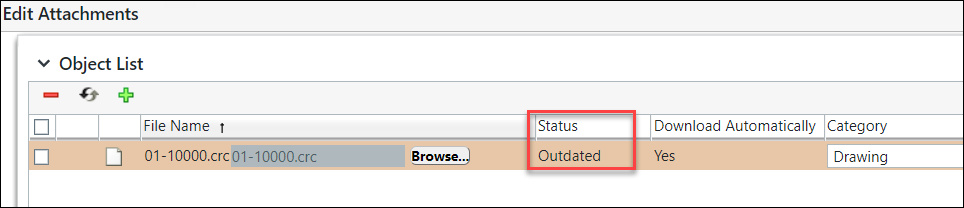
2. Click Browse and select a file from the local directory as attachment.
3. The Outdated status is removed and the modified  icon is shown. Click Save.
icon is shown. Click Save.4. Click Check in to check in the CAD document again.
Removing attachment from the CAD document
If you encounter an error for check in failure, it can be resolved by removing the attachment from the CAD document as follows:
1. Click the link to see the Event Management console.
2. From the Actions column, click Resolve Conflict  icon.
icon.
icon.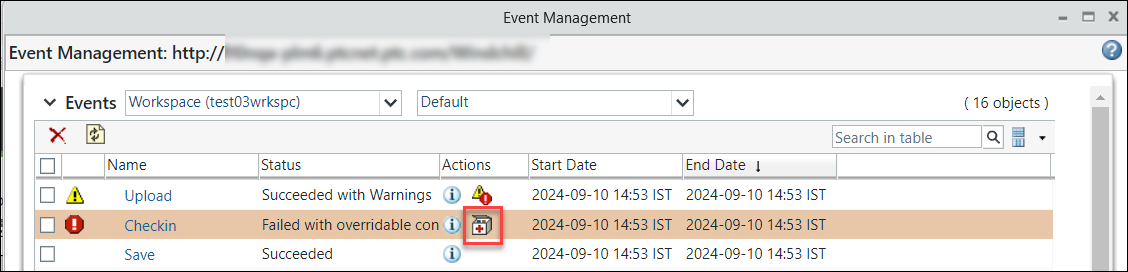
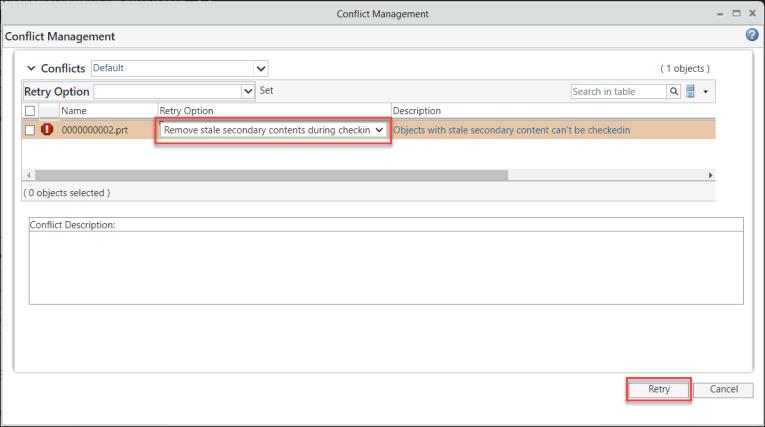
3. Under > , select Remove stale secondary contents during checkin and click Retry. This will remove the outdated attachment from the CAD Document.
Resetting the status and removing the Outdated flag
You can override conflict by resetting the status and removing the outdate flag as follows:
1. For the Check in failure message, click the link to see the Event Management console.
2. For the Checkin conflict row’s, Actions column, click Resolve Conflict icon
icon3. From the > , select Reset the outofdate status of secondary content and click Retry.
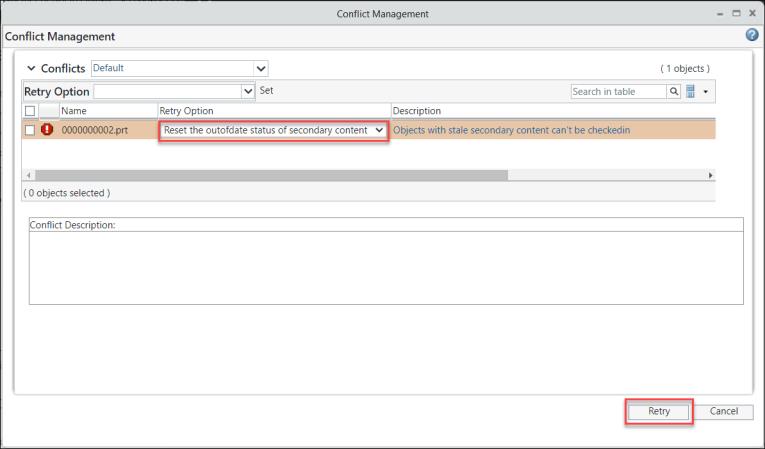
This action resets the status and removes the outdated flag for the secondary content.
Checking in the CAD document in as is state with an outdated status
You can override the conflict that arises in case of check in and then check in the document with Outdated status as follows:
1. For the checkin failure message, click the link to see the Event Management console.
2. For the Checkin conflict row’s, Actions column, click Resolve Conflict icon
icon3. From the > , select Ignore stale secondary contents during checkin and click Retry.
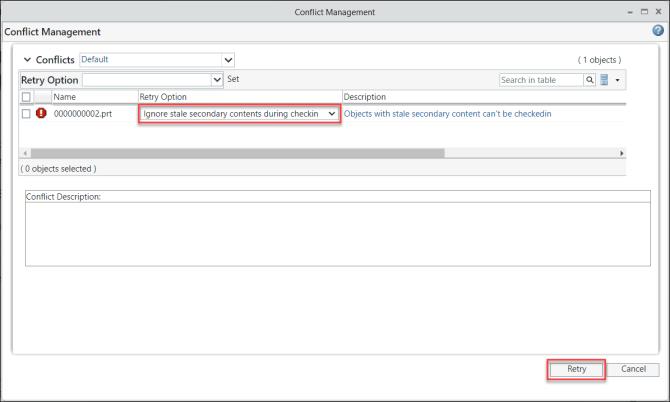
The CAD document in now in the as is state with an Outdated status.