Displaying Windchill Default System Attributes in the Specification Tree
To see a list of the attributes provided by Windchill, see Windchill Default System Attributes.
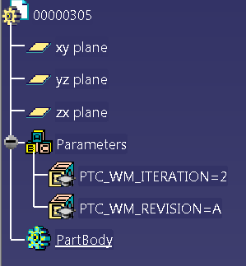
For CATDrawings, the Windchill default system attributes appear as parameters. If you have configured CATIA V5 to display the Parameters node, you can see these parameters in the specification tree. However, for CATParts and CATProducts, Windchill default system attributes are created as properties and do not appear in the specification tree. If you need this information to appear in the specification tree, you must create parameters that reference the properties that you want to display. To do so, perform the following steps:
1. With the CATPart or CATProduct selected, select > .
2. On the Formulas window, click New Parameter of type.
3. In the name field, type the Windchill default system attribute that you want to display, such as PTC_WM_ITERATION.
4. Click Add Formula.
5. From the Members of All list, double-click the property for the CATPart or CATProduct and then click OK.
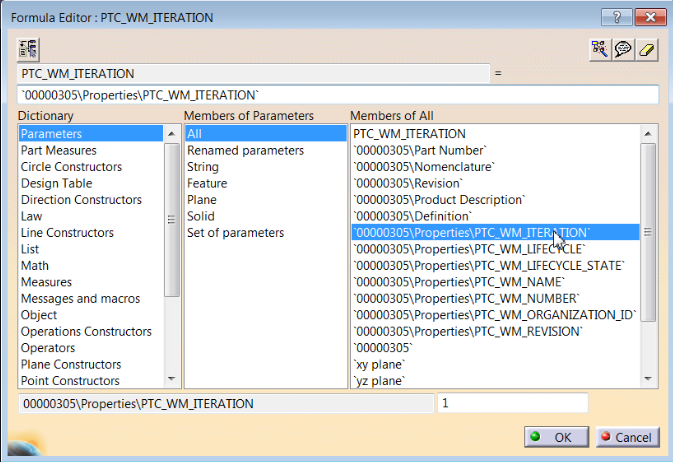
6. To display additional properties as parameters, repeat steps 2–5.
7. When you are done, click OK on the Formulas window.
The properties appear as parameters.