About Subcontract To Plant and Subcontract From Plant Columns
Subcontract information is displayed in the Subcontract To Plant and Subcontract From Plant columns in BOM Transformer. The Subcontract To Plant column displays the name of the plant to which the part is subcontracted. The Subcontract From Plant column displays the name of the plant from which the part is subcontracted. You must add these columns manually in upstream and downstream to view the status on the latest plant subcontract.
Consider that the following views are present in the View Administration dialog box:
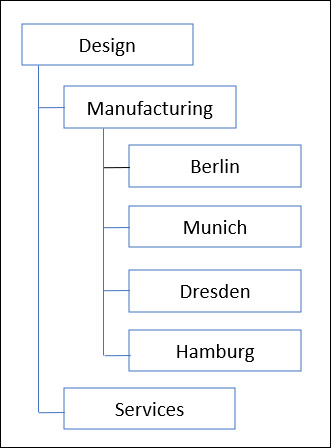
Berlin, Munich, Dresden, and Hamburg are sibling views. Manufacturing is considered to be a parent to all these views. Design is also considered to be a parent of Berlin, Munich, Dresden, and Hamburg views.
The following use cases provide you with an insight into the working of the Subcontract To Plant and Subcontract From Plant columns in BOM Transformer. Consider the following points before going through the use cases:
• In the upstream view, if you subcontract a part from a plant to its sibling plant, the system creates a new branch in the downstream view.
• In the upstream view, if you subcontract a part from a plant to its child plant, the system does not create a new branch in the downstream view. It reuses the same part
Use Case 1 — Subcontracting From Upstream to Peer View
1. Consider a part Part A, with the view set as Berlin, is opened in the upstream view of the BOM Transformer.
2. Use the  Assign Plant action to assign Berlin plant to part Part A. For more information, see Assigning a Plant to a Part.
Assign Plant action to assign Berlin plant to part Part A. For more information, see Assigning a Plant to a Part.3. In the BOM Transformer, the following configuration specifications are already set:
◦ For upstream — [Latest] Berlin, Working
◦ For downstream — [Latest] Munich, Working
4. Enable the Subcontract To Plant and Subcontract From Plant columns in the BOM Transformer to display the subcontract information.
5. In the upstream view of the BOM Transformer toolbar, click  Editing >
  Subcontract to Plants. The Subcontract to Plants dialog box opens.
Editing > Subcontract to Plants. The Subcontract to Plants dialog box opens.6. From the Subcontract to list, select Munich.
Berlin and Munich are sibling views.
7. Click OK.
Once you click OK, the system traverses through the structure present under Part 1 (Berlin). The system also refreshes the equivalent link indicators.
8. After completing the subcontracting process, the system creates a new branch of Part 1 (Berlin) in the Munich view. Because, Berlin and Munich are sibling views.
 | If you subcontract a part from a plant to its sibling plant, the system creates a new branch in the downstream view. |
In the upstream view, the value displayed for Part 1 (Berlin) in the Subcontract To Plant column is Munich. No value is displayed in the Subcontract From Plant column.
In the downstream view, the value displayed for Part 1 (Munich) in the Subcontract From Plant column is Berlin. No value is displayed in the Subcontract To Plant column.
Use Case 2 — Subcontracting From Upstream to Child View
1. Consider a part Part B, with view set as Manufacturing, is opened in the downstream view of the BOM Transformer.
2. Use the Open Part as Upstream BOM action in the upstream view to open the existing part in the upstream view. For more information, see Opening a Part as Upstream or Downstream BOM in Associative Structure Browsers.
3. In the BOM Transformer, the following configuration specifications are already set:
◦ For upstream — [Latest] Manufacturing , Working
◦ For downstream — [Latest] Berlin, Working
4. In the upstream view, use the Assign Plant action to assign plant Manufacturing to part Part B. For more information, see Assigning a Plant to a Part.
Assign Plant action to assign plant Manufacturing to part Part B. For more information, see Assigning a Plant to a Part.5. Enable the Subcontract To Plant and Subcontract From Plant columns in the BOM Transformer to display the subcontract information.
6. In the upstream view of the BOM Transformer toolbar, click Editing > Subcontract to Plants. The Subcontract to Plants dialog box opens.
Editing > Subcontract to Plants. The Subcontract to Plants dialog box opens.7. From the Subcontract to list, select Berlin.
Berlin is the child view of Manufacturing.
8. Click OK.
Once you click OK, the system traverses through the structure present under Part B (Manufacturing). The system also refreshes the equivalent link indicators.
9. After completing the subcontracting process, the system uses the part Part B (Manufacturing) as is in the downstream view.
| | If you subcontract a part from a plant to its child plant, the system does not create a new branch in the downstream view. The system uses the part as is in the downstream context. |
In the upstream view, the value displayed for Part B (Manufacturing) in the Subcontract To Plant column is Berlin. No value is displayed in the Subcontract From Plant column.
In the downstream view, the value displayed for Part B (Manufacturing) in the Subcontract From Plant column is Manufacturing. No value is displayed in the Subcontract To Plant column.
Use Case 3 — Subcontracting from Downstream to Child View
1. Consider a part Part C, with view set as Manufacturing, is opened in the downstream view of the BOM Transformer.
2. In the BOM Transformer, the following configuration specifications are already set:
◦ For downstream — [Latest] Manufacturing , Working
3. In the downstream view, use the Assign Plant action to assign plant Manufacturing to part Part C. For more information, see Assigning a Plant to a Part.
Assign Plant action to assign plant Manufacturing to part Part C. For more information, see Assigning a Plant to a Part.4. Enable the Subcontract To Plant and Subcontract From Plant columns in the BOM Transformer to display the subcontract information.
5. In the downstream view of the BOM Transformer toolbar, click Editing > Subcontract to Plants. The Subcontract to Plants dialog box opens.
Editing > Subcontract to Plants. The Subcontract to Plants dialog box opens.6. From the Subcontract to list, select Berlin.
Berlin is the child view of Manufacturing.
7. Click OK.
Once you click OK, the system traverses through the structure present under Part C(Manufacturing). The system also refreshes the equivalent link indicators. The system reuses the part in the downstream context
8. In the downstream view, the value displayed for Part C(Manufacturing) in the Subcontract To Plant column is Berlin. No value is displayed in the Subcontract From Plant column.
| | In the downstream view, if you change the configuration specification to [Latest] Berlin , Working, the value displayed for Part C(Manufacturing) in the Subcontract From Plant column is Manufacturing. No value is displayed in the Subcontract To Plant column. |
Use Case 4 — Subcontracting from Downstream View to Peer View
1. Consider a part Part D, with view set as Berlin, is opened in the downstream view of the BOM Transformer.
2. In the BOM Transformer, the following configuration specifications are already set:
◦ For downstream — [Latest] Berlin, Working
3. Use the Assign Plant action to assign Berlin plant to part Part D. For more information, see Assigning a Plant to a Part.
Assign Plant action to assign Berlin plant to part Part D. For more information, see Assigning a Plant to a Part.4. Enable the Subcontract To Plant and Subcontract From Plant columns in the BOM Transformer to display the subcontract information.
5. In the upstream view of the BOM Transformer toolbar, click Editing > Subcontract to Plants. The Subcontract to Plants dialog box opens.
Editing > Subcontract to Plants. The Subcontract to Plants dialog box opens.6. From the Subcontract to list, select Munich.
Berlin and Munich are sibling views.
7. Click OK.
Once you click OK, the system traverses through the structure present under Part D (Berlin). The system also refreshes the equivalent link indicators.
The system reuses the existing part.
In the downstream view, the value displayed for Part D (Berlin) in the Subcontract To Plant column is Munich. No value is displayed in the Subcontract From Plant column.
| | In the downstream view, if you change the configuration specification to [Latest] Munich , Working, the value displayed for Part D(Berlin) in the Subcontract From Plant column is Berlin. No value is displayed in the Subcontract To Plant column. |