Generating Manufacturing Structures Using Routing Plan or Process Plan
Perform the following steps to generate manufacturing structures using a routing plan or process plan.
1. In BOM Transformer, select one or more parts from the upstream structure and then right-click and select  Initialize Manufacturing Structures.
Initialize Manufacturing Structures.The Initialize Manufacturing Structures dialog box opens. It displays a set of rows for the selected parts, where you can provide details for the structures to be generated.
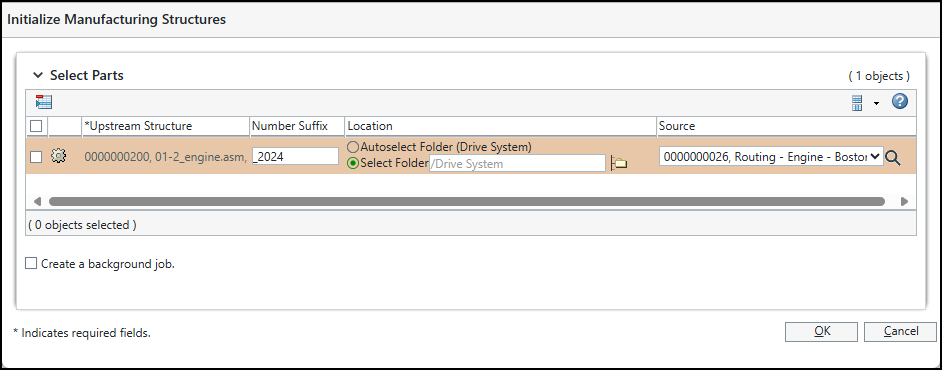
2. Specify the following details for each part:
◦ A number suffix that should be appended to the generated parts, process plan, and routing plan number.
◦ The location where the generated process plan, routing plan, and parts should be saved.
◦ The routing plan or process plan that can be used as the source for generating the structures. The Source list is populated based on the source associated with the upstream part selected in step 1. If the part is associated with a routing plan and a process plan, the Source list displays only the routing plan. However, if the part is not associated with a routing plan, the list display the associated process plan.
You can select a source from the list or click  to search for other source objects. To change the type of objects displayed in the Source list, click Add/Update in the Find Source dialog box.
to search for other source objects. To change the type of objects displayed in the Source list, click Add/Update in the Find Source dialog box. | • You cannot use the same source and suffix combination for multiple parts. Specify a different source or a unique suffix for each part. You can use the same source without providing a suffix. • When multiple source objects are applicable to the selected upstream part, the Source list is populated without a default selection. To proceed, you need to select a source from the list. If only one source object is applicable, it is displayed automatically. • When you access the Initialize Manufacturing Structures action from the process plan opened in the routing plan context, that routing plan is displayed by default. • An administrator can customize the default logic to control the source objects displayed in the Source list. For more information, see Customizing the Source Template for Generating Manufacturing Structures. |
3. Optionally, create a background job. When working on large structures, you can select Create a background job to generate the structures in the background. This allows you to continue working without waiting for completion.
Administrators can monitor the job status in MPM_Publish_Queue under > > .
If email is configured, the user who initiated the job will receive an email notification upon job completion.
4. Click OK to generate the structures.
If you selected the source from the list displayed in the Find Source dialog box, a warning message appears indicating that the selected source may not be associated with the upstream structure. You can click OK to proceed.
An error message appears if there are multiple mBOM structures associated with the selected source. The manufacturing structures cannot be generated in this case.
If successful, the structures are generated based on the source you selected in the Initialize Manufacturing Structures dialog box. For more information, see Structures Generated Using Routing Plan, Structures Generated Using Process Plan.